
Aeronautics Playground
Featuring create aeronautics, aeronautics add-ons, distant horizons, minimal vanilla enhancement and optimization mods
Screenshots
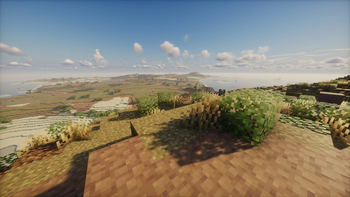
About this Modpack
Minimal sandbox oriented modpack for experimenting with the new create aeronautics mod with multiplayer compatibility in mind. This could be creating airplanes, offroad mining vehicles, submarines you name it. Distant horizons, terrain generation, optimizations and other shader eye candy is included for convenience.
Note that aeronautics plus addons are new mods, some of which could be unstable and the same can be said about this modpack. I included the bleeding edge version of mods where possible to keep up with the hype. Opinionated addons such as sable: collision damage (contraption breaking mechanism) has been included.
Suggested java arguments for distant horizons: -XX:+UseZGC (related to chat warning)
Tested with 8GB memory.
If you see striped pattern on unloaded landscapes, use FULL mode in distant horizons world generator settings as explained in this post
On server it's suggested to use /dh pregen start overworld 0 0 300 to pregen 300 chunk radius world, in singleplayer after world generation keep the game running and DH should do the rest.
Available Versions
How to Set Up a Aeronautics Playground Server
Order Server
Choose at least 6 GB RAM (8 GB recommended for Aeronautics Playground). Based on player count: per 5 players.
Install Modpack in Dashboard
Open the modpack browser in the dashboard, search for "Aeronautics Playground" and click "Install". The neoforge loader and Minecraft 1.21.1 are configured automatically.
Start Server & Play
Start the server – all mods are loaded automatically. Share the server IP with friends and play together!
Frequently Asked Questions
Aeronautics Playground server crashes or won't start – what to do?
Most common causes: insufficient RAM or wrong neoforge loader. Check latest.log for "OutOfMemoryError" → increase RAM to at least 8 GB. For "Mixin" or "ClassNotFoundException" errors: modpack version and loader don't match. With Mado Hosting, loader and Minecraft version are auto-configured on modpack install – preventing most startup issues.
How much RAM does a Aeronautics Playground server really need?
Minimum 6 GB, recommended 8 GB for stable performance. per 5 players. Important: Minecraft modpacks need more RAM than vanilla – plan extra per additional player. With Mado Hosting, you can scale RAM up live at any time without data loss (from €12/month).
Can I add custom mods to Aeronautics Playground without conflicts?
Yes, but check compatibility: only use mods for the same loader (neoforge) and same Minecraft version (1.21.1). Common issues: ID conflicts with recipe mods and incompatible coremod versions. The Mado dashboard mod browser only shows compatible mods and warns about known conflicts.
Aeronautics Playground server lagging – performance tips
1) Increase RAM to 8 GB+. 2) Reduce server view-distance to 8 (server.properties). 3) Pre-generate chunks with the "Chunky" plugin. 4) Use /spark profiler to check which mods consume the most tick time. With Mado Hosting, all servers run on NVMe SSDs with dedicated CPU cores – eliminating hardware as a bottleneck.
Similar Modpacks
![Cobblemon Official Modpack [Fabric]](https://cdn.modrinth.com/data/5FFgwNNP/e7f9ee2e9d361623847853fe2ddce42f519ee64f.png)
![COBBLEVERSE - Pokemon Adventure [Cobblemon]](https://cdn.modrinth.com/data/Jkb29YJU/581ecf54530972afb18a04660afd820f2f24f6c7.png)
![Better MC [FABRIC] - BMC2](https://cdn.modrinth.com/data/shFhR8Vx/a19c2bcb51d38f32f138d3607e91cb2b7b8e387f_96.webp)


![Better MC [FORGE] - BMC4](https://cdn.modrinth.com/data/4BV47HRn/7f5ef7cc61b2593609aabef3ed07a866a4f11b73_96.webp)
Rent Aeronautics Playground Server
Start your own server with automatic modpack installation.
Supported Versions
Start your Aeronautics Playground Server now
From €12.00/month with 8 GB RAM for the best performance.
Configure Server →