
Create: Superflat
A cool modpack that allows you to play create in a superflat world
Screenshots
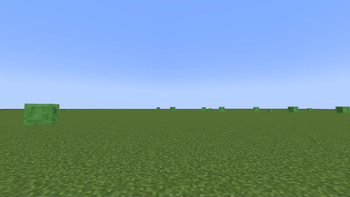
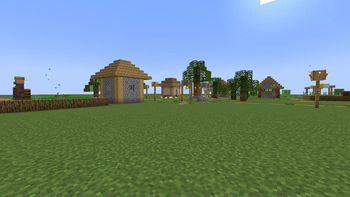
About this Modpack
Since there aren't any good superflat create modpacks out there, I decided to make my own
INSTRUCTIONS
- Run this modpack and create a new world. You won't use this world, it's just to create the "saves" folder
- Create a new superflat world with structures in an unmodded instance of Minecraft in 1.17.
- Open file explorer (finder on mac), and navigate to (User)>Appdata>Roaming>.minecraft>saves>(whatever you named your world)
- Click on the folder button next to the play button in the Modrinth app
- Open the "saves" folder
- Move the world folder to the "saves" folder associated with this modpack
- Enjoy!
IMPORTANT
Sometimes when you open a world, you will get a red message that says. "KubeJS errors found!", or some variation. If this happens, simply type "/reload". If this continues, please submit an issue on the github repository.
PLANNED FEATURES
- Ability to get pottery sherds
- Ability to get smithing templates that currently are impossible to get
- Ability to get different types of frogs, goats, sniffer eggs, ice, snow, axalotls, rabbits, mycelium, and glow lichen
- AN ACTUAL PROGRESSION SYSTEM
- easter eggs lol
Available Versions
How to Set Up a Create: Superflat Server
Order Server
Choose at least 6 GB RAM (8 GB recommended for Create: Superflat). Based on player count: per 5 players.
Install Modpack in Dashboard
Open the modpack browser in the dashboard, search for "Create: Superflat" and click "Install". The forge loader and Minecraft 1.20.1 are configured automatically.
Start Server & Play
Start the server – all mods are loaded automatically. Share the server IP with friends and play together!
Frequently Asked Questions
Create: Superflat server crashes or won't start – what to do?
Most common causes: insufficient RAM or wrong forge loader. Check latest.log for "OutOfMemoryError" → increase RAM to at least 8 GB. For "Mixin" or "ClassNotFoundException" errors: modpack version and loader don't match. With Mado Hosting, loader and Minecraft version are auto-configured on modpack install – preventing most startup issues.
How much RAM does a Create: Superflat server really need?
Minimum 6 GB, recommended 8 GB for stable performance. per 5 players. Important: Minecraft modpacks need more RAM than vanilla – plan extra per additional player. With Mado Hosting, you can scale RAM up live at any time without data loss (from €12/month).
Can I add custom mods to Create: Superflat without conflicts?
Yes, but check compatibility: only use mods for the same loader (forge) and same Minecraft version (1.20.1). Common issues: ID conflicts with recipe mods and incompatible coremod versions. The Mado dashboard mod browser only shows compatible mods and warns about known conflicts.
Create: Superflat server lagging – performance tips
1) Increase RAM to 8 GB+. 2) Reduce server view-distance to 8 (server.properties). 3) Pre-generate chunks with the "Chunky" plugin. 4) Use /spark profiler to check which mods consume the most tick time. With Mado Hosting, all servers run on NVMe SSDs with dedicated CPU cores – eliminating hardware as a bottleneck.
Similar Modpacks

![Cobblemon Official Modpack [Fabric]](https://cdn.modrinth.com/data/5FFgwNNP/e7f9ee2e9d361623847853fe2ddce42f519ee64f.png)
![COBBLEVERSE - Pokemon Adventure [Cobblemon]](https://cdn.modrinth.com/data/Jkb29YJU/581ecf54530972afb18a04660afd820f2f24f6c7.png)
![Better MC [FABRIC] - BMC2](https://cdn.modrinth.com/data/shFhR8Vx/a19c2bcb51d38f32f138d3607e91cb2b7b8e387f_96.webp)


Rent Create: Superflat Server
Start your own server with automatic modpack installation.
Details
- License
- Creative Commons Attribution Share Alike 4.0 International
- Server-side
- Required
- Client-side
- Required
Supported Versions
Start your Create: Superflat Server now
From €12.00/month with 8 GB RAM for the best performance.
Configure Server →