
Vivid Motions
Dynamic Animations & Immersive Actions to Minecraft.
Screenshots
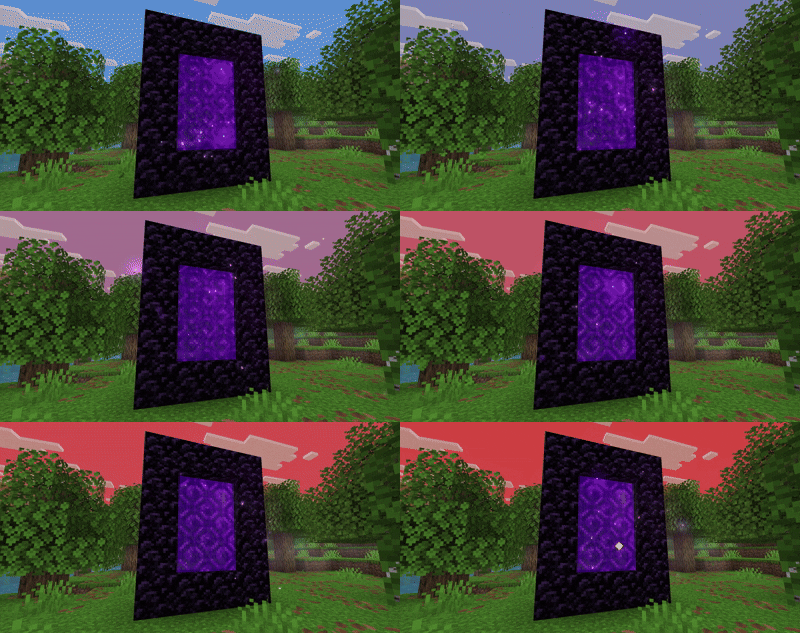
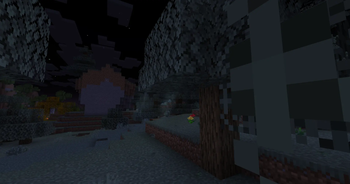
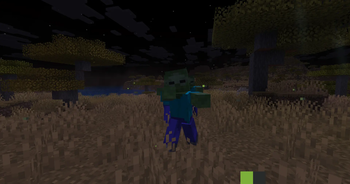
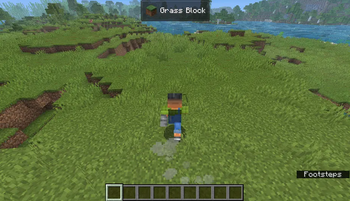
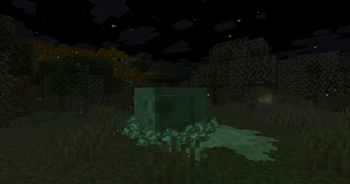
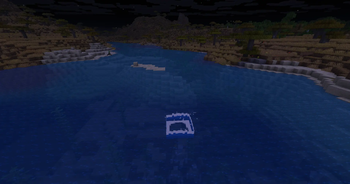
About this Modpack

Vivid Motions: Java Edition
Every move feels real
Vivid Motions makes Minecraft Java feel alive.
Your character moves smooth. Tools swing with weight. Eating looks real. Mobs act alive. Everything just feels better.
What it does:
- You move naturally — no stiff arms or legs
- Items in your hand look 3D and move when you do
- Mobs walk, bounce, and react like real animals
- Lights are smooth, like in optifine
Mods and Resource-packs used:
Expand Full List
- Chat Animation [Smooth Chat]
- Enchantment Glows
- Fresh Animations
- Hold My Items
- Subtle Effects
- Fabric Language Kotlin
- Lithium
- AppleSkin
- Not Enough Animations
- Cloth Config API
- Tiny Pickup Animation
- Jade 🔍
- Fzzy Config
- Visual Effects+
- Fancy Toasts | Better Advancements
- Colourful containers GUI
- YetAnotherConfigLib (YACL)
- [ETF] Entity Texture Features
- [EMF] Entity Model Features
- oωo (owo-lib)
- Visuality
- Mod Menu
- Particular ✨ Reforged
- Particle Effects
- Particle Interactions
- Fabric API
- Polytone
- Model Gap Fix
- Smooth Bow Animations
- Smooth Swapping
- Smooth Gui
- Better Animations
- VTDownloader
- Fresh Buckets
- Animated Items
- Mouse Tweaks
- LambDynamicLights - Dynamic Lights
- Animated Typing
- Boat Item View
- Effect Timer Plus
- 3D Armor
- Better Statistics Screen
- Drodi's Illagers x Fresh Animation
- Cave Dust
- Tiny Item Animations
- BetterF3
- Blur+
- Enchantment Descriptions
- Shulker Box Tooltip
- Better Third Person
- Accurate Block Placement Reborn
- Sound Physics Remastered
- Wavy Water
- Better Mount HUD
- Eating Animation
- Creeper Recrafted:FA
Steps to install:
Modrinth App [Recommended]
- Open the Modrinth App and log in if needed.
- Click the "+" (Add Instance) button in the top-left.
- Select "Import Modpack" from the dropdown.
- Browse your files and select the .mrpack file.
- Choose your Minecraft version (if prompted) and click "Import."
- Once done, launch the new instance from the main list.
The launchers below require a zip file, then an .mrpack.
Please use an online converter for them.
Curseforge App
- Open the CurseForge App > Minecraft tab.
- Click "Create Custom Profile" (top-right, next to the search bar).
- In the pop-up, select "Import" > Choose "From .zip file".
- Browse to your .zip (e.g., VividMotions.zip) > Select it.
- Name the profile (e.g., "Vivid Motions") > Click "Create".
- Review mods in the profile editor if needed (e.g., tweak configs) > Hit "Play"
Prism Launcher
- Open Prism Launcher.
- Click "Add Instance" (or right-click in the instances list > Create Instance).
- In the dialog, go to the "Import from zip" tab.
- Paste the URL to the .mrpack (if online) or click the folder icon to select your local .mrpack file.
- Select the Minecraft version if prompted, then click "OK" to import.
- Edit mods/configs if needed, then launch.
ATLauncher
- Open ATLauncher.
- Go to the "Packs" tab on the left sidebar.
- Click "Import" at the bottom of the packs list.
- Select "Local Pack" or "From File," then browse and choose your .mrpack file.
- ATLauncher will detect it as a modpack—name the instance and click "Import."
- Wait for download/extraction, then launch from the instances list.
MultiMC / PolyMC
- Open MultiMC (or PolyMC fork).
- Click "Add Instance" > Select "Import from zip."
- Enter the local path to your .mrpack file.
- MultiMC will parse the .mrpack—confirm Minecraft version and click "OK."
- The instance appears in the list—edit jars/mods if prompted, then launch.
Other Launchers(Buttons may vary)
- Convert .mrpack to .zip
- Extract the .zip file
- Open %appdata% and go to .minecraft
- Drag the files in the Resource pack folder from the .zip to the Resource pack folder in .minecraft
- Drag the files in the Mods folder from the .zip to the Mods folder in .minecraft
- Open your launcher and create a new instance
- Select your version and click "Play"
Copyright ©
We do not own the mods. All credit goes to the mod creators. I just put them together.
Available Versions
How to Set Up a Vivid Motions Server
Order Server
Choose at least 6 GB RAM (8 GB recommended for Vivid Motions). Based on player count: per 5 players.
Install Modpack in Dashboard
Open the modpack browser in the dashboard, search for "Vivid Motions" and click "Install". The fabric loader and Minecraft 1.21.5 are configured automatically.
Start Server & Play
Start the server – all mods are loaded automatically. Share the server IP with friends and play together!
Frequently Asked Questions
Vivid Motions server crashes or won't start – what to do?
Most common causes: insufficient RAM or wrong fabric loader. Check latest.log for "OutOfMemoryError" → increase RAM to at least 8 GB. For "Mixin" or "ClassNotFoundException" errors: modpack version and loader don't match. With Mado Hosting, loader and Minecraft version are auto-configured on modpack install – preventing most startup issues.
How much RAM does a Vivid Motions server really need?
Minimum 6 GB, recommended 8 GB for stable performance. per 5 players. Important: Minecraft modpacks need more RAM than vanilla – plan extra per additional player. With Mado Hosting, you can scale RAM up live at any time without data loss (from €12/month).
Can I add custom mods to Vivid Motions without conflicts?
Yes, but check compatibility: only use mods for the same loader (fabric) and same Minecraft version (1.21.5). Common issues: ID conflicts with recipe mods and incompatible coremod versions. The Mado dashboard mod browser only shows compatible mods and warns about known conflicts.
Vivid Motions server lagging – performance tips
1) Increase RAM to 8 GB+. 2) Reduce server view-distance to 8 (server.properties). 3) Pre-generate chunks with the "Chunky" plugin. 4) Use /spark profiler to check which mods consume the most tick time. With Mado Hosting, all servers run on NVMe SSDs with dedicated CPU cores – eliminating hardware as a bottleneck.
Similar Modpacks

![Better MC [FABRIC] - BMC2](https://cdn.modrinth.com/data/shFhR8Vx/a19c2bcb51d38f32f138d3607e91cb2b7b8e387f_96.webp)
![Better MC [FORGE] - BMC4](https://cdn.modrinth.com/data/4BV47HRn/7f5ef7cc61b2593609aabef3ed07a866a4f11b73_96.webp)


Rent Vivid Motions Server
Start your own server with automatic modpack installation.
Supported Versions
Start your Vivid Motions Server now
From €12.00/month with 8 GB RAM for the best performance.
Configure Server →