
The Admin Tool
A device that opens a menu with a lot of useful options
Screenshots

About this Mod

The Admin Tool
- An advanced and user-friendly in-game interface designed for both server admins and singleplayer users.
▶️ The Tool

▶️ How to use
You can get a dedicated Admin Tool item to access all menus from your hotbar (Creative only).
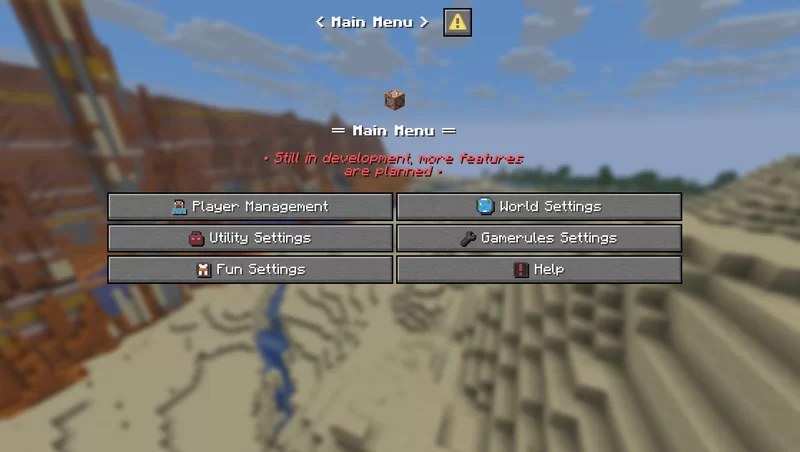
Run this command to open the admin tool main menu:
/dialog show @s admin_tools:main_menu
To get the Admin Tool item (Creative only):
/function admin_tools:1_give_admin_tool
Note: In Datapack Version, the resource pack is required to display the Admin Tool correctly.
▶️ Current Features
■ Player Settings
Ban a player
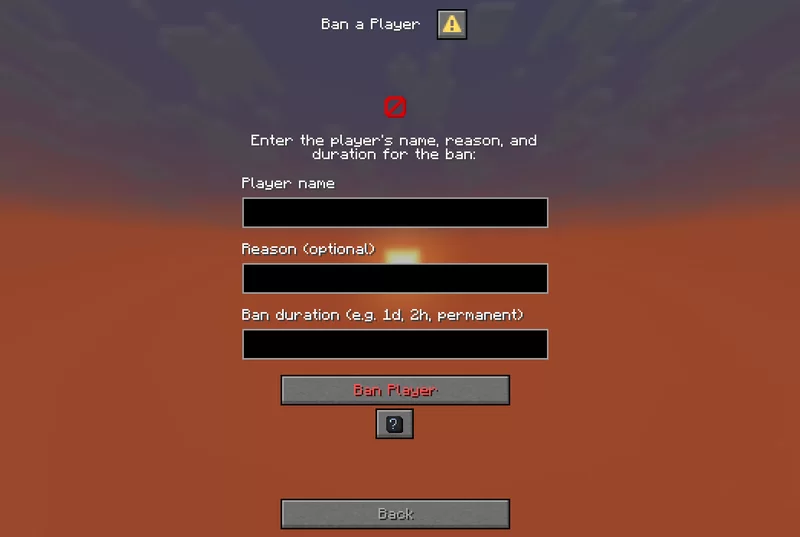
Allows banning a player by entering their name, reason, and duration.
Kick a player

Disconnects a specified player from the server without banning them.
Kill a player

Kills a specified player instantly using the /kill command.
Apply effect

Apply potion effects to yourself or another player, choosing effect type, duration, and level.
Apply effect (advanced)

Allows applying a custom potion effect to yourself or another player by setting effect ID, duration, and level.
Gamemode switcher

Switch gamemode for yourself or others quickly.
Teleport to player / location

Teleports you to a specified player or coordinates by entering the exact player name or position.
Modify player attributes

Modify a player’s attribute base value by selecting the player, attribute, and new value
Set player spawnpoint

Set a player’s spawnpoint by specifying the player and coordinates X, Y, Z.
Give Armor Kit

Select an armor kit material and give it to the targeted player.
■ World Settings
Time changer

Set the time of day by choosing ticks.
Weather changer

Set custom weather type and duration in ticks.
Set world spawn

Set the global spawn point by entering X, Y, Z coordinates.
Difficulty changer

Select the world difficulty (peaceful, easy, normal, hard).
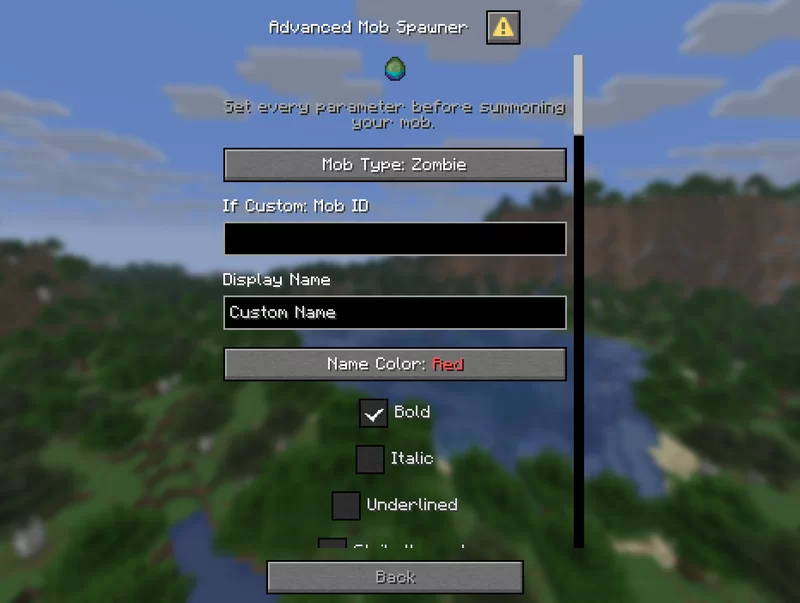
Advanced mob spawner

Summon a mob with detailed options: name, attributes, equipment, effects, size, visibility, and more.
Mob control

Spawn or kill selected mobs easily by choosing the mob type and amount.
Modify entity attributes

Edit the base attribute value of the nearest mob within 10 blocks.
Set Custom Mob Spawner

Configure a custom mob spawner by adjusting spawn parameters, equipment, effects, and custom light conditions.
■ Utility Settings
Broadcast title

Send global announcements with formatted messages.
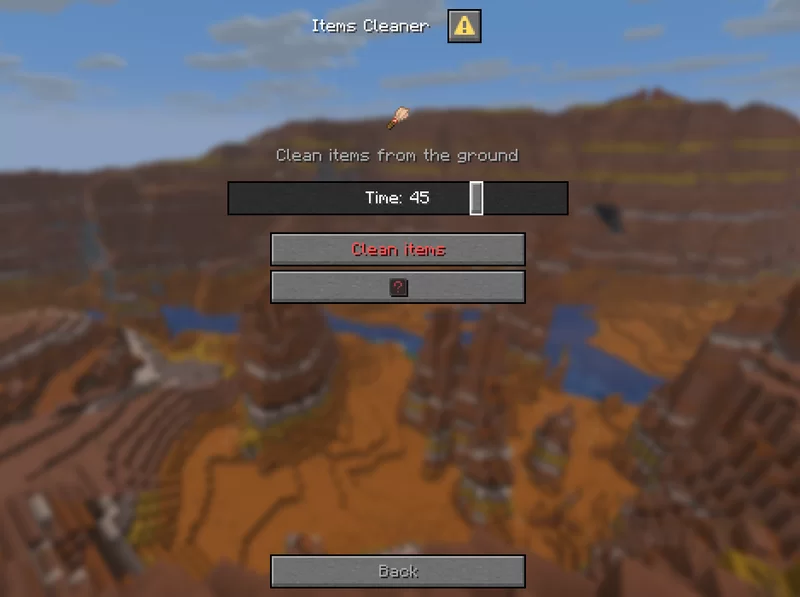
Items cleaner

Removes dropped items.
Custom item creator

Create custom items with names, lore, enchantments, and attribute modifiers.
Dimension switcher

Select a dimension to teleport to. Custom IDs allowed.
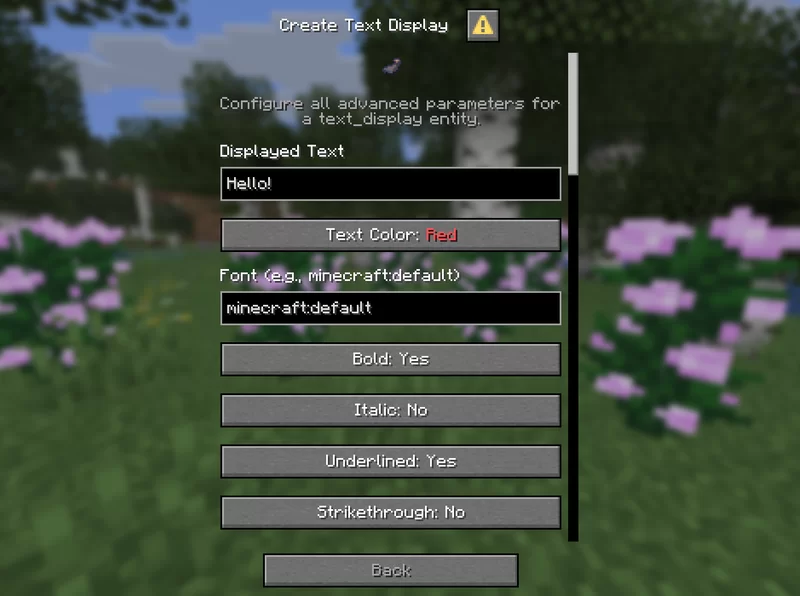
Create text display

Create text_display entities with full control over text style, alignment, size, color, visibility, rotation, and more.
Edit text display

Edit existing text_display entities in the world directly.
Teams manager:
Create a team

Delete a team

Manage team members

Edit team settings

Show team list

■ Quick Settings:
Set Ranks

Set predefined ranks easily (just visual prefix, not perms).
■ Fun Settings
Explosion generator

Generate TNT with adjustable explosion power and fuse timer.
■ Gamerules Settings
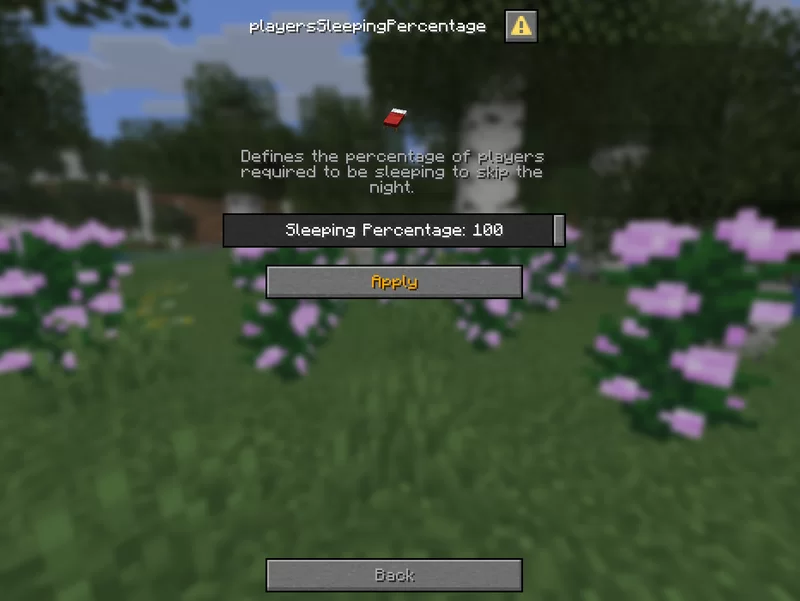
Toggle gamerules through categorized menus with activate/deactivate options:
Gamerules menu

■ Help Menu
- Contains information and tips about how to use every menu
Help dialog example

▶️ Details
- Perfect for adventure map creators, server operators, or singleplayer users who want control without commands
- Still in development – new tools and menu categories will be added in future updates
- Suggestions, bug reports, and feature requests are welcome!
Available Versions
How to Install The Admin Tool on Your Server
Order Server
Order a Minecraft Java server with at least 3 GB RAM (4 GB recommended).
Set datapack Loader
In the panel under "Egg", select the datapack loader and matching Minecraft version (1.21.11).
Install Mod
Open the mod browser in the dashboard and search for "The Admin Tool". Click "Install" – done! Alternatively, upload the .jar via SFTP to the /mods folder.
Compatibility
Mod Loaders
Minecraft Versions
1.21.11, 1.21.7, 1.21.6 (+4 more)
Server-side
✓ RequiredRecommended RAM
4 GB(min. 3 GB)Frequently Asked Questions
The Admin Tool server crashes on startup – what to do?
Most common cause: wrong datapack version or insufficient RAM. Check the server log (latest.log) for "OutOfMemoryError" or "Mixin" errors. With Mado Hosting: ensure at least 3 GB RAM is allocated and the loader matches the mod version (1.21.11). You can switch loaders with one click in the panel.
Is The Admin Tool compatible with datapack and fabric and forge and neoforge and quilt?
The Admin Tool officially supports datapack, fabric, forge, neoforge, quilt for Minecraft 1.21.11, 1.21.7, 1.21.6. Note: Forge and Fabric mods are NOT cross-compatible – pick one loader and stick with it. The Mado dashboard automatically detects incompatible loader combinations.
Server lagging with The Admin Tool – how to optimize performance?
Recommended RAM: 4 GB (per 8 players). Use /spark profiler to check if The Admin Tool consumes the most tick time. Common fixes: reduce server view-distance to 8-10, install "performant" or "starlight" as supplementary mods on Forge. With Mado Hosting, your server runs on NVMe SSDs with dedicated CPU cores for minimal latency.
Similar Mods






Rent Modded Server
Install The Admin Tool with just one click on your server.