
Gooseboy
Run games and applications inside of Minecraft!
Screenshots

About this Mod
Gooseboy
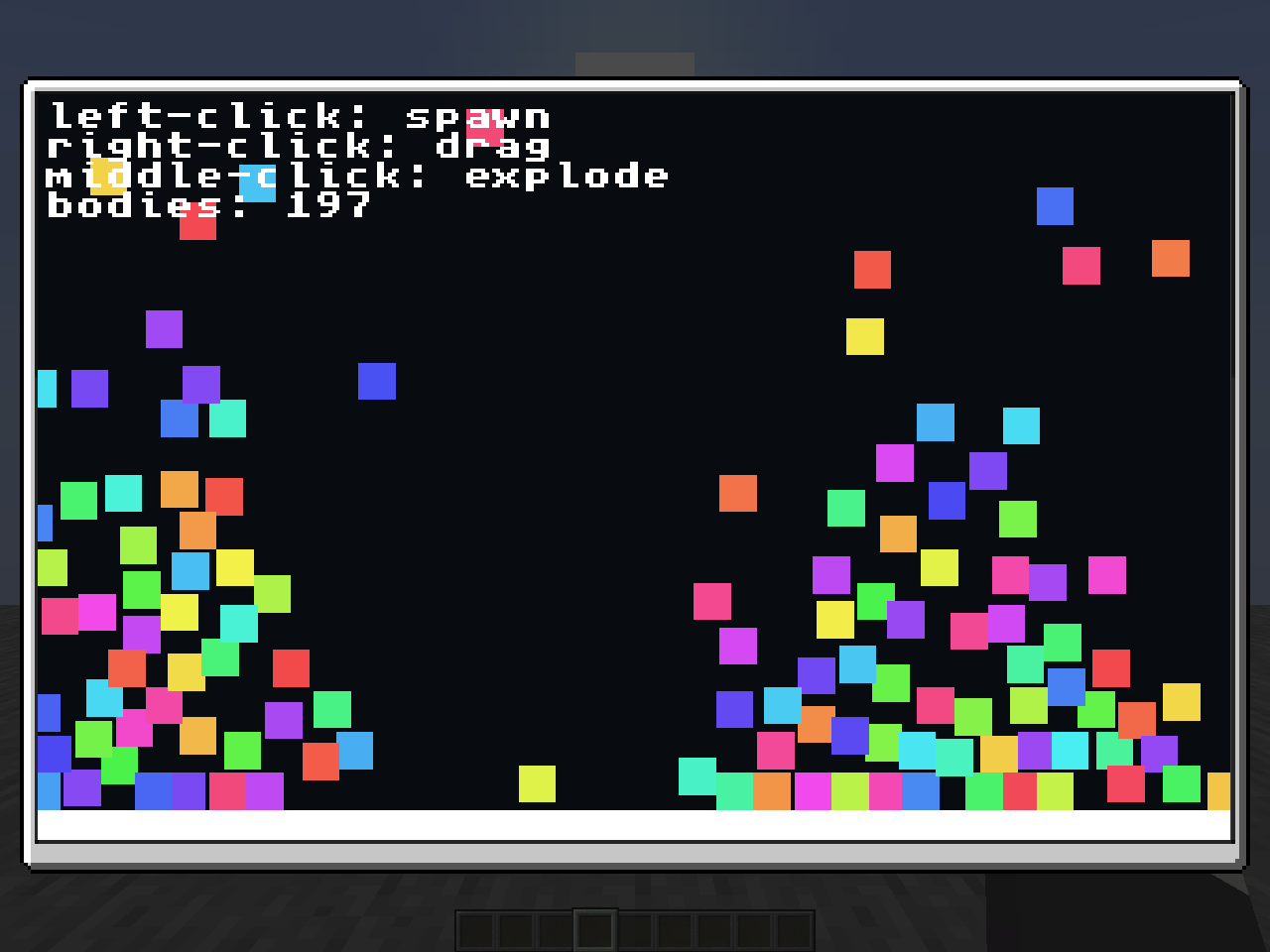
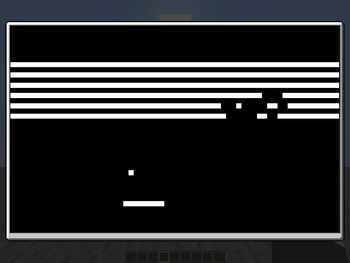
A tiny game console inside Minecraft

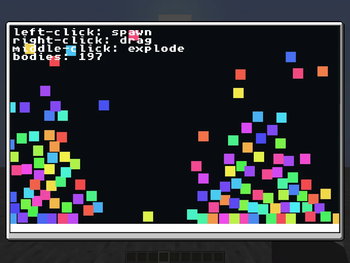
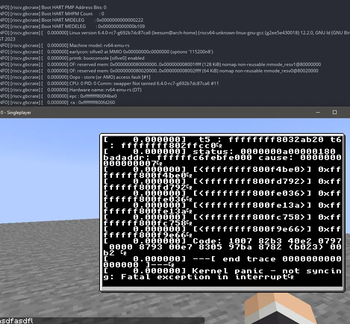
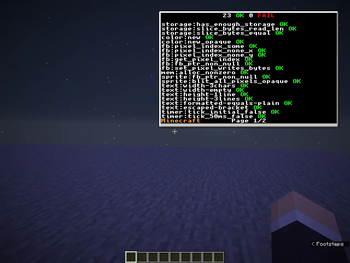
This mod allows you to run WebAssembly scripts inside Minecraft on the client safely, allowing the creation of games, programs, and whatever your heart desires.
Note: Scripts are called crates in Gooseboy
Features
- Run games and applications inside Minecraft with minimal performance impact
- Make games and applications using Rust and the standard library
- Per-crate permission control and storage
- Crate support for playing any audio, without reloading the game
Permissions
Every crate by default has very minimal permissions to only the console and the mouse, you can change the permissions for each crate by opening the settings of the crate.
The full list of permissions are as follows:
- CONSOLE: Allows the crate to log messages to the console.
- AUDIO: Allows the crate to play sounds and/or music, with any audio.
- INPUT_KEYBOARD: Allows the crate to know if you pressed a key.
- INPUT_MOUSE: Allows the crate to know if you clicked with your mouse.
- INPUT_MOUSE_POS: Allows the crate to know the position of your mouse, adjusted to the region of the screen.
- INPUT_GRAB_MOUSE: Allows the crate to hide the mouse and lock it to the center
- STORAGE_READ: Allows the crate to read from that crate's storage.
- STORAGE_WRITE: Allows the crate to write to its storage.
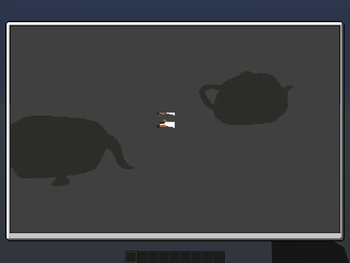
- GPU: Allows the crate to render in 3D, only inside the frame.
Security
Crates are run using the Java Chicory WASM runtime.
For security, crates can't:
- access or modify Minecraft's state (e.g. where other players are in-game)
- access or modify other crates' storage
- access or modify your files
- render onto the world
- run in the background
- read your keyboard or mouse inputs outside of the game
- use your internet or communicate with any server
- run java code
If you’ve found a crate that can bypass these restrictions, please report it
via GitHub.
How-to open the crates menu
Go in-game, and press M. (you can change the keybinding in the Controls options if you'd like to!)
Where-to find crates
You can find the official example crates here
How-to add a crate
You can add crates by moving them to the crates folder. You can open the crates folder from the menu by pressing the "
Open crates folder location" button at the bottom.
How-to create crates
You can make crates in any language that compiles to WebAssembly (WASI is unsupported due to security concerns).
The recommended language to use is Rust, and so
the standard library is made in Rust as well.
An example crate is as follows:
#![no_main]

use gooseboy::framebuffer::{get_framebuffer_width, init_fb};
use gooseboy::text::{draw_text, get_text_width};
use gooseboy::{color::Color, framebuffer::clear_framebuffer};

// Every crate has to have a main function, make sure to decorate it
// with gooseboy::main though, or else the crate won't start
#[gooseboy::main]
fn main() {
    // Initializes the framebuffer, you are required to initialize this
    // here if you plan to draw to the screen (which is very likely)
    init_fb();
}

// This is also required in every crate, the gooseboy::update is required
// here too, this function runs X times per second where X is equal to your
// maximum framerate in the options
#[gooseboy::update]
fn update(nano_time: i64) {
    // Clear out the screen, erasing everything that was there previously
    clear_framebuffer(Color::BLACK);

    // Initialize the string we want to draw to the screen, You can also use Rust's
    // String type here, with the caveat of having to clone it at draw_text
    let text = "Hello, world!";
    // Convert the time from nanoseconds to seconds
    let time_sec = nano_time as f64 / 1_000_000_000.0;
    // Get the position of the right corner and subtract the width of the text
    // to make the text fit into the screen, You can also use draw_text_wrapped
    // to automatically wrap text if it passes the end of the framebuffer
    let right_corner = (get_framebuffer_width() - get_text_width(text)) as f64;
    // Gets us an X position that smoothly moves from the left to the right using sine
    let x_pos = ((time_sec.sin() * 0.5 + 0.5) * (right_corner - 1.0)) as usize;

    // Finally, draw the text with the red color (or use Color::new(r, g, b, a) or Color::new_opaque(r, g, b))
    draw_text(x_pos, 0, text, Color::RED);
}
Contributing
Want to help improve Gooseboy? Contributions are welcome! You can find the standard
library here and the
CLI here and the Java
mod here!
Available Versions
How to Install Gooseboy on Your Server
Order Server
Order a Minecraft Java server with at least 3 GB RAM (4 GB recommended).
Set fabric Loader
In the panel under "Egg", select the fabric loader and matching Minecraft version (1.21.10).
Install Mod
Open the mod browser in the dashboard and search for "Gooseboy". Click "Install" – done! Alternatively, upload the .jar via SFTP to the /mods folder.
Compatibility
Mod Loaders
Minecraft Versions
1.21.10
Server-side
✗ UnsupportedRecommended RAM
4 GB(min. 3 GB)Frequently Asked Questions
Gooseboy server crashes on startup – what to do?
Most common cause: wrong fabric version or insufficient RAM. Check the server log (latest.log) for "OutOfMemoryError" or "Mixin" errors. With Mado Hosting: ensure at least 3 GB RAM is allocated and the loader matches the mod version (1.21.10). You can switch loaders with one click in the panel.
Is Gooseboy compatible with fabric?
Gooseboy officially supports fabric for Minecraft 1.21.10. The Mado dashboard automatically detects incompatible loader combinations.
Server lagging with Gooseboy – how to optimize performance?
Recommended RAM: 4 GB (per 8 players). Use /spark profiler to check if Gooseboy consumes the most tick time. Common fixes: reduce server view-distance to 8-10, install "performant" or "starlight" as supplementary mods on Forge. With Mado Hosting, your server runs on NVMe SSDs with dedicated CPU cores for minimal latency.
Similar Mods




Rent Modded Server
Install Gooseboy with just one click on your server.