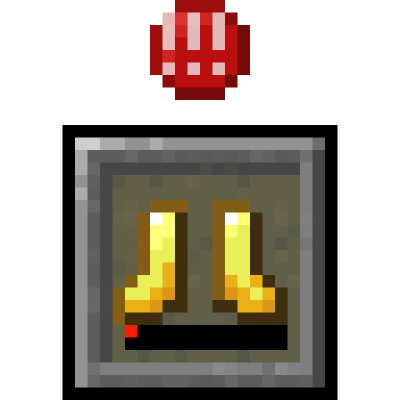
guy's Armor HUD
Adds a vanilla-like widget that shows your armor items and a warning if durability is too low. Originally by BerdinskiyBear, then forked by uku made multiloader by AnAwesomGuy.
About this Mod
guy's Armor HUD
Minecraft mod that adds a HUD widget that shows your current armor items.
This mod adds a minimalistic vanilla-like widget that shows your armor items and a warning if durability is low enough.
While other mods expect the player to look at numbers all over the screen, this mod allows to see your armor items in a
vanilla-style minimalistic widget without extra text or numbers.
Position and other parameters of the widget can be adjusted in the configuration file.
See the gallery tab for pictures.
Features:
- Support for both Neoforge and Fabric
- Vertical mode
- Different anchors:
- Top
- Top center
- Bottom
- Hotbar
- Multiple styles
- Hotbar style
- Rounded
- Rounded corners
- No background
- A warning icon for when your armor has low durability
- Show durability numbers
- Highly configurable
Configuration
You can configure the mod using Mod Menu on Fabric and the mod list on Neoforge or by using the JSON file in theconfig folder.
Powered by Cloth Config.
"enabled"- Master switch for this mod.
- Type: boolean
- Default value:
true
"anchor"- Place that the HUD widget is attached to.
- Type: enum
- Possible values:
"TOP_CENTER"- widget is placed at the top in the middle."TOP"- widget is placed at the upper corner on the preferred side."BOTTOM"- widget is placed at the bottom corner on the preferred side."HOTBAR"- widget is placed to the side from your hotbar.
- Default value:
"HOTBAR"
"side"- Side on which widget is shown.
If widget is anchored at the top in the middle this setting does nothing. - Type: enum
- Possible values:
"LEFT""RIGHT"
- Default value:
"LEFT"
- Side on which widget is shown.
"offsetX"- Offsets the widget on the horizontal axis.
Positive numbers move it away from anchor point, while negative numbers move it toward the anchor point. - Type: integer
- Default value:
0
- Offsets the widget on the horizontal axis.
"offsetY"- Offsets widget on the vertical axis, otherwise the same as X offset.
- Default value:
0
"vertical"- If the widget should display vertically.
- Type: boolean
- Default value:
false
"style"- Widget slot style defines how slots are drawn on the screen.
Try different styles to find ones that work and choose one that you prefer. - Type: enum
- Possible values:
"HOTBAR""ROUNDED_CORNERS""ROUNDED""NONE"
- Default value:
"HOTBAR"
- Widget slot style defines how slots are drawn on the screen.
"durabilityNumbers"- If the durability numbers should be shown.
- Type: boolean
- Default value:
false
"widgetShown"- This setting defines when slots of the HUD widget are shown.
- Type: enum
- Possible values:
"ALWAYS": slots are always shown."IF_ANY_PRESENT": all slots are shown if at least one of the armor slots is not empty."NOT_EMPTY": only not empty slots are shown
- Default value:
"NOT_EMPTY"
"offhandSlotBehavior"- This setting defines the way widget reacts to offhand slot and attack indicator if it is at the hotbar.
Setting does nothing unless widget is anchored at the hotbar. - Type: enum
- Possible values:
"ALWAYS_IGNORE": widget never moves away to make space for hotbar or attack indicator."ADHERE": widget moves away when offhand slot is shown or attack indicator is at hotbar."ALWAYS_LEAVE_SPACE": widget always leaves space for the offhand slot even if it is not shown.
- Default value:
"ADHERE"
- This setting defines the way widget reacts to offhand slot and attack indicator if it is at the hotbar.
"pushBossbars"- If widget is in the top middle bossbars will be pushed down by the widget.
- Type: boolean
- Default value:
true
"pushStatusEffectIcons"- If widget is in the top right corner effect icons will be pushed down by the widget.
- Type: boolean
- Default value:
true
"pushSubtitles"- If widget is in the bottom right corner subtitles will be pushed up by the widget.
- Type: boolean
- Default value:
true
"reversed"- Reverses order of armor items in the slots of the widget.
- Type: boolean
- Default value:
true
"iconsShown"- Shows special icons in empty slots.
- Type: boolean
- Default value:
true
"warningShown"- If enabled, a small warning will appear at the slot of the item with low durability.
- Type: boolean
- Default value:
true
"minDurabilityValue"- If durability value of a displayed item is equal or lower than this setting, a warning will be shown.
- Type: integer
- Default value:
5
"minDurabilityPercentage"- If durability of a displayed item is equal or below this percentage, a warning will be shown.
- Type: float
- Default value:
0.05
"warningBobIntensity"- This parameter defines how quickly warning icon will move up and down when shown.
Lower the number quicker the motion. - Set to 0 if you want to disable the warning sign bobbing.
- Type: integer
- Default value:
3
- This parameter defines how quickly warning icon will move up and down when shown.
Credits:
- Original mod by BerdinskiyBear
Forked by uku
- Forked again and made multiloader by me!
Available Versions
How to Install guy's Armor HUD on Your Server
Order Server
Order a Minecraft Java server with at least 3 GB RAM (4 GB recommended).
Set fabric Loader
In the panel under "Egg", select the fabric loader and matching Minecraft version (1.21.1).
Install Mod
Open the mod browser in the dashboard and search for "guy's Armor HUD". Click "Install" – done! Alternatively, upload the .jar via SFTP to the /mods folder.
Compatibility
Mod Loaders
Minecraft Versions
1.21.1, 1.21
Server-side
✗ UnsupportedRecommended RAM
4 GB(min. 3 GB)Frequently Asked Questions
guy's Armor HUD server crashes on startup – what to do?
Most common cause: wrong fabric version or insufficient RAM. Check the server log (latest.log) for "OutOfMemoryError" or "Mixin" errors. With Mado Hosting: ensure at least 3 GB RAM is allocated and the loader matches the mod version (1.21.1). You can switch loaders with one click in the panel.
Is guy's Armor HUD compatible with fabric and neoforge and quilt?
guy's Armor HUD officially supports fabric, neoforge, quilt for Minecraft 1.21.1, 1.21. The Mado dashboard automatically detects incompatible loader combinations.
Server lagging with guy's Armor HUD – how to optimize performance?
Recommended RAM: 4 GB (per 8 players). Use /spark profiler to check if guy's Armor HUD consumes the most tick time. Common fixes: reduce server view-distance to 8-10, install "performant" or "starlight" as supplementary mods on Forge. With Mado Hosting, your server runs on NVMe SSDs with dedicated CPU cores for minimal latency.
Similar Mods


![[TaCZ] Timeless and Classics Zero](https://cdn.modrinth.com/data/SzzJttH8/fd27766d2bb8390d284696b1dbd358f87e081439_96.webp)
Rent Modded Server
Install guy's Armor HUD with just one click on your server.