
Labelling Containers
A multiplayer compatible mod that allows players to set icons and label chests, shulker boxes, barrels and other containers without the need of signs.
Screenshots

About this Mod

A mod that makes easy labelling chests, shulker boxes, barrels and other containers without the use of signs.
Check out my Discord Server to suggest features and add compatibility with other mods!
How to use
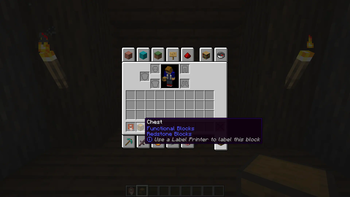
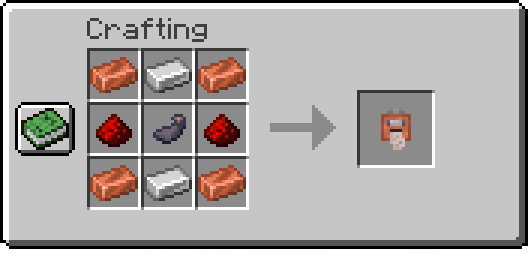
This mod adds a Label printer which is an item that can set a label and an icon to a container.
Printing labels:
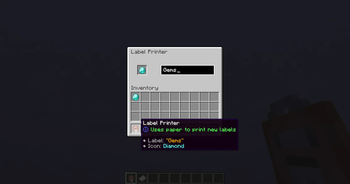
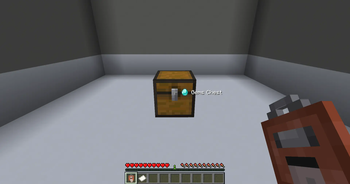
To use the Label Printer, right-click while holding it, and it'll open a menu where you can set your icon and label. Finally, have paper in your inventory and shift-right-click a chest or compatible container to set them.
Copying labels from existing ones:
When holding the Label Printer, shift-right-click to switch to Copy mode.
Then shift-right-click on a container that has a label already set to copy its icon and text.
Commands
/labelposition
Sets the current player's HUD position.
Available positions are:
center-right(default)center-leftlefttoptop-left
Examples:
- Set the current HUD position to
left:/labelposition left
/setlabel
Requires admin permissions. Sets the label / icon of the selected container.
Examples:
- Setting the label of a block at
coordinates: /setlabel <x> <y> <z> label I'm a dirt chest! - Setting the icon of a block at
coordinates: /setlabel <x> <y> <z> icon minecraft:dirt
/labelconfig
Requires admin permissions. Adds/removes blocks that can be labeled from the config.
NOTE: All blocks that have a Block Entity associated with them can be labeled.
To check if a block can be added to the config and used correctly try shift-right-clicking on it with the
Label Printer item,
and if it displays something like "You can't tag this block", that block can be added to the config
Examples:
- Add the Bell block to the config:
/labelconfig add-item minecraft:bell - Add the Bell block to the config (while having the block in player's hand):
/labelconfig add-hand - Remove the Bell block from the config:
/labelconfig remove-item minecraft:bell - Remove the Bell block from the config (while having the block in player's hand):
/labelconfig remove-hand
Available Versions
How to Install Labelling Containers on Your Server
Order Server
Order a Minecraft Java server with at least 3 GB RAM (4 GB recommended).
Set fabric Loader
In the panel under "Egg", select the fabric loader and matching Minecraft version (1.21.8).
Install Mod
Open the mod browser in the dashboard and search for "Labelling Containers". Click "Install" – done! Alternatively, upload the .jar via SFTP to the /mods folder.
Compatibility
Mod Loaders
Minecraft Versions
1.21.8, 1.21.5, 1.21.4 (+13 more)
Server-side
✓ RequiredRecommended RAM
4 GB(min. 3 GB)Frequently Asked Questions
Labelling Containers server crashes on startup – what to do?
Most common cause: wrong fabric version or insufficient RAM. Check the server log (latest.log) for "OutOfMemoryError" or "Mixin" errors. With Mado Hosting: ensure at least 3 GB RAM is allocated and the loader matches the mod version (1.21.8). You can switch loaders with one click in the panel.
Is Labelling Containers compatible with fabric and forge and neoforge?
Labelling Containers officially supports fabric, forge, neoforge for Minecraft 1.21.8, 1.21.5, 1.21.4. Note: Forge and Fabric mods are NOT cross-compatible – pick one loader and stick with it. The Mado dashboard automatically detects incompatible loader combinations.
Server lagging with Labelling Containers – how to optimize performance?
Recommended RAM: 4 GB (per 8 players). Use /spark profiler to check if Labelling Containers consumes the most tick time. Common fixes: reduce server view-distance to 8-10, install "performant" or "starlight" as supplementary mods on Forge. With Mado Hosting, your server runs on NVMe SSDs with dedicated CPU cores for minimal latency.
Similar Mods




Rent Modded Server
Install Labelling Containers with just one click on your server.