
LOTR Info
Adds hover tooltips to Pouches (chest-like GUI), Weapons (bane tracker), Kegs (brew info), and a Time HUD for LOTR: Renewed Extended.
Screenshots


About this Mod
Basic Info
LOTR Info is a mod for LOTR: Renewed Extended that adds highly customizable hover tooltips to pouches, kegs, and weapons with bane progress along with a HUD for the LOTR daylight cycle.
Cloth Config API Is required for the in-game config menu, if that’s not an option you can use the custom command config, or edit lotrinfo-client.toml in your .minecraft/config folder. If you’re not using the GUI you should read the config section of this description so you can understand all the options.
If you find an isssue that isn't in "Known Issues" at the bottom of this page, let me know and I'll try to fix it. You can comment bugs here
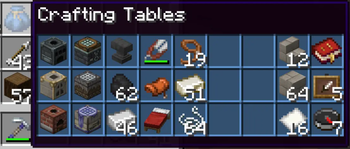
Pouch Tooltips

You can turn off or customize the colored background, and show some default lines of lore.
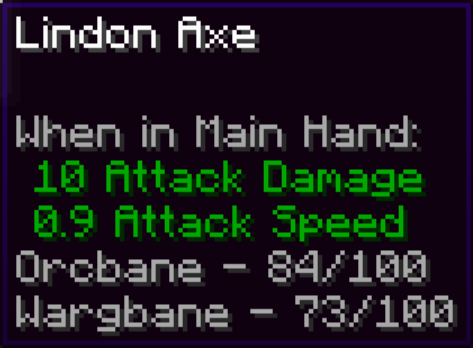
Bane Tracker Tooltips

The lines are always sorted by the number of kills, but you can customize how they will look.
Keg Tooltips

You can disable the drink’s lore, or require shift (rebindable)
Time HUD

Time left is exactly when mobs will start or stop spawning, which I tested to be 26,375-45,625 out of the 48,000 tick cycle.
Keybinds
- Open Config GUI (default: not bound)
- Show Hidden Tooltips (default: Left Shift)
- Toggle HUD (Default: Control + H)
- Toggle Mod (Default: not bound)
- Hover Inside Pouches (default: Left Control)
Commands
You can use /lotrinfo, or /li for short. The config file directory is used as the command directory, so you'll see each config tab show up as an argument, with specific config options or subdirectories after.
There are also hard coded options, "all" and "reset". All flattens the directory so that every option will show up after /li all. Reset allows you to reset all the options in a given category, every single option, or the keybinds from this mod.
When setting the value of a config option, there are always two other options, "help", and "reset". Help will send a message in chat with the display name, description, value type, and default value. Reset will reset this specific setting to it's default value.
Features and Configuration
All text editing allows the use of formatting codes, so &e is yellow.
General Settings general_settings
Enable Mod - Toggles all mod functionality.
enable_moddefault:truePercentage Rounding - Choose what number to round the percentage displays to, for example 0.1 rounds to tenths.
percentage_roundingdefault:0.01, range:0.001-100
Pouch Tooltips pouch_display
Enable Pouch Tooltips - Toggles the pouch tooltips display.
enable_pouchdefault:trueHold Key for Pouch Tooltips - Requires the "Show Hidden Tooltips" keybind to be pressed for the pouch tooltips display.
pouch_key_requireddefault:falseDeitalicize Pouch Names - Removes the italic styling on pouch names in tooltips and above the hotbar.
deitalicize_namedefault:trueReturn Mouse on Release - Resets the cursor to where it was before you pressed the "Hover Items in Pouch" key.
mouse_resetdefault:truePouch Coloring - Color background slots based on pouch color.
pouch_coloringdefault:trueDefault Background Color - Hex color for the background if Pouch Coloring is off or pouch isn't dyed (#RRGGBB).
default_bg_colordefault:"#FFFFFF"Lore Hiding Options
(First option is to hide a line, second is to invert that when the "Show Hidden Tooltips" key is held.)
- Default Item List - Toggle the LOTR Provided item list.
hide_item_listdefault:true,invert_hide_item_listdefault:false - Slots In Use - Toggle the slots in use counter from LOTR.
hide_slots_counterdefault:true,invert_hide_slotsdefault:true - Dyed - Toggle the dyed text from vanilla and LOTR.
hide_dyeddefault:true,invert_hide_dyeddefault:true - Picked Up New Items - Hide "Picked up new items" text.
hide_picked_up_newdefault:true,invert_hide_picked_updefault:true
Bane Tracker bane_tracker
Enable Bane Tracker - Toggles the bane tracker display.
enable_banedefault:trueHold key for Bane Tracker - Requires the "Show Hidden Tooltips" keybind to be pressed to see the keg tooltips.
bane_key_requireddefault:trueBane Text Format - How the bane tracker display will look.
bane_text_formatdefault:"&7%race% - %kills%/100"Category Specific Variables:
%race% - The race to get bane against.
%kills% - The number of kills on that race.
Time HUD time_hud
Enable Time HUD - Toggles the time hud display.
enable_huddefault:trueDisplay Format - How the text will look.
hud_formatdefault:"&e%h%:%m% %a% &7(%m_left%m %s_left%s left)"Text Shadow - Toggles text shadows in the HUD.
hud_shadowdefault:trueText Background - Toggles the text background of the HUD.
hud_backgrounddefault:falseBackground Color - The color of the text background in ARGB (#AARRGGBB) Hex format. The format goes like this: alpha (transparency), red, green, and blue intensity, with two digit numbers from 0 to F where A = 11, #80FF0000 would be 50% transparency with 100% red.
hud_background_colordefault:"#40000000"Text Size (%) - The size of the text in the time hud, 50% would be half the size and 200% would be double.
hud_scaledefault:100range:1.0-1000.0Vertical Position (%) - The percent of the way down your screen the hud will appear from the HUD's anchor point.
hud_ydefault:1range:0.0-100.0Vertical Anchor - Display the HUD above, in the middle, or below the vertical position. (anchor top = display below)
hud_y_anchordefault:"TOP"allowed values:TOP, MIDDLE, BOTTOMHorizontal Position (%) - The percent of the way across your screen from the left that the hud will appear from the HUD's anchor point.
hud_xdefault:0.5range:0.0-100.0Horizontal Anchor - Display the HUD to the left, center, or right of the horizontal position. (anchor left = display right)
hud_x_anchordefault:"LEFT"allowed values:LEFT, CENTER, RIGHTCategory Specific Variables:
%h% - The in game daylight cycle's hours. (12-hour)
%h24% - The in game daylight cycle's hours. (24-hour)
%m% - The in game daylight cycle's minutes.
%a% - AM or PM for the 12 hour clock.
%m_real% - The amount of real minutes into the game's 40 minute daylight cycle.
%s_real% - The amount of real seconds into the game's daylight cycle % 60. (remainder after minutes)
%m_left% - The amount of real minutes until mobs will start/stop spawning for the night.
%s_left% - The amount of real seconds until mobs will start/stop spawning for the night % 60.
%dn% - says if it's currently "Day" or "Night" for the time left display.
%!dn% - inverted version of %dn% Day = Night, Night = Day.
Keg Tooltips keg_tooltips
Enable Keg Tooltips - Toggles the keg tooltips display.
enable_keg_infodefault:trueHold key for Keg Tooltips - requires the "Show Hidden Tooltips" keybind to be pressed to see the keg tooltips.
keg_key_requireddefault:falseShow Drink Lore - Shows the lore of the drink brewed inside the keg below the other info.
show_drink_loredefault:trueWhen to Show Drink Lore - Determines when the Drink Lore is visible, held means the "Show Hidden Tooltips" keybind is down, finished means the keg is done brewing.
lore_display_modedefault:"FINISHED_OR_HELD", allowed values:ALWAYS, IF_FINISHED, IF_HELD, FINISHED_OR_HELD, FINISHED_AND_HELDLine Editing - Not Started - Text that will display on kegs with a recipe that haven't started.
not_started_linesdefault:["&7%type%", "&7Not Started"]Line Editing - Brewing - Text that will display on kegs that were in the middle of brewing.
brewing_linesdefault:["&7%type% - %potency%", "&7%percent%% %m%m %s%s Left", "&8%percent_max%% %m_max%m %s_max%s Max"]Line Editing - Finished - Text that will display on kegs that have finished brewing.
finished_linesdefault:["&7%type% - %potency%", "&7%count%/16 Remaining"]Category Specific Variables:
%type% - The name of the brewed drink, ex: "Athelas Brew".
%potency% - The Potency level. (if it's currently breing it'll show the potency level that it's brewing, not the one it already achieved)
%count% - The number of remaining drinks.
%percent% - The percentage progress towards the next potency tier.
%percent_max% - The percentage progress towards the maximum potency tier.
%m% The number of minutes left until the next potency tier.
%s% The number of seconds left until the next potency tier % 60. (remainder after minutes)
%m_max% The number of minutes left until the maximum potency tier.
%s_max% The number of seconds left until the maximum potency tier % 60.
Known Issues
Tooltips in variables on the config screen render behind the scrollbar.
Config word wrap doesn't preserve § format coloring.
Pouch Lore is not being hidden in a dynamic way (won’t work with different languages).
LOTR tooltips have a word wrap function which breaks the pouch tooltips on high GUI scale to resolution ratios.
Available Versions
How to Install LOTR Info on Your Server
Order Server
Order a Minecraft Java server with at least 3 GB RAM (4 GB recommended).
Set forge Loader
In the panel under "Egg", select the forge loader and matching Minecraft version (1.16.5).
Install Mod
Open the mod browser in the dashboard and search for "LOTR Info". Click "Install" – done! Alternatively, upload the .jar via SFTP to the /mods folder.
Compatibility
Mod Loaders
Minecraft Versions
1.16.5
Server-side
✗ UnsupportedRecommended RAM
4 GB(min. 3 GB)Frequently Asked Questions
LOTR Info server crashes on startup – what to do?
Most common cause: wrong forge version or insufficient RAM. Check the server log (latest.log) for "OutOfMemoryError" or "Mixin" errors. With Mado Hosting: ensure at least 3 GB RAM is allocated and the loader matches the mod version (1.16.5). You can switch loaders with one click in the panel.
Is LOTR Info compatible with forge?
LOTR Info officially supports forge for Minecraft 1.16.5. The Mado dashboard automatically detects incompatible loader combinations.
Server lagging with LOTR Info – how to optimize performance?
Recommended RAM: 4 GB (per 8 players). Use /spark profiler to check if LOTR Info consumes the most tick time. Common fixes: reduce server view-distance to 8-10, install "performant" or "starlight" as supplementary mods on Forge. With Mado Hosting, your server runs on NVMe SSDs with dedicated CPU cores for minimal latency.
Similar Mods


Rent Modded Server
Install LOTR Info with just one click on your server.