
MineGIT
Minecraft cloud save system using the power of Git!
Screenshots
About this Mod
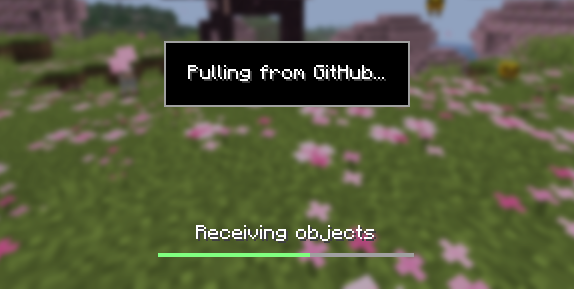
Cloud sync for Minecraft worlds!
Sync and back up your worlds between multiple devices! Fully integrated into the Minecraft client for a seamless experience when loading, saving, and downloading worlds from the cloud.
How does it work?
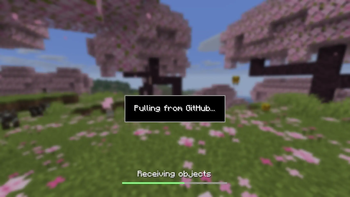
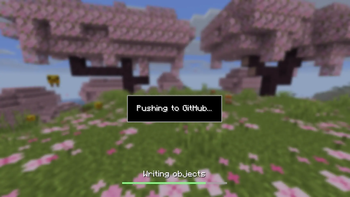
Worlds that you select are uploaded to your GitHub account as repositories. Every time you quit to the title screen, a commit of the current state of your world is created and pushed to the repository on GitHub. Whenever the world is loaded, the mod will check if any new versions of the world are available in the cloud, and if so, they will be downloaded to your device.
Since this mod uses Git internally, it also means that only the files in your world save folder that you modify will be uploaded and downloaded each time, saving storage space and internet bandwidth.
How do I set it up?
There are several steps to setting up this mod, which include creating a personal access token for GitHub, as well as choosing the worlds you would like to enable MineGIT for.
Video guide:
Creating a GitHub personal access token
In order to do the first-time setup, you will need to generate a GitHub personal access token through the following steps:
- Create an account on GitHub if you do not have one already (https://github.com)
- Navigate to the page to create a personal access token
- Click
Generate new token - Enter any name (such as MineGIT) under
Token name - Scroll to
Expirationand set it toNo expiration(so that you do not have to repeat this process when the token expires) - Under
Repository accesschooseAll repositories - Under
Permissions, clickAdd permissionsand selectAdministrationandContents - Set
Accesson theAdministrationandContentslines toRead and write - Press
Generate tokenand copy the generated token to be pasted into Minecraft later (the generated token should start withgithub_pat_and be followed by a long string of letters and numbers)
Setting up in-game
Once the mod is installed and you are in-game, do the following steps to link your GitHub account with the mod:
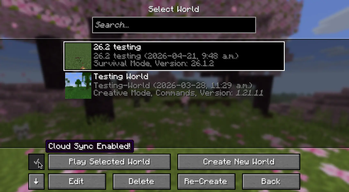
- Click on the cloud button on the bottom left corner of the world creation or world selection screen (If the button does not appear, you have already previously linked your account; see the section below entitled 'Reconfiguring account linking')
- Enter your GitHub username and personal access token (PAT) that you created in the previous step on the new page that appears
- Press the button labeled
Test credentialsto make sure you've entered the information properly - You may now exit the screen and proceed to either enable sync for a world or clone an existing one
Reconfiguring account linking
If you have already previously set up account linking and would like to change settings afterwards, you have a couple of options to get back to the configuration screen:
- Configure through ModMenu: If you have ModMenu installed, simply find the mod in the mods list and open the configuration from there
- From the world clone screen: There is a button in the top right corner of the world cloning screen that will open the configuration screen
- From the world selection screen: By holding alt and clicking on the world sync button on the bottom left of the world selection screen, you will be brought back into the configuration screen
Enabling sync for a world
World syncing needs to be enabled individually for each world you would like to sync to your GitHub account. To enable sync for a world, do the following:
- Select a world on the world selection screen
- Press the cloud button in the bottom left of the screen labeled
Enable world sync - Confirm your decision on the next screen
This process will create a new repository named minegit_[world folder name] on your GitHub account, initialize a Git repository in your world save folder, and push its current state to GitHub. From this point forward, loading the world will pull the world's latest changes from GitHub, and exiting the world will push changes to GitHub.
You can now download this world on another device to effectively sync changes between them through the next step: cloning.
Downloading a world on a different device (Cloning)
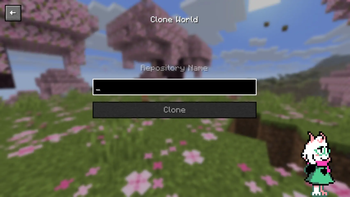
Cloning a world will download the exact state of the world as it was last saved to GitHub. Use the following steps to clone a world:
- Navigate to github.com in a web browser
- Click on your profile picture in the top right corner and then
Repositories - Find the repository corresponding to the world you would like to clone and copy its name
- Back in Minecraft, click on the button with an arrow pointing downwards labelled in the bottom left corner of either the world selection screen or world creation screen
- Paste the name of the repository you copied earlier and press
Clone - You are now able to load the world like normal and have changes be synced across your devices!
Tips & Tricks
- If you want to exit a world without pushing it to GitHub (for example, if you wanted to restart Minecraft and load the same world without having to wait for changes to be pushed), you can hold
Altwhile clickingSave and Quit to Title. This will skip the 'pushing to GitHub' step. - Git keeps a list of all of the worlds changes every time you exit the world. This is useful, since if you have a little knowledge of how to use the Git command line interface you can rollback your world to a previous version!
- If you want to save some storage space taken up by the size of the Git repository on your computer, or make the world quicker to clone on other devices, use the
Prune World Commitsbutton in the edit world menu. This will delete all of the old versions of your world, leaving only the most recent one.
Report an issue
If you run into bugs, crashes, or simply have a suggestion on how to improve the mod, please feel free to open an issue on the mod's issue tracker!
Please include the current Minecraft version, Fabric version, mod version, and any relevant game logs when submitting an issue.
Available Versions
How to Install MineGIT on Your Server
Order Server
Order a Minecraft Java server with at least 3 GB RAM (4 GB recommended).
Set babric Loader
In the panel under "Egg", select the babric loader and matching Minecraft version (26.2-rc-1).
Install Mod
Open the mod browser in the dashboard and search for "MineGIT". Click "Install" – done! Alternatively, upload the .jar via SFTP to the /mods folder.
Compatibility
Mod Loaders
Minecraft Versions
26.2-rc-1, 26.2-pre-6, 26.2-pre-5 (+492 more)
Server-side
✗ UnsupportedRecommended RAM
4 GB(min. 3 GB)Frequently Asked Questions
MineGIT server crashes on startup – what to do?
Most common cause: wrong babric version or insufficient RAM. Check the server log (latest.log) for "OutOfMemoryError" or "Mixin" errors. With Mado Hosting: ensure at least 3 GB RAM is allocated and the loader matches the mod version (26.2-rc-1). You can switch loaders with one click in the panel.
Is MineGIT compatible with babric and bta-babric and fabric and forge and neoforge and ornithe?
MineGIT officially supports babric, bta-babric, fabric, forge, neoforge, ornithe for Minecraft 26.2-rc-1, 26.2-pre-6, 26.2-pre-5. Note: Forge and Fabric mods are NOT cross-compatible – pick one loader and stick with it. The Mado dashboard automatically detects incompatible loader combinations.
Server lagging with MineGIT – how to optimize performance?
Recommended RAM: 4 GB (per 8 players). Use /spark profiler to check if MineGIT consumes the most tick time. Common fixes: reduce server view-distance to 8-10, install "performant" or "starlight" as supplementary mods on Forge. With Mado Hosting, your server runs on NVMe SSDs with dedicated CPU cores for minimal latency.
Similar Mods




Rent Modded Server
Install MineGIT with just one click on your server.