
OBS Recording Monitor
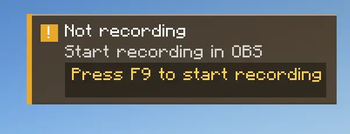
Shows a warning in-game when OBS is not recording.
Screenshots
About this Mod
OBS Recording Monitor
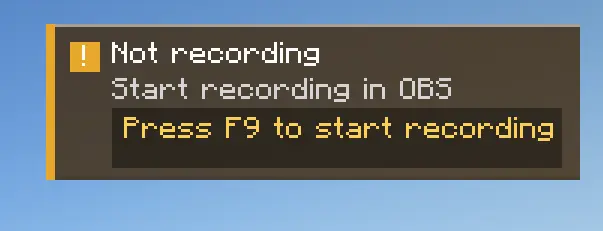
Never lose a recording because OBS was idle.
OBS Recording Monitor is a Fabric client-side mod that watches OBS Studio through obs-websocket and shows a clear in-game warning only when you are not recording. It stays quiet while everything is fine, then gets your attention exactly when you need it.
Why this mod is useful
When you are about to record a boss fight, a build timelapse, or a multiplayer session, the easiest mistake is forgetting to start OBS. This mod checks the recording state for you and warns you inside Minecraft before that moment is gone.
It is designed to be simple:
- No noisy HUD when OBS is already recording
- Clear warning when recording is off
- Separate states for disconnected OBS, auth failure, and invalid settings
- Built-in connection test and setup guide
- Mod Menu integration for easy access
Features
- Monitors OBS recording state over
obs-websocket - Shows a warning only when OBS is not recording
- Supports connection status, reconnect status, and authentication failure feedback
- Lets you move and scale the HUD
- Includes a world-only display option
- Provides an in-game help screen with setup images
- Opens the GitHub issue page directly from Mod Menu
Requirements
- Minecraft
1.21.11 - Fabric Loader
- Fabric API required
- OBS Studio with
obs-websocketenabled - Mod Menu optional, but recommended for the easiest settings access
Quick setup
- Install the mod, Fabric API, and optionally Mod Menu.
- Start OBS Studio.
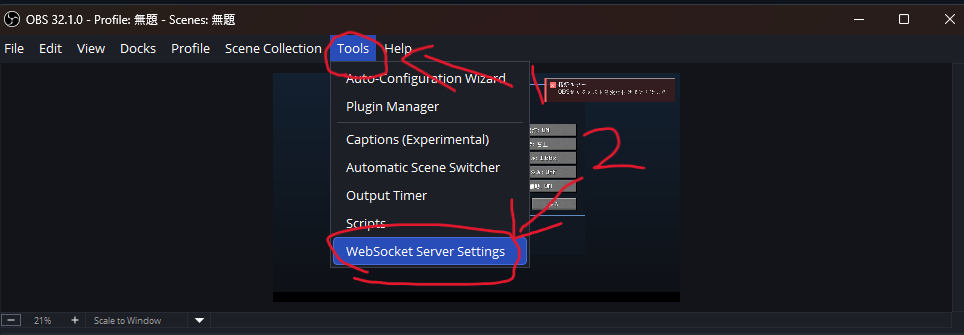
- In OBS, open
Tools -> WebSocket Server Settings. - Enable the WebSocket server and check the shown port/password.
- In Minecraft, open the mod settings from Mod Menu.
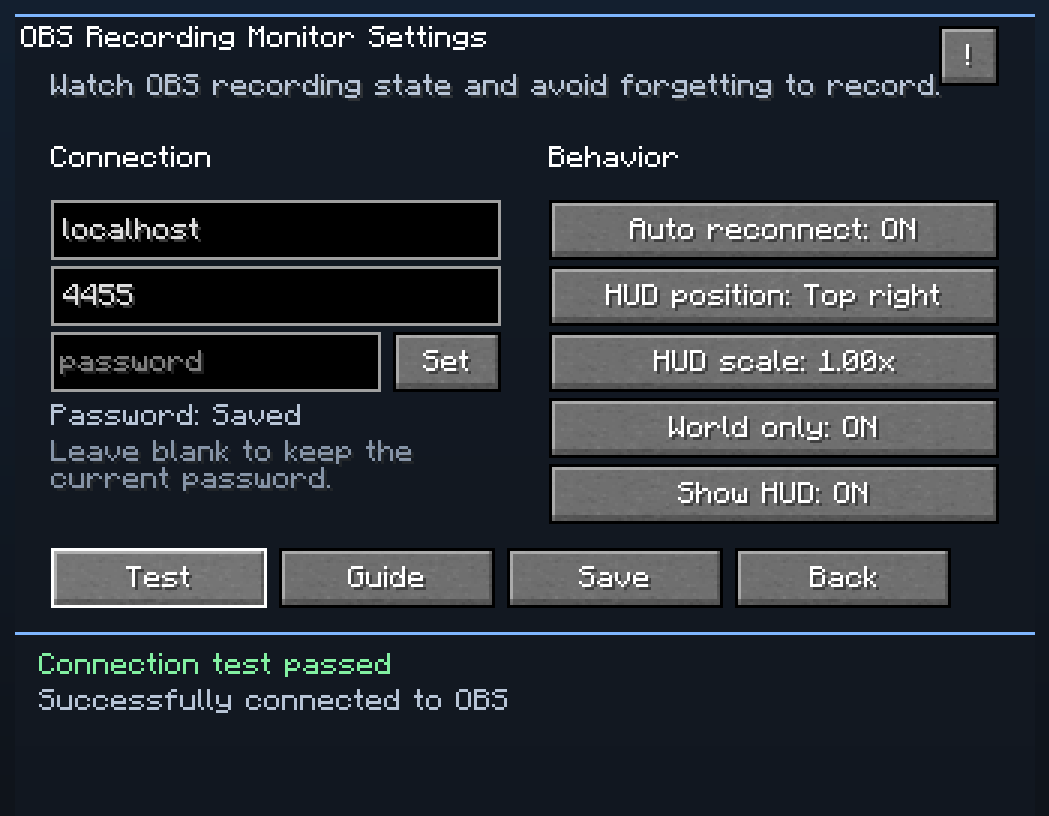
- Enter the OBS host, port, and password.
- Press
Testand save once the connection succeeds.
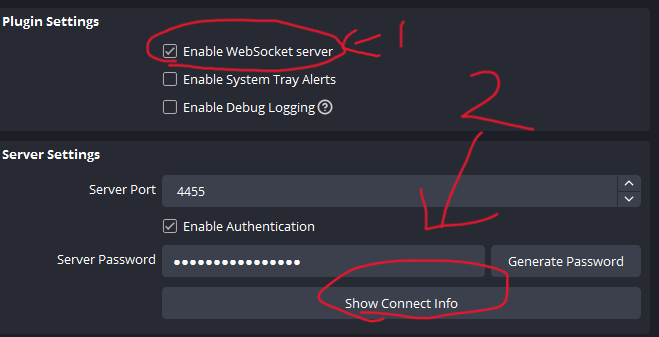
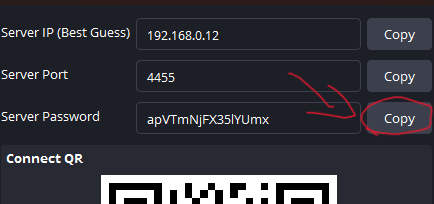
If OBS is running on the same PC as Minecraft, localhost is usually the correct host.
What you see in game
- Recording: no unnecessary warning clutter
- Not recording: immediate HUD warning so you can react fast
- Connection/auth problems: clear hints about what to check next
This keeps the mod practical during real gameplay instead of turning into background noise you ignore.
Troubleshooting
- OBS is not detected: make sure OBS is open and
obs-websocketis enabled - Authentication failed: check the password in both OBS and the mod settings
- Connection failed: verify the host and port, especially if OBS is on another machine
- HUD not visible: check the HUD toggle, scale, and anchor position in the config screen
Feedback and issues
Found a bug or have an idea for improvement?
- In game: open the settings screen from Mod Menu and press
Issue - On GitHub: Open an issue
License
This project is released under the MIT License.
Available Versions
How to Install OBS Recording Monitor on Your Server
Order Server
Order a Minecraft Java server with at least 3 GB RAM (4 GB recommended).
Set fabric Loader
In the panel under "Egg", select the fabric loader and matching Minecraft version (26.1.2).
Install Mod
Open the mod browser in the dashboard and search for "OBS Recording Monitor". Click "Install" – done! Alternatively, upload the .jar via SFTP to the /mods folder.
Compatibility
Mod Loaders
Minecraft Versions
26.1.2, 26.1.1, 26.1 (+1 more)
Server-side
✗ UnsupportedRecommended RAM
4 GB(min. 3 GB)Frequently Asked Questions
OBS Recording Monitor server crashes on startup – what to do?
Most common cause: wrong fabric version or insufficient RAM. Check the server log (latest.log) for "OutOfMemoryError" or "Mixin" errors. With Mado Hosting: ensure at least 3 GB RAM is allocated and the loader matches the mod version (26.1.2). You can switch loaders with one click in the panel.
Is OBS Recording Monitor compatible with fabric?
OBS Recording Monitor officially supports fabric for Minecraft 26.1.2, 26.1.1, 26.1. The Mado dashboard automatically detects incompatible loader combinations.
Server lagging with OBS Recording Monitor – how to optimize performance?
Recommended RAM: 4 GB (per 8 players). Use /spark profiler to check if OBS Recording Monitor consumes the most tick time. Common fixes: reduce server view-distance to 8-10, install "performant" or "starlight" as supplementary mods on Forge. With Mado Hosting, your server runs on NVMe SSDs with dedicated CPU cores for minimal latency.
Similar Mods





Rent Modded Server
Install OBS Recording Monitor with just one click on your server.