
TradeChest
A Minecraft Fabric mod that adds automatic trading chests with a 9x5 inventory layout. Set up vending machine-style shops where customers place buy items and automatically receive sell items in return.
About this Mod
TradeChest Mod
A Minecraft Fabric mod that adds automatic trading chests with a 9x5 inventory layout. Set up vending machine-style shops where customers place buy items and automatically receive sell items in return.



Features
- Automatic Trading System: Place buy items, get sell items automatically delivered to pickup zone
- 9x5 Inventory Layout: Dedicated areas for buy items, pickup, configuration, owner collection, and sell storage
- Ownership System: Secure your trade setups with username-based ownership
- No Normal Chest Usage: Trade chests can only be used when properly configured
- Item Movement: Buy items automatically move to owner collection area after trades
Requirements
- Minecraft 1.20.1
- Fabric Loader 0.15.7+
- Fabric API
- Java 17 or higher
Installation
For Players
Install Fabric Loader
- Download and run the Fabric Installer
- Select Minecraft 1.20.1 and install Fabric
Download Dependencies
- Download Fabric API for 1.20.1
- Place the Fabric API JAR in your
.minecraft/modsfolder
Install TradeChest Mod
- Download the latest TradeChest mod JAR file
- Place it in your
.minecraft/modsfolder
Launch Game
- Start Minecraft with the Fabric profile
- The Trade Chest item will be available in the Functional Blocks creative tab
For Developers
Clone Repository
git clone https://github.com/rodortega/mc-tradechest.git
cd mc-tradechest
Build from Source
./gradlew buildRun in Development
./gradlew runClient
How to Use
Crafting
Craft a Trade Chest using this recipe:
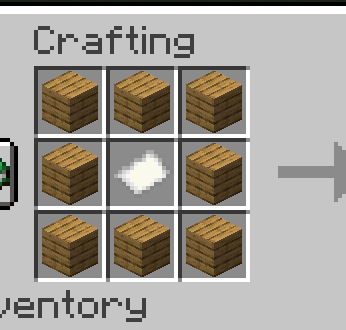
[Planks] [Planks] [Planks]
[Planks] [Paper ] [Planks]
[Planks] [Planks] [Planks]
Basic Setup
Place the Trade Chest - Cannot be used until configured with an owner
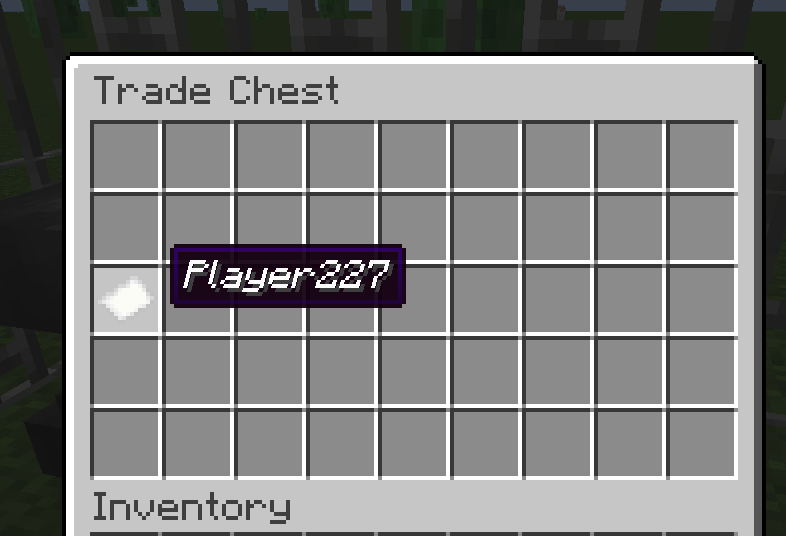
Set Ownership (Slot 18):
- Rename a paper with your exact username using an anvil
- Place it in slot 18 (first slot of third row)
- You are now the owner and can manage the chest
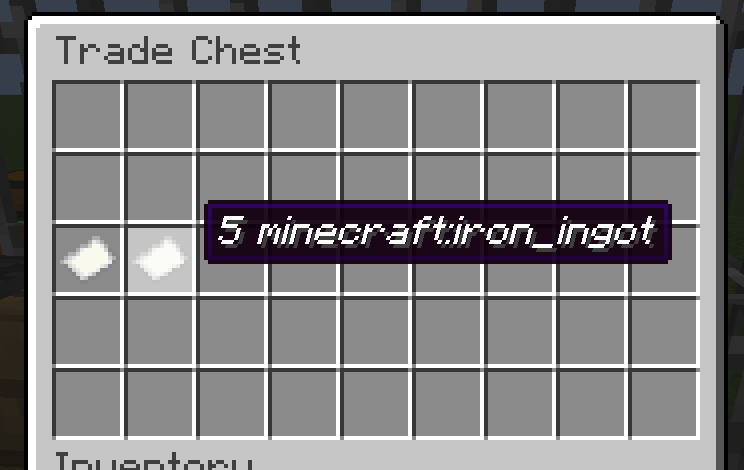
- Configure Buy Requirements (Slot 19):
- Rename a paper:
10 minecraft:iron_ingot - Place in slot 19
- This determines what customers must provide
- Rename a paper:
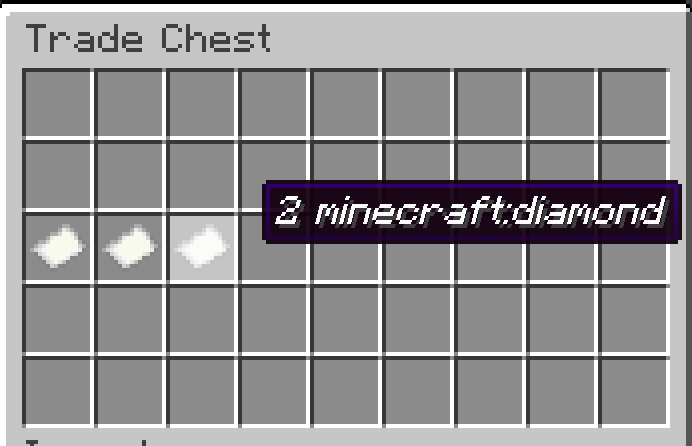
- Configure Sell Items (Slot 20):
- Rename a paper:
5 minecraft:diamond - Place in slot 20
- This determines what customers receive
- Rename a paper:
- Stock Sell Items:
- Place diamonds in the bottom row (slots 36-44)
- Only the configured sell item type can be placed there
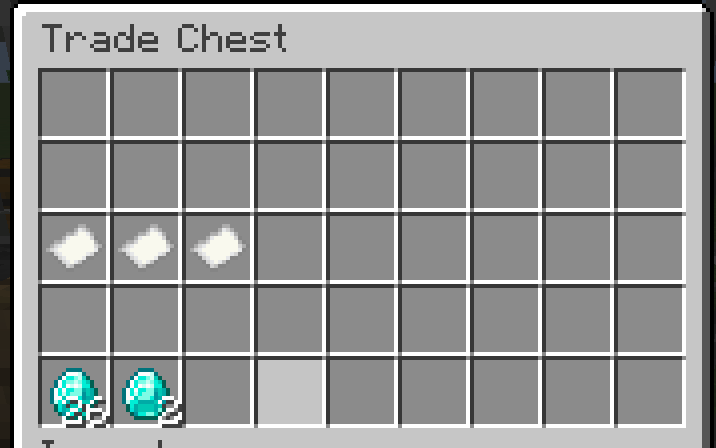
- Ready to Trade:
- Customers place iron ingots in top row (slots 0-8)
- Diamonds automatically appear in pickup zone (slots 9-17)
- Iron ingots move to your collection area (slots 27-35)
Inventory Layout (9x5)
Row 1: [Buy Items Input Area - Customers place buy items here]           (Slots 0-8)
Row 2: [Pickup Zone - Traded items appear here automatically]           (Slots 9-17)
Row 3: [OWNER] [BUY] [SELL] [----LOCKED CONFIGURATION AREA----]         (Slots 18-26)
Row 4: [Owner Collection - Buy items go here after trades]              (Slots 27-35)
Row 5: [Sell Items Storage - Owner stocks sell items here]              (Slots 36-44)
How Trading Works
- Customer Action: Places 10 iron ingots in row 1
- Automatic Processing: System detects complete trade
- Item Movement:
- 5 diamonds move from row 5 to row 2 (pickup zone)
- 10 iron ingots move from row 1 to row 4 (owner collection)
- Customer Pickup: Customer takes diamonds from row 2
- Excess Handling: If customer placed 15 iron, 5 excess remain in row 1 for pickup
Example: Automatic Diamond Shop
Setup Phase:
- Rename papers:
YourUsername,10 minecraft:iron_ingot,5 minecraft:diamond - Place papers in slots 18, 19, 20 respectively
- Stock 64 diamonds in bottom row (slots 36-44)
- Rename papers:
Customer Transaction:
- Customer places 20 iron ingots in top row
- System automatically processes 2 trades (20 ÷ 10 = 2)
- 10 diamonds appear in pickup zone (5 × 2 = 10)
- 20 iron ingots move to owner collection area
- Customer takes 10 diamonds from pickup zone
Owner Benefits:
- Collect 20 iron ingots from row 4 anytime
- Restock diamonds in row 5 as needed
- No manual intervention required
Permissions
| Slot Range | Area | Customers Can | Owner Can |
|---|---|---|---|
| 0-8 | Buy Items Input | Place buy items, take excess | Full access |
| 9-17 | Pickup Zone | Take any items | Full access |
| 18-20 | Configuration | None | Place/remove papers |
| 21-26 | Locked Area | None | None |
| 27-35 | Owner Collection | None | Full access |
| 36-44 | Sell Storage | None | Stock sell items |
Paper Formats
- Owner Paper: Just your exact username (e.g.,
Steve) - Buy Paper:
[amount] [item_id](e.g.,10 minecraft:iron_ingot) - Sell Paper:
[amount] [item_id](e.g.,5 minecraft:diamond)
Troubleshooting
- Can't use chest at all: You need to place an owner paper in slot 18 first
- Can't remove owner paper: Make sure the paper name exactly matches your in-game username
- Can't place buy/sell papers: You must be the owner (have your name paper in slot 18)
- Trading not working: Ensure both buy and sell papers are configured in slots 19-20
- Can't place items in bottom row: Only the configured sell item type is allowed in slots 36-44
- Items not moving automatically: Check that you have sell items stocked and pickup zone isn't full
Building
This mod uses the Fabric toolchain:
# Clean and build
./gradlew clean build

# Run client for testing
./gradlew runClient

# Generate sources jar
./gradlew sourcesJar
Development
Project Structure
src/main/java/com/rodmod/tradechest/- Main mod codesrc/main/resources/- Assets and data filesbuild.gradle- Build configurationgradle.properties- Project properties
Key Classes
RodMod- Main mod initializerTradeChestBlock- Block implementationTradeChestBlockEntity- Block entity with inventory logicTradeChestMenu- Container menu for GUITradeChestSlot- Custom slot with placement restrictions
License
This mod is available under the CC0 license. Feel free to learn from it and incorporate it in your own projects.
Available Versions
How to Install TradeChest on Your Server
Order Server
Order a Minecraft Java server with at least 3 GB RAM (4 GB recommended).
Set fabric Loader
In the panel under "Egg", select the fabric loader and matching Minecraft version (1.20.6).
Install Mod
Open the mod browser in the dashboard and search for "TradeChest". Click "Install" – done! Alternatively, upload the .jar via SFTP to the /mods folder.
Compatibility
Mod Loaders
Minecraft Versions
1.20.6, 1.20.5, 1.20.4 (+3 more)
Server-side
✓ RequiredRecommended RAM
4 GB(min. 3 GB)Frequently Asked Questions
TradeChest server crashes on startup – what to do?
Most common cause: wrong fabric version or insufficient RAM. Check the server log (latest.log) for "OutOfMemoryError" or "Mixin" errors. With Mado Hosting: ensure at least 3 GB RAM is allocated and the loader matches the mod version (1.20.6). You can switch loaders with one click in the panel.
Is TradeChest compatible with fabric?
TradeChest officially supports fabric for Minecraft 1.20.6, 1.20.5, 1.20.4. The Mado dashboard automatically detects incompatible loader combinations.
Server lagging with TradeChest – how to optimize performance?
Recommended RAM: 4 GB (per 8 players). Use /spark profiler to check if TradeChest consumes the most tick time. Common fixes: reduce server view-distance to 8-10, install "performant" or "starlight" as supplementary mods on Forge. With Mado Hosting, your server runs on NVMe SSDs with dedicated CPU cores for minimal latency.
Similar Mods



![CobbleDollars [Cobblemon Addon]](https://cdn.modrinth.com/data/s7N7AsqL/684040a264fc1d7f9b856ec5d2da39767398c7ad.png)
Rent Modded Server
Install TradeChest with just one click on your server.