
Walls of Wheat
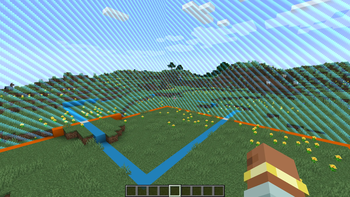
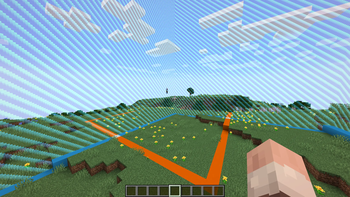
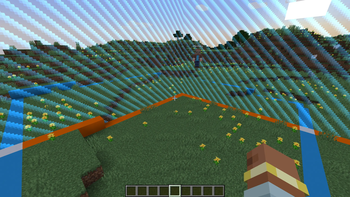
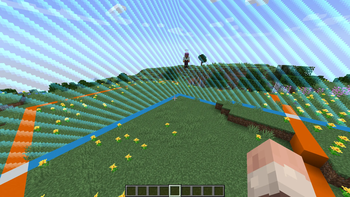
Fully customizable, client dependent world borders for multiplayer servers. Allows for expanding the border with Wheat as a currency.
Screenshots
About this Mod

Introduction
Walls of Wheat is a server and client mod, specifically curated for a server I am a part of. The mod is essentially two parts:
- A client-dependent world border mod. Allowing admins to fully customize and manage borders for each player on a multiplayer server.
- A Wheat storage GUI and trade system to get an item that can expand the world border for a set time. Designed for Wheat based currency multiplayer servers.
I bring this distinction up because the mod can be modified to purely be a client-dependent world border mod or offer helpful tools for Wheat currency servers. Though, the original intent is for the use case where both are needed. The idea is each player has their own world border that they can expand to explore the world, at the cost of farming Wheat.
Description
Walls of Wheat offers three new commands to interface with the mod:
/wheatborder
/worldwheatborder
/wheat
/wheatborder and /worldwheatborder are admin only commands. They serve as setup and management for the world borders, and share almost the same set of subcommands. The main difference is that /wheatborder has a player selector parameter (@a, @s, etc.), so it will modify a current player(s) border settings. /worldwheatborder is used to set the world's default border settings; which are applied to all new players who join the world (so no player selector is needed). So when a world is made, an admin can run /worldwheatborder commands to ensure every player who joins receives the same settings. If you want each player to have their own settings, you will need to run /wheatborder for each player. The /wheat command will be covered after an explaination of the Wheat GUI.
Border Setup
The following commands work between both /wheatborder and /worldwheatborder, the only difference being that the world variant does not use the player selector field. Additionally, the dimension field across all of these commands is not required. If you do not include the dimension, it will default to the dimension you are in. This allows the borders to be unique across all dimensions, for additional customization. Currently, only the Overworld, Nether, and End are supported.
/wheatborder …
- set
[ ] - sets the border size (diameter in blocks). - speed
[open/close] [ ] - sets the default border movement speed in blocks per second. Can specify 'open' or 'close' for directional speeds. - center
[ ] - sets the center position for the border. - penalty
<damage/spawn_point/world_spawn/nudge/shove> [ ] - sets the penalty type when outside the border. Damage, does damage. Spawn point, teleports to your spawn point. World spawn, teleports to the world spawn. Nudge and Shove apply another parameter velocity to the player when come into contact with the closing border. If the player remains outside the border, Nudge will teleport the player back to their spawn point, and Shove will deal damage. - damage
[ ] - sets the amount of damage per second dealt when outside the border. Must have the penalty set to damage. - enable
[ ] - enables the border (shows it). - disable
[ ] - disables the border (hides it). - max
[ ] - sets the maximum border diameter in blocks. - duration
[ ] - sets the time in seconds the border will remain open for. - accelerate
<true/false> [ ] - enables or disables accelerated border closing with the specified range. Which means the border will instantly close to the range number of blocks away from the player. Allowing for slow closing speeds and large max sizes (otherwise the border would taken forever to close at a player sprint speed over 60 million blocks). - magnet
[ ] - sets the item magnet distance in blocks (0 to disable). When standing within 1-2 blocks of the border, any items that are outside the border and within the magnet distance will be teleported to you. - item_despawn
<true/false> [ ] - sets despawn behavior for items outside the border.
/worldwheatborder …
- info [
] - displays current default border settings. If dimension is not specified, shows all dimensions. - wheat_decay <true/false> - when true, all Wheat planted by players outside of the closed border area, becomes withered. Withered Wheat crops have a 60% chance to drop up to 1 Wheat Seed and at full growth (which can only be obtained by using Bone Meal on the crop) has a 15% chance to drop 1 Wheat.
Wheat GUI
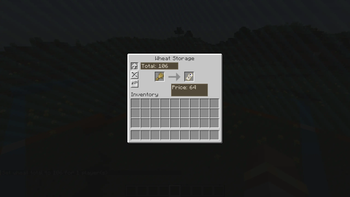
The Wheat GUI can be opened via a keybind. You can find it in controls at the bottom of the menu, in the "Walls of Wheat" section. Pressing the keybind will open a new inventory menu, similar to the normal one. You can access your hotbar and inventory, as well as see a variety of new things:
- Designated Wheat slot (and count display)
- Ticket o' Exploration trade slot (and price for trade)
- Time left on the open border
- And settings to toggle auto-wheat pickup, border related audio, and set the closed border boundary outline.
The Wheat slot has no cap on the number of items it can hold, so Wheat will no longer clutter your inventory. Clicking the stack with no items in your cursor will remove up to a stack from it. With Wheat in your cursor, clicking the stack will add the Wheat to it. Ticket trades will only appear when you have the necessary amount of Wheat, and are traded by clicking the item one at a time. The three settings on the left side of the gui are clickable buttons, and display their status with an icon and with a hover text element. The closed border boundary outline looks like a more transparent world border, that shows the closed position of the border when it is open. The color can be changed, or toggled off as well. Auto-Wheat pickup makes it so picking up Wheat items put them directly into your Wheat storage slot, instead of inventory slots.
/wheat has both admin and non-admin subcommands. The non-admin subcommands are an alternative way to access the functionality offered by the GUI. The following are the available subcommands and their fields:
Non-Admin
/wheat …
- add
- adds the specified amount of Wheat from your inventory to your Wheat storage slot. Must have the specified amount of Wheat, or will return an error. - boundary <color (blue, lime, pink, red, yellow, hidden)> - sets the color of the closed border boundary.
- buy
- buys the specified count of Tickets. Must have the necessary Wheat for the purchase or it will return an error. - mute <true/false> - turns on or off the audio for using a Ticket and the border closing.
- pickup <true/false> - turns on or off the auto-Wheat pickup feature.
- pull
- takes the specified amount of Wheat out of your storage slot and adds it to your inventory. Must have the specified amount, or will return an error message. - status - returns the amount of Wheat the player has stored and the next Ticket price.
Admin
/wheat …
- initial_price
- sets the first price to buy a Ticket. - price
- sets the current Ticket price for the player. - total
- sets the total amount of Wheat a player has. - fine
- removes the specified number of Wheat from the player. Can put a player in debt (negative total). - rate
- sets the formula used to calculate the next Ticket price after each purchase. The formula is evaluated with x representing the current Ticket price. Supported operators include: - Basic arithmetic: +, -, *, /
- Parentheses for grouping: (, )
- Exponentiation: ^
- Functions: sqrt(), floor(), ceil(), abs(), min(), max()
- Examples:
- /wheat rate x + 10 - increases price by 10 Wheat each purchase
- /wheat rate x * 2 - doubles the price each purchase
- /wheat rate x * 1.5 - increases price by 50% each purchase
- /wheat rate x + (x * 0.25) - adds 25% of current price
- /wheat rate floor(x * 1.1) + 5 - increases by 10% plus 5, rounded down
- /wheat rate min(x * 2, 1000) - doubles price but caps at 1000
- /wheat rate x^1.2 - exponential growth rate
Scoreboards
There are also five new scoreboard objectives that you can set, all related to the border:
wallsofwheat.border_cycles
wallsofwheat.border_penalties_suffered
wallsofwheat.tickets_bought
wallsofwheat.wheat_border_timer
wallsofwheat.wheat_count
A few more things
On top of the border and Wheat GUI features, there are a few smaller additions that are mainly for flare.
- New advancements related to the border and Wheat
- New items:
- Golden Wheat - made with Wheat and 8 Gold Nuggets.
- Golden Bread - made with 3 Golden Wheat. Replenishes more saturation and grants brief Haste.
- Golden Hay Bale - made with 9 Golden Wheat. Negates practically all fall damage when landed on.

Join the Discord to be a part of the discussion, provide suggestions, and help report bugs!
Available Versions
How to Install Walls of Wheat on Your Server
Order Server
Order a Minecraft Java server with at least 3 GB RAM (4 GB recommended).
Set forge Loader
In the panel under "Egg", select the forge loader and matching Minecraft version (1.21.1).
Install Mod
Open the mod browser in the dashboard and search for "Walls of Wheat". Click "Install" – done! Alternatively, upload the .jar via SFTP to the /mods folder.
Compatibility
Mod Loaders
Minecraft Versions
1.21.1
Server-side
✓ RequiredRecommended RAM
4 GB(min. 3 GB)Frequently Asked Questions
Walls of Wheat server crashes on startup – what to do?
Most common cause: wrong forge version or insufficient RAM. Check the server log (latest.log) for "OutOfMemoryError" or "Mixin" errors. With Mado Hosting: ensure at least 3 GB RAM is allocated and the loader matches the mod version (1.21.1). You can switch loaders with one click in the panel.
Is Walls of Wheat compatible with forge and neoforge?
Walls of Wheat officially supports forge, neoforge for Minecraft 1.21.1. The Mado dashboard automatically detects incompatible loader combinations.
Server lagging with Walls of Wheat – how to optimize performance?
Recommended RAM: 4 GB (per 8 players). Use /spark profiler to check if Walls of Wheat consumes the most tick time. Common fixes: reduce server view-distance to 8-10, install "performant" or "starlight" as supplementary mods on Forge. With Mado Hosting, your server runs on NVMe SSDs with dedicated CPU cores for minimal latency.
Similar Mods




![CobbleDollars [Cobblemon Addon]](https://cdn.modrinth.com/data/s7N7AsqL/684040a264fc1d7f9b856ec5d2da39767398c7ad.png)
Rent Modded Server
Install Walls of Wheat with just one click on your server.