
WorldBinder
WorldBinder is a powerful Fabric mod for saving, editing and placing structures, entities and reusable world scenes.
Screenshots
About this Mod
WorldBinder
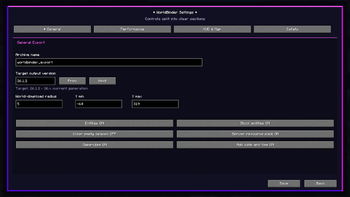
WorldBinder is a client-side Fabric mod for capturing loaded Minecraft world data and exporting it into playable vanilla world saves.
It is designed for players, server owners, builders, developers and preservation-focused users who want to locally save world data that their Minecraft client has already received. WorldBinder focuses on world capture, export, recovery, inspection and responsible preservation tools.
WorldBinder does not provide cheats, combat advantages, movement advantages, X-ray features or hidden server bypasses.
What WorldBinder does
WorldBinder captures world data that is already loaded on your client and turns it into a local Minecraft world save.
This can be useful for:
- backing up your own builds
- preserving maps you created or administer
- archiving server projects you have permission to save
- inspecting captured world data locally
- testing exports across different Minecraft versions
- recovering captured chunks after crashes or disconnects
WorldBinder can only save data that your client actually receives. It cannot magically reconstruct server-side-only logic, unloaded chunks or hidden data that was never sent to your game.
Main features
- Client-side world capture
- HotCache-first chunk capture
- Durable chunk block cache for large captures
- Vanilla world export
- Target output version selection
- Block, block entity and entity export
- Map, stats and advancement export where available
- Server resource pack export as
resources.zip - Recovery and autosave tools
- Configurable performance presets
- Export validation reports
- F9 Control Center
- F10 live chunk map
- Ctrl+C chunk center coordinate copying
- Queue Dashboard / Profiler
- Dedicated WorldBinder keybind category
- German and English language support
- Responsive interface for different window sizes and GUI scales
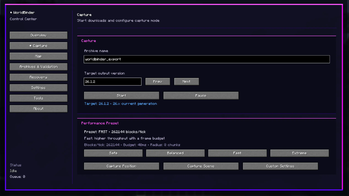
F9 Control Center
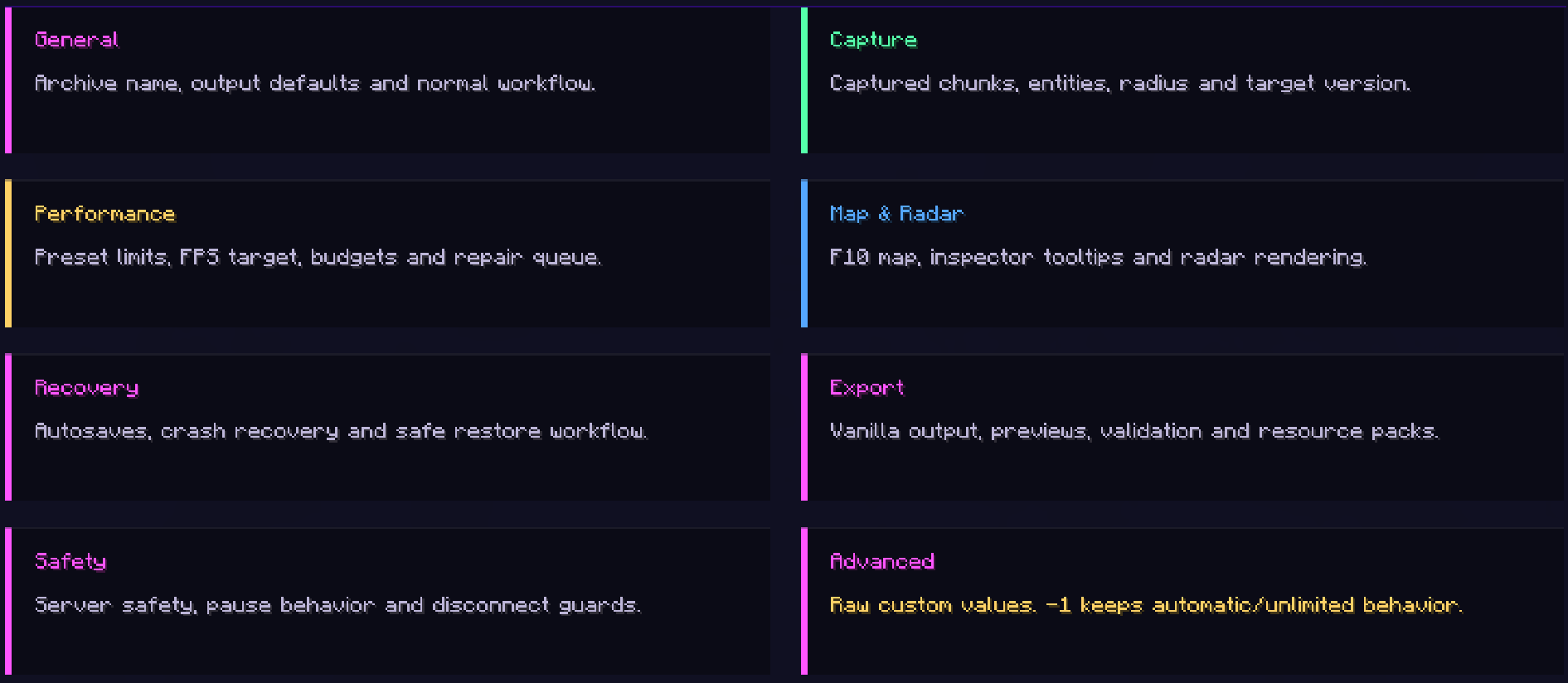
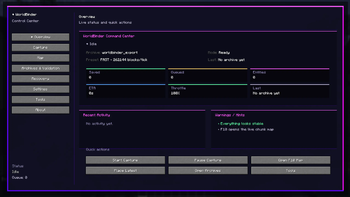
WorldBinder includes a central Control Center that can be opened with F9 by default.
The Control Center gives quick access to:
- capture status
- archive progress
- recent activity
- warnings
- capture actions
- map tools
- recovery tools
- settings
- profiler / queue dashboard
- documentation and about pages
It is designed as the main hub for controlling WorldBinder without having to remember every individual menu.
F10 live chunk map
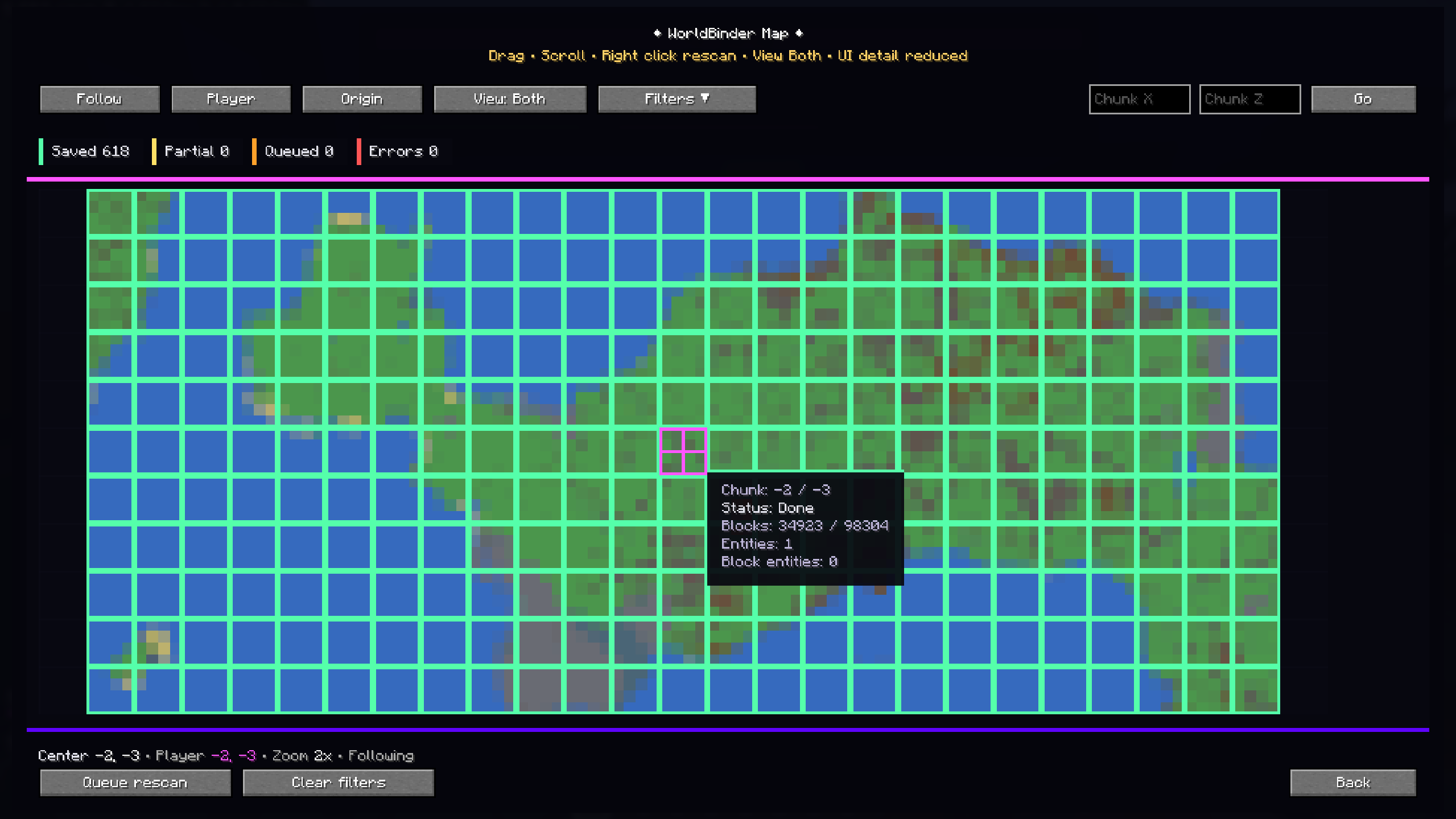
The F10 map shows captured world data in real time.
It can display:
- captured chunks
- partial chunks
- queued chunks
- chunks with entities
- chunks with block entities
- warning and error states
- coverage information
- inspector tooltips
- manual chunk navigation
- follow mode and filters
You can also select a chunk and copy its center coordinate with Ctrl+C, making it easier to teleport to or inspect captured locations.
Durable chunk cache
WorldBinder includes a durable chunk cache for large captures.
During bigger world downloads, captured chunk block data can be written into a temporary cache under:
saves/WorldBinder/.cache/
This helps protect captured block data during long sessions and makes large exports more reliable.
After a successful export, temporary cache data is cleaned up automatically. If Minecraft crashes or the export fails, the cache can remain available for recovery.
Capture and export workflow
A typical WorldBinder workflow looks like this:
- Join a singleplayer world or multiplayer server.
- Open the WorldBinder Control Center with F9.
- Configure the capture mode, target version and performance preset.
- Start capturing.
- Move through the area you want to save.
- Use the F10 map to inspect capture coverage.
- Export the captured data into a local world save.
- Open the exported world in Minecraft or import it into a server setup you control.
WorldBinder is designed to keep capture and export actions visible and understandable, instead of silently writing files in the background without feedback.
Target output versions
WorldBinder can export captured worlds for different target Minecraft versions.
This means you can capture with a newer client version and choose an older output version where supported. WorldBinder applies version-aware export handling for folder layout, gamerules, entities, POI data, saved data and world metadata.
Some version downgrades may still be imperfect, especially when the captured world contains blocks, entities, item data, NBT structures or resource pack content that did not exist in the selected target version.
Export structure and validation
WorldBinder exports are designed to be readable as normal Minecraft world saves.
Exports may include:
level.datlevel.dat_oldsession.lockicon.pngregion/entities/poi/data/resources.zip- an export
README.md - validation reports where available
For modern Minecraft versions, WorldBinder also writes additional saved-data and dimension-related structures where needed for better compatibility with vanilla and server import workflows.
The built-in validation system helps detect missing or suspicious export files before users assume an export is complete.
Resource pack export
If the server sends a resource pack and the client has access to it, WorldBinder can export the resource pack as:
resources.zip
WorldBinder tries to detect the currently active server resource pack, including cases where a server switches packs during gameplay or reuses an already-downloaded pack.
Resource pack export depends on what the client actually received and what the server allowed the client to download.
Recovery and autosave
WorldBinder includes recovery and autosave features to reduce data loss during longer capture sessions.
This is useful when:
- the game crashes
- the server disconnects you
- Minecraft is closed unexpectedly
- a long capture session is interrupted
- you want safer capture behavior during testing
Recovery can reuse matching chunk cache data where available, which makes crash recovery safer for large captures.
Recovery does not replace careful exports, but it helps preserve captured data during unstable sessions.
Performance presets
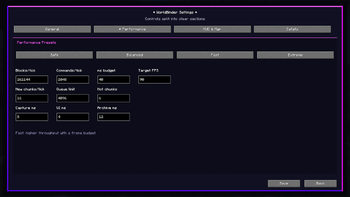
WorldBinder includes configurable performance presets to balance capture speed and game performance.
Available presets may include modes such as:
- Safe
- Balanced
- Fast
- Extreme
- Custom
Users can choose a preset depending on their system, server conditions and how aggressively they want WorldBinder to process captured data.
Advanced users can fine-tune capture limits, queue behavior, autosave timing and HUD/map behavior in the settings.
Responsive interface
WorldBinder uses a responsive interface system designed to keep menus usable across different Minecraft window sizes and GUI scales.
This affects major screens such as:
- F9 Control Center
- F10 Map
- Capture screen
- Settings
- Safety and recovery options
- Performance configuration
- Profiler / Queue Dashboard
- Progress screens
- Export and finish screens
Very small windows may still appear more pixelated because Minecraft's pixel-style UI is being scaled down, but the layout is designed to remain consistent and usable.
Keybinds
WorldBinder includes configurable keybinds in Minecraft's controls screen under the dedicated WorldBinder category.
Default bindings:
- F6: Start / stop world download
- F7: Set position 1
- F8: Set position 2
- F9: Open WorldBinder Control Center
- F10: Open WorldBinder Map
All keybinds can be changed in Minecraft's normal controls menu.
Loader support
WorldBinder is a native Fabric mod.
It is built around Fabric's client-side APIs and is currently focused on providing the best possible Fabric experience.
WorldBinder does not currently support Forge, NeoForge or Quilt. Other loaders may be evaluated in the future, but they are not supported at this time.
Important limitations
WorldBinder can only export data that the Minecraft client actually receives.
That means exported worlds may be incomplete if the server never sent certain data to the client, such as:
- unloaded chunks
- distant entities
- inventories
- some block entity data
- server-side-only logic
- hidden dimensions
- plugin-managed data
- custom server systems
- inaccessible resource pack content
WorldBinder exports may also differ from the original server-side world depending on server setup, custom content, resource packs, entities, dimensions, gamerules and Minecraft version differences.
WorldBinder is not a replacement for proper server backups.
Responsible use
Only use WorldBinder on worlds, servers, maps, builds and resource packs that you own, administer, created yourself, or where you have explicit permission to archive or export the content.
You are responsible for how exported data is used.
WorldBinder does not grant rights to copy, redistribute, publish or reuse content owned by other people, servers or projects.
Please respect server rules, creator rights and community guidelines.
Feedback and bug reports
WorldBinder is actively being improved.
Please report bugs, ideas and feedback on GitHub or Discord:
- Repository: https://github.com/Philiipp06/WorldBinder
- Issues: https://github.com/Philiipp06/WorldBinder/issues
- Discord: https://discord.com/invite/V7h3vaXxDZ
Helpful reports include:
- Minecraft version
- WorldBinder version
- selected target output version
- Fabric Loader version
- Fabric API version
- window mode and GUI scale if the issue is UI-related
- what was captured
- what went wrong
- screenshots
- logs
- exported test worlds if possible
Clear reports make it much easier to reproduce and fix issues.
Project status
WorldBinder 1.0.0 is the first stable public release.
The project has moved beyond Alpha and Beta testing, but it will continue to improve. The goal is to keep improving world export accuracy, target-version compatibility, entity handling, recovery behavior, performance and overall usability based on real feedback.
Available Versions
How to Install WorldBinder on Your Server
Order Server
Order a Minecraft Java server with at least 3 GB RAM (4 GB recommended).
Set fabric Loader
In the panel under "Egg", select the fabric loader and matching Minecraft version (26.1.2).
Install Mod
Open the mod browser in the dashboard and search for "WorldBinder". Click "Install" – done! Alternatively, upload the .jar via SFTP to the /mods folder.
Compatibility
Mod Loaders
Minecraft Versions
26.1.2
Server-side
✗ UnsupportedRecommended RAM
4 GB(min. 3 GB)Frequently Asked Questions
WorldBinder server crashes on startup – what to do?
Most common cause: wrong fabric version or insufficient RAM. Check the server log (latest.log) for "OutOfMemoryError" or "Mixin" errors. With Mado Hosting: ensure at least 3 GB RAM is allocated and the loader matches the mod version (26.1.2). You can switch loaders with one click in the panel.
Is WorldBinder compatible with fabric?
WorldBinder officially supports fabric for Minecraft 26.1.2. The Mado dashboard automatically detects incompatible loader combinations.
Server lagging with WorldBinder – how to optimize performance?
Recommended RAM: 4 GB (per 8 players). Use /spark profiler to check if WorldBinder consumes the most tick time. Common fixes: reduce server view-distance to 8-10, install "performant" or "starlight" as supplementary mods on Forge. With Mado Hosting, your server runs on NVMe SSDs with dedicated CPU cores for minimal latency.
Similar Mods






Rent Modded Server
Install WorldBinder with just one click on your server.