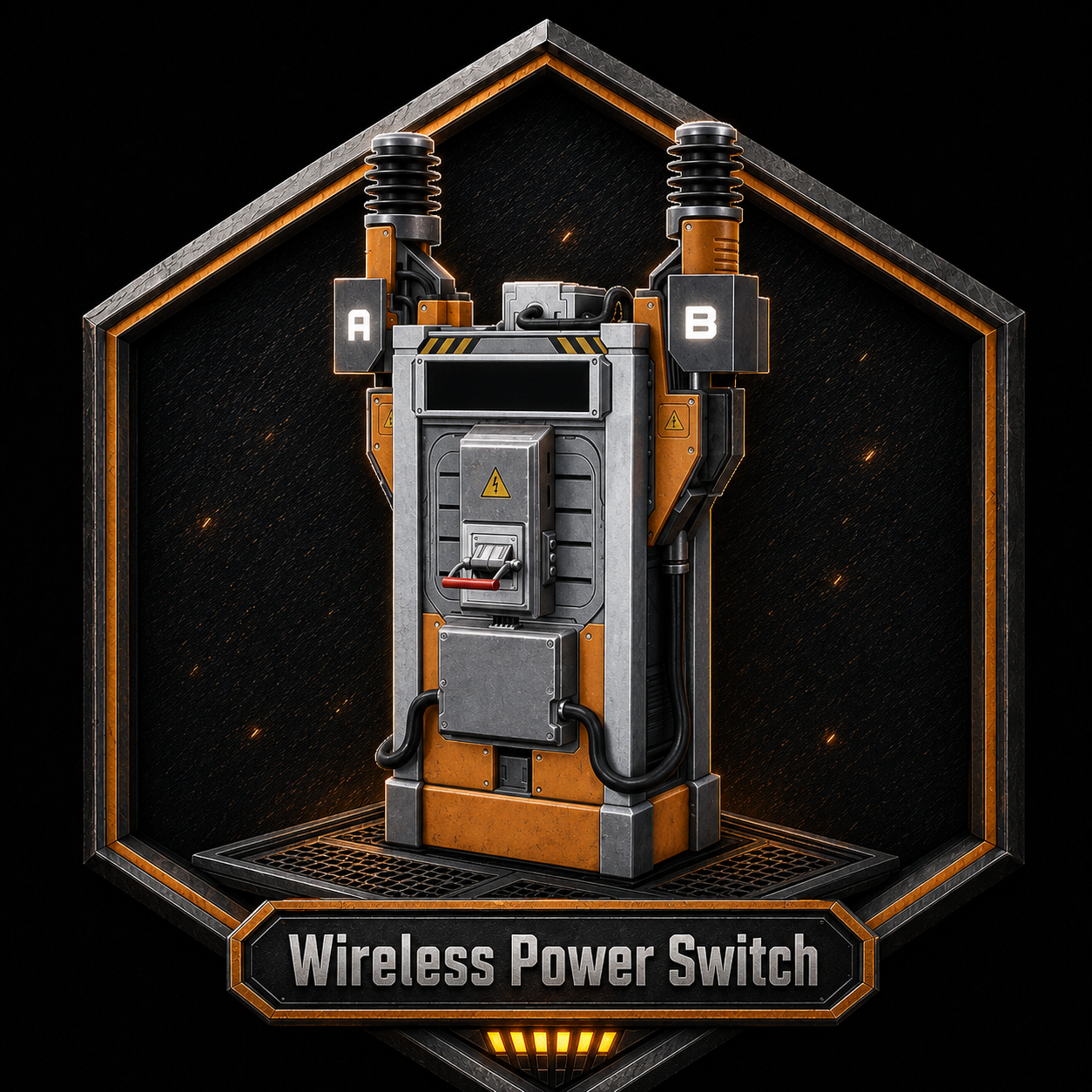
Wireless Power Switch
Wireless power for your wireless neeeds!
Description
<div style="font-family: Arial, sans-serif; color: #e6e6e6; background: #151515; border: 2px solid #ff6a2a; padding: 18px; border-radius: 6px;">
<h1 style="color: #ff6a2a; margin-top: 0; font-size: 34px;">
Wireless Power Switch
</h1>
<p style="font-size: 16px; line-height: 1.5;">
Wireless Power Switch adds a clean way to power nearby factory machines without running wires to every single building. Teir 1 Unlocked in the hub.
</p>
<hr style="border: none; border-top: 2px solid #ff6a2a; margin: 18px 0;">
<h2 style="color: #ff6a2a;">What It Does</h2>
<ul style="font-size: 15px; line-height: 1.7;">
<li>Scans nearby powered buildings in a <strong>250 meter range</strong>.</li>
<li>Lets you assign or unassign machines from a simple menu.</li>
<li>Assigned buildings show green in the list.</li>
<li>The switch can be enabled or disabled at any time.</li>
<li>Re-opening the menu scans the area again.</li>
<li>Generators and other Wireless Power Switches are ignored.</li>
</ul>
<h2 style="color: #ff6a2a;">How To Use</h2>
<ol style="font-size: 15px; line-height: 1.7;">
<li>Build a Wireless Power Switch.</li>
<li>Connect power to the switch.</li>
<li>Open the switch menu.</li>
<li>Click buildings in the list to assign them.</li>
<li>Use the Enabled / Disabled button to control the wireless power link.</li>
</ol>
<div style="background: #222; border-left: 5px solid #65c957; padding: 12px 14px; margin: 18px 0;">
<strong style="color: #65c957;">Assigned buildings stay saved.</strong><br>
Your selected machines remain assigned after closing the menu and loading your save.
</div>
<h2 style="color: #ff6a2a;">Good For</h2>
<ul style="font-size: 15px; line-height: 1.7;">
<li>Cleaner factories with fewer visible wires.</li>
<li>Compact machine rooms.</li>
<li>Hidden power setups.</li>
<li>Factory sections you want to turn on and off from one switch.</li>
</ul>
<div style="background: #1f1f1f; border: 1px solid #555; padding: 12px 14px; margin-top: 18px;">
<strong style="color: #ff6a2a;">Important:</strong><br>
This does not generate power. The Wireless Power Switch still needs to be connected to a real powered circuit.
</div>
<p style="font-size: 13px; color: #999; margin-top: 20px; text-align: center;">
Built for players who would rather not have visual spagetti wires.
</p>
</div>
How to Install Wireless Power Switch on Your Server
Order Satisfactory Server
Order a Satisfactory server with at least 4 GB RAM (6 GB recommended). For multiplayer: per 4 players.
Install Mod
Open the mod manager in the dashboard and search for "Wireless Power Switch". Installation dependencies are installed automatically.
Restart Server
Restart the server so the mod is loaded. Players need to have the mod installed locally as well.
Frequently Asked Questions
Wireless Power Switch not working after update – what to do?
After a Satisfactory update, mods need to be updated. Check ficsit.app whether Wireless Power Switch has been updated for the new game version. With Mado Hosting: open the mod manager and click "Update All". If the mod hasn't been updated yet, temporarily remove it so the server starts.
Wireless Power Switch causing crashes in multiplayer – solution
Most common cause: all players must have exactly the same mod version installed. Check server logs for "ModMismatch" or "Version Conflict". Ensure all players use Wireless Power Switch v1.0.0 and the same SML. With Mado Hosting, Satisfactory servers run with 6 GB RAM for stable multiplayer performance.
Is Wireless Power Switch compatible with other Satisfactory mods?
Wireless Power Switch uses the Satisfactory Mod Loader (SML). Generally, SML-based mods are cross-compatible, but mods modifying the same game systems can cause conflicts. Test new mod combinations on a backup save. The Mado dashboard automatically detects known conflicts and warns you.
Rent Wireless Power Switch Server
Play Wireless Power Switch on your own Satisfactory server with mod support.
Mod Information
- Author
- StabbyMcGhost
- Latest Version
- v1.0.0
- Created
- July 7, 2026
- Last Updated
- July 8, 2026