
Create Track Map
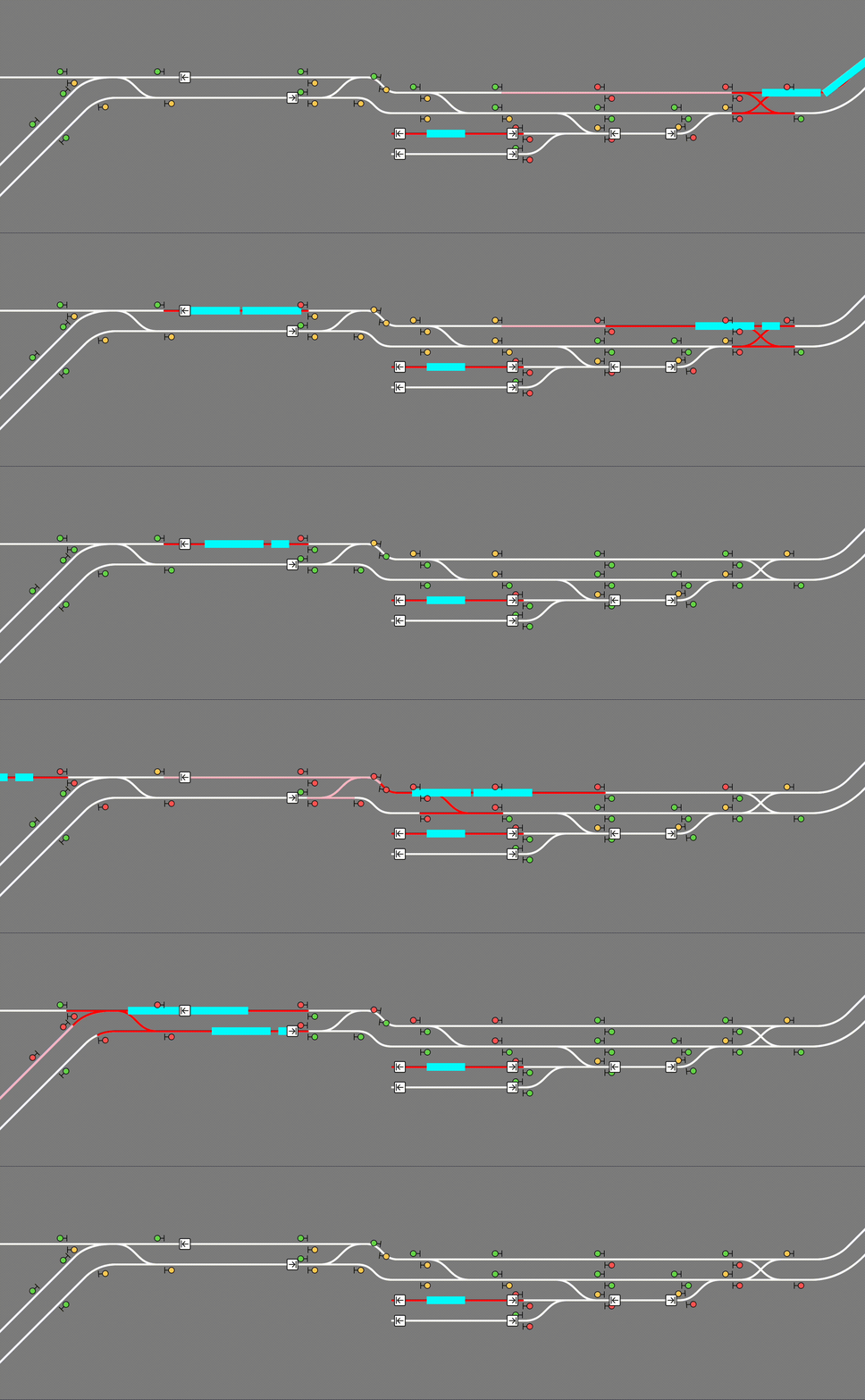
A web-based track map of your world's Create train system, complete with signals, stations, and trains moving in real time.
Screenshots
Über diese Mod
Create Track Map









Create Track Map (CTM) is a multi-loader mod that displays a track map of Create trains in your world, including all tracks, signals, stations, and trains. The signals and trains are updated in (practically) real time.
Usage
CTM is available for download on Modrinth. Please make sure you download the correct version for your loader, Minecraft version, and Create version. Below is the compatibility chart for Create versions:
| CTM ≤1.3 | CTM 1.4 | CTM ≥1.5 | |
|---|---|---|---|
| Create 0.5.0 | ✅ | ✅ | ❌ |
| Create 0.5.1 | ❌ | ✅ | ✅ |
Installation
Simply place the .jar file in your mods folder (or install with a modloader) like any other mod! CTM is intended to be a server side mod, but can also run in single-player worlds and LAN servers. It runs a web server on port 3876 by default, but this can be configured. You must forward this port if you wish to see the map. (How do I do this?)
The map itself is visible at the root (by default http://localhost:3876/). If using a proxy to serve the map, make sure to configure it to let Server-Sent Events through.
Singleplayer
The map is hosted on your computer so while Minecraft is open, enter http://localhost:3876/ into your browser.
Multiplayer
A) Local (LAN) server
The map is still hosted on your computer so while the game is open, enter http://localhost:3876/ into your browser.
Those in your household can see the map by entering http://[your computer's IPV4 address]:3876/ into their browser.
How do I see my computer's IPV4 address?
B) The server is on my PC
The map is still hosted on your computer so while the server is open, enter http://localhost:3876/ into your browser.
Those in your household can see the map by entering http://[your computer's IPV4 address]:3876/ into their browser.
Those outside your household can see the map by entering http://[your public IPV4 address]:3876/ into their browser.
How do I see my public IPV4 address?
C) The server is hosted with a hosting service
The map is hosted with the server on that service. You can see the map at [your server address]:3876/ while the server is up.
NOTE: YOUR SERVICE MUST SUPPORT EXTRA PORT FORWARDING. You can check with support/the docs for the service or just good old Google. If the service doesn't support this, you are out of luck. You can switch services or try hosting your own.
Just so it's clear: Do not include the brackets around your IPV4 address! For example: 192.168.0.0:3876
READ THIS BEFORE ASKING FOR HELP!
To use this mod, you must be able to open a second port, in addition to your Minecraft server, which CTM will run its web server on. If you are using Aternos, this is not possible. If you are using a shared hosting provider, please contact your host for assistance in opening a port. No support will be provided to open a port or to diagnose issues which are not caused by a bug in the mod.
Advanced Usage
CTM API
CTM provides the following API, also accessible through the same port:
/api/network,/api/network.rt: List of all track pieces and train stations/api/signals,/api/signals.rt: List of all train signals, including their states
(green, yellow, red)/api/blocks,/api/blocks.rt: List of all signal control blocks, and whether they are occupied or reserved by a train/api/trains,/api/trains.rt: List of all assembled trains, including their names and
positions/api/style.css: CSS style sheet generated from configured colors and fonts/api/config.json: Map configuration
The .rt versions update in real time with Server-Sent Events (SSE).
Configuration
CTM's config options can be found at create-track-map.json in your server's config directory. It is automatically created at startup if it doesn't exist.
The following options are available:
{
  // Whether to actually start the watcher and the server.
  "enable": false,

  // How long to wait between track data updates.
  "watch_interval_seconds": 0.5,
  // The port the internal web server listens on.
  "server_port": 3876,

  "map_style": {
    // Font to use for the map's UI. Must be a valid CSS font stack.
    "font": "ui-monospace, \"JetBrains Mono\", monospace",
    // Colors for individual components of the map. Must be valid CSS colors.
    // Any CSS color format will work, such as named colors and rgb().
    "colors": {
      "background": "#888",
      "track": {
        "occupied": "red",
        "reserved": "pink",
        "free": "white"
      },
      "signal": {
        "green": "#71db51",
        "yellow": "#ffd15c",
        "red": "#ff5f5c",
        "outline": "black"
      },
      "portal": {
        "primary": "purple",
        "outline": "white"
      },
      "station": {
        "primary": "white",
        "outline": "black"
      },
      "train": "cyan",
      "lead_car": "darkturquoise"
    }
  },

  "map_view": {
    "initial_dimension": "minecraft:overworld",
    "initial_position": { "x": 0, "z": 0 },

    // Zoom levels must be integers, but may be negative.
    // Each zoom level is twice as big as the previous.
    // 0 is a decent minimum but may be impractical for large networks.
    // 3 is the sensible default for viewing double-tracked networks.
    "initial_zoom": 3,
    "min_zoom": 0,
    "max_zoom": 4,

    // Whether a zoom control should be visible on the screen.
    "zoom_controls": true,

    // Which side of the track a signal should be displayed on.
    // Valid values are LEFT or RIGHT (all uppercase).
    "signals_on": "RIGHT"
  },

  "dimensions": {
    // Dimension names must be namespaced.
    "minecraft:overworld": {
      // Label that shows up in the layer switcher.
      "label": "Overworld"
    },
    "minecraft:the_nether": {
      "label": "Nether"
    },
    "minecraft:the_end": {
      "label": "End"
    }
  },

  "layers": {
    "tracks": {
      "label": "Tracks",
      "min_zoom": 0,
      "max_zoom": 4
    },
    "blocks": {
      "label": "Track Occupancy",
      "min_zoom": 0,
      "max_zoom": 4
    },
    "signals": {
      "label": "Signals",
      "min_zoom": 0,
      "max_zoom": 4
    },
    "portals": {
      "label": "Portals",
      "min_zoom": 0,
      "max_zoom": 4
    },
    "stations": {
      "label": "Stations",
      "min_zoom": 0,
      "max_zoom": 4
    },
    "trains": {
      "label": "Trains",
      "min_zoom": 0,
      "max_zoom": 4
    }
  }
}
Reload the config without restarting the server by running /ctm reload (operator permissions required).
Verfügbare Versionen
Create Track Map auf dem Server installieren
Server bestellen
Bestelle einen Minecraft Java Server mit mindestens 4 GB RAM (6 GB empfohlen).
fabric Loader setzen
Wähle im Panel unter "Egg" den fabric-Loader und die passende Minecraft-Version (1.20.1).
Mod installieren
Öffne den Mod-Browser im Dashboard und suche nach "Create Track Map". Klicke "Installieren" – fertig! Alternativ: Lade die .jar via SFTP in den /mods Ordner.
Kompatibilität
Mod-Loader
Minecraft-Versionen
1.20.1, 1.19.2, 1.18.2
Server-seitig
✓ ErforderlichEmpfohlener RAM
6 GB(min. 4 GB)Häufige Fragen
Create Track Map Server crasht beim Start – was tun?
Häufigste Ursache: falsche fabric-Version oder zu wenig RAM. Prüfe im Server-Log (latest.log), ob ein "OutOfMemoryError" oder "Mixin"-Fehler auftritt. Bei Mado Hosting: Stelle sicher, dass mindestens 4 GB RAM zugewiesen sind und der Loader zur Mod-Version passt (1.20.1). Über das Panel kannst du den Loader mit einem Klick wechseln.
Ist Create Track Map mit fabric und forge und neoforge und quilt kompatibel?
Create Track Map unterstützt offiziell fabric, forge, neoforge, quilt für Minecraft 1.20.1, 1.19.2, 1.18.2. Achtung: Forge- und Fabric-Mods sind NICHT untereinander kompatibel – wähle einen Loader und bleibe dabei. Im Mado Dashboard werden inkompatible Loader-Kombinationen automatisch erkannt.
Server laggt mit Create Track Map – wie optimiere ich die Performance?
Empfohlener RAM: 6 GB (+1 GB pro 5 Spieler). Prüfe mit /spark profiler, ob Create Track Map den meisten Tick-Time verbraucht. Häufige Fixes: Server-View-Distance auf 8-10 reduzieren, bei Forge "performant" oder "starlight" als Zusatz-Mod installieren. Bei Mado Hosting läuft dein Server auf NVMe-SSDs mit dedizierten CPU-Kernen für minimale Latenz.
Ähnliche Mods


Modded Server mieten
Installiere Create Track Map mit nur einem Klick auf deinem Server.