
Modrinth · Fabric, Forge, NeoForge
Wireless Redstone auf deinem Minecraft Server
Wireless Redstone läuft auf Minecraft Servern mit Fabric oder Forge oder NeoForge. Bestell deinen Server, stell den Loader im Panel ein und installiere die Mod mit einem Klick im Mod-Browser.
Wireless Redstone adds blocks and items to use redstone remotely
- Downloads
- 608.8K
- Autor
- Razzokk
- Loader
- Fabric, Forge, NeoForge
- Minecraft
- 1.12.2 – 1.20.4
- Aktualisiert
- –
Screenshots
So sieht Wireless Redstone aus
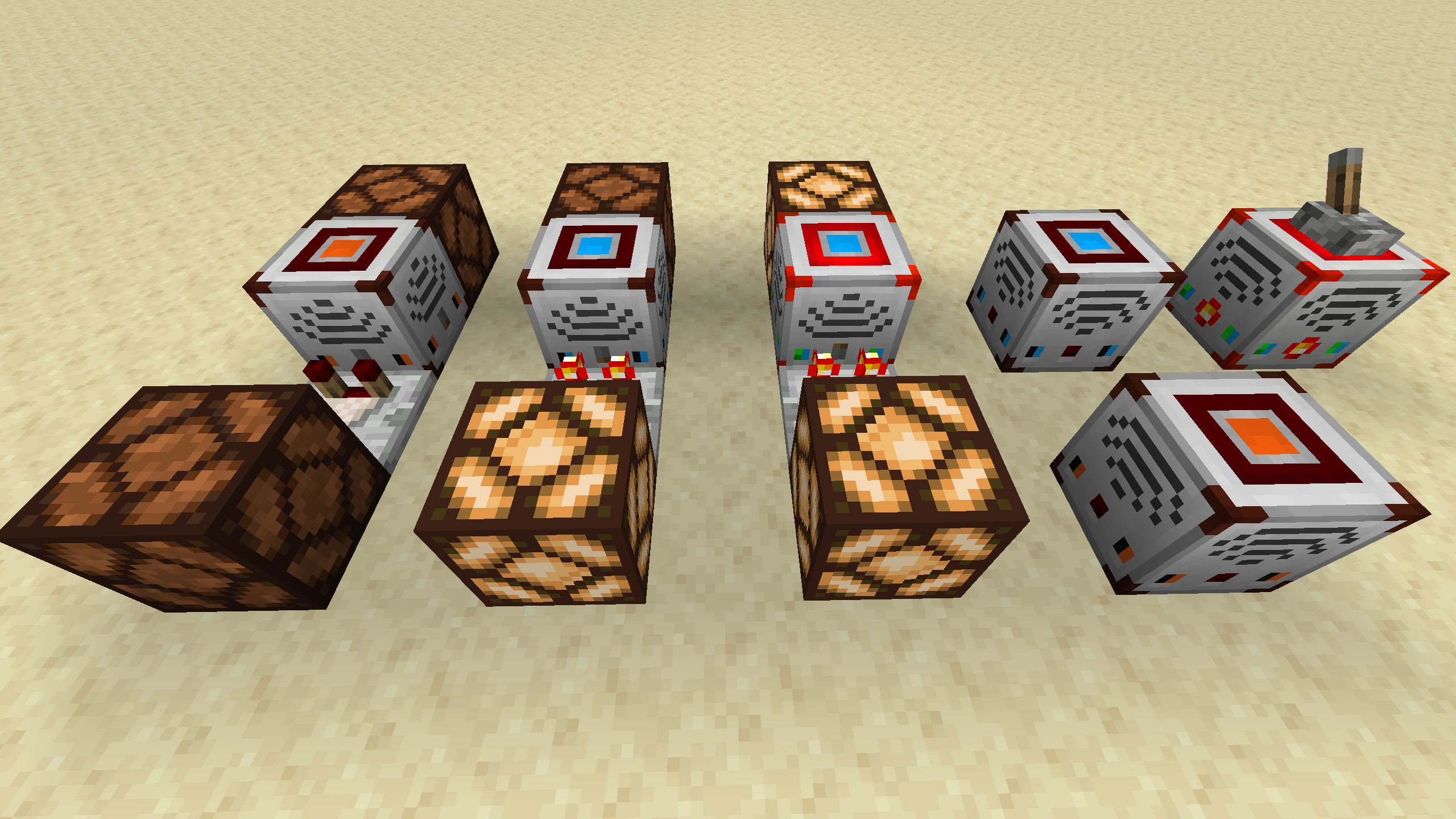
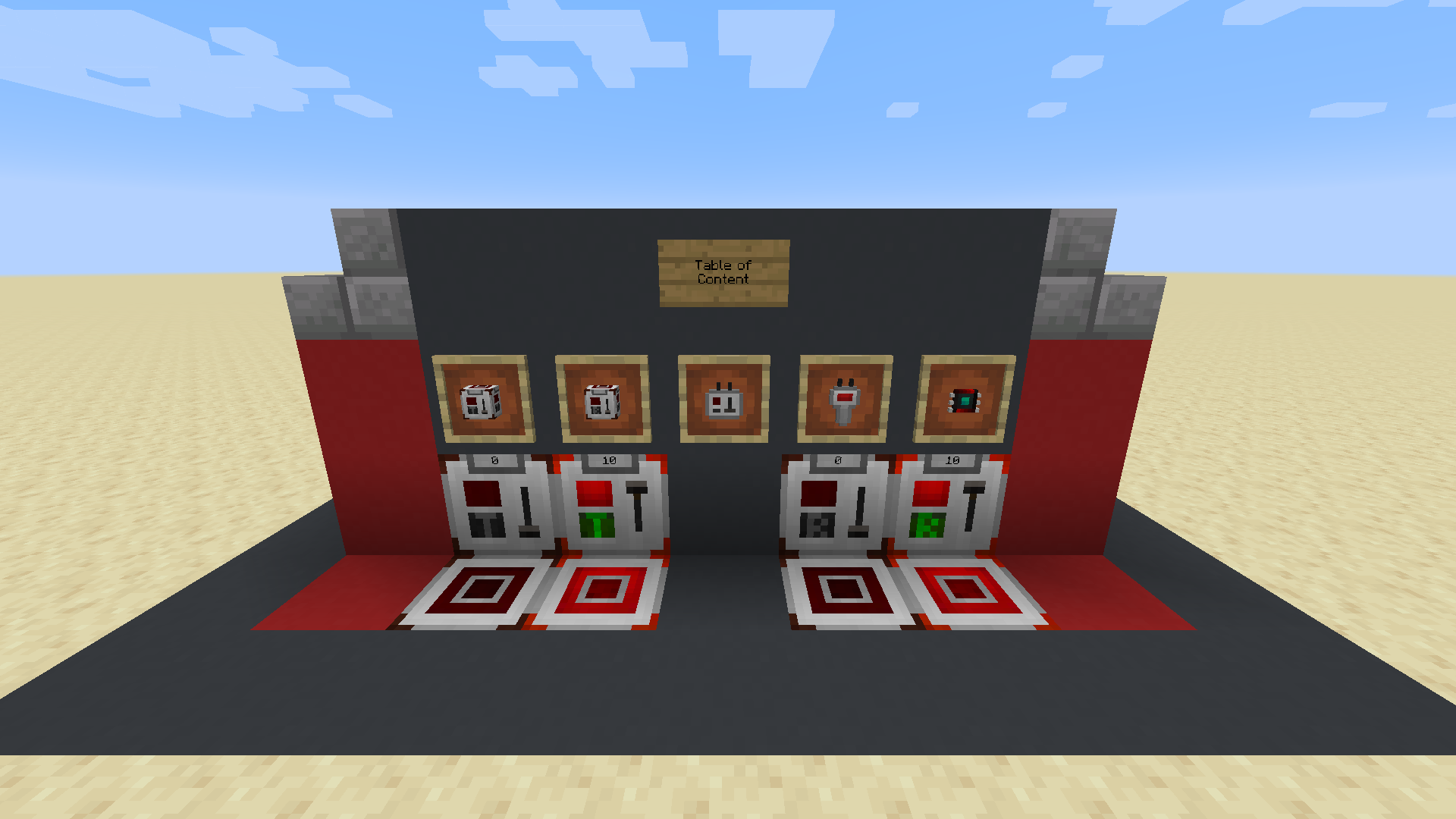
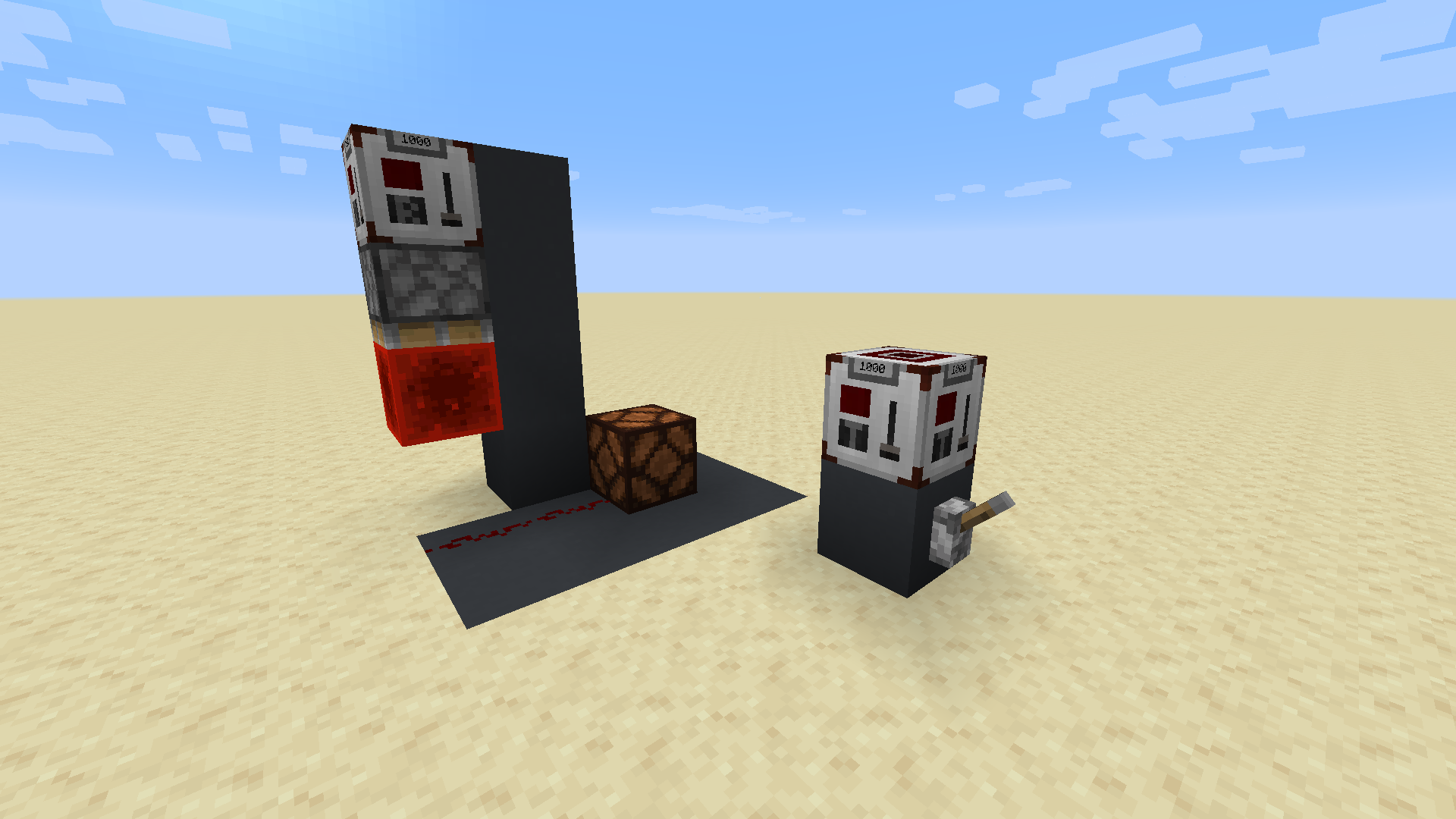
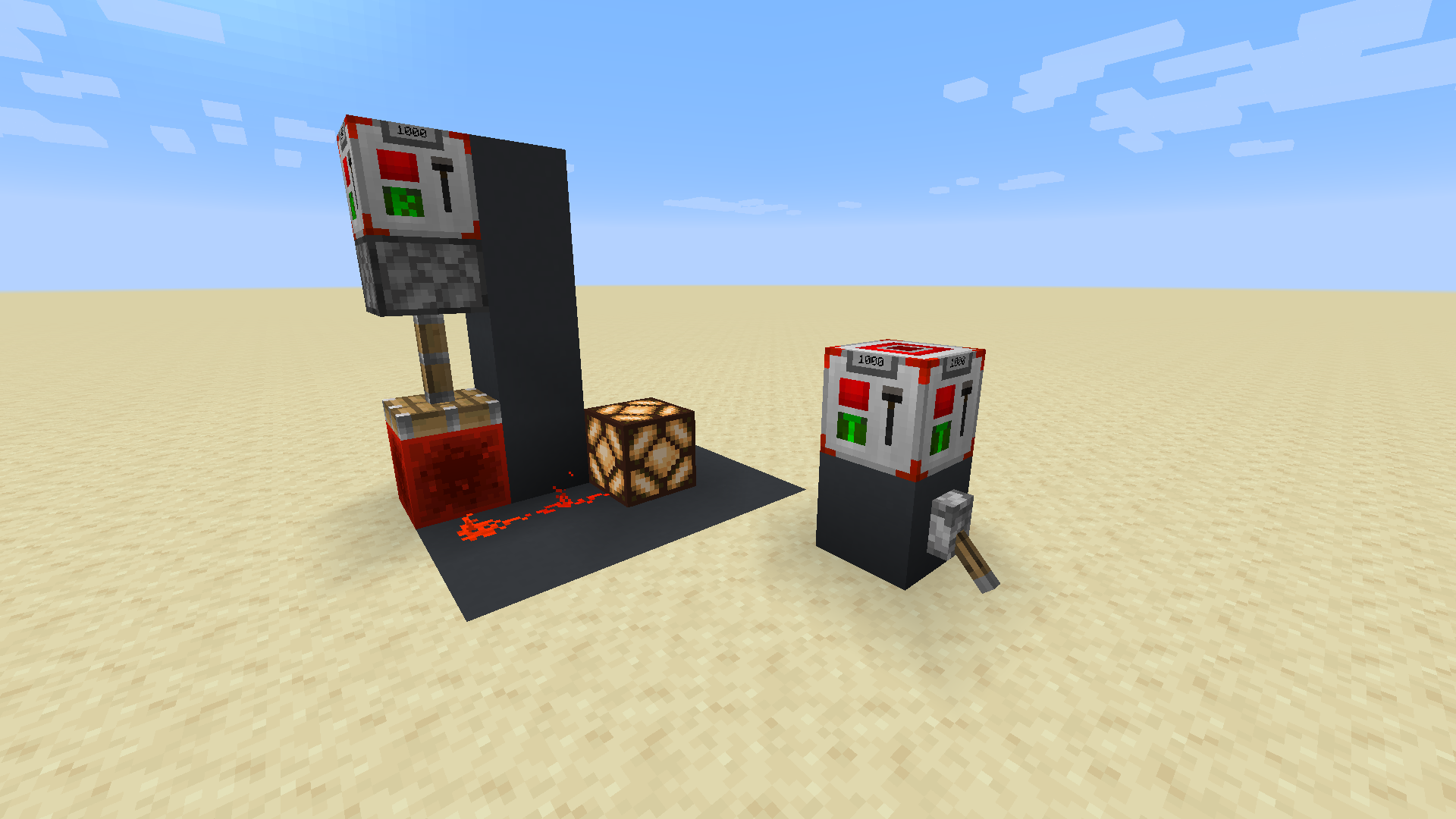
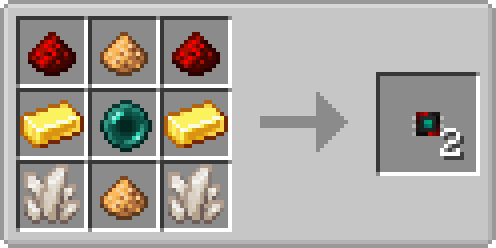
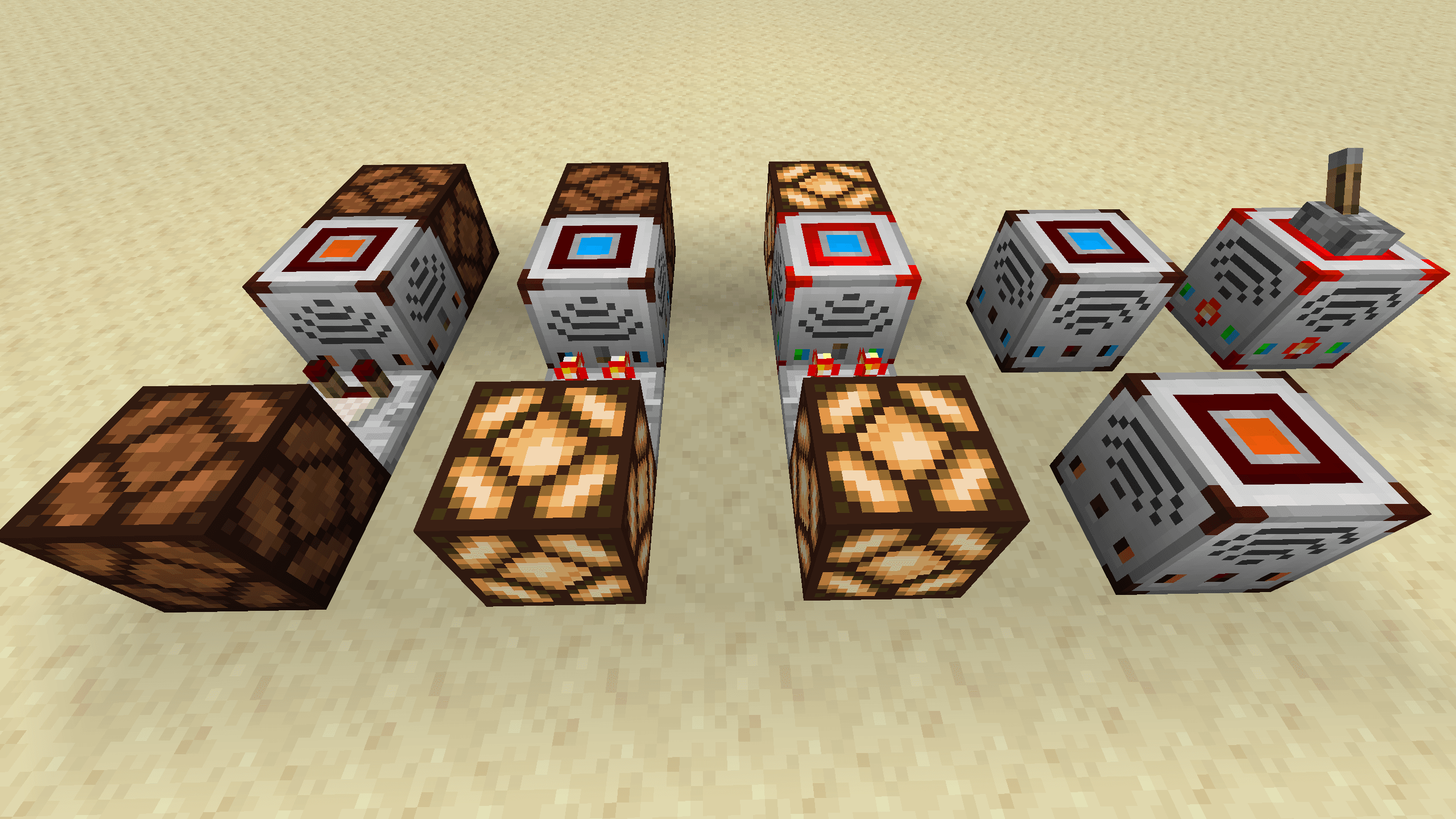
Bilder: Wireless Redstone auf Modrinth, vom Projektteam veröffentlicht.
Einrichtung
Wireless Redstone auf dem Server installieren
Server und Spieler brauchen denselben Loader und dieselbe Minecraft-Version. Sichere die Welt, bevor du Mods hinzufügst oder aktualisierst.
- 01
Konfigurieren
4 GB RAM sind vorausgewählt. Laufzeit und Add-ons wählst du selbst, bezahlt wird per Kreditkarte oder PayPal.
- 02
Loader einstellen
Stell im Panel die Serversoftware auf Fabric oder Forge oder NeoForge und wähl die passende Minecraft-Version, zum Beispiel 1.20.4.
- 03
Mod installieren
Such im Mod-Browser nach „Wireless Redstone“ und installiere die Version für deinen Loader. Alternativ lädst du die .jar per SFTP in den Ordner mods. Erforderliche Abhängigkeiten stehen auf der Projektseite.
- 04
Verbinden
Alle Spieler installieren Wireless Redstone in derselben Version lokal und verbinden sich über die Serveradresse aus dem Panel.
- Auf dem Server
- Erforderlich
- Auf dem Client
- Erforderlich
- Loader
- Fabric, Forge, NeoForge
- Minecraft
- 1.20.4, 1.20.1, 1.19.4 +7 weitere
- Lizenz
- GNU General Public License v3.0 only
Das Panel
Mods installieren, Fehler finden.
Echte Screenshots aus dem Mado Panel. Beides ist bei jedem Minecraft Server enthalten.
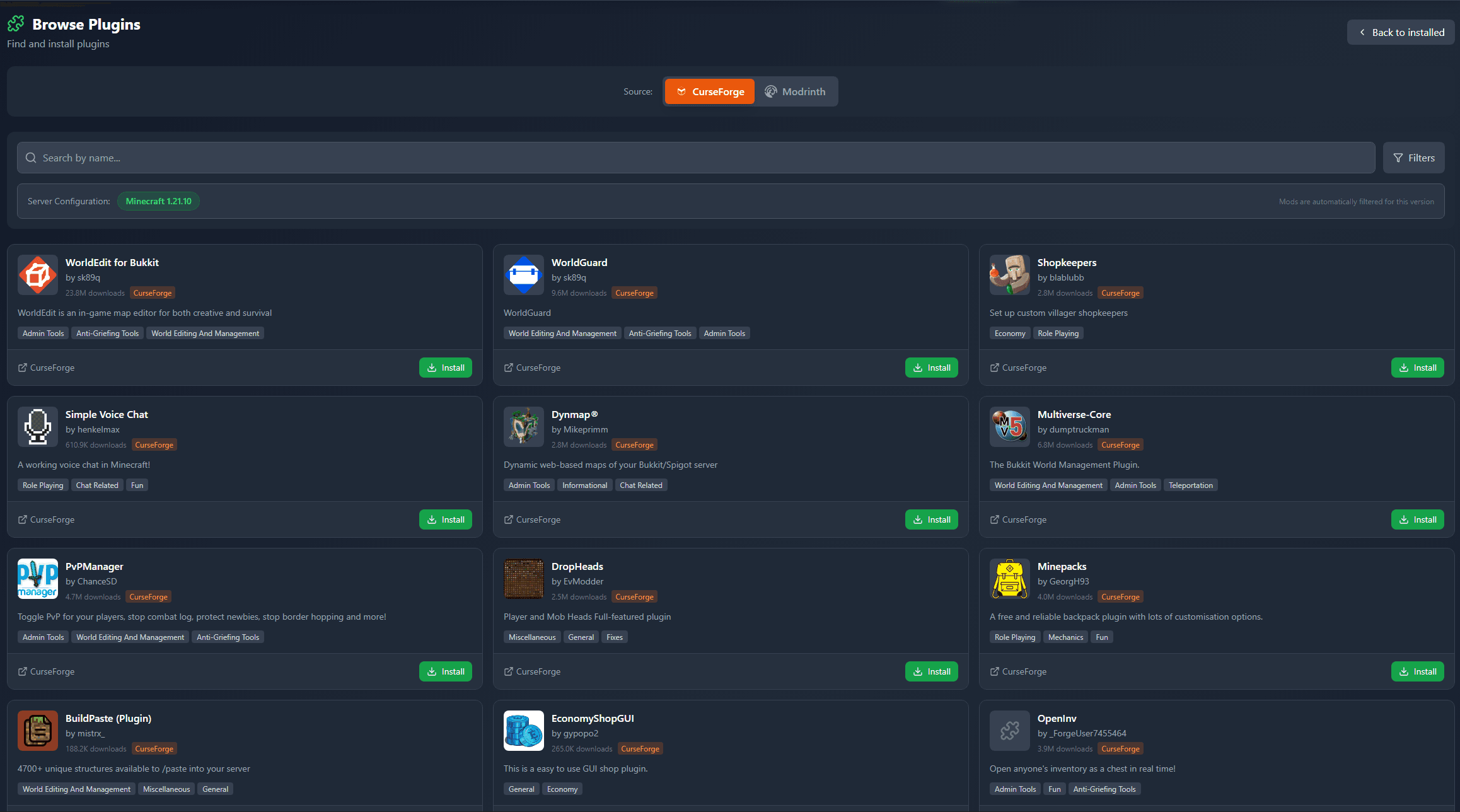
Mod-Browser
Modrinth und CurseForge direkt im Panel.
Der Browser filtert nach deiner Minecraft-Version. Mods installierst du mit einem Klick, ohne .jar-Dateien hochzuladen.
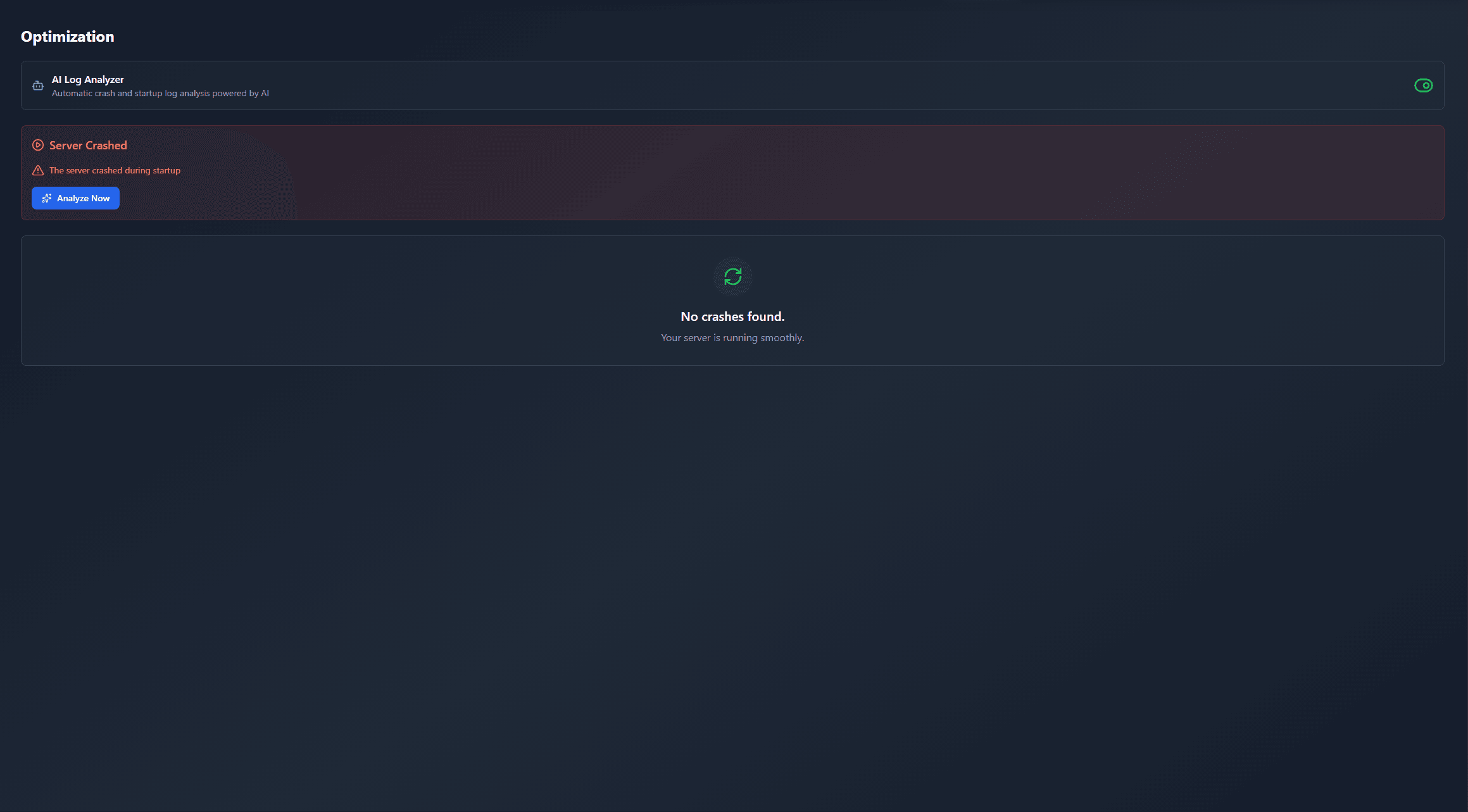
KI-Crash-Analyse
Wenn ein Mod crasht, liest die Analyse das Log.
Mods scheitern oft an einer falschen Loader-Version, Java-Version oder fehlenden Abhängigkeit. Die Analyse nennt eine wahrscheinliche Ursache und einen Lösungsvorschlag.
Versionen
Veröffentlichte Versionen
Nimm die Datei, die zu Loader und Minecraft-Version deines Servers passt. Server und Spieler brauchen dieselbe Version.
Wireless Redstone · Modrinth- [Fabric 1.20.4] wirelessredstone-1.20.4-1.1.429. April 2024Minecraft 1.20.4 · Fabric
- [NeoForge 1.20.4] wirelessredstone-1.20.4-1.1.429. April 2024Minecraft 1.20.4 · NeoForge
- [Forge 1.20.4] wirelessredstone-1.20.4-1.1.429. April 2024Minecraft 1.20.4 · Forge
- [Forge 1.20.1] wirelessredstone-1.20.1-1.1.216. März 2024Minecraft 1.20.1 · Forge
- [Fabric 1.20.1] wirelessredstone-1.20.1-1.1.212. März 2024Minecraft 1.20.1 · Fabric
Originalbeschreibung des Projektautors

Wireless Redstone adds Redstone components to Minecraft, allowing Redstone components to be controlled remotely. The concept works like any transceiver functionality.
Transmitter and receiver blocks behave in a lazy-loaded manner with respect to redstone updates in unloaded chunks. This means that unloaded chunks will not be actively loaded to make the redstone update, but as soon as the receiver is loaded, its redstone state will be updated to match that of its corresponding transmitter.
New:
- P2P Transmitters and Receivers, added with version 1.2.0
Currently wireless redstone is dimensional but this might change in the future.
Content
Redstone Transmitter & Receiver
The Redstone Transmitter transmits a signal to the Redstone Network when it is turned on by a Redstone signal and sets all receivers on the same frequency to high as well. If there is more than one transmitter transmitting on the same frequency, all receivers on that frequency will be high as long as at least one transmitter on that frequency is on. This block can be right-clicked to set the frequency.
The Redstone Receiver will output a Redstone signal of 15 as long as there is at least one active transmitter on the same frequency. This block can be right-clicked to set the frequency.
P2P Transmitter & Receiver
In addition to the classic frequency based transmitter and receiver pair, there are now P2P transmitters and receivers. Instead of "connecting" them via a frequency, they are directly connected with the help of the Linker, thus the name P2P (point to point). This means that there cannot be any frequency clashes with other players. But you can only connect one transmitter to one receiver and vice versa.
These components have two block states:
powered: Indicating whether the block is being powered (transmitter) or powers something (receiver)linked: Indicating if the block is linked with its counterpart. This property can be tested for by using a comparator. It will output redstone power of 15 if linked, and 0 otherwise.
Once the link between a transmitter and receiver pair is established, the linked property changes accordingly and redstone changes on the transmitter are reflected by the connected receiver. In case one of the two blocks gets destroyed or relinked to another block, the link of its counterpart is terminated.
There is however a unique catch to the linked property. Once a linked p2p block gets unloaded it will visually be unlinked from its counterpart. The redstone state stays the same and the actual link between them is still stored and re-established once they are both loaded again. In case the other block gets destroyed or re-linked in the meantime the block will unlink completely as soon as it tries to connect to the other block again (meaning both must be loaded). This behavior can for example be used detect if certain chunks are loaded or unloaded. I'd like to see what you can come
up with using this feature.
Remote
The Remote is the item form of the Transmitter, while holding right-click the remote signal goes high. But it comes with the addition of being able to copy the frequency of a Transmitter or a Receiver by sneaking and right-clicking it. By sneaking and right-clicking the remote (not on a transmitter/receiver), you can set the frequency through the GUI.
Frequency Tool
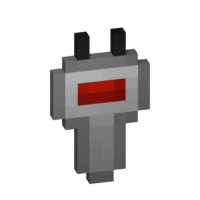
The Frequency Tool is a handy tool that makes it easy for you to take a frequency and set multiple transmitters and/or receivers to the same frequency. When holding it in your hand you can copy a frequency into the Frequency Tool by sneaking and right-clicking on a transmitter or receivers. To copy the now-stored frequency, simply right-click either a transmitter or receiver. By sneaking and right-clicking the frequency tool (not on a transmitter/receiver), you can set the frequency through the GUI.
Frequency Sniffer
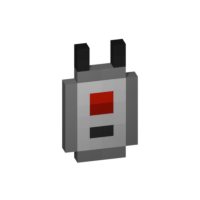
The Frequency Sniffer can be used as a tool to find active transmitters on a given frequency. As with other frequency tools too you can set the frequency either manually over the gui or copying it from a transmitter/receiver. When you right-click the sniffer tool all active transmitters on the set frequency within range are highlighted with a wireframe around the transmitter block. There is also a chat message that tells you where all the active transmitters are located at by showing the block position. If you are an admin/op, you can also click on the block position to teleport there. See example in the screenshot section. You can also change the highlight color in the configs!
Linker

You use the Linker to link a P2P Transmitter and a P2P Receiver together. By sneaking and right-clicking on a block you select this block for linkage. The selected block is highlighted and can be seen through other blocks, the position of it can also be seen in the tooltip of the Linker item. The color of this highlight can be adjusted in the configs. To complete the link, simply right-click the blocks counterpart and you are done.
Circuit
The Circuit is for crafting purposes only.
GUIs
Note: If you press Shift in the Frequency GUI, all values to change the frequency will be multiplied by 100 (so you can add/subtract 100 and 1000) or you can just type in your desired frequency manually. You can also change the color of the frequency display on a receiver/transmitter in the Configs. The same goes for highlighting with the Frequency Sniffer!
Version & Loader Compatibility
In general Wireless Redstone should always be compatible between mod loaders. Meaning you can enter a world you began with Forge and later switch to Fabric and everything should still work with Wireless Redstone. The same is true for Minecraft versions. Newer versions of Minecraft and the mod should always be backwards compatible with older ones. That being said, always make a backup of your world before switching loaders or versions and open an issue if something of Wireless Redstone isn't working anymore.
Wireless Redstone Server crasht beim Start – was tun?
Häufige Ursachen: Loader- oder Minecraft-Version passen nicht zur Mod-Datei, eine Abhängigkeit fehlt oder der RAM reicht nicht. Such im Log (latest.log) nach „OutOfMemoryError“, „Mixin“ oder fehlenden Mods. Bei Mado wertet die KI-Crash-Analyse das Log aus und schlägt eine Ursache vor. Loader und Version änderst du im Panel.
Mit welchem Loader läuft Wireless Redstone?
Laut Modrinth unterstützt Wireless Redstone Fabric, Forge, NeoForge für Minecraft 1.20.4, 1.20.1, 1.19.4. Forge- und Fabric-Dateien sind nicht untereinander austauschbar: Wähl einen Loader für Server und Clients.
Wie viel RAM braucht ein Server mit Wireless Redstone?
Als Orientierung 3–4 GB für einen Server mit dieser Mod. Das ist eine Schätzung, keine gemessene Mindestanforderung. Weitere Mods, viele Spieler und große Sichtweiten brauchen mehr. Ob eine Mod die Tick-Zeit belastet, siehst du mit dem spark-Profiler.
Ähnliche Mods
Beliebte Mods aus derselben Kategorie
 Server-fähig

VeinMiner
von Miraculixx
Mine the whole vein on mining a single ore/block. Make the tedious mining experience to something satisfying and fun! FTB Ultimine alternative
 Server-fähig

Geckolib
von Gecko
A 3D animation library for entities, blocks, items, armor, and more!
 Nur Client

VeinMiner Hotkey
von Miraculixx
Veinminer Addon - Use a hotkey to veinmine with a dynamic crosshair & block highlighting
 Server-fähig

Fzzy Config
von fzzyhmstrs
Config API with automatic GUIs, powerful validation options, server-client sync, and more!
Bereit für deinen Server mit Wireless Redstone?
4 GB RAM ab 8,00 € im Monat. 35 % auf den 1. Monat mit MADO35.