
BlockHighlight
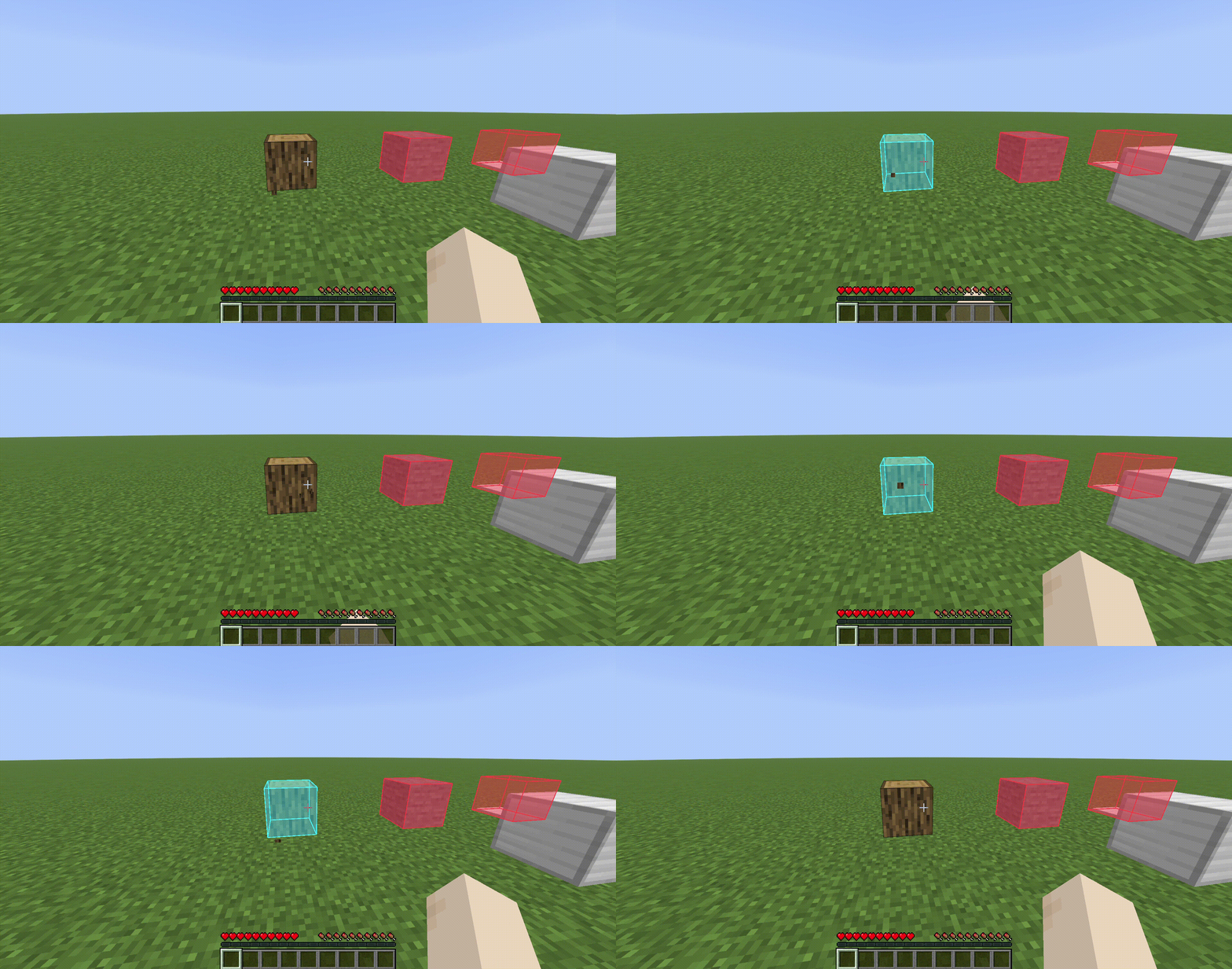
Selected block coordinates can be marked client-side with custom highlights, borders, and a see-through display—all easily managed via an intuitive in-game GUI.
Screenshots

About this Mod
Selected block coordinates can be marked client-side with custom highlights, borders, and a see-through display—all easily managed via an intuitive in-game GUI. It's useful for marking locations, mechanical traps, or block placements.
HUD Toggle - N, Edit Mode - I, Manager GUI - M
How It Works
Edit Mode
Press I to toggle edit mode. While active, left-clicking any block will place a colored highlight on it instead of mining it. Left-click a highlighted block again to remove it. A chat message confirms when edit mode is toggled on or off. Exit edit mode with I to resume normal gameplay — your highlights stay visible.
Manager GUI
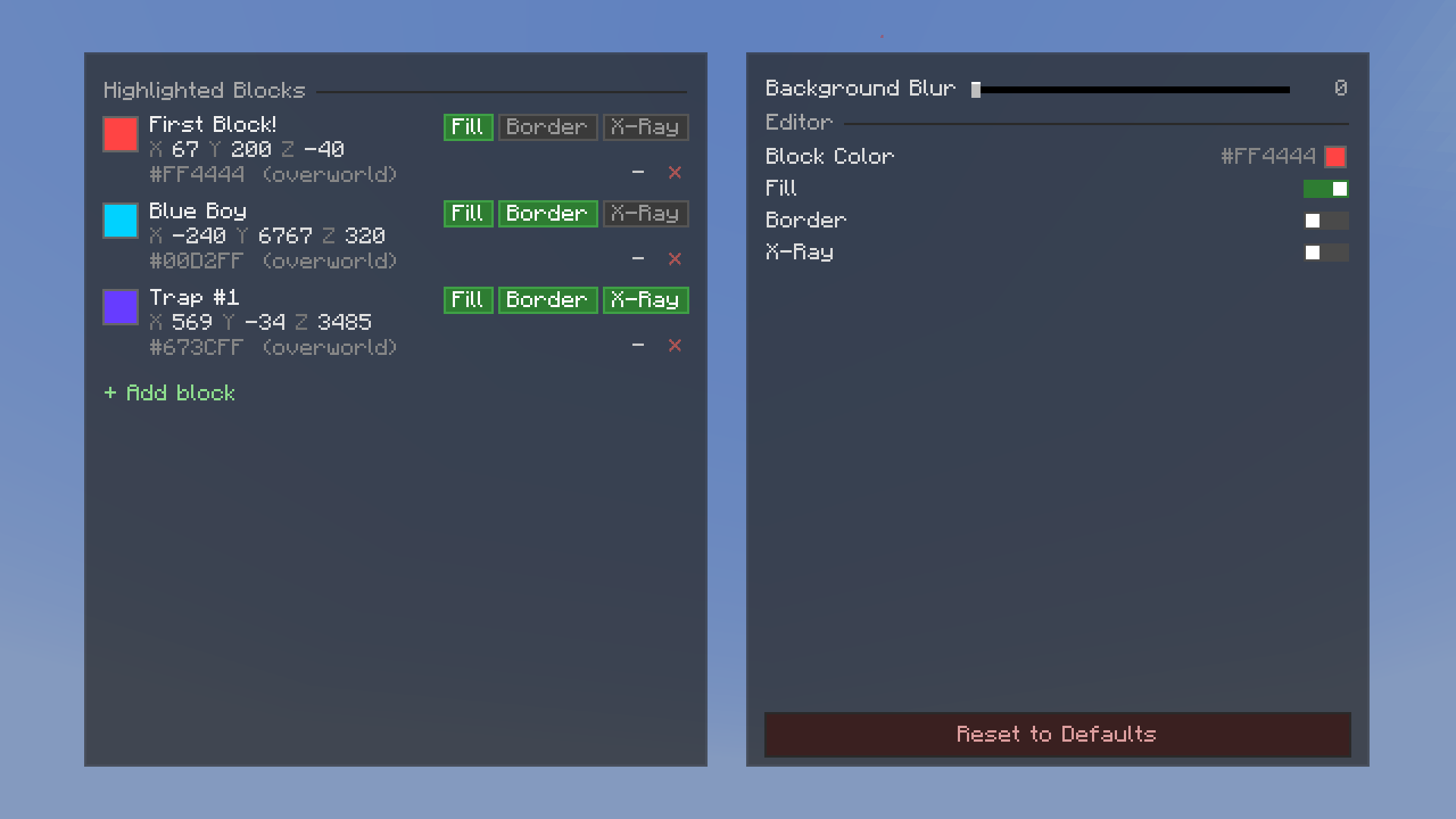
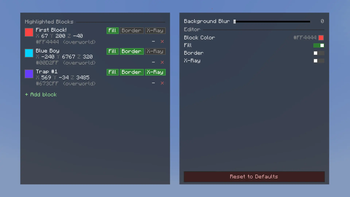
Press M to open the Marker Manager, a split-panel in-game screen where you can view and manage all your highlighted blocks.
- Marker list (left panel) — Browse all saved markers. Each entry shows the block's coordinates, dimension, color swatch, and optional name. You can search, scroll, rename, recolor, toggle see-through X-Ray mode, switch between filled box or wireframe Outlines, hide/show, edit coordinates, or delete any marker.
- Settings (right panel) — Change the default highlight color for new markers, adjust background blur strength, and manage your saved color presets. You can also reset all settings to defaults.
Color Picker
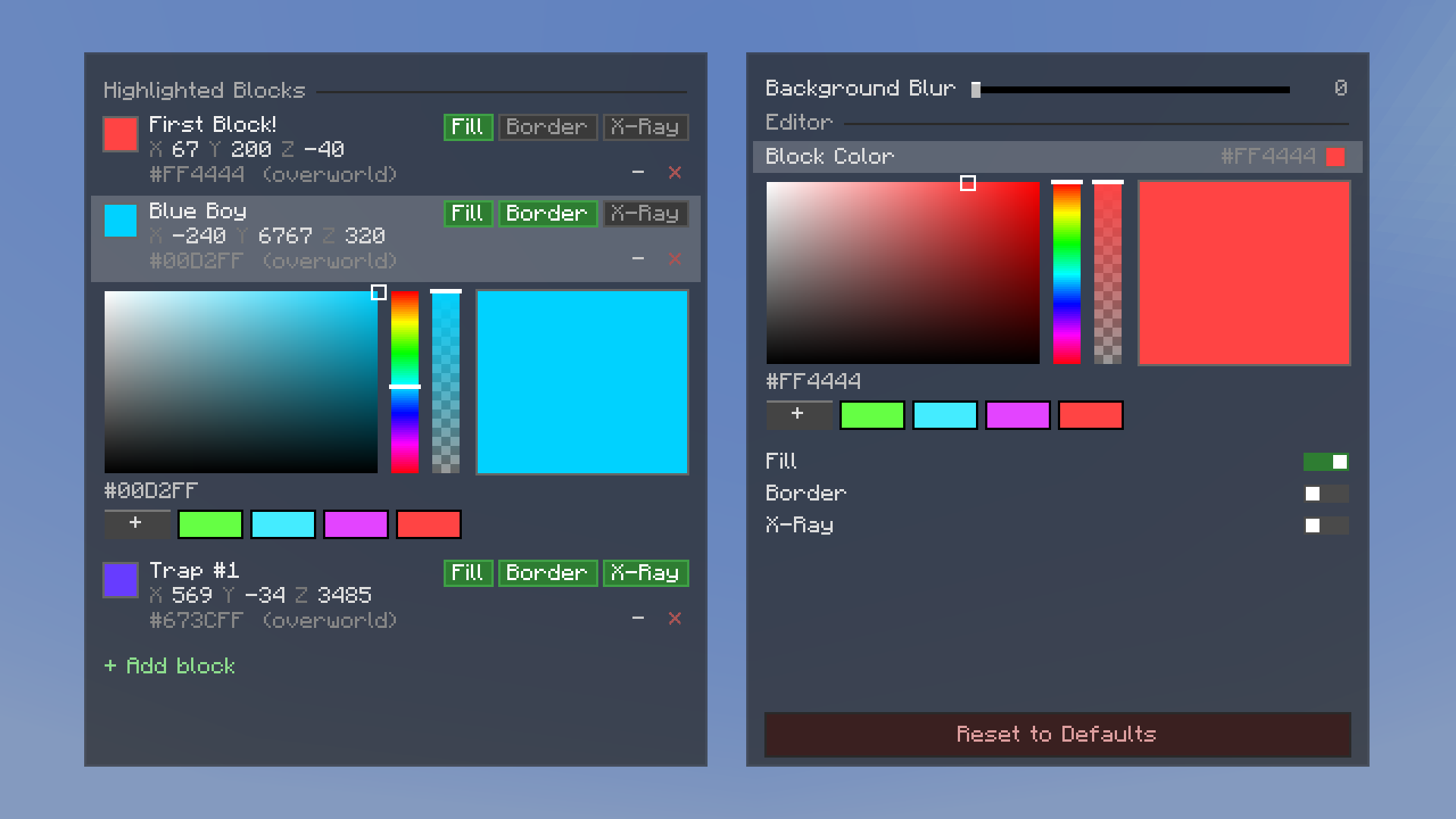
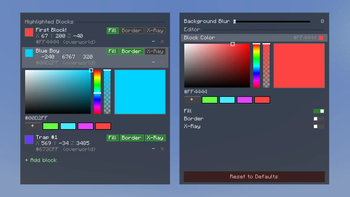
Every marker can have its own color. The color picker gives you a full HSV (Hue-Saturation-Value) selector with a hex input field for precise control. You can also save colors as presets for quick reuse across all your markers.
Persistence
All markers and settings are saved to JSON files in your Minecraft config directory. Your highlights and color presets persist across game restarts, world reloads, and server reconnects.
Dimension-Aware
Markers are tied to their dimension — Overworld, Nether, and End markers are tracked separately. Only markers in your current dimension are rendered.
Available Versions
How to Install BlockHighlight on Your Server
Order Server
Order a Minecraft Java server with at least 3 GB RAM (4 GB recommended).
Set fabric Loader
In the panel under "Egg", select the fabric loader and matching Minecraft version (1.21.11).
Install Mod
Open the mod browser in the dashboard and search for "BlockHighlight". Click "Install" – done! Alternatively, upload the .jar via SFTP to the /mods folder.
Compatibility
Mod Loaders
Minecraft Versions
1.21.11
Server-side
✗ UnsupportedRecommended RAM
4 GB(min. 3 GB)Frequently Asked Questions
BlockHighlight server crashes on startup – what to do?
Most common cause: wrong fabric version or insufficient RAM. Check the server log (latest.log) for "OutOfMemoryError" or "Mixin" errors. With Mado Hosting: ensure at least 3 GB RAM is allocated and the loader matches the mod version (1.21.11). You can switch loaders with one click in the panel.
Is BlockHighlight compatible with fabric?
BlockHighlight officially supports fabric for Minecraft 1.21.11. The Mado dashboard automatically detects incompatible loader combinations.
Server lagging with BlockHighlight – how to optimize performance?
Recommended RAM: 4 GB (per 8 players). Use /spark profiler to check if BlockHighlight consumes the most tick time. Common fixes: reduce server view-distance to 8-10, install "performant" or "starlight" as supplementary mods on Forge. With Mado Hosting, your server runs on NVMe SSDs with dedicated CPU cores for minimal latency.
Similar Mods

![[ETF] Entity Texture Features](https://cdn.modrinth.com/data/BVzZfTc1/af683d206d50b05258d865b0d6e4aa2f2cee12f2_96.webp)
![[EMF] Entity Model Features](https://cdn.modrinth.com/data/4I1XuqiY/6e5bbd0d06b1741bfdab6c0cfab6de8fdaf0064c_96.webp)


Rent Modded Server
Install BlockHighlight with just one click on your server.