
Client Sort
Versatile and easy inventory sorting.
Screenshots
About this Mod

ClientSort
Versatile and easy inventory sorting.





Operations
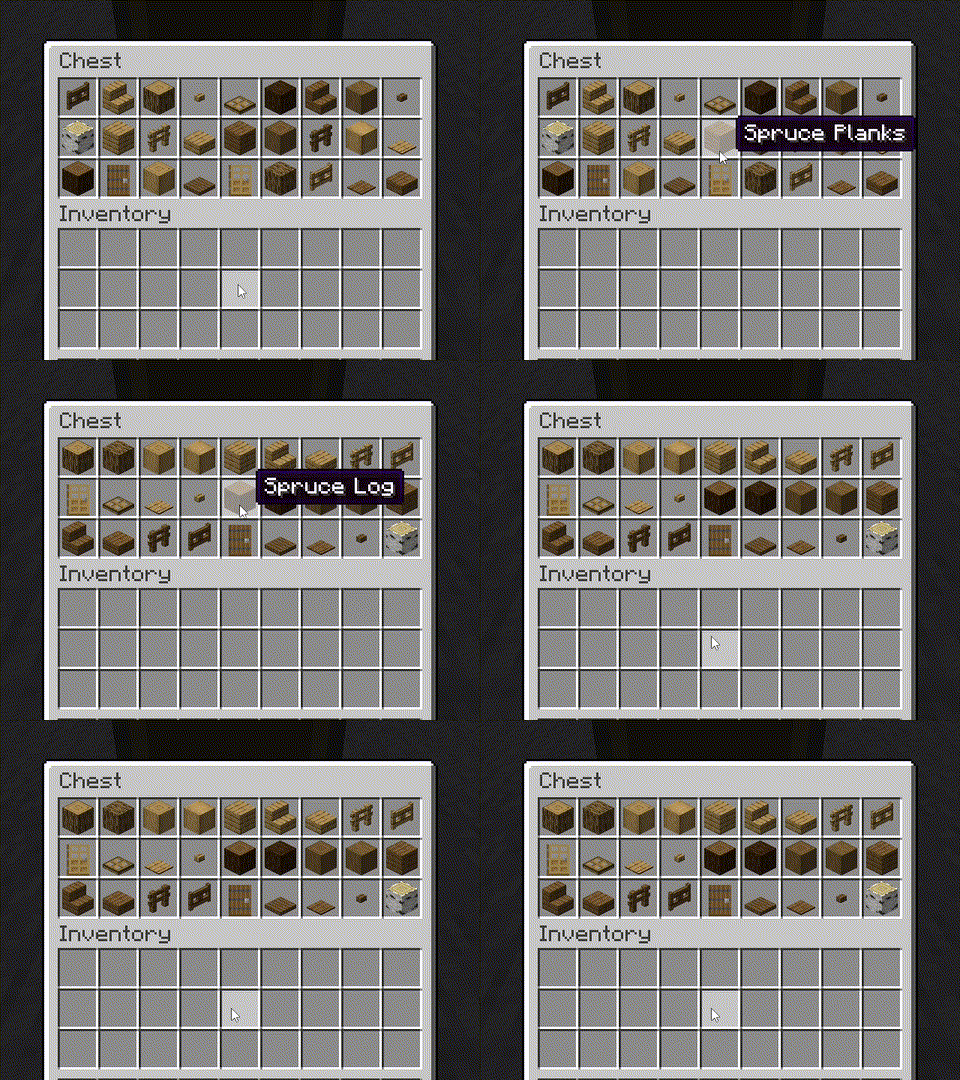
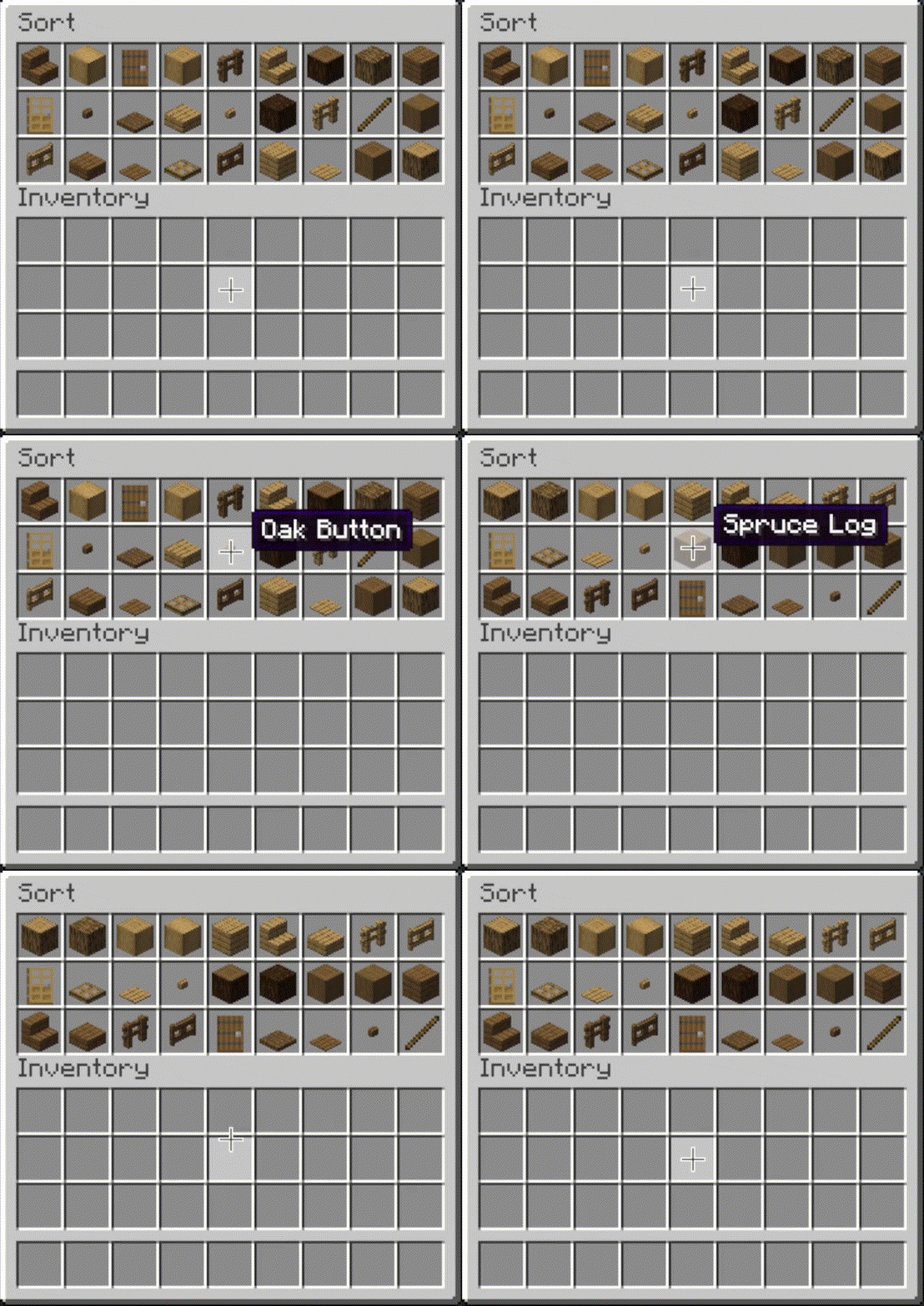
 Sort
Sort
- Press the button, or hover over the inventory with
your mouse and press the keybind (default: middle mouse button). - When activated, items are sorted by their position in the creative inventory search tab.
Alternative sort orders can be used by holding down a modifier key while sorting.Shift- descending order of quantity.Control- alphabetical order.Alt- ascending order of item ID.
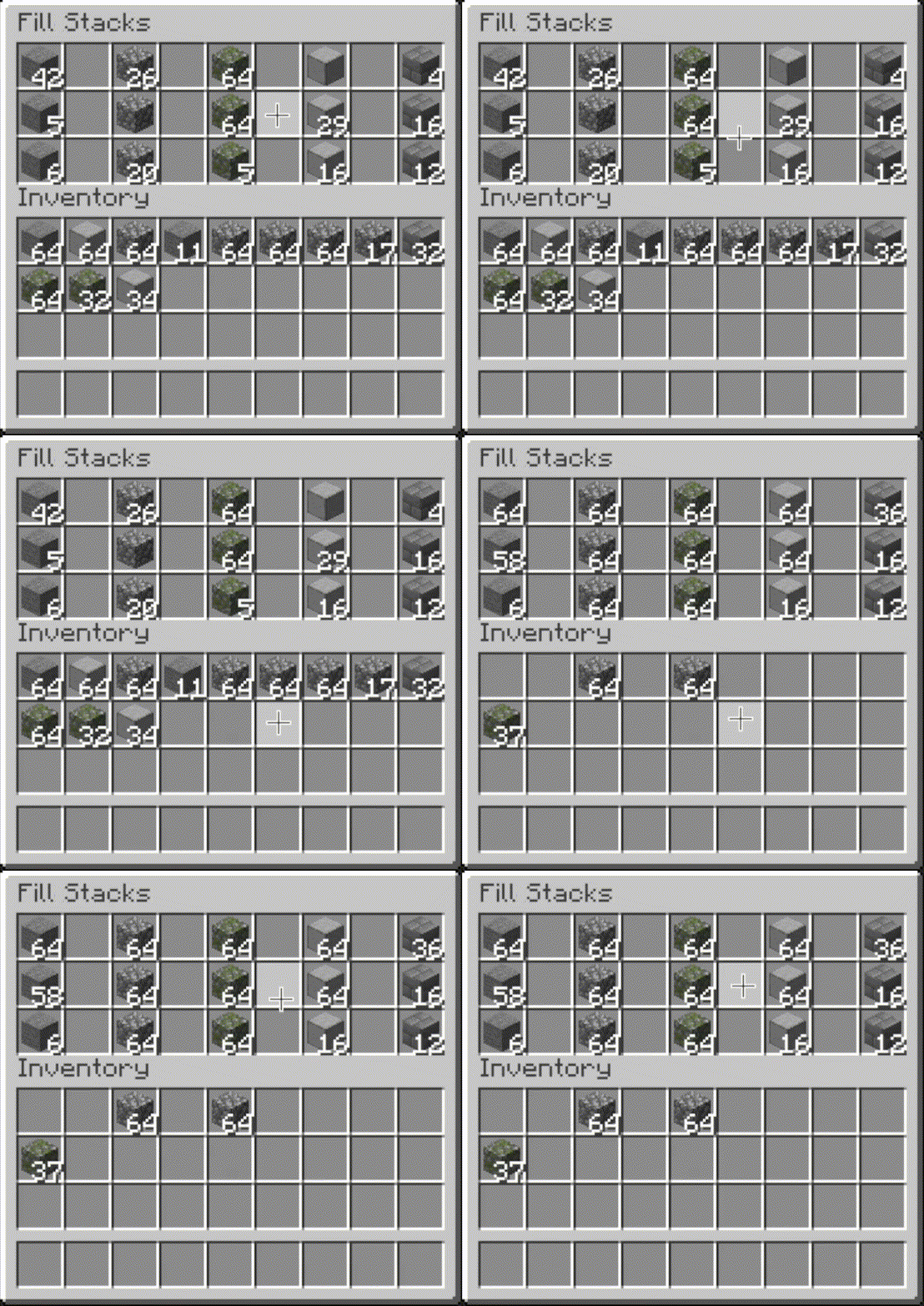
 Fill Stacks
- Press the button, or hover over
the inventory that you want to move items out of and press the keybind (default: unbound). - When activated, partial stacks in the other inventory are topped-up using items in the origin
inventory. - This button is disabled on the player inventory by default, but can be enabled via the editor (see
below).
 Restock
- Press the button, or
hover over the inventory that you want to move items out of and press the keybind (default:
unbound). - When activated, the other inventory is restocked using items in the origin inventory. No new item
types are added to the other inventory.
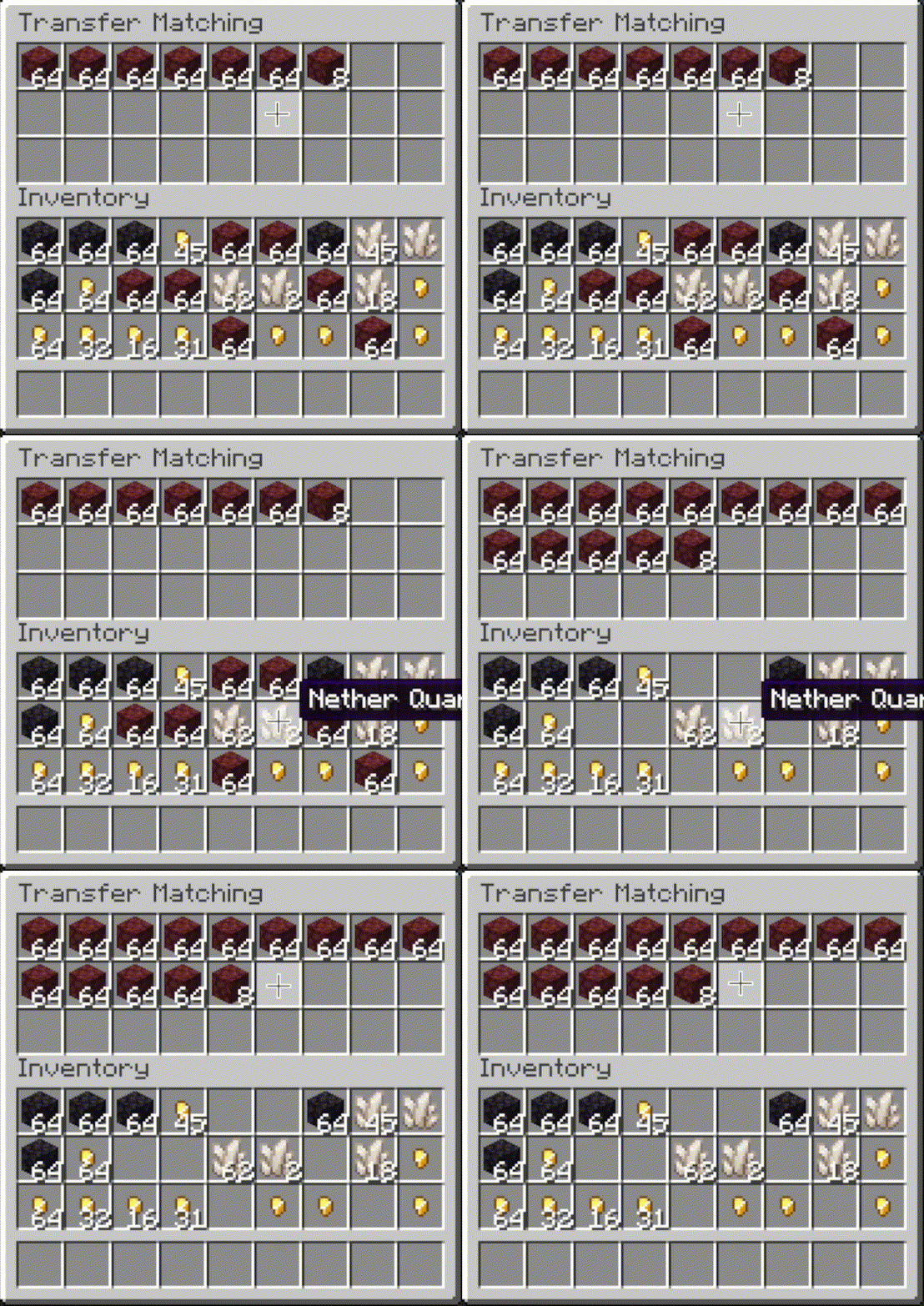
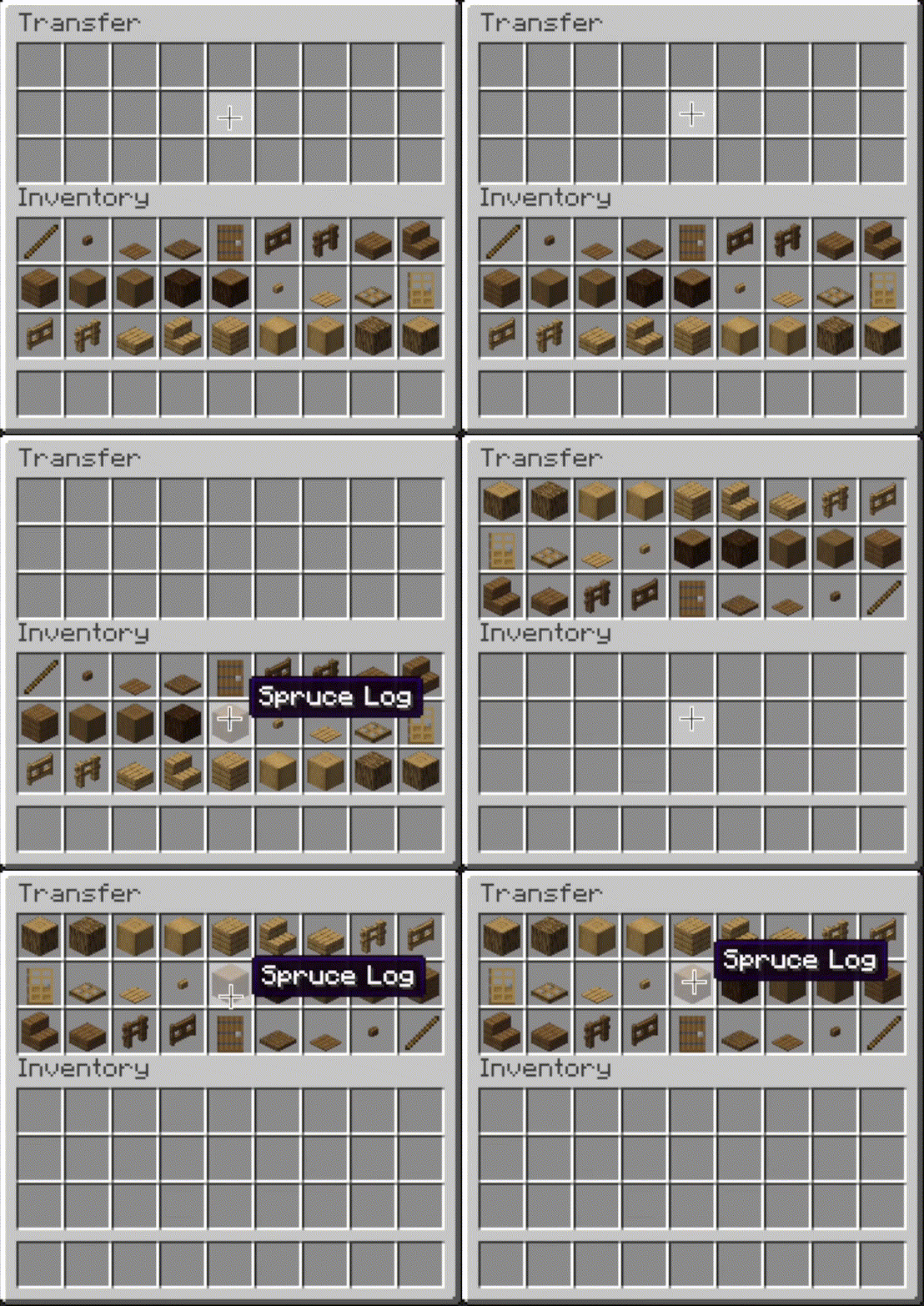
 Transfer
- Press the button, or hover over the
inventory that you want to move items out of and press the keybind (default: unbound). - When activated, as many items as possible are moved from the origin inventory to the other
inventory.
 |
 |
 |
 |
Other Options
- Slot ignoring:
- Exclude slots from being processed by operations.
- Configurable via the editor screen.
- Auto operations:
- Automatically perform an operation (e.g. sorting) when opening an inventory.
- Configurable via the editor screen.
- Scoping:
- Include or exclude the hotbar and extra slots from being processed with the inventory.
- Configurable via mod config,
Generaltab.
- Sorting overrides:
- Always sort specific items to the start or end.
- Configurable via mod config,
Sortingtab.
- Matching overrides:
- Ignore NBT data (e.g. enchantments) when comparing items in sort or restock operations.
- Configurable via mod config,
Matchingtab.
- Interaction sounds:
- Play a sound when clicking in client-side operations.
- Configurable via mod config,
Soundstab.
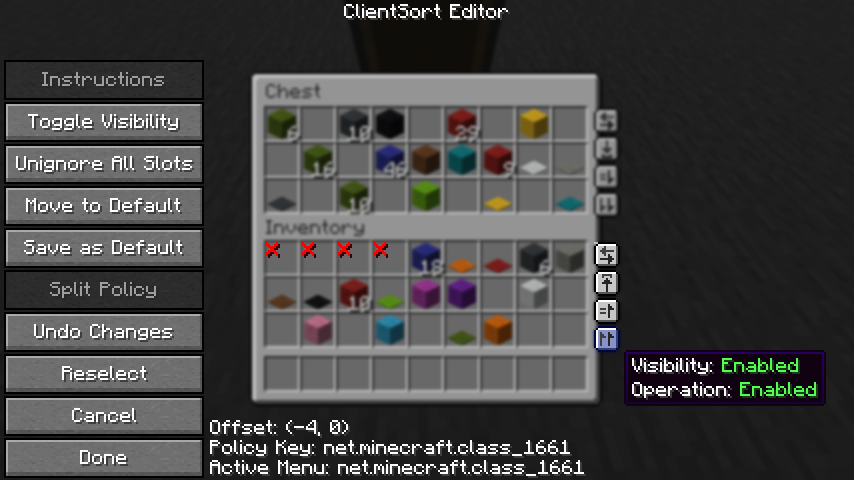
Editor Screen
- The editor can be opened in two ways:
- If a trigger button is visible, right-click on it.
- Otherwise, bind the
Open Editorkeybind (unbound by default) and press it while viewing an
inventory.
- When you've opened the editor, hover over
Instructionsfor more information. - Note: fill and transfer buttons are only shown if set to show on both the player inventory and
the container, so you can easily hide them everywhere by hiding them on just the player inventory.
Client-Side Policies
- ClientSort uses a policy system to determine when to allow operations, when to show the trigger
buttons, and when to ignore slots. The policy can be configured either via the editor screen or via
thePoliciestab of the mod options. - Read the in-game instructions for more information on editing policies.
Server-Side Policies
- If installed on a dedicated server, ClientSort can use policies to automatically disable
server-accelerated operations when it detects an incorrect state (such as item duplication). - The policy list is stored in the
clientsort-server.jsonconfig file, which can be manually
edited and reloaded using the/clientsort reloadcommand.
Serverside policies are not synced to clients, so if a client attempts to perform a
server-accelerated operation that the server does not allow, a warning message will be shown to the
client. The player can then opt to add a client-side policy to disable the operation entirely,
disable server acceleration, or enable automatically falling back to client operations.
Serverside Config File
{
  "options": {
    // Whether validation and automatic blacklisting should be enabled when the mod is used on a
    // dedicated server.
    "validationActiveServer": false,

    // Whether inventories should be blacklisted when the wrong type of item is found in a slot.
    "validateItemType": true,

    // Whether inventories should be blacklisted when the wrong number of items is found in a slot.
    "validateStackSize": true,
    // The minimum difference between expected and actual which should be considered invalid.
    "validateStackSizeThreshold": 32,

    // Whether to always log a message when the result is not exactly as expected (even if
    // validation is disabled, the difference is less than the threshold, etc.)
    "alwaysLogUnexpectedResults": true,

    // The list of policies for different inventory and container types.
    "classPolicies": {
      // An example entry.
      "com.simibubi.create.content.equipment.toolbox.ToolboxMenu": {
        "className": "com.simibubi.create.content.equipment.toolbox.ToolboxMenu",
        "sortEnabled": false,
        "stackFillEnabled": true,
        "transferEnabled": true,
        // Updated automatically when an inventory is blacklisted.
        "lastAutoEditTime": "2025-09-20T14:58:41.1620876+08:00",
        "lastAutoEditReason": "Sort operation failed at slot mapping 12->5: Expected '2 minecraft:spruce_slab' in destination after set, got '0 minecraft:air'!"
      }
    }
  }
}
Installation
Client Required, Server Optional
- As the name suggests, ClientSort is fully functional when it is only installed on the client.
However, if it is also installed on a server, connected clients with the mod will be able to use
server-accelerated (near-instant) operations instead of the normal rate-limited operations.
Dependencies
- Fabric: Fabric API,
ModMenu,
Cloth Config API - Neo/Forge: Cloth Config API
Credits
ClientSort uses code from the following mods, in both modified and unmodified form, in accordance
with their respective licenses.
Mouse Wheelie
by Siphalor (Apache-2.0
license)- Item comparison
- Client and server-side sorting
- Client-side interaction manager
Inventory Management by
Roundaround (MIT
license)- Inventory trigger buttons
- Button generation
- Button position editor
Related Mods
- Mouse Tweaks - item scrolling, mouse dragging.
- More Mouse Tweaks - single-click crafting and trading,
quick-move and quick-drop. - Tweakeroo - hand restock, auto tool-switch, tool break
prevention and more.
Contact



Available Versions
How to Install Client Sort on Your Server
Order Server
Order a Minecraft Java server with at least 3 GB RAM (4 GB recommended).
Set fabric Loader
In the panel under "Egg", select the fabric loader and matching Minecraft version (26.3).
Install Mod
Open the mod browser in the dashboard and search for "Client Sort". Click "Install" – done! Alternatively, upload the .jar via SFTP to the /mods folder.
Compatibility
Mod Loaders
Minecraft Versions
26.3, 26.3-rc-3, 26.3-rc-2 (+27 more)
Server-side
~ OptionalRecommended RAM
4 GB(min. 3 GB)Frequently Asked Questions
Client Sort server crashes on startup – what to do?
Most common cause: wrong fabric version or insufficient RAM. Check the server log (latest.log) for "OutOfMemoryError" or "Mixin" errors. With Mado Hosting: ensure at least 3 GB RAM is allocated and the loader matches the mod version (26.3). You can switch loaders with one click in the panel.
Is Client Sort compatible with fabric and forge and neoforge and quilt?
Client Sort officially supports fabric, forge, neoforge, quilt for Minecraft 26.3, 26.3-rc-3, 26.3-rc-2. Note: Forge and Fabric mods are NOT cross-compatible – pick one loader and stick with it. The Mado dashboard automatically detects incompatible loader combinations.
Server lagging with Client Sort – how to optimize performance?
Recommended RAM: 4 GB (per 8 players). Use /spark profiler to check if Client Sort consumes the most tick time. Common fixes: reduce server view-distance to 8-10, install "performant" or "starlight" as supplementary mods on Forge. With Mado Hosting, your server runs on NVMe SSDs with dedicated CPU cores for minimal latency.
Similar Mods


Rent Modded Server
Install Client Sort with just one click on your server.