Now Playing
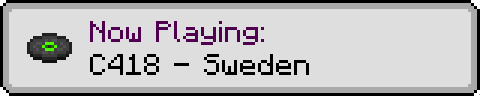
Displays a "Now Playing" popup whenever the music changes.
Screenshots
About this Mod
Now Playing
Shows a popup whenever the active music track changes.





About
Have you ever wondered what all the songs in Minecraft are actually called? Sure, you could check
the soundtrack to find out, but then you have to listen to every song, hoping it's the one you're
thinking of.
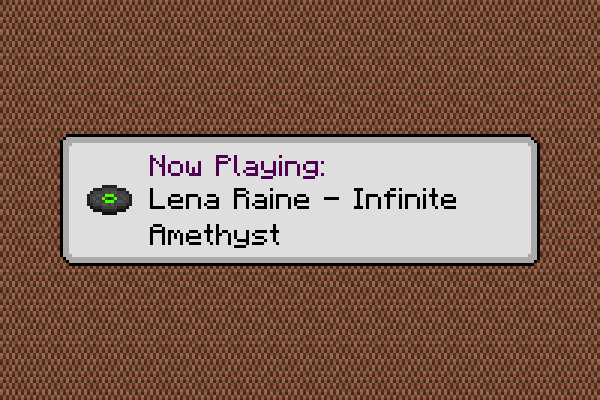
With this mod, wonder no more! A toast will pop up in the top right corner of your screen or just
above your hotbar (configurable), telling you what song you're about to listen to.
Setup
General Options
- Only use key or command
- Whether to only show pop-up when the keybind is pressed or the
/nowplayingcommand is used.
- Whether to only show pop-up when the keybind is pressed or the
- Music pop-up style
- How to display pop-up for background music. Choice of toast, hotbar (status bar) message, or
nothing.
- How to display pop-up for background music. Choice of toast, hotbar (status bar) message, or
- Jukebox pop-up style
- How to display pop-up for jukebox music. Choice of toast, hotbar (status bar) message, or
nothing.
- How to display pop-up for jukebox music. Choice of toast, hotbar (status bar) message, or
- Fallback to toast
- Whether to display a toast for music set to hotbar, if not possible to show a hotbar message.
- Silent toast
- Whether the toast should make a whoosh noise.
- Toast scale
- The size of the toast.
- Simple toast
- Whether to show the "Now Playing" text as well as the track title in the toast.
- Dark toast
- Whether to use a dark background for the toast.
- Toast display time
- How long the toast will be displayed for.
- Hotbar display time
- How long the hotbar message will be displayed for.
- Narrate pop-up
- Whether pop-ups should be narrated, if the narrator is enabled.
Custom Sprites
Now Playing supports changing which disc sprites are displayed for each background music track
via a resource pack. First, create a nowplaying folder in the assets folder of your pack,
and place a sprites.json file in that folder, as shown below.
Note: If you are using version 1.5.16 or earlier, the mod ID (and thus, the folder name)
is now-playing.
assets
├── minecraft
└── nowplaying
    └── sprites.json
Next, populate the sprites.json file with key-value pairs, where the key is the music resource
location (or part thereof), and the value is the sprite location, as shown below.
{
    "minecraft:music/game":                   "minecraft:textures/item/music_disc_cat",
    "minecraft:music/game/creative":          "minecraft:textures/item/music_disc_blocks",
    "minecraft:music/game/creative/taswell":  "minecraft:textures/item/music_disc_chirp",
    "minecraft:music/game/nether":            "minecraft:textures/item/music_disc_pigstep"
}
If you only specify part of a music resource location, the corresponding disc will be shown for
all music tracks in that location, except those that have a more specific definition. In the
example above:
- All tracks in the
gamefolder will use thecatsprite, except;- tracks in the
creativefolder, which will use theblockssprite, except;- the
taswelltrack , which will use thechirpsprite
- the
- tracks in the
netherfolder, which will use thepigstepsprite.
- tracks in the
You can use any existing music disc sprite, or any sprite provided by a resourcepack.
Custom Music Track Titles
If you have a resource pack that adds custom background music, you can specify titles using a
translation file (e.g. en_us.json). First, create a nowplaying folder in the assets folder
of your pack, create a lang folder inside, and place a translation file in that folder, as shown
below.
assets
├── minecraft
└── nowplaying
    └── lang
        └── en_us.json
Next, populate the translation file with key-value pairs, where the key is the music resource
location, prefixed with nowplaying, and the value is the translated title of the track, as
shown below.
Note: If you are using version 1.5.16 or earlier, the mod ID (and thus, the prefix)
is now-playing.
{
    "nowplaying.minecraft:music/game/a_familiar_room":     "Aaron Cherof - A Familiar Room",
    "nowplaying.minecraft:music/game/an_ordinary_day":     "Kumi Tanioka - An Ordinary Day",
    "nowplaying.minecraft:music/game/ancestry":            "Lena Raine - Ancestry",
    "nowplaying.minecraft:music/game/clark":               "C418 - Clark",
    "nowplaying.minecraft:music/game/creative/aria_math":  "C418 - Aria Math"
}
Old translation files which use the music.nowplaying.[name] format are still supported, but
have a lower priority than the new format.
Contact


Available Versions
How to Install Now Playing on Your Client
Install the Mod Loader Locally
Install fabric for your local Minecraft version.
Download the Matching File
Choose the Now Playing file for fabric and Minecraft 26.3.
Install Mod
Place the .jar file in your local .minecraft/mods folder and restart Minecraft. No server-side installation is required.
Compatibility
Mod Loaders
Minecraft Versions
26.3, 26.3-rc-2, 26.2 (+28 more)
Server-side
✗ UnsupportedRecommended RAM
4 GB(min. 3 GB)Frequently Asked Questions
Does Now Playing need to be installed on the Minecraft server?
No. Modrinth marks Now Playing as unsupported on the server side. Install it only in your local Minecraft mods folder. Your server can remain unchanged unless the mod page lists an additional dependency.
Which version and loader does Now Playing require?
Use a file for fabric, forge, neoforge, quilt and your exact Minecraft version. Supported versions include 26.3, 26.3-rc-2, 26.2. Files for different loaders are not interchangeable.
Now Playing is not working – what should I check?
First check the Minecraft version, loader version and required dependencies. Put the .jar file in your local .minecraft/mods folder and remove older duplicates. Because this mod is client-side, adding server RAM will not fix it.
Similar Mods




![[ETF] Entity Texture Features](https://cdn.modrinth.com/data/BVzZfTc1/af683d206d50b05258d865b0d6e4aa2f2cee12f2_96.webp)

Minecraft Server for Your Group
Now Playing stays on your client. Host a compatible world for your group.