
FrogMod
Show Your Game Status on Discord, group chat messages into tabs and use other features for Froglight.NET server
Screenshots
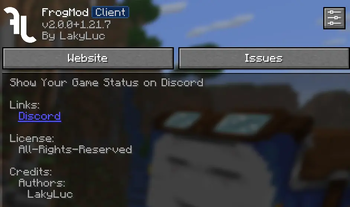

About this Mod
FrogMod
Show Your Game Status on Discord, group chat messages into tabs and use other features
for Froglight.NET server


Description
This mod is designed to work with the Froglight.NET server, showing your game
status on Discord so you can easily see who's online and what they're playing. Chat messages can be organized into tabs
for
better management. The mod also has other features, which are listed below.
Features
- show your game status on Discord
- chat tabs for easier chat management
- quick action buttons in chat hud (for party management and command actions)
- display timestamp of messages in the chat indicator
- see your skin if you are nicked (default disabled; requires permission for
/nick) Froglight.NETis automatically added to the server list- Quick join button for the server in the main menu
- configuration of the mod
- joining requests and invites for games and parties (optional)
- automatic update check
- modmenu integration
What is displayed in Discord (configurable)
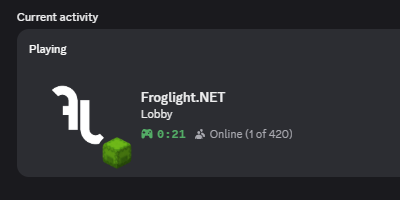
- the server you are playing on
- the time you are on the server
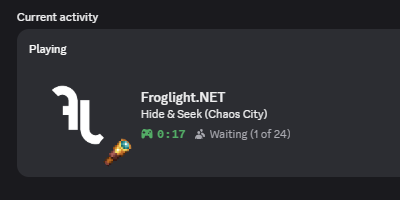
- the game you are playing on the server
- the map of the game
- the game status (Waiting/Ingame)
- the player count
- the game time
- the party you are in
- the party size
- your minecraft skin and username
- the player count of the network
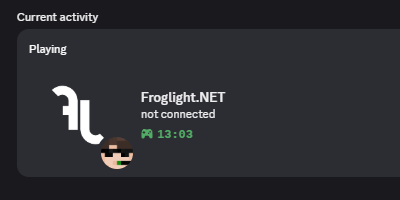
- if you are not connected to the server
Chat Tabs
Easily manage your chat with different tabs. Messages are filtered into different tabs, such as All, Server, Party,
and Private Messages.
You can directly write messages to a specific tab by selecting it without the need to use commands like /msg or/chat party.
Tabs with unread messages are highlighted, so you can easily see where new messages are.
Each tab can be closed by clicking the trash icon twice while hovering over it. This deletes all selected messages from
the history. Temporary tabs (Party and Private Messages) can be minimized instead of deleted, so you don't lose the chat
history. (This feature can be toggled in the config.)
/tab Command
| Command | Description |
|---|---|
/tab open <name> |
Open the given tab. You can use this to reopen minimized tabs. |
/tab delete <name> |
Delete all messages from the tab irrevocably |
/tab closePrivate |
Minimize all private message tabs. Reopen them with /tab open <name> |
Configuration
Discord Settings
| Option | Description | Default |
|---|---|---|
Connect To Discord |
if the connection to discord fails, you can retry by clicking this option | - |
Discord Status |
shows Froglight.NET as your activity on Discord | ON |
Status When Not Connected |
shows 'not connected' when you are not connected to the server | ON |
Game Joining Requests |
enables/disables joining requests for games | ON |
Game Spectating |
enables/disables spectating for games | ON |
Show Parties In Status |
options: Always, Only If Public, Never | Always |
Party Joining Requests And Invites |
enables/disables others to join the party via discord | ON |
Accept New Invites |
options: Always, Only Parties, Notify, Silent | Notify |
Sound On New Notification |
plays a sound when you get a notification | ON |
Chat Settings
| Option | Description | Default |
|---|---|---|
Chat Tabs |
filter chat in tabs (All, Server, Party and Private Messages) | ON |
Use 'All' Tab |
this tab contains all messages like the normal chat | ON |
Use 'Party' Tab |
tab for messages related to parties (ON=Party OFF=Server) | ON |
Show Party Quick Actions |
shows quick action buttons for party management in relevant tabs (Create, Leave, Invite) | ON |
Use Private Message Tabs |
create tabs for private messages instead of using the server tab | ON |
Ignore Reply Command In Private Message Tabs |
if you use the reply command, the message is sent to the tab instead | OFF |
Show Command Quick Actions |
shows command quick action buttons: Exit Limbo, SMP Peace Mode, Friend Accept/Decline and Party Join | ON |
Auto Switch To Tab With Latest Message |
automatically switches to the tab with the latest message when the chat is opened | ON |
Auto Mark Status Messages As Read |
automatically marks status messages (afk and friend online/offline) as read | ON |
Minimize Temporary Tabs Instead Of Deleting |
messages from party tabs and private tabs are not deleted when closing | ON |
Message Indicator |
modify the message indicator on the Froglight.NET server (options: Vanilla, Timestamp, Hidden) | Timestamp |
Increase Message History |
increases the size of the chat history to almost infinity | ON |
Keep Message History |
chat history is only deleted with F3 + D or when closing the chat tab | ON |
Mod Settings
| Option | Description | Default |
|---|---|---|
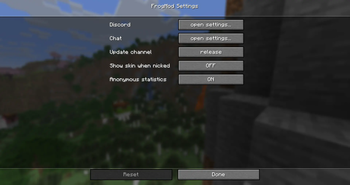
Update Channel |
version type of the mod to check for updates | Release |
Show Skin When Nicked |
replaces your skin if you are nicked (other players still see the nicked skin if disabled) | OFF |
Anonymous Statistics |
sends anonymous data to help improve the mod | ON |
Available Versions
How to Install FrogMod on Your Server
Order Server
Order a Minecraft Java server with at least 3 GB RAM (4 GB recommended).
Set fabric Loader
In the panel under "Egg", select the fabric loader and matching Minecraft version (1.21.11).
Install Mod
Open the mod browser in the dashboard and search for "FrogMod". Click "Install" – done! Alternatively, upload the .jar via SFTP to the /mods folder.
Compatibility
Mod Loaders
Minecraft Versions
1.21.11, 1.21.8, 1.21.7 (+2 more)
Server-side
✗ UnsupportedRecommended RAM
4 GB(min. 3 GB)Frequently Asked Questions
FrogMod server crashes on startup – what to do?
Most common cause: wrong fabric version or insufficient RAM. Check the server log (latest.log) for "OutOfMemoryError" or "Mixin" errors. With Mado Hosting: ensure at least 3 GB RAM is allocated and the loader matches the mod version (1.21.11). You can switch loaders with one click in the panel.
Is FrogMod compatible with fabric?
FrogMod officially supports fabric for Minecraft 1.21.11, 1.21.8, 1.21.7. The Mado dashboard automatically detects incompatible loader combinations.
Server lagging with FrogMod – how to optimize performance?
Recommended RAM: 4 GB (per 8 players). Use /spark profiler to check if FrogMod consumes the most tick time. Common fixes: reduce server view-distance to 8-10, install "performant" or "starlight" as supplementary mods on Forge. With Mado Hosting, your server runs on NVMe SSDs with dedicated CPU cores for minimal latency.
Similar Mods


Rent Modded Server
Install FrogMod with just one click on your server.