
Item Finder
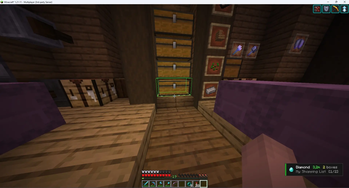
A client-side Fabric mod for Minecraft 1.21/1.21.1 that helps you locate items stored in nearby containers. It caches container inventories as you open them and displays a HUD with the nearest container holding your target item, along with colored outlines
Screenshots

About this Mod
Item Finder

Work In Progress — this mod is functional but still in early development. Expect rough edges, missing features, and bugs. Performance is not a priority yet and may be noticeably poor in some situations.
AI Assistance Disclosure — portions of this mod were developed with the help of AI tools (Claude). The code has been reviewed and tested, but keep that in mind.
A client-side Fabric mod for Minecraft 1.21/1.21.1 that helps you locate items stored in nearby containers. It caches container inventories as you open them and displays a HUD with the nearest container holding your target item, along with colored outlines rendered directly in the world.
How It Works
Item Finder is client-side only — it does not require a server-side counterpart and works on both singleplayer and multiplayer. The trade-off is that containers must be visited at least once before they appear in search results. When you open a container, its contents are automatically recorded. When you close it, the cache is updated and a new search runs immediately.
A periodic background search re-runs every N ticks (configurable) so that distances stay current as you move around.
Server Support (Optional)
For a better experience on servers, Litematica can be installed on the client alongside Item Finder. When Litematica is present, it enables finding items in containers near the player without needing to manually open each one.
However, this requires Servux to be installed on the server and the entityDataSync option to be enabled in the server-side Servux configuration. Without that, only the standard visit-and-cache approach will work.
Features
HUD Overlay
- Displays the current target item with its icon
- Shows the distance to the nearest container holding that item (e.g.
12.5m) - Shows how many containers hold that item (e.g.
3 boxes) - Shows your current position in the active list (e.g.
[4/25]) - Color-coded status: green = found, red = not found, gray = disabled
- Possition configurable in settings (top-left, top-right, bottom-left, bottom-right) is aware of other HUD elements and won't overlap the vanilla potions/status effects area etc
World Rendering
- Draws box outlines around the nearest containers in the world
- Green boxes for the currently selected item's containers
- Optional show through walls mode (toggle in settings)
Container Caching
- Automatically records container contents when you open and close them
- Stores item IDs and quantities for every slot (excludes your player inventory)
- Cache persists for the session; containers remain tracked until the game restarts
Search & Distance Filtering
- Configurable search radius (4–128 blocks, default 32)
- Results sorted by distance, nearest first
- Search automatically refreshes on a configurable interval (1–200 ticks, default 20)
Item Lists
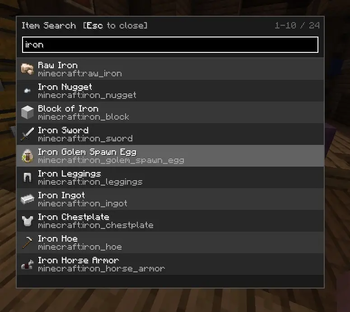
- Load item lists from JSON files in
config/itemfinder/lists/ - Each list is a named collection of item IDs
- Toggle individual items on/off; state is saved per list between sessions
- Navigate items with a hotkey (cycles through enabled items)
- Auto-disable missing: disables all items that aren't found in any cached container
- Enable All / Disable All buttons in the item manager
Slot Highlighting
- When you open a container that holds your current target item, matching slots are highlighted in green
- Toggle-able in settings
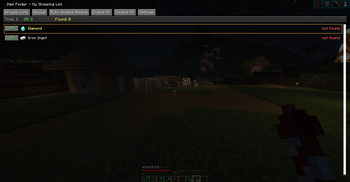
Item Manager GUI
- Shows all items in the active list with icons, counts, container count, and nearest distance
- Searchable/filterable list
- Per-item toggle buttons
- Summary stats: total items, enabled, disabled, found
File Browser
- Browse and load
.jsonlist files fromconfig/itemfinder/lists/ - Navigates subdirectories
Config Screen
Accessible from Mod Menu or via hotkey. Two tabs:
- Generic — all numeric and boolean settings
- Hotkeys — view and rebind all keybindings
Keybindings
| Action | Default Key | Description |
|---|---|---|
| Open List Browser | I |
Browse and load an item list file |
| Next Item | N |
Cycle to the next enabled item |
| Previous Item | B |
Cycle to the previous enabled item |
All keybindings are configurable in the Hotkeys tab of the settings screen.
Configuration
Config file: config/itemfinder.json
| Setting | Default | Range | Description |
|---|---|---|---|
searchRadius |
32 |
4–128 | Block radius to include cached containers in results |
searchInterval |
20 |
1–200 | Ticks between automatic search refreshes |
showThroughWalls |
false |
— | Render container outlines through solid blocks |
highlightSlots |
true |
— | Highlight matching slots in open containers |
Item List Format
Place .json files in config/itemfinder/lists/. Example:
{
  "name": "My List",
  "items": [
    "minecraft:diamond",
    "minecraft:iron_ingot",
    "minecraft:oak_log"
  ]
}
Item IDs follow the standard namespace:item_id format.
File Locations
| File | Purpose |
|---|---|
config/itemfinder.json |
Main configuration |
config/itemfinder/lists/*.json |
Item list definitions |
config/itemfinder/state.json |
Per-item enabled/disabled state |
Building
Requires JDK 21.
./gradlew build
The output jar will be in build/libs/.
TODO
Container & Data
- Improve Litematica/Servux integration for syncing container data around the player.
Useful Links
Fabric Docs
- https://maven.fabricmc.net/docs/fabric-api-0.141.3+1.21.11/
- https://maven.fabricmc.net/docs/fabric-loader-0.18.6/net/fabricmc/api/package-summary.html
- https://maven.fabricmc.net/docs/yarn-1.21.11+build.4/
- https://docs.fabricmc.net/develop/
Libraries (Minecraft 1.21.11)
MaLiLib (fork):
https://github.com/sakura-ryoko/malilib/tree/LTS/1.21.11Servux (fork):
https://github.com/sakura-ryoko/servux/tree/LTS/1.21.11
Maven Repositories
MaLiLib:
https://masa.dy.fi/maven/sakura-ryoko/fi/dy/masa/malilib/malilib-fabric-1.21.11/Servux:
https://masa.dy.fi/maven/sakura-ryoko/fi/dy/masa/servux/servux-fabric-1.21.11/
License
LGPLv3 — see LICENSE.
Available Versions
How to Install Item Finder on Your Server
Order Server
Order a Minecraft Java server with at least 3 GB RAM (4 GB recommended).
Set fabric Loader
In the panel under "Egg", select the fabric loader and matching Minecraft version (1.21.11).
Install Mod
Open the mod browser in the dashboard and search for "Item Finder". Click "Install" – done! Alternatively, upload the .jar via SFTP to the /mods folder.
Compatibility
Mod Loaders
Minecraft Versions
1.21.11
Server-side
✗ UnsupportedRecommended RAM
4 GB(min. 3 GB)Frequently Asked Questions
Item Finder server crashes on startup – what to do?
Most common cause: wrong fabric version or insufficient RAM. Check the server log (latest.log) for "OutOfMemoryError" or "Mixin" errors. With Mado Hosting: ensure at least 3 GB RAM is allocated and the loader matches the mod version (1.21.11). You can switch loaders with one click in the panel.
Is Item Finder compatible with fabric?
Item Finder officially supports fabric for Minecraft 1.21.11. The Mado dashboard automatically detects incompatible loader combinations.
Server lagging with Item Finder – how to optimize performance?
Recommended RAM: 4 GB (per 8 players). Use /spark profiler to check if Item Finder consumes the most tick time. Common fixes: reduce server view-distance to 8-10, install "performant" or "starlight" as supplementary mods on Forge. With Mado Hosting, your server runs on NVMe SSDs with dedicated CPU cores for minimal latency.
Similar Mods




![[ETF] Entity Texture Features](https://cdn.modrinth.com/data/BVzZfTc1/af683d206d50b05258d865b0d6e4aa2f2cee12f2_96.webp)

Rent Modded Server
Install Item Finder with just one click on your server.
Details
- License
- Creative Commons Attribution Non Commercial No Derivatives 4.0 International
- Server-side
- Unsupported