
Remote Paintings
Ever wanted to view images or gifs from the Web in Minecraft? Remote Paintings lets you override ingame paintings with remote images!
Screenshots
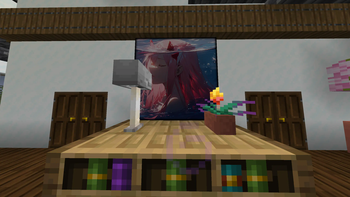
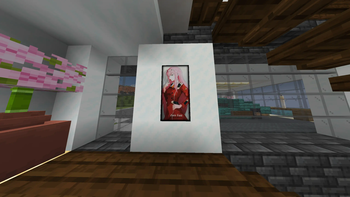
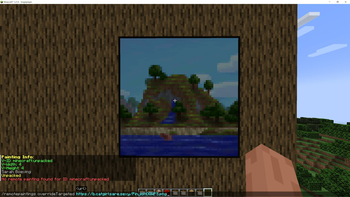

About this Mod
RemotePaintings
Ever wanted to override Minecraft paintings but creating a resource pack was too much work?
Fear not, RemotePaintings is here to help! You can now finally override Minecraft paintings with your own images,
right from the game!
Examples
Example with PNG/JPEG
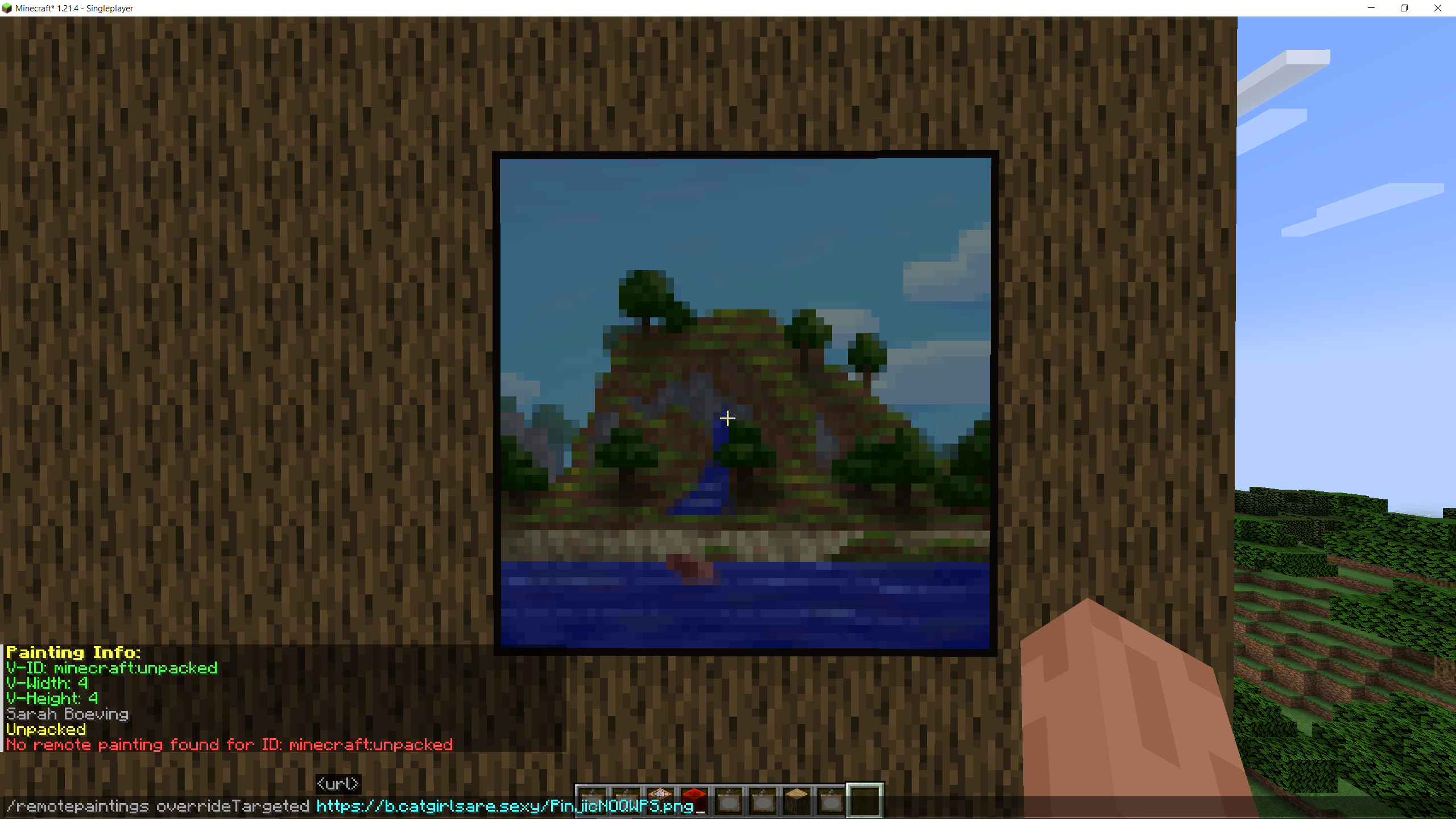
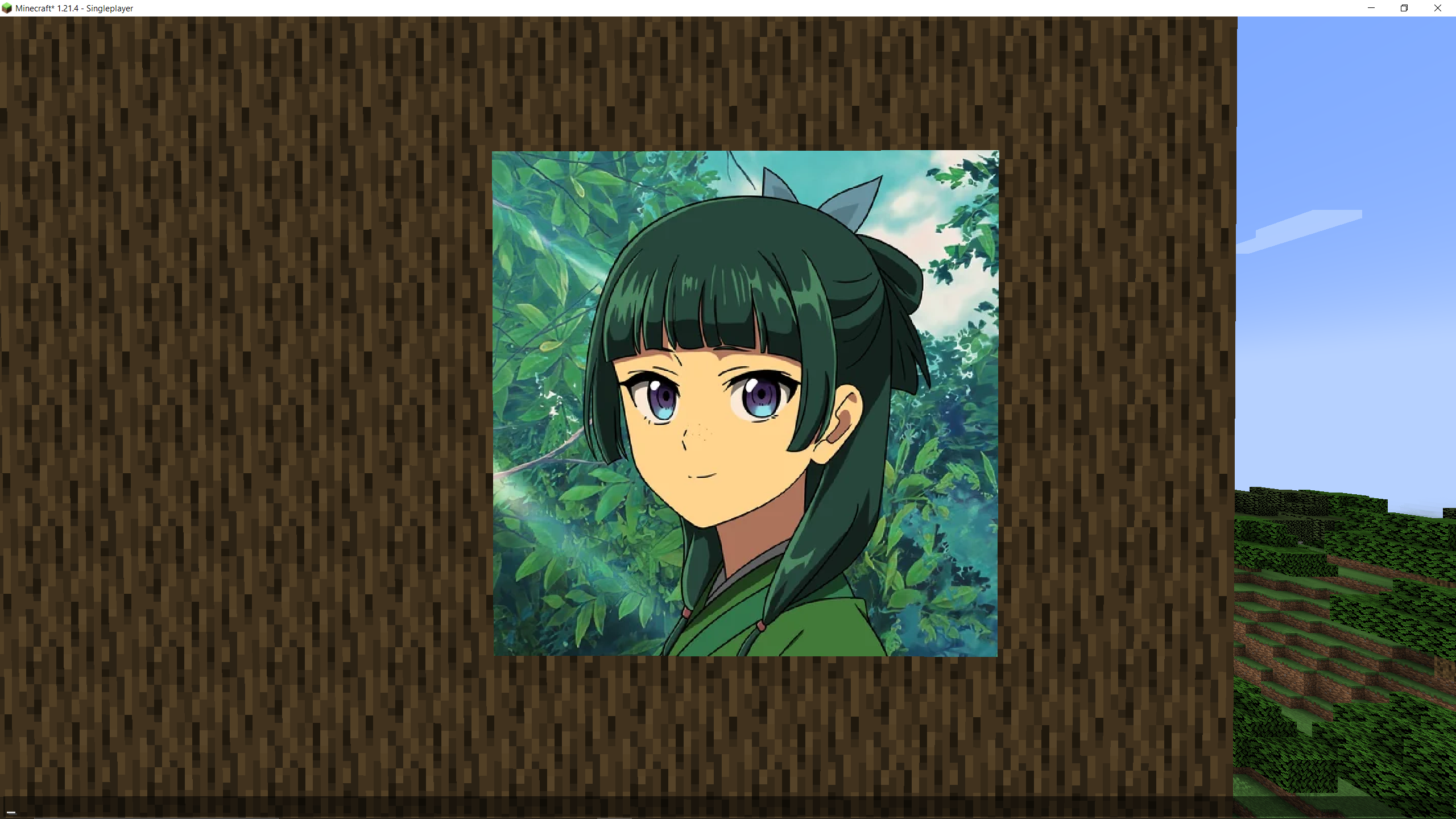
Example with GIFs
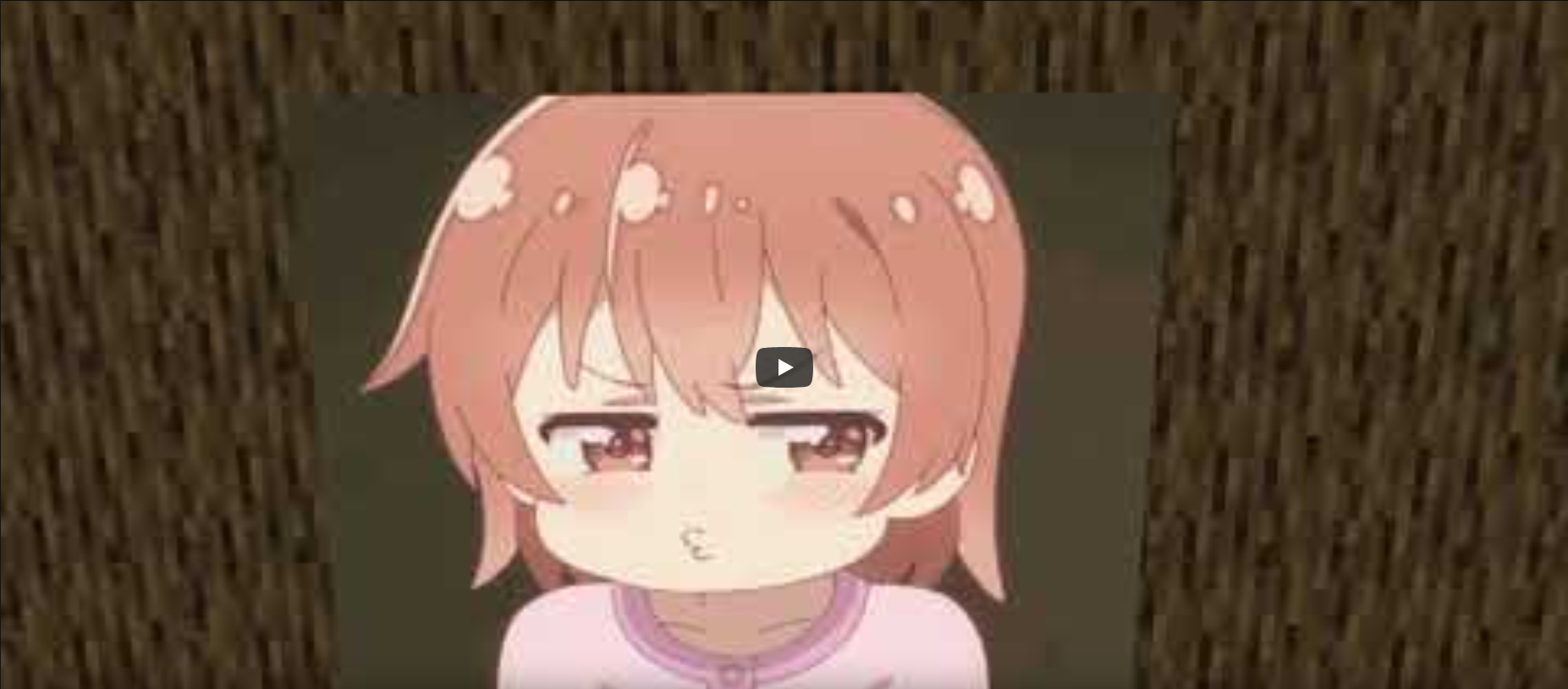
Commands
Generally, every command is available via the /remotepaintings command and should be self-explanatory.
/remotepaintings paintingInfo: Shows information about the painting being looked at/remotepaintings info: Shows information about every painting override/remotepaintings override <id> <url>: Override the specified painting id (minecraft identifier!) with the specified URL/remotepaintings overrideTargeted <url>: Override the painting being looked at with the specified URL/remotepaintings unloadPainting <id>: Unload the specified painting id (minecraft identifier!)/remotepaintings reloadImages: Refetch and reload all images
For configs, these commands are available:
/remotepaintings loadConfig <url>: Loads a json config from any url (raw hastebin for example) and saves the url/remotepaintings reloadConfig: Reloads the config from the saved url/remotepaintings saveConfig: Uploads the current overrides in a new hastebin and saves the url locally
Config
The config is being provided by owo-lib and thus reachable via any modern ModMenu.
In the config itself the current remote paintings config url and the hastebin upload server can be specified.
How it works
After executing the override command, the texture gets fetched and is being registered in the TextureManager (thus being loaded in RAM).
For GIFs, all frames are being concatenated in a single row next to each other. Mind that this file might get very large if the GIF is too big.
The mod then injects into the painting renderer to avoid rendering the actual painting. Instead, it renders the custom remote painting
on top of it.
This approach is rather simple compared to the first two attempts I made, in which I tried to modify the SpriteAtlas itself.
Questions, Contributing and Licensing
If you have any questions, feel free to contact me or open an issue. I'd be glad to help!
For contributions, please open a detailed pull request with your changes. Would be nice if you could use conventional commits.
This project is licensed under the MIT license.
Available Versions
How to Install Remote Paintings on Your Server
Order Server
Order a Minecraft Java server with at least 3 GB RAM (4 GB recommended).
Set fabric Loader
In the panel under "Egg", select the fabric loader and matching Minecraft version (1.21.4).
Install Mod
Open the mod browser in the dashboard and search for "Remote Paintings". Click "Install" – done! Alternatively, upload the .jar via SFTP to the /mods folder.
Compatibility
Mod Loaders
Minecraft Versions
1.21.4
Server-side
✗ UnsupportedRecommended RAM
4 GB(min. 3 GB)Frequently Asked Questions
Remote Paintings server crashes on startup – what to do?
Most common cause: wrong fabric version or insufficient RAM. Check the server log (latest.log) for "OutOfMemoryError" or "Mixin" errors. With Mado Hosting: ensure at least 3 GB RAM is allocated and the loader matches the mod version (1.21.4). You can switch loaders with one click in the panel.
Is Remote Paintings compatible with fabric?
Remote Paintings officially supports fabric for Minecraft 1.21.4. The Mado dashboard automatically detects incompatible loader combinations.
Server lagging with Remote Paintings – how to optimize performance?
Recommended RAM: 4 GB (per 8 players). Use /spark profiler to check if Remote Paintings consumes the most tick time. Common fixes: reduce server view-distance to 8-10, install "performant" or "starlight" as supplementary mods on Forge. With Mado Hosting, your server runs on NVMe SSDs with dedicated CPU cores for minimal latency.
Similar Mods

![[ETF] Entity Texture Features](https://cdn.modrinth.com/data/BVzZfTc1/af683d206d50b05258d865b0d6e4aa2f2cee12f2_96.webp)
![[EMF] Entity Model Features](https://cdn.modrinth.com/data/4I1XuqiY/6e5bbd0d06b1741bfdab6c0cfab6de8fdaf0064c_96.webp)


Rent Modded Server
Install Remote Paintings with just one click on your server.