
Sound Visualizer
About Minecraft mod that improves the visual perception of sounds. It adds customizable Directional Sound Indicators and improves the vanilla Subtitles.
Screenshots
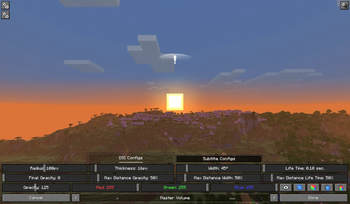
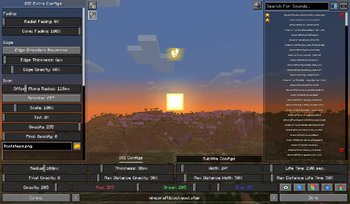

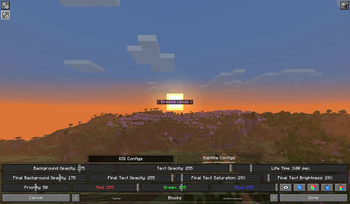
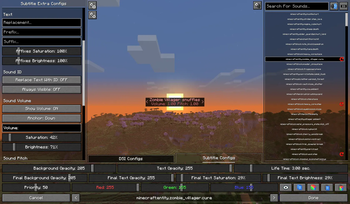

About this Mod
Sound Visualizer
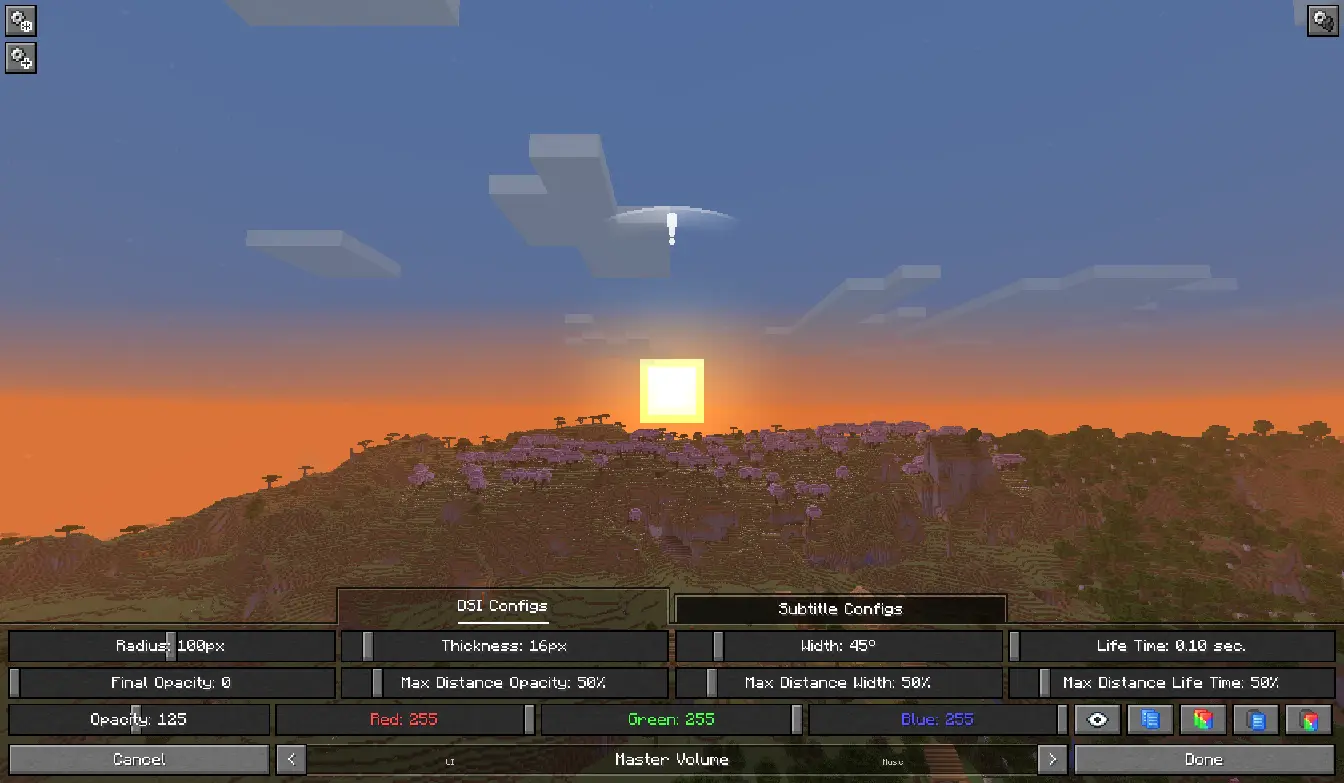
Sound Visualizer allows you to improve your perception of the game, in particular your orientation towards sounds.
The mod supports quite fine-grained customization of everything it adds.
You can customize the display of all indicators for specific sources, such as Blocks, as well as for individual sounds.
You can configure everything both in a dedicated menu with a preview option and in the configuration file.
Features

Directional Sound Indicator
Which appears when a sound is played nearby. The indicator alerts the player and shows the direction of the sound. The indicator can have a customizable radius, width, color, opacity, etc. for each source or specific sound.
Enhanced Subtitles
Essentially, they're vanilla subtitles with the ability to be modified. Like DSI, they feature customizable color, background transparency, text transparency, and more for each source or specific sound. You can also change their position on the screen, their size, and even the text within them (add prefixes and suffixes, or completely change the text to your own).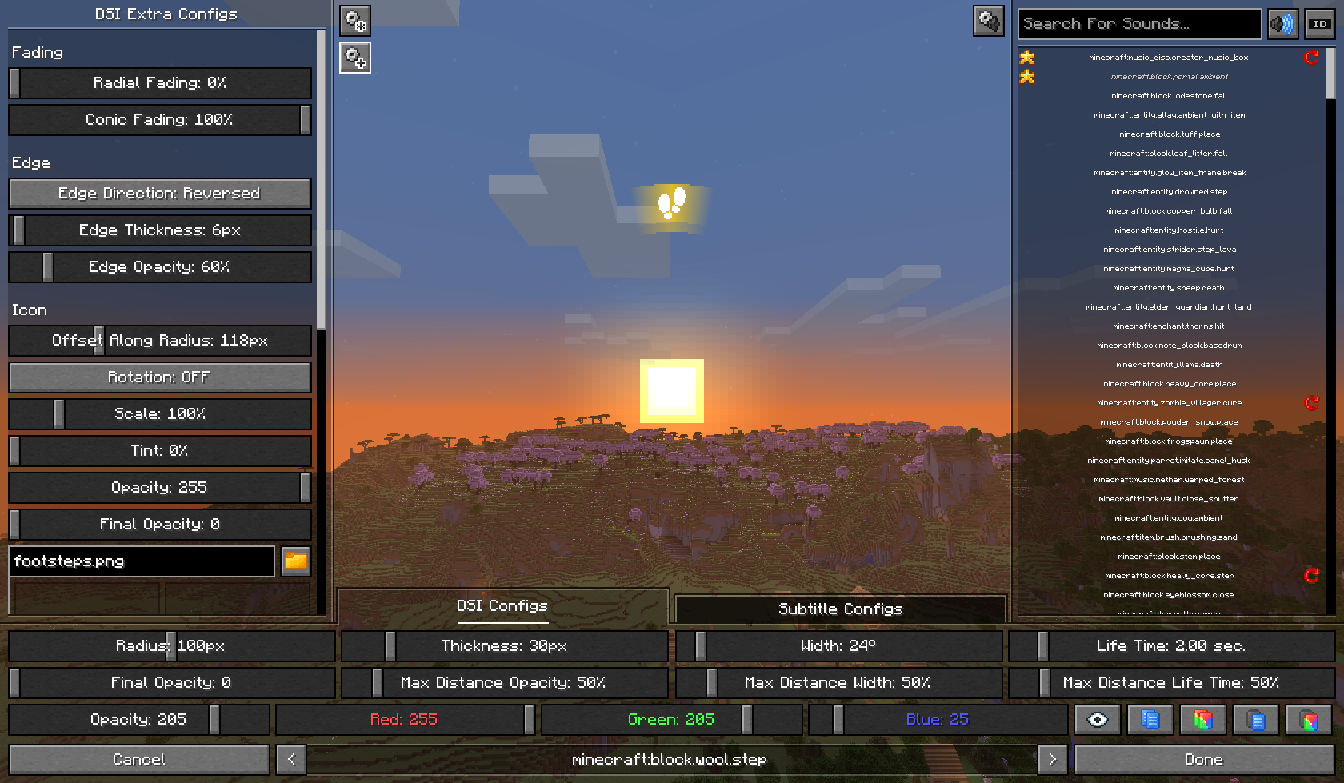
Configuration Screen
A menu that allows you to customize indicators and subtitles. To open the menu, go to "Options" and click the button next to the "Music & Sound Options", or use the keyboard shortcut [ALT + V]. Recommend using hotkeys and some features for faster and more convenient setup.For more information, you can read the guide:
Configuration Screen Guide
How to get started
When you enter the menu, the first thing you should pay attention to is the main panel at the bottom of the screen. At the bottom center of that panel the currently selected sound source is shown - the source for which you will adjust various parameters. When sound is playing in the game world, the indicator and subtitle parameters will reflect the parameters for that sound source. You can switch the sound source being adjusted using the arrow buttons or by using hotkeys.Next, pay attention to the button at the top right - it opens the sounds list, where you can search for, select, and adjust patameters for each sound individually, ignoring its source during playback. To do this, choose a sound in the list (or select multiple sounds by holding [Ctrl] or [Shift]) and change the parameters as you like. If necessary, you can remove an individual sound's parameters by clicking the red button to the right or by using hotkey.
Next, about the actual adjustment: it is performed using the sliders and buttons on the main panel. Each widget controls a separate parameter whose value you can read in a tooltip when you hover over it, or change and see on the on-screen indicator/subtitle in the center of the screen.
It's also important to mention the additional and global parameters - you can open their lists by clicking the corresponding buttons in the top-left corner. While additional parameters are the same as those on the main panel but less important and didn't fit there, global parameters are those whose values are identical for all sounds.
The last thing worth mentioning is the buttons in the bottom-right corner, namely:
Visibility toggle button -
Switches the visibility of the indicators/subtitles for the selected sound source or a specific sound.Copy all non-color parameters button -
Copies the values of all non-color parameters (those parameters that do not affect the color of the indicator or subtitle text)
of the selected sound source or a specific sound, which allows pasting all these copied non-color parameters to other sound sources or specific sounds.Copy all color parameters button -
Copies the values of all color parameters (those parameters that do affect the color of the indicator or subtitle text)
of the selected sound source or a specific sound, which allows pasting all these copied color parameters to other sound sources or specific sounds.Paste all non-color parameters button -
Pastes the copied values of all non-color parameters (those parameters that do not affect the color of the indicator or subtitle text)
into the selected sound source or into a specific sound.Paste all color parameters button -
Pastes the copied values of all color parameters (those parameters that do affect the color of the indicator or subtitle text)
into the selected sound source or into a specific sound.
All of these buttons have an alternative in the form of hotkeys.
Hotkeys
You can change the hotkey bindings in the "Controls" under the "Sound Visualizer" category (on Fabric, only from game version 1.21.11 onward).
[A] - Changes the sound source whose parameters are being edited to the left one.
[D] - Changes the sound source whose parameters are being edited to the right one.
[S] - Sets the minimum value for the slider and its parameter.
[W] - Sets the maximum value for the slider and its parameter.
[C] - Copies the value of the hovered widget's parameter.
[V] - Pastes the copied value into the hovered widget's parameter.
[Shift + C] - Copies the values of all non-color parameters (those parameters that do not affect the color of the indicator or subtitle text)
of the selected sound source or a specific sound.[Shift + V] - Pastes the copied values of all non-color parameters (those parameters that do not affect the color of the indicator or subtitle text)
into the selected sound source or into a specific sound.[Alt + C] - Copies the values of all color parameters (those parameters that do affect the color of the indicator or subtitle text)
of the selected sound source or a specific sound.[Alt + V] - Pastes the copied values of all color parameters (those parameters that do affect the color of the indicator or subtitle text)
into the selected sound source or into a specific sound.[X] - Switches the visibility of the indicators/subtitles for the selected sound source or a specific sound.
[F] - Adds/Removes all sounds selected in the sounds list in/from favorites.
[R] - Removes the individual setup of all sounds selected in the sounds list.
Useful features
You can use the mouse wheel to adjust the slider value and its parameter incrementally, or in steps of ten while holding down the [Shift] key.
You can hold down the [Ctrl] key and scroll through the list without interacting with the sliders in it,
and hold down the [Shift] key to increase the scrolling speed by 10 times.
Contact
If you have any issues, suggestions for improvement, or questions regarding the mod, you can add them on the Issue Tracker
(CurseForge - https://legacy.curseforge.com/minecraft/mc-mods/sound-visualizer/issues).
Available Versions
How to Install Sound Visualizer on Your Server
Order Server
Order a Minecraft Java server with at least 3 GB RAM (4 GB recommended).
Set fabric Loader
In the panel under "Egg", select the fabric loader and matching Minecraft version (26.1.2).
Install Mod
Open the mod browser in the dashboard and search for "Sound Visualizer". Click "Install" – done! Alternatively, upload the .jar via SFTP to the /mods folder.
Compatibility
Mod Loaders
Minecraft Versions
26.1.2, 26.1.1, 26.1 (+13 more)
Server-side
✗ UnsupportedRecommended RAM
4 GB(min. 3 GB)Frequently Asked Questions
Sound Visualizer server crashes on startup – what to do?
Most common cause: wrong fabric version or insufficient RAM. Check the server log (latest.log) for "OutOfMemoryError" or "Mixin" errors. With Mado Hosting: ensure at least 3 GB RAM is allocated and the loader matches the mod version (26.1.2). You can switch loaders with one click in the panel.
Is Sound Visualizer compatible with fabric and forge and neoforge?
Sound Visualizer officially supports fabric, forge, neoforge for Minecraft 26.1.2, 26.1.1, 26.1. Note: Forge and Fabric mods are NOT cross-compatible – pick one loader and stick with it. The Mado dashboard automatically detects incompatible loader combinations.
Server lagging with Sound Visualizer – how to optimize performance?
Recommended RAM: 4 GB (per 8 players). Use /spark profiler to check if Sound Visualizer consumes the most tick time. Common fixes: reduce server view-distance to 8-10, install "performant" or "starlight" as supplementary mods on Forge. With Mado Hosting, your server runs on NVMe SSDs with dedicated CPU cores for minimal latency.
Similar Mods




Rent Modded Server
Install Sound Visualizer with just one click on your server.