Splitscreen Support
Easy window positioning for local multiplayer
Screenshots
About this Mod
Splitscreen Support
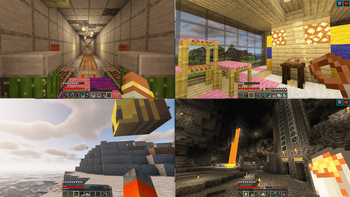
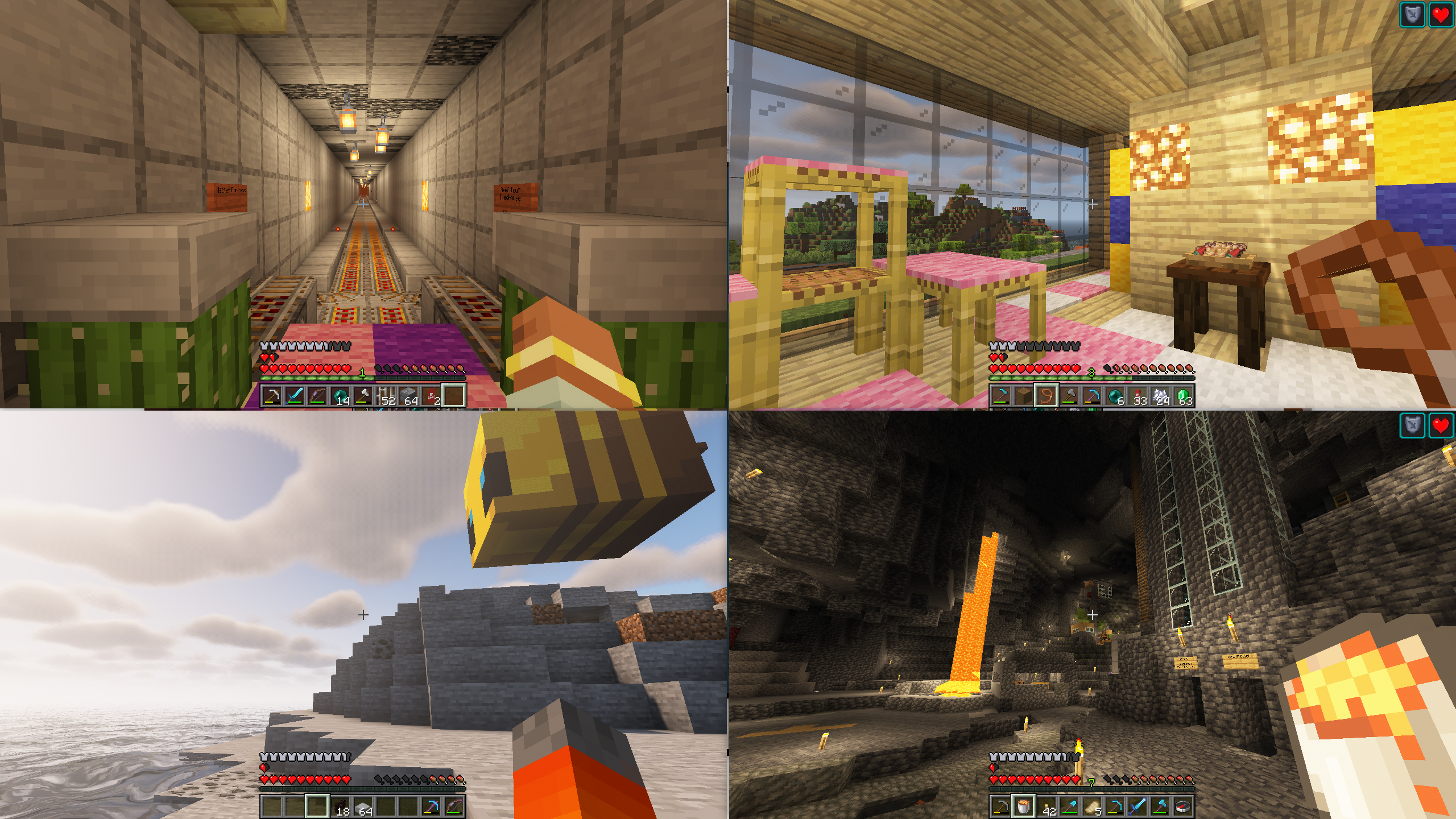
Simple mod that makes it easier to position windows for local multiplayer.
With this mod installed, hitting the 'Toggle Fullscreen' button (F11) will cycle you through different half- and quarter-size
window positions for split screen play. It then saves your choice and brings the window up in the same place when you
restart the game.
This makes it easier for you to start two or more copies of Minecraft and have the windows be positioned automatically
for splitscreen.
This mod is designed to be used in conjunction with a Minecraft launcher (such as PrismLauncher) and
a gamepad mod (such Midnight Controls)
Usage Video
Suggested Setup
Stuff you need
- Two or more legal minecraft accounts
- PrismLauncher
- Midnight Controls
- Splitscreen Support
- Two or more gamepads
- One or more friends
- One big TV hooked up to your computer
- One couch
What to do
- Create two or more minecraft instances in PrismLauncher, one for each account
- In each instance, install SplitScreen Support and MidnightControls
- Launch the instances and configure each of them as follows:
- SplitScreen Support: Press
F11to position the windows - MidnightControls: Enable
Unfocused InputandVirtual Mouseas described here - Minecraft: Press
F3+Pto disable Pause on Lost Focus
- SplitScreen Support: Press
- Get a gamepad for each instance and configure MidnightControls
- In one of the instances, create a new world and 'Open to LAN'
- Connect the other instances to that one (e.g., localhost:25565)
- Get your friends and have a Minecraft party!
Other mod features
- Username is displayed in the upper-left corner of the main menu (so you can tell who's who)
Adjusting the gap between windows
By default, the mod puts a small gap between windows. You can change the width of this gap
(or make it 0) by setting the value of the gap property in config/splitscreen.properties.
(This file doesn't exist until you quit minecraft for the first time with the mod running).
Acknowledgements
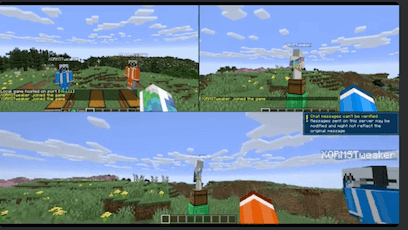
- Video courtesy of wormstweaker
- Icon based on Squares icons created by Rahul Kaklotar - Flaticon
Questions?
If you have questions about this mod, please join the Discord server:
Comments have been disabled and I will not reply to private messages on Curseforge.
Available Versions
How to Install Splitscreen Support on Your Server
Order Server
Order a Minecraft Java server with at least 3 GB RAM (4 GB recommended).
Set fabric Loader
In the panel under "Egg", select the fabric loader and matching Minecraft version (26.1.2).
Install Mod
Open the mod browser in the dashboard and search for "Splitscreen Support". Click "Install" – done! Alternatively, upload the .jar via SFTP to the /mods folder.
Compatibility
Mod Loaders
Minecraft Versions
26.1.2, 26.1.1, 26.1 (+16 more)
Server-side
✗ UnsupportedRecommended RAM
4 GB(min. 3 GB)Frequently Asked Questions
Splitscreen Support server crashes on startup – what to do?
Most common cause: wrong fabric version or insufficient RAM. Check the server log (latest.log) for "OutOfMemoryError" or "Mixin" errors. With Mado Hosting: ensure at least 3 GB RAM is allocated and the loader matches the mod version (26.1.2). You can switch loaders with one click in the panel.
Is Splitscreen Support compatible with fabric and neoforge?
Splitscreen Support officially supports fabric, neoforge for Minecraft 26.1.2, 26.1.1, 26.1. The Mado dashboard automatically detects incompatible loader combinations.
Server lagging with Splitscreen Support – how to optimize performance?
Recommended RAM: 4 GB (per 8 players). Use /spark profiler to check if Splitscreen Support consumes the most tick time. Common fixes: reduce server view-distance to 8-10, install "performant" or "starlight" as supplementary mods on Forge. With Mado Hosting, your server runs on NVMe SSDs with dedicated CPU cores for minimal latency.
Similar Mods




![[ETF] Entity Texture Features](https://cdn.modrinth.com/data/BVzZfTc1/af683d206d50b05258d865b0d6e4aa2f2cee12f2_96.webp)
![[EMF] Entity Model Features](https://cdn.modrinth.com/data/4I1XuqiY/6e5bbd0d06b1741bfdab6c0cfab6de8fdaf0064c_96.webp)
Rent Modded Server
Install Splitscreen Support with just one click on your server.