
Widgets
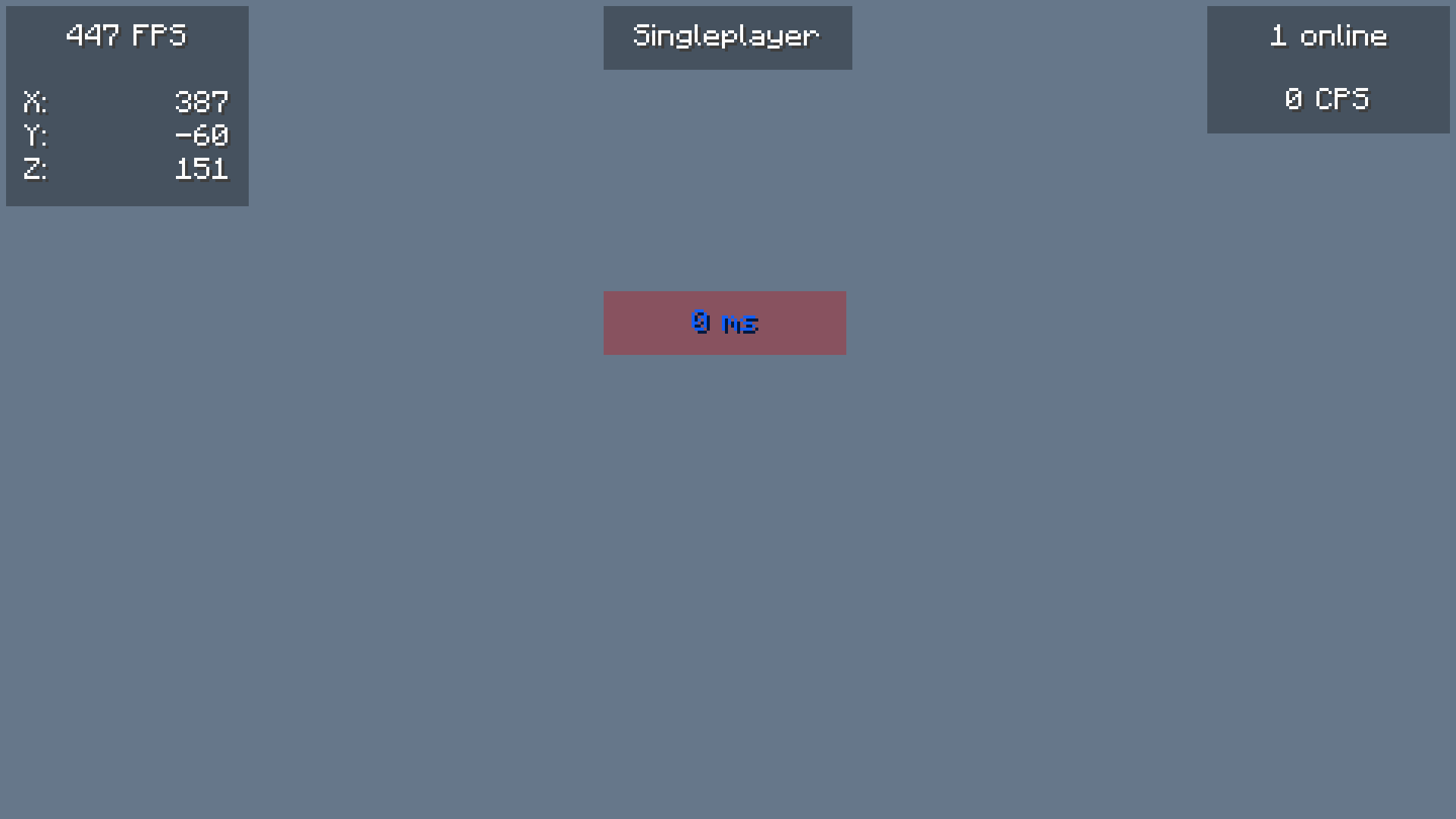
Adds customizable in-game widgets (like FPS, CPS, Armor, etc.) to your game HUD.
Screenshots


About this Mod
Widgets
Adds customizable in-game widgets to your game.
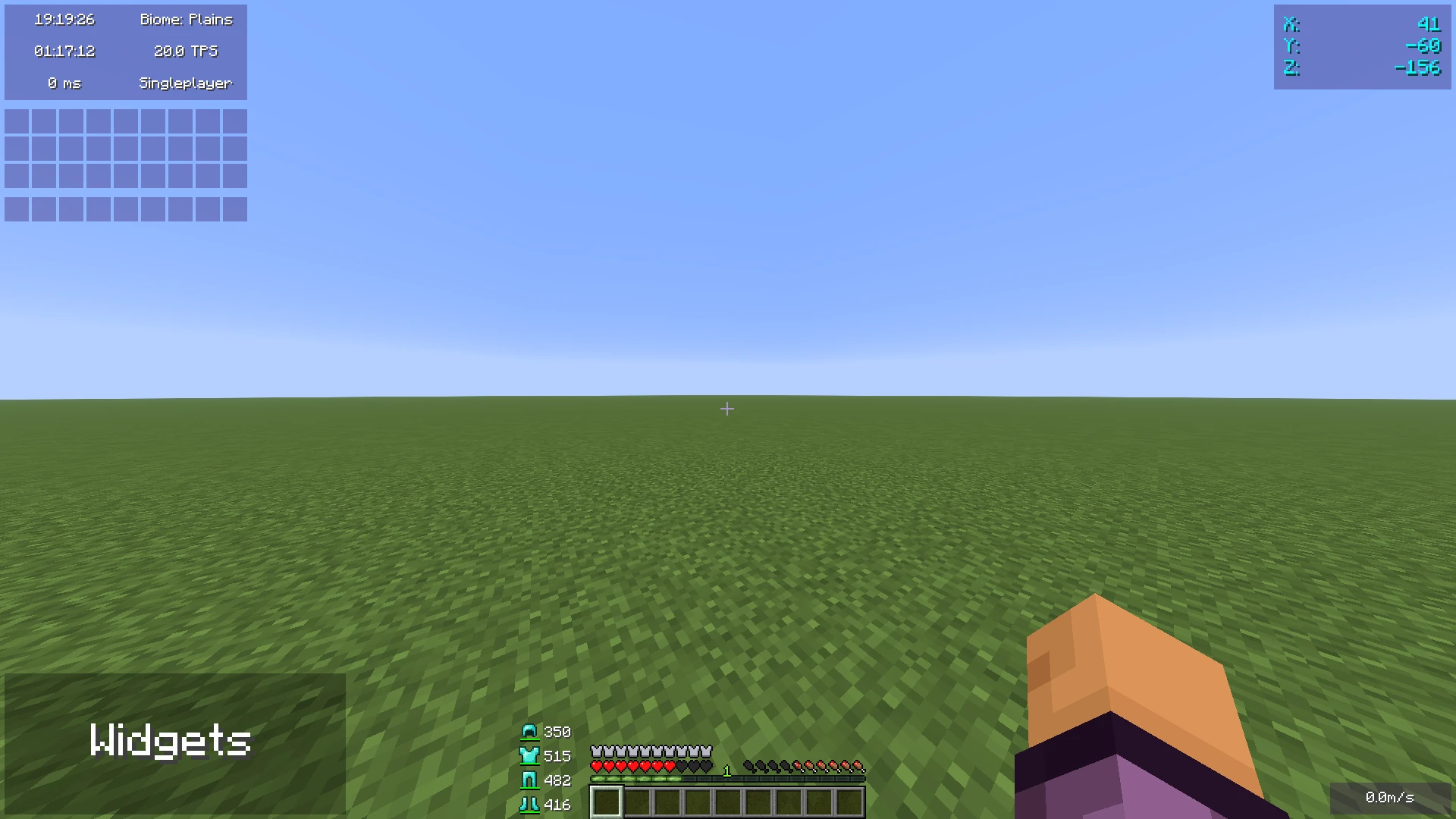
This Minecraft mod adds customizable widgets that you may know from other Minecraft clients.
This mod was specifically made for people who just use Fabric or Quilt (and no specific client).
It also has some benefits over using clients:
- Performance:
- We've tried to optimize the mod as much as possible to make sure the game runs as smoothly as possible.
- Disabled widgets don't use any performance
- No additional features
- The mod focuses on widgets only. It does not contain any other features such as performance improvements or mods.
- Easy to use
- We've tried to make the mod as easy to use as possible, for example, there are three ways to open the config menu instead of only a keybind.
Widget settings
There are three ways to open the widget settings:
- Press the key bind (bound to right shift by default)
- Enter the command "/widgetsmod"
- Open the config menu through Mod Menu
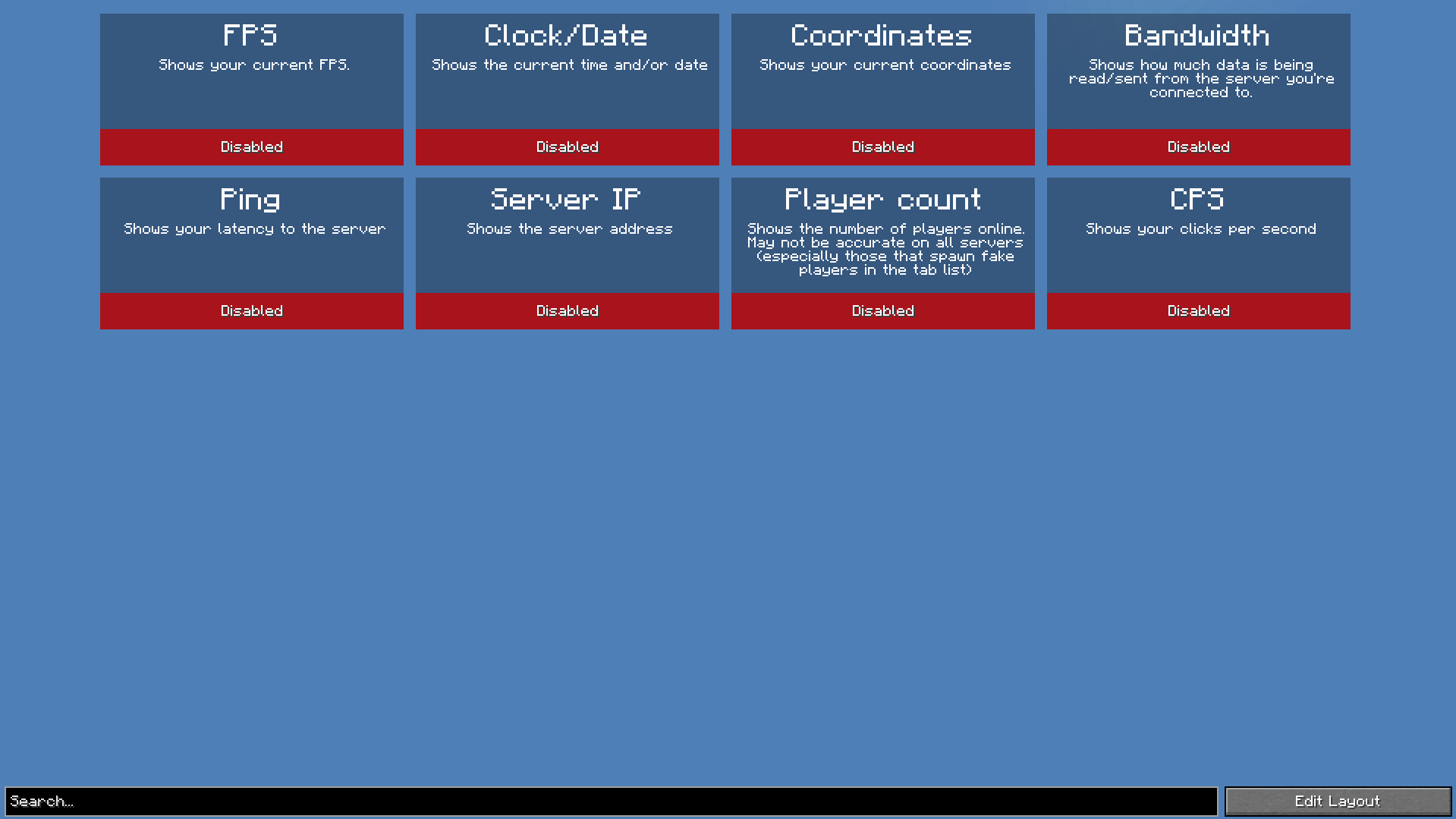
Once you've opened the settings, you will see the widget overview menu:
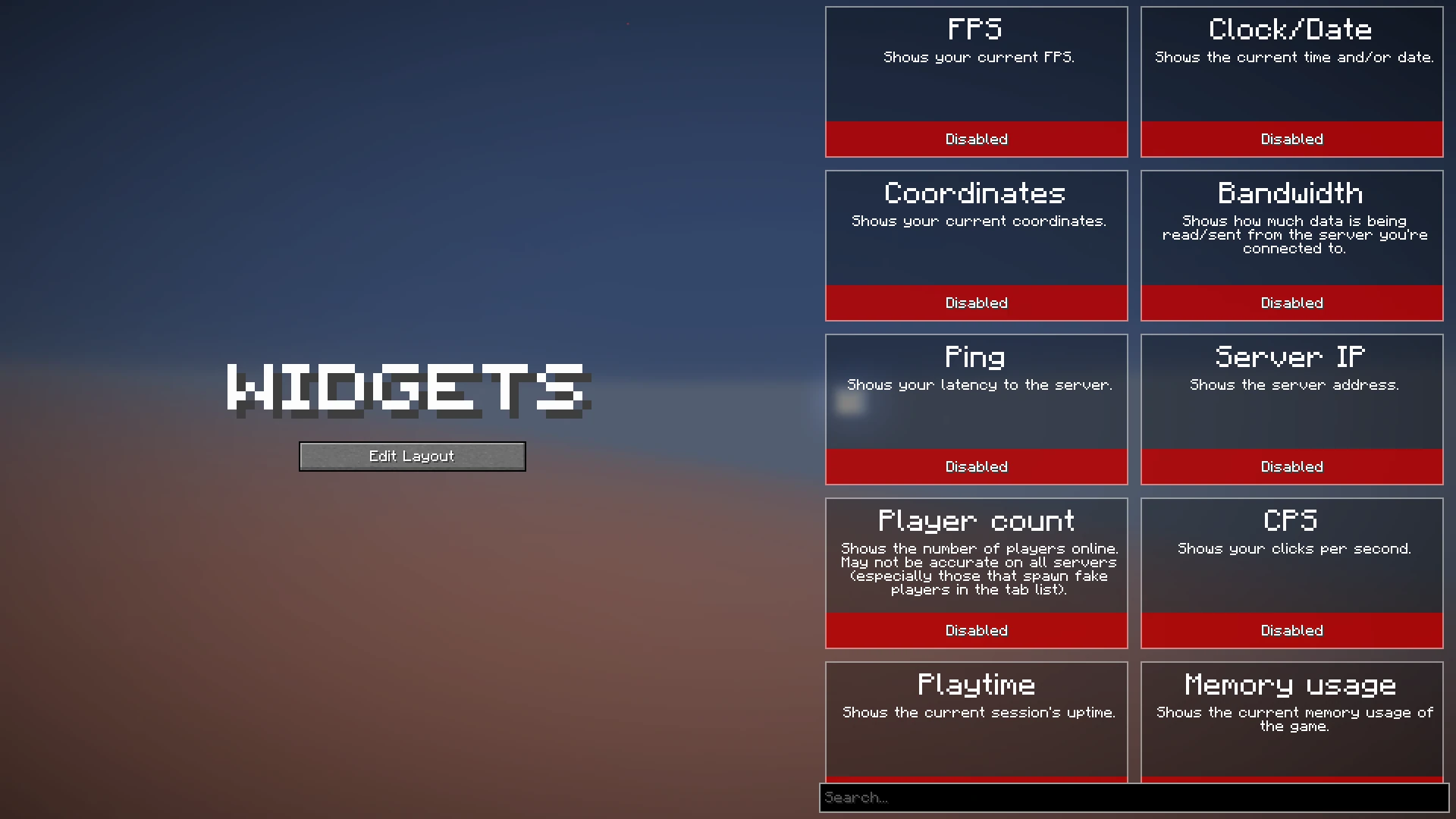
You can now enable the widgets you want to enable, or click on them to view their additional settings, as you can see here:
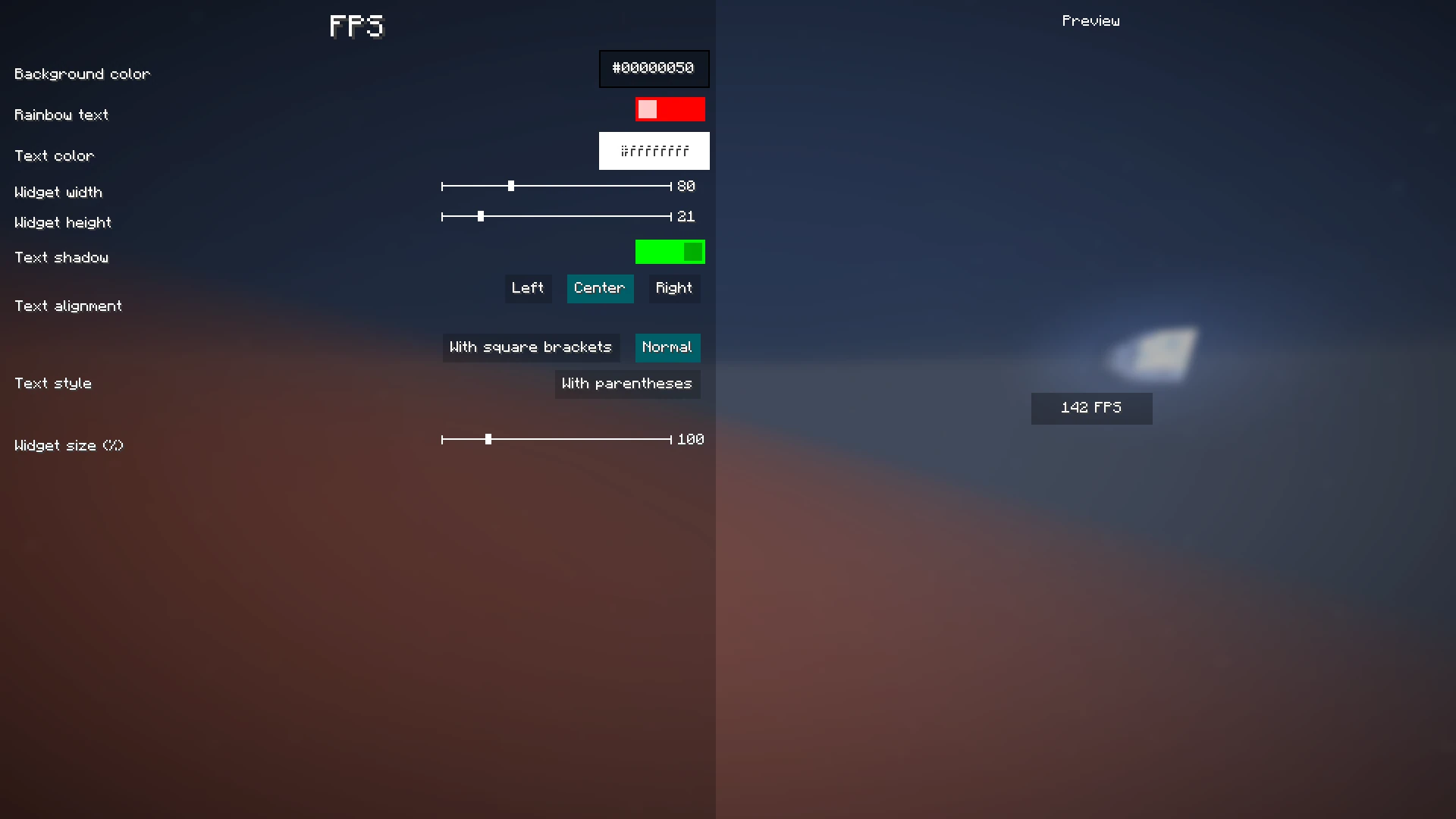
When you're done with configuring which widgets you want to enable and their settings, click the "Edit Layout" button on the left side of the mod configuration screen.
This will take you to a screen where you can freely move around your enabled widgets.
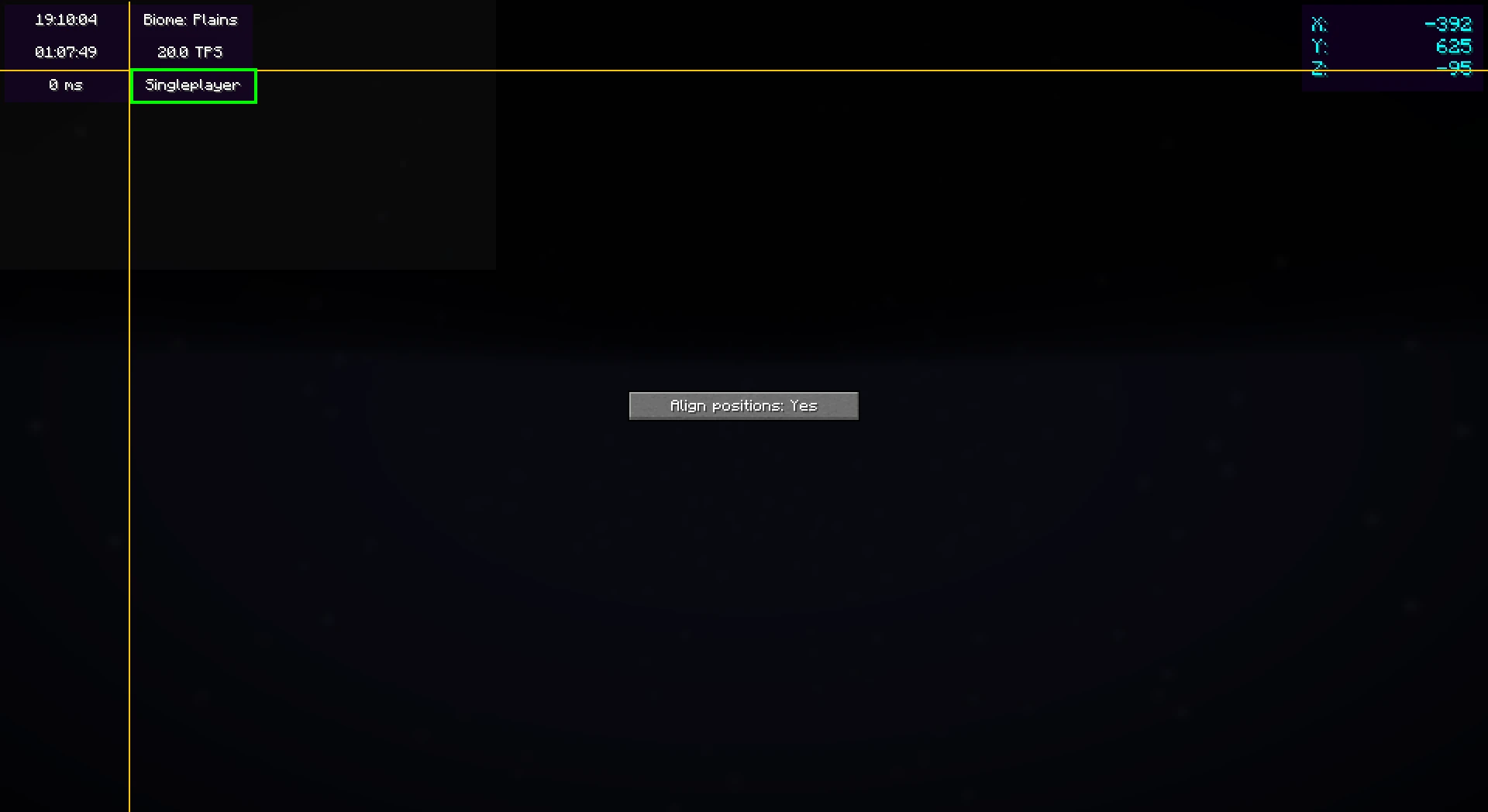
Right-clicking on this screen will bring up a useful context menu with additional options, like enabling/disabling widgets or changing their settings.
When you're done, just press Escape until you return to the game.
Now, everything is done. Your widgets automatically save for the next time you play.
Color editor
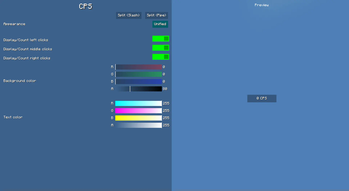
Newer mod versions (2.3.0+) include a color editor which provides full customization for your widgets' background and text colors:
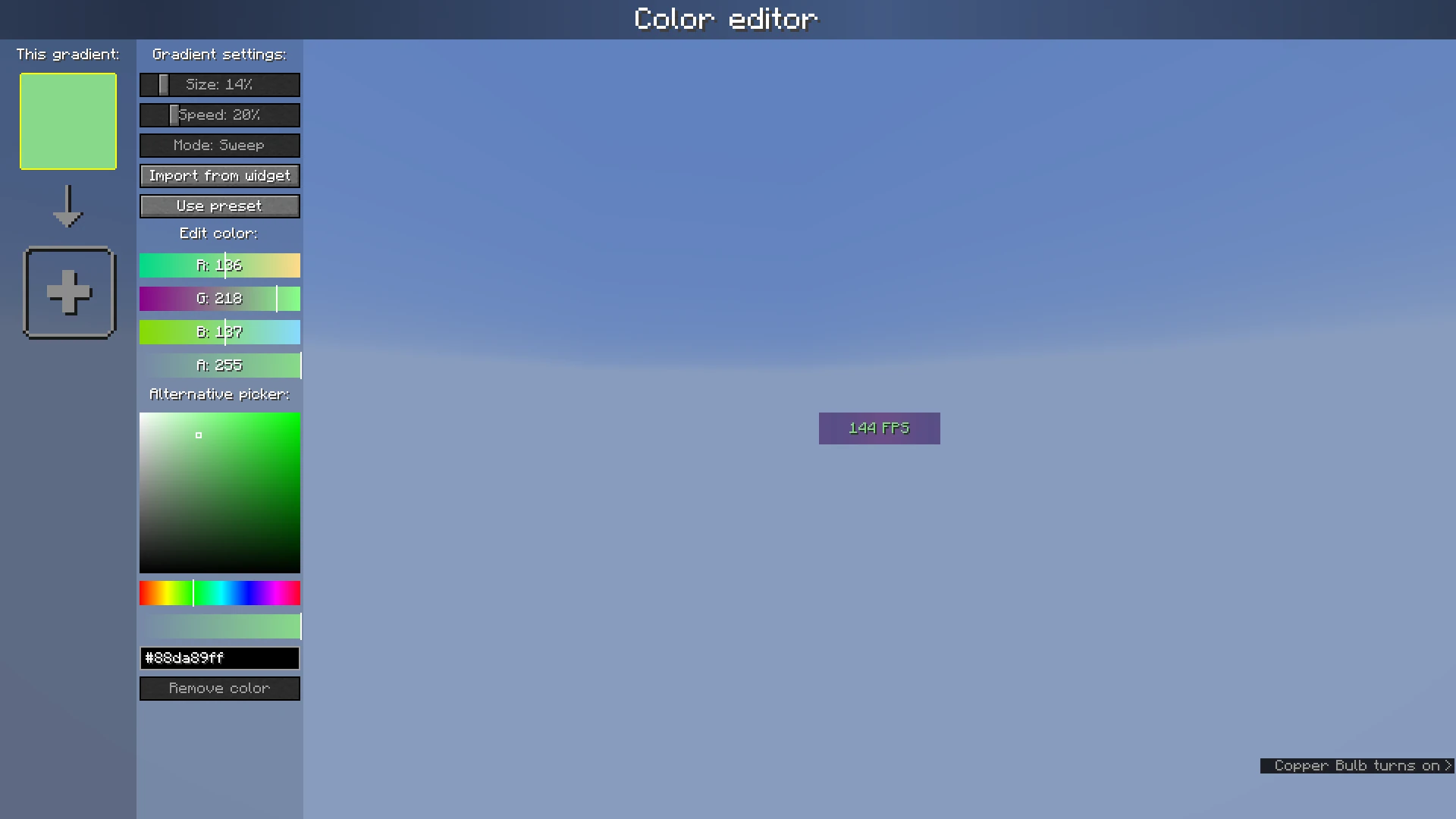
The color list on the left shows the colors which are currently configured; if you add more than one, it becomes a gradient. Clicking on the colors will select them.
The settings bar on the right of the color list can be used to customize gradient settings, import from other widgets, or use presets.
Below that, the color which is currently selected can be changed or deleted.
Available Versions
How to Install Widgets on Your Server
Order Server
Order a Minecraft Java server with at least 3 GB RAM (4 GB recommended).
Set fabric Loader
In the panel under "Egg", select the fabric loader and matching Minecraft version (26.1.2).
Install Mod
Open the mod browser in the dashboard and search for "Widgets". Click "Install" – done! Alternatively, upload the .jar via SFTP to the /mods folder.
Compatibility
Mod Loaders
Minecraft Versions
26.1.2, 26.1.1, 26.1 (+12 more)
Server-side
✗ UnsupportedRecommended RAM
4 GB(min. 3 GB)Frequently Asked Questions
Widgets server crashes on startup – what to do?
Most common cause: wrong fabric version or insufficient RAM. Check the server log (latest.log) for "OutOfMemoryError" or "Mixin" errors. With Mado Hosting: ensure at least 3 GB RAM is allocated and the loader matches the mod version (26.1.2). You can switch loaders with one click in the panel.
Is Widgets compatible with fabric and quilt?
Widgets officially supports fabric, quilt for Minecraft 26.1.2, 26.1.1, 26.1. The Mado dashboard automatically detects incompatible loader combinations.
Server lagging with Widgets – how to optimize performance?
Recommended RAM: 4 GB (per 8 players). Use /spark profiler to check if Widgets consumes the most tick time. Common fixes: reduce server view-distance to 8-10, install "performant" or "starlight" as supplementary mods on Forge. With Mado Hosting, your server runs on NVMe SSDs with dedicated CPU cores for minimal latency.
Similar Mods

![[ETF] Entity Texture Features](https://cdn.modrinth.com/data/BVzZfTc1/af683d206d50b05258d865b0d6e4aa2f2cee12f2_96.webp)
![[EMF] Entity Model Features](https://cdn.modrinth.com/data/4I1XuqiY/6e5bbd0d06b1741bfdab6c0cfab6de8fdaf0064c_96.webp)


Rent Modded Server
Install Widgets with just one click on your server.