
Minecraft VR for bad laptops
This is a modpack that helps non-vr ready laptops/PCs to be able to run minecraft in VR.
Über dieses Modpack
Notice
I am no longer updating this modpack.
I left the minecraft community because of drama with the community, drama with my friends who are big the the minecraft space. And mojangs lack of updates/low qulity updates. I am more active in Roblox than minecraft and i also want to work on bigger projects. So yeah
Goodbye minecraft!
Welcome
You may want to run Minecraft in VR. You got the headset the software. But you computer does not have the power to run Steam VR. Or it does but it is very laggy.
If you said yes to those questions then you may want to use this modpack
Minecraft VR for bad laptops!
This Mod Pack helps laptops/PCs that are not VR ready be able to play Minecraft in VR using some very good optimization mods that is going to help your laptop/PC run better in VR!
How to setup
Pre-setup
You would need a few things.
- A launcher that can read
.mrpack(I recomend using Prism Launcher but any launcher works!) - And a copy of Steam VR
Setup
Setting up is easy as cake.
find this modpack in the modrinth laucher and install it really simple and the best way to install it.
A another way is to download the modpack file from this page and install it with the modrith laucher.
After that. open Steam VR and run Minecraft.
Then just toggle the VR button
That's it!
told ya it's easy as cake
How is it in game?
The modpack with the optimization mods and configs is able to get around 30 FPS in VR which is really good for a computer with only 12GB of RAM and a lack of VR support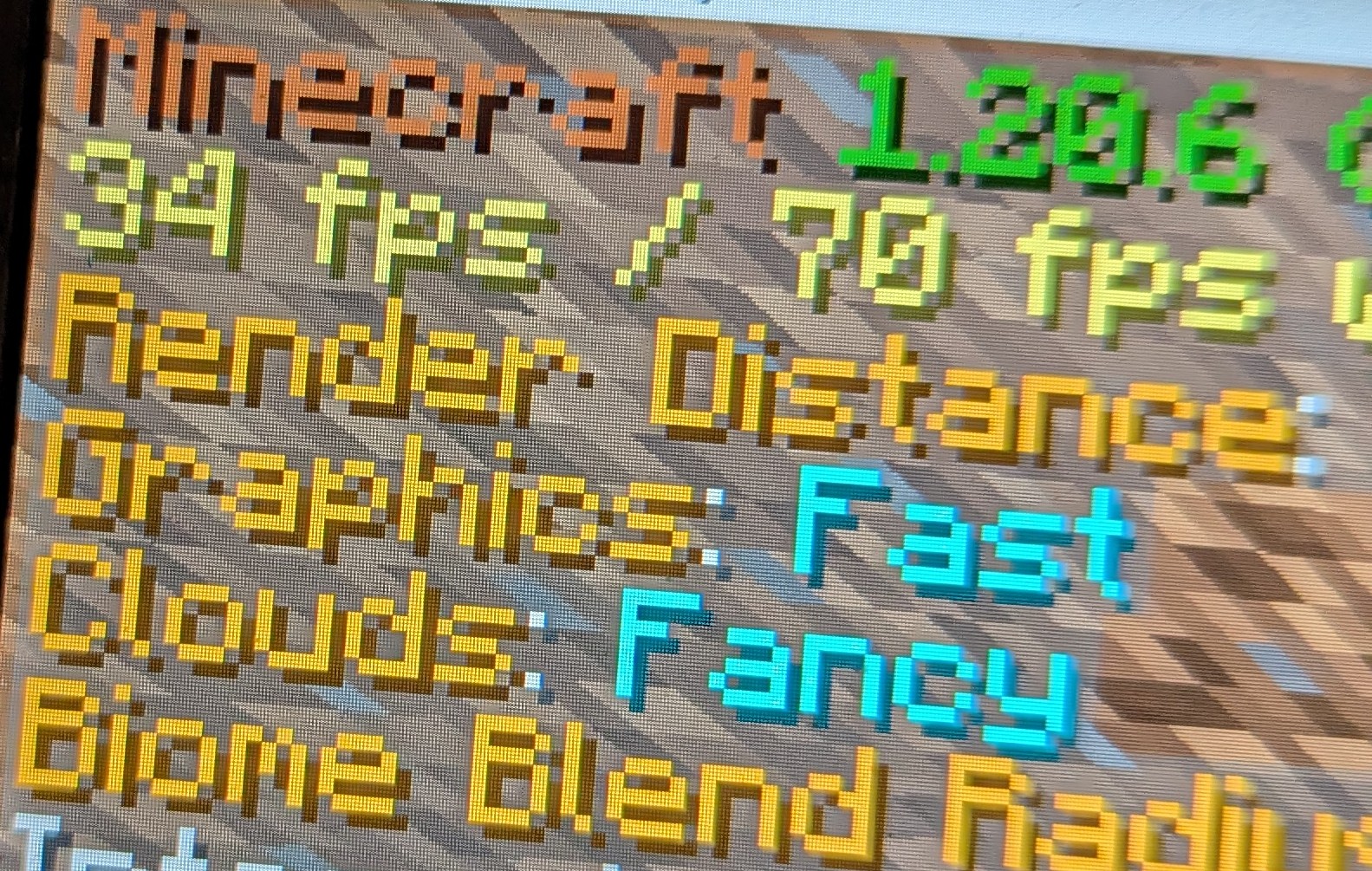
Overall
This modpack is good if you are looking for a way to play Vivecraft on a non-VR ready or low end computer. There are a few things to note one is that the modpack is not perfect and some computer can't run this at all like MacBooks or super super low end computer. And also you would to have to follow some setup from Vivecraft FAQ. FOR SERVER OWNER PLEASE READ THIS FOR VIVECRAFT SERVER STUFF. And Steam VR is needed for it to work it can be found here. Run Minecraft with Steam VR open (and headset on your head) and press on the VR button.
I also made it mult-loader so you can enjoy this modpack in your favitore loader and have your own mods in those said loaders :3
Credits
The icon for this modpack was made by Unfunnymii
Also thanks to the mods used in this modpack for letting me put them in here. It means a lot!
Verfügbare Versionen
Minecraft VR for bad laptops Server einrichten
Server bestellen
Wähle mindestens 4 GB RAM (6 GB empfohlen für Minecraft VR for bad laptops). Je nach Spieleranzahl: +1 GB pro 5 Spieler.
Modpack im Dashboard installieren
Öffne den Modpack-Browser im Dashboard, suche nach "Minecraft VR for bad laptops" und klicke "Installieren". Der fabric-Loader und Minecraft 1.21.11 werden automatisch konfiguriert.
Server starten & spielen
Starte den Server – alle Mods werden automatisch geladen. Teile die Server-IP mit Freunden und spielt zusammen!
Häufige Fragen
Minecraft VR for bad laptops Server crasht oder startet nicht – was tun?
Häufigste Ursachen: zu wenig RAM oder falscher fabric-Loader. Prüfe latest.log auf "OutOfMemoryError" → erhöhe RAM auf mindestens 6 GB. Bei "Mixin" oder "ClassNotFoundException": Modpack-Version und Loader stimmen nicht überein. Bei Mado Hosting werden Loader und Minecraft-Version beim Modpack-Install automatisch konfiguriert – das verhindert die meisten Startprobleme.
Wie viel RAM braucht ein Minecraft VR for bad laptops Server wirklich?
Minimum 4 GB, empfohlen 6 GB für stabile Performance. +1 GB pro 5 Spieler. Wichtig: Minecraft-Modpacks brauchen mehr RAM als Vanilla – plane pro zusätzlichem Spieler extra ein. Bei Mado Hosting kannst du den RAM jederzeit live hochskalieren, ohne Datenverlust (ab €5.2/Monat).
Kann ich eigene Mods zu Minecraft VR for bad laptops hinzufügen, ohne Konflikte?
Ja, aber achte auf die Kompatibilität: Nutze nur Mods für den gleichen Loader (fabric) und die gleiche Minecraft-Version (1.21.11). Häufige Probleme: ID-Konflikte bei Rezept-Mods und inkompatible Coremod-Versionen. Im Mado Dashboard zeigt der Mod-Browser nur kompatible Mods an und warnt bei bekannten Konflikten.
Minecraft VR for bad laptops Server laggt – Performance-Tipps
1) RAM auf 6 GB+ erhöhen. 2) Server-View-Distance auf 8 reduzieren (server.properties). 3) Pre-Generiere Chunks mit dem "Chunky" Plugin. 4) Prüfe mit /spark profiler welche Mods die meiste Tick-Time verbrauchen. Bei Mado Hosting laufen alle Server auf NVMe-SSDs mit dedizierten CPU-Kernen – das eliminiert Hardware als Engpass.
Ähnliche Modpacks

![Cobblemon Official Modpack [Fabric]](https://cdn.modrinth.com/data/5FFgwNNP/e7f9ee2e9d361623847853fe2ddce42f519ee64f.png)
![COBBLEVERSE - Pokemon Adventure [Cobblemon]](https://cdn.modrinth.com/data/Jkb29YJU/581ecf54530972afb18a04660afd820f2f24f6c7.png)
![Better MC [FABRIC] - BMC2](https://cdn.modrinth.com/data/shFhR8Vx/a19c2bcb51d38f32f138d3607e91cb2b7b8e387f_96.webp)


Minecraft VR for bad laptops Server mieten
Starte deinen eigenen Server mit automatischer Modpack-Installation.
Unterstützte Versionen
Starte deinen Minecraft VR for bad laptops Server jetzt
Ab €5.20/Monat; für die beste Performance werden 6 GB RAM empfohlen.
Server konfigurieren →