Light Control
Control the build-in lights with Art-Net / DMX. (External software required.)
Beschreibung
Light Control Mod
This mod allows to control the build-in lights with Art-Net / DMX, a popular protocol used in stage lighting.
External software is required to program a light show.
Light Show Demo
[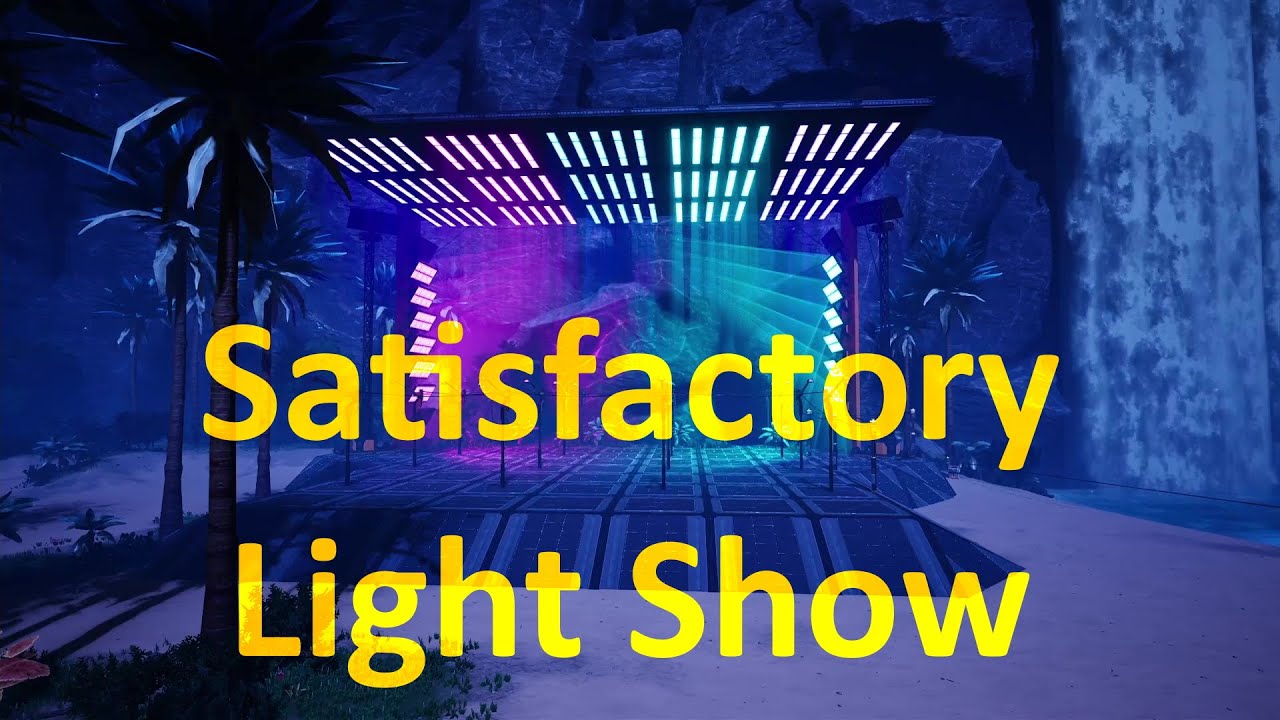](https://www.youtube.com/watch?v=rR7Teg_T_gs)
[https://www.youtube.com/watch?v=rR7Teg_T_gs](https://www.youtube.com/watch?v=rR7Teg_T_gs)
The show was programmed with the light control software [DMXControl](https://dmxcontrol.de/):
[](https://dmxcontrol.de/)
Usage
This mod adds an "Art-Net Lights Control Panel" building to the game.
It is available in the AWESOME Shop when the regular Lights Control Panel is unlocked.
The control panel will receive Art-Net data from an external light control software.
All lights connected to the control panel can be configured within the control panel UI.
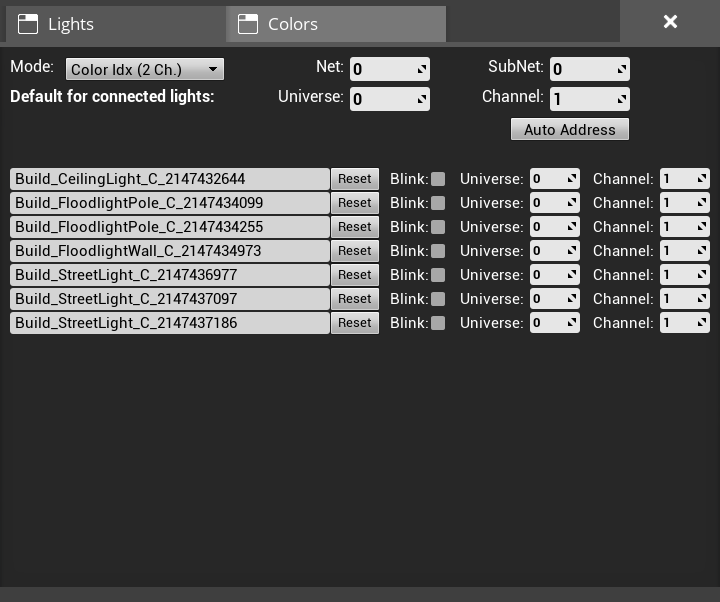
At the top are general settings to configure the mode as well as the Art-Net Net and Sub-Net the current Control Panel is listening on.
There are three modes available, each using the DMX values in a different way:
- `Color Idx (2 Ch.)`: Uses 2 DMX channels, a dimmer and a color idx to select one of the 7 global color slots of the game.
- `RGB (3 Ch.)`: Directly set RGB values using 3 DMX channels.
- `Dimmer + RGB (4 Ch.)`: Directly set RGB values using 3 DMX channels with an additional dimmer channel.
A detailed description of the DMX channels is available in the tables below.
Further, the default start address which will be set as the initial value for all newly connected lights can be configured.
Next, there is an `Auto Address` button allowing to continuously address all connected lights based on their location in the world.
The automatic addressing starts at the current default address and increases the channel for each light based on the currently selected mode.
The lights are ordered first west-to-east, then north-to-south, then bottom-to-top.
Below the general settings is a list of all lights connected to the current Art-Net Lights Control Panel.
On the left is a text box, where it is possible to give each light a meaningful description.
Next to it is a checkbox. If it is checked the light will start blinking.
This allows to easily find a connection between the actual light and the name in the list.
On the right, the start address of each light can be configured.
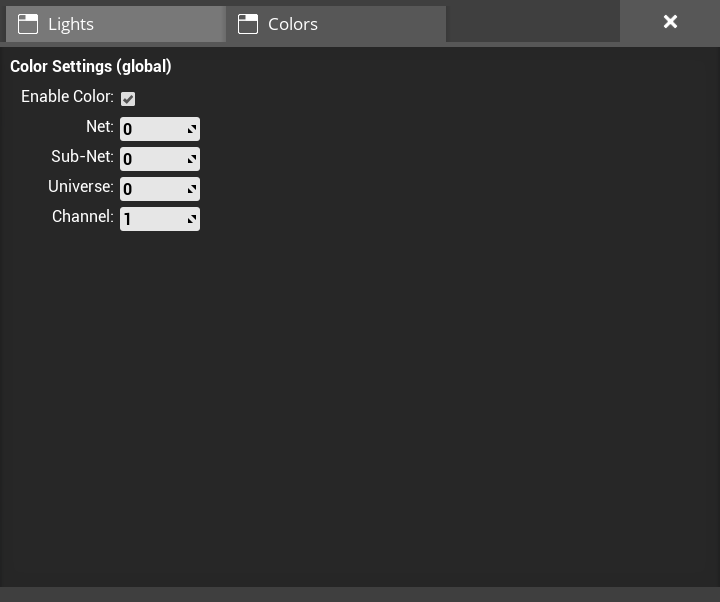
Within the color tab, the start address of the 7 global color channels can be configured.
Please note, that the 7 color slots are a global game setting and shared between all lights and lights control panels.
A detailed description of the DMX channels can be found in the table below.
It is possible to disable the colors.
This means the colors will not be changed via Art-Net and the colors set within a regular Light Control Panel are used.
Light Channel Table - Mode "Dimmer + RGB"
| Channel | Function |
|--------:|-------------------|
| 1 | Dimmer (0 - 100%) |
| 2 | Red (0 - 100%) |
| 3 | Green (0 - 100%) |
| 4 | Blue (0 - 100%) |
Light Channel Table - Mode "RGB"
| Channel | Function |
|--------:|------------------|
| 1 | Red (0 - 100%) |
| 2 | Green (0 - 100%) |
| 3 | Blue (0 - 100%) |
Light Channel Table - Mode "Color IDX"
| Channel | Function |
|--------:|----------------------------------|
| 1 | Dimmer (0 - 100%) |
| 2 | Color Slot Idx (see table below) |
| Value | Color Slot Idx |
|----------:|----------------|
| 0 - 35 | Color Slot 1 |
| 36 - 71 | Color Slot 2 |
| 72 - 107 | Color Slot 3 |
| 108 - 143 | Color Slot 4 |
| 144 - 179 | Color Slot 5 |
| 180 - 215 | Color Slot 6 |
| 216 - 255 | Color Slot 7 |
Color Channel Table
| Channel | Function |
|--------:|---------------------------------|
| 1 | Color Slot 1 - Red (0 - 100%) |
| 2 | Color Slot 1 - Green (0 - 100%) |
| 3 | Color Slot 1 - Blue (0 - 100%) |
| 4 | Color Slot 2 - Red (0 - 100%) |
| 5 | Color Slot 2 - Green (0 - 100%) |
| 6 | Color Slot 2 - Blue (0 - 100%) |
| 7 | Color Slot 3 - Red (0 - 100%) |
| 8 | Color Slot 3 - Green (0 - 100%) |
| 9 | Color Slot 3 - Blue (0 - 100%) |
| 10 | Color Slot 4 - Red (0 - 100%) |
| 11 | Color Slot 4 - Green (0 - 100%) |
| 12 | Color Slot 4 - Blue (0 - 100%) |
| 13 | Color Slot 5 - Red (0 - 100%) |
| 14 | Color Slot 5 - Green (0 - 100%) |
| 15 | Color Slot 5 - Blue (0 - 100%) |
| 16 | Color Slot 6 - Red (0 - 100%) |
| 17 | Color Slot 6 - Green (0 - 100%) |
| 18 | Color Slot 6 - Blue (0 - 100%) |
| 19 | Color Slot 7 - Red (0 - 100%) |
| 20 | Color Slot 7 - Green (0 - 100%) |
| 21 | Color Slot 7 - Blue (0 - 100%) |
Light Control auf dem Server installieren
Satisfactory Server bestellen
Bestelle einen Satisfactory Server mit mindestens 4 GB RAM (6 GB empfohlen). Bei Multiplayer: +1 GB pro 4 Spieler.
Mod installieren
Öffne den Mod-Manager im Dashboard und suche nach "Light Control". Installations-Dependencies werden automatisch mitinstalliert.
Server neu starten
Starte den Server neu, damit die Mod geladen wird. Spieler müssen die Mod ebenfalls lokal installiert haben.
Häufige Fragen
Light Control funktioniert nicht nach Update – was tun?
Nach einem Satisfactory-Update müssen Mods aktualisiert werden. Prüfe auf ficsit.app, ob Light Control bereits für die neue Game-Version aktualisiert wurde. Bei Mado Hosting: Öffne den Mod-Manager und klicke "Alle aktualisieren". Wenn die Mod noch nicht aktualisiert ist, entferne sie temporär, damit der Server startet.
Light Control verursacht Crashes im Multiplayer – Lösung
Häufigste Ursache: alle Spieler müssen exakt die gleiche Mod-Version installiert haben. Prüfe in den Server-Logs nach "ModMismatch" oder "Version Conflict". Stelle sicher, dass alle Spieler Light Control v0.10.0 und den gleichen SML verwenden. Bei Mado Hosting laufen Satisfactory Server mit 6 GB RAM für stabile Multiplayer-Performance.
Ist Light Control mit anderen Satisfactory Mods kompatibel?
Light Control nutzt den Satisfactory Mod Loader (SML). Generell sind SML-basierte Mods untereinander kompatibel, aber Mods die gleiche Game-Systeme ändern, können Konflikte verursachen. Teste neue Mod-Kombinationen am besten auf einem Backup-Save. Im Mado Dashboard werden bekannte Konflikte automatisch erkannt und du wirst gewarnt.
Light Control Server mieten
Spiele Light Control auf deinem eigenen Satisfactory Server mit Mod-Support.
Mod Informationen
- Ersteller
- moritz-h
- Neueste Version
- v0.10.0
- Erstellt am
- 31. Juli 2021
- Zuletzt aktualisiert
- 7. Oktober 2026
- Quellcode
- GitHub →