Light Control
Control the build-in lights with Art-Net / DMX. (External software required.)
Description
Light Control Mod
This mod allows to control the build-in lights with Art-Net / DMX, a popular protocol used in stage lighting.
External software is required to program a light show.
Light Show Demo
[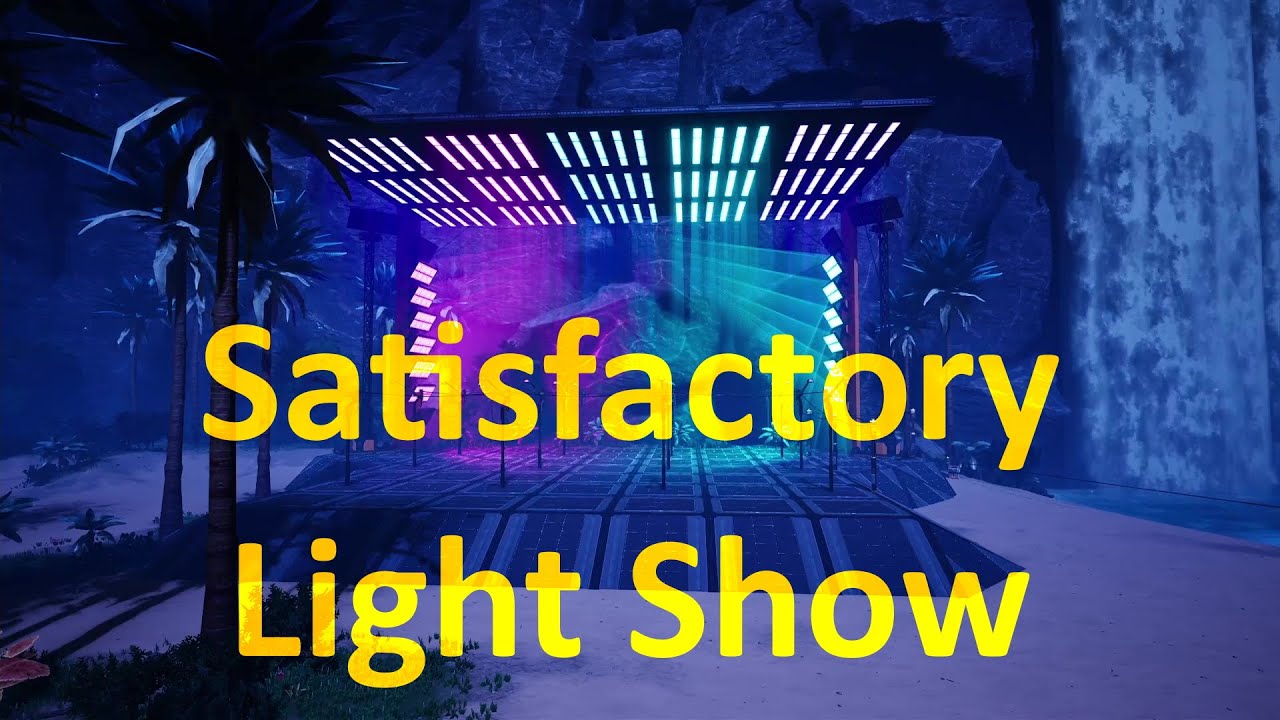](https://www.youtube.com/watch?v=rR7Teg_T_gs)
[https://www.youtube.com/watch?v=rR7Teg_T_gs](https://www.youtube.com/watch?v=rR7Teg_T_gs)
The show was programmed with the light control software [DMXControl](https://dmxcontrol.de/):
[](https://dmxcontrol.de/)
Usage
This mod adds an "Art-Net Lights Control Panel" building to the game.
It is available in the AWESOME Shop when the regular Lights Control Panel is unlocked.
The control panel will receive Art-Net data from an external light control software.
All lights connected to the control panel can be configured within the control panel UI.
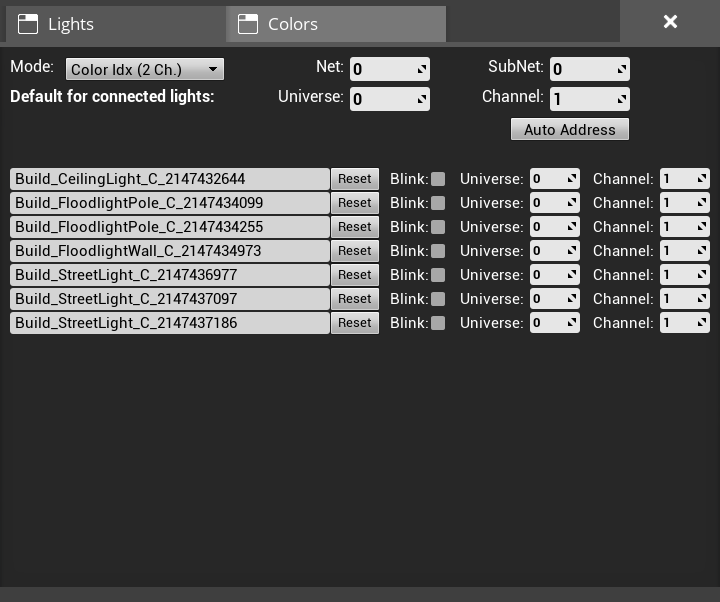
At the top are general settings to configure the mode as well as the Art-Net Net and Sub-Net the current Control Panel is listening on.
There are three modes available, each using the DMX values in a different way:
- `Color Idx (2 Ch.)`: Uses 2 DMX channels, a dimmer and a color idx to select one of the 7 global color slots of the game.
- `RGB (3 Ch.)`: Directly set RGB values using 3 DMX channels.
- `Dimmer + RGB (4 Ch.)`: Directly set RGB values using 3 DMX channels with an additional dimmer channel.
A detailed description of the DMX channels is available in the tables below.
Further, the default start address which will be set as the initial value for all newly connected lights can be configured.
Next, there is an `Auto Address` button allowing to continuously address all connected lights based on their location in the world.
The automatic addressing starts at the current default address and increases the channel for each light based on the currently selected mode.
The lights are ordered first west-to-east, then north-to-south, then bottom-to-top.
Below the general settings is a list of all lights connected to the current Art-Net Lights Control Panel.
On the left is a text box, where it is possible to give each light a meaningful description.
Next to it is a checkbox. If it is checked the light will start blinking.
This allows to easily find a connection between the actual light and the name in the list.
On the right, the start address of each light can be configured.
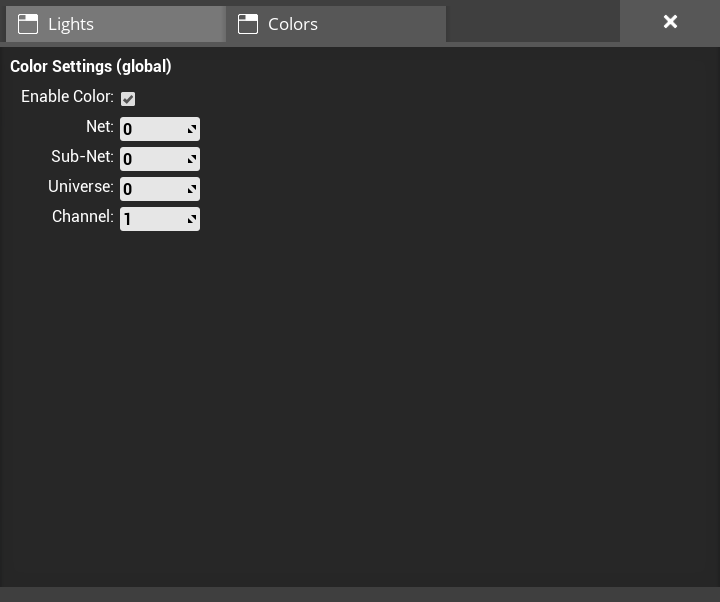
Within the color tab, the start address of the 7 global color channels can be configured.
Please note, that the 7 color slots are a global game setting and shared between all lights and lights control panels.
A detailed description of the DMX channels can be found in the table below.
It is possible to disable the colors.
This means the colors will not be changed via Art-Net and the colors set within a regular Light Control Panel are used.
Light Channel Table - Mode "Dimmer + RGB"
| Channel | Function |
|--------:|-------------------|
| 1 | Dimmer (0 - 100%) |
| 2 | Red (0 - 100%) |
| 3 | Green (0 - 100%) |
| 4 | Blue (0 - 100%) |
Light Channel Table - Mode "RGB"
| Channel | Function |
|--------:|------------------|
| 1 | Red (0 - 100%) |
| 2 | Green (0 - 100%) |
| 3 | Blue (0 - 100%) |
Light Channel Table - Mode "Color IDX"
| Channel | Function |
|--------:|----------------------------------|
| 1 | Dimmer (0 - 100%) |
| 2 | Color Slot Idx (see table below) |
| Value | Color Slot Idx |
|----------:|----------------|
| 0 - 35 | Color Slot 1 |
| 36 - 71 | Color Slot 2 |
| 72 - 107 | Color Slot 3 |
| 108 - 143 | Color Slot 4 |
| 144 - 179 | Color Slot 5 |
| 180 - 215 | Color Slot 6 |
| 216 - 255 | Color Slot 7 |
Color Channel Table
| Channel | Function |
|--------:|---------------------------------|
| 1 | Color Slot 1 - Red (0 - 100%) |
| 2 | Color Slot 1 - Green (0 - 100%) |
| 3 | Color Slot 1 - Blue (0 - 100%) |
| 4 | Color Slot 2 - Red (0 - 100%) |
| 5 | Color Slot 2 - Green (0 - 100%) |
| 6 | Color Slot 2 - Blue (0 - 100%) |
| 7 | Color Slot 3 - Red (0 - 100%) |
| 8 | Color Slot 3 - Green (0 - 100%) |
| 9 | Color Slot 3 - Blue (0 - 100%) |
| 10 | Color Slot 4 - Red (0 - 100%) |
| 11 | Color Slot 4 - Green (0 - 100%) |
| 12 | Color Slot 4 - Blue (0 - 100%) |
| 13 | Color Slot 5 - Red (0 - 100%) |
| 14 | Color Slot 5 - Green (0 - 100%) |
| 15 | Color Slot 5 - Blue (0 - 100%) |
| 16 | Color Slot 6 - Red (0 - 100%) |
| 17 | Color Slot 6 - Green (0 - 100%) |
| 18 | Color Slot 6 - Blue (0 - 100%) |
| 19 | Color Slot 7 - Red (0 - 100%) |
| 20 | Color Slot 7 - Green (0 - 100%) |
| 21 | Color Slot 7 - Blue (0 - 100%) |
How to Install Light Control on Your Server
Order Satisfactory Server
Order a Satisfactory server with at least 4 GB RAM (6 GB recommended). For multiplayer: per 4 players.
Install Mod
Open the mod manager in the dashboard and search for "Light Control". Installation dependencies are installed automatically.
Restart Server
Restart the server so the mod is loaded. Players need to have the mod installed locally as well.
Frequently Asked Questions
Light Control not working after update – what to do?
After a Satisfactory update, mods need to be updated. Check ficsit.app whether Light Control has been updated for the new game version. With Mado Hosting: open the mod manager and click "Update All". If the mod hasn't been updated yet, temporarily remove it so the server starts.
Light Control causing crashes in multiplayer – solution
Most common cause: all players must have exactly the same mod version installed. Check server logs for "ModMismatch" or "Version Conflict". Ensure all players use Light Control v0.10.0 and the same SML. With Mado Hosting, Satisfactory servers run with 6 GB RAM for stable multiplayer performance.
Is Light Control compatible with other Satisfactory mods?
Light Control uses the Satisfactory Mod Loader (SML). Generally, SML-based mods are cross-compatible, but mods modifying the same game systems can cause conflicts. Test new mod combinations on a backup save. The Mado dashboard automatically detects known conflicts and warns you.
Rent Light Control Server
Play Light Control on your own Satisfactory server with mod support.
Mod Information
- Author
- moritz-h
- Latest Version
- v0.10.0
- Created
- July 31, 2021
- Last Updated
- October 7, 2026
- Source Code
- GitHub →