
Cloud Layers
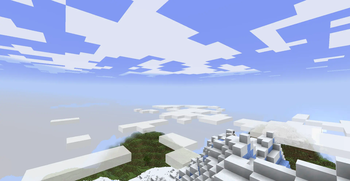
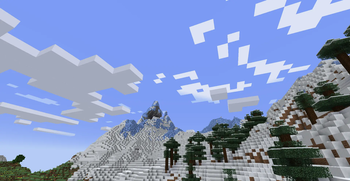
Customizable layers of vanilla-style clouds
Screenshots

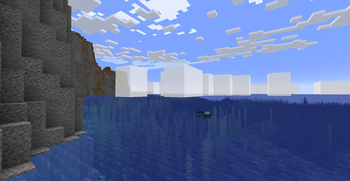
About this Mod
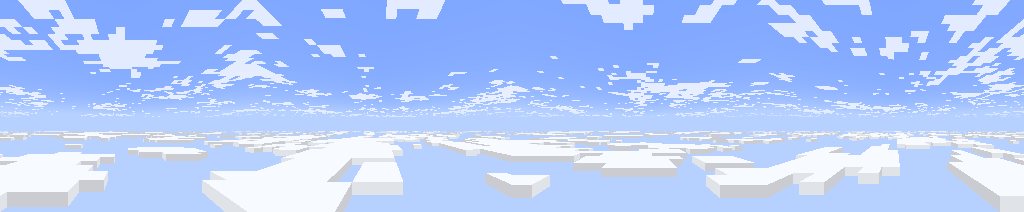
A customizable mod that adds multiple layers of clouds. It also brings 1.21.6+ cloud features to older versions.
Features (as of v2.1)
- Multiple cloud layers
- Clouds render further out
- New 1.21.6+ clouds.png texture
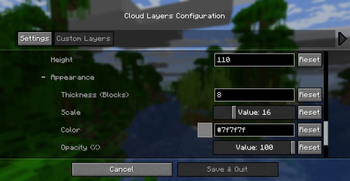
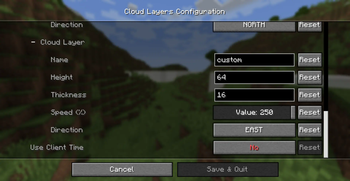
- Fully customizable using the configuration menu
- Supports resource packs
Default Layers
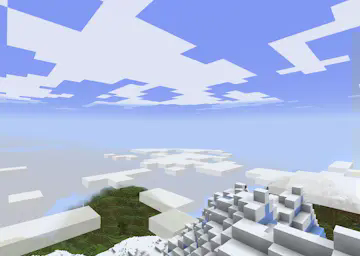
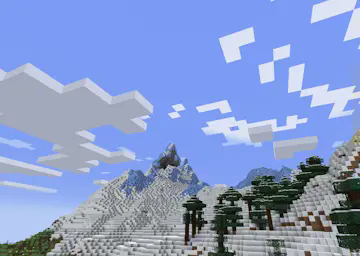
By default, there are two layers of clouds:
- Fancy style clouds at Y: 160
- Fast style clouds at Y: 256
The lower layer uses the new 1.21.6+ cloud texture, while the upper layer uses the pre 1.21.6 texture.
They resemble Cumulus and Cirrus clouds.
Custom Layers
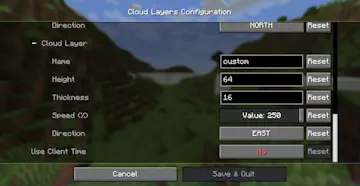
You can add or edit existing cloud layers using the config menu (accessible with mod menu). Or edit the config file at config/cloud-layers.json.
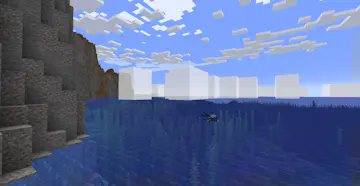
Cloud Appearance
Use the following options to change the shape and appearance of clouds:
- Thickness, the vertical width of the cloud layer
- If 0, they are rendered as Fast style clouds
- Vanilla Fancy style clouds have thickness 4
- Scale, the horizontal width of each cloud pixel
- This is always 12 in vanilla
- Texture, the cloud texture used to render clouds
- "NEW", the new texture added in 1.21.6+ vanilla MC
- "OLD", this is the original texture before 1.21.6
- "OVERCAST", the cloud layer covers the sky completely
You can also change the color and transparency of clouds. The lower the alpha, the more transparent they are.
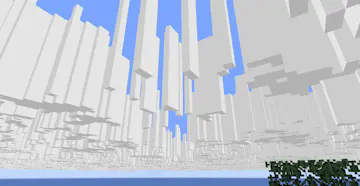

Cloud Movement
You can change the speed that clouds move, and select the direction of movement.

The option Skybox Mode makes a cloud layer appear to stay fixed in the sky, regardless of how high the player goes, this creates a skybox effect.
Conditions
You can make a layer only show up when certain conditions are met, like only when raining or during the night.
Other Info
Clouds in MC settings must be set to "Layers" or "Fancy", for the mod to render its clouds.
Resource Packs
Resource packs have much more control over cloud layers, using json files.
Layer files
Cloud layers are defined by .json files stored in assets/cloud_layers/layers/.
- height (mandatory): Y position at the bottom of the layer.
- scale: How many blocks wide each cloud cell is.
- skybox_mode: Either true or false, skybox mode is described above.
- velocity: [x, z] Movement of the layer in blocks per second.
- offset: [x, z] Initial position, useful to prevent layers matching.
- color: Either [red, green, blue, alpha] or Texture Map (see below).
- opacity: Single value between 0 and 1, or Texture Map. This is in addition to color's alpha value. It can be used to make large areas of clear sky.
- thickness: Single value or Texture Map, this is how many blocks above height the layer extends.
More fields will be added in the future, for more complex weather / cloud systems.
Texture Map
Texture maps can be used to have different values across a single layer. Like thickness varying from one cloud to the next.
- texture (mandatory): Full resource location for the texture used.
- multiply (mandatory): [red, green, blue, alpha], each channel is multiplied by these. For single value fields, they are then added together.
- scale: How many cells each pixel in the map corresponds to.
- velocity: [x, z] Movement of the texture map in cells per second.
- offset: [x, z] Offset in cells
- add: Value or Texture Map, this is added to the final value. Does not work in color.
Example (default lower layer at assets/cloud_layers/layers/lower.json)
{
  "height": 160,
  "scale": 12,
  "velocity": [-0.6, 0],
  "color": {
    "texture": "cloud_layers:textures/color/new_vanilla.png",
    "multiply": [ 1, 1, 1, 0.9 ]
  },
  "thickness": 4
}
layers.json (assets/cloud_layers/layers.json)
This file defines which layers render in each dimension, and also their conditions (weather, time, etc.). The file should contain fields for each dimension with a list of layer entries:
- layer: The layer's resource location, without "layer/" or ".json".
- weather: Which types of weather can the layer appear in:
- clear: Either true or false.
- rain: Either true or false.
- thunder: Either true or false.
- time: Time of day range the layer is visible for.
- start: Between 0 and 24000
- end: Between 0 and 24000
There can be multiple entries for the same layer, for different sets of conditions.
Example
{
  "minecraft:overworld": [
    { "layer": "cloud_layers:upper" },
    { "layer": "cloud_layers:lower",
      "weather": {"clear": true, "rain": true, "thunder": false}
    },
    { "layer": "cloud_layers:storm_clouds",
      "weather": { "clear": false, "rain": false, "thunder": true }
    },
    { "layer":"cloud_layers:morning_fog",
      "time": { "start": 22000, "end": 1000 }
    }
  ],
  "some_mod:custom_dimension": [
    { "layer": "cloud_layers:storm_clouds" }
  ]
}
Cell Texture
The texture used to render cloud cell walls. It is stored at assets/cloud_layers/textures/cell.png.
Available Versions
How to Install Cloud Layers on Your Client
Install the Mod Loader Locally
Install fabric for your local Minecraft version.
Download the Matching File
Choose the Cloud Layers file for fabric and Minecraft 1.21.1.
Install Mod
Place the .jar file in your local .minecraft/mods folder and restart Minecraft. No server-side installation is required.
Compatibility
Mod Loaders
Minecraft Versions
1.21.1, 1.21, 1.20.4 (+3 more)
Server-side
✗ UnsupportedRecommended RAM
4 GB(min. 3 GB)Frequently Asked Questions
Does Cloud Layers need to be installed on the Minecraft server?
No. Modrinth marks Cloud Layers as unsupported on the server side. Install it only in your local Minecraft mods folder. Your server can remain unchanged unless the mod page lists an additional dependency.
Which version and loader does Cloud Layers require?
Use a file for fabric, neoforge, quilt and your exact Minecraft version. Supported versions include 1.21.1, 1.21, 1.20.4. Files for different loaders are not interchangeable.
Cloud Layers is not working – what should I check?
First check the Minecraft version, loader version and required dependencies. Put the .jar file in your local .minecraft/mods folder and remove older duplicates. Because this mod is client-side, adding server RAM will not fix it.
Similar Mods

![[ETF] Entity Texture Features](https://cdn.modrinth.com/data/BVzZfTc1/af683d206d50b05258d865b0d6e4aa2f2cee12f2_96.webp)
![[EMF] Entity Model Features](https://cdn.modrinth.com/data/4I1XuqiY/6e5bbd0d06b1741bfdab6c0cfab6de8fdaf0064c_96.webp)


Minecraft Server for Your Group
Cloud Layers stays on your client. Host a compatible world for your group.