
The Admin Tool
A device that opens a menu with a lot of useful options
Screenshots

Über diese Mod

The Admin Tool
- An advanced and user-friendly in-game interface designed for both server admins and singleplayer users.
▶️ The Tool

▶️ How to use
You can get a dedicated Admin Tool item to access all menus from your hotbar (Creative only).
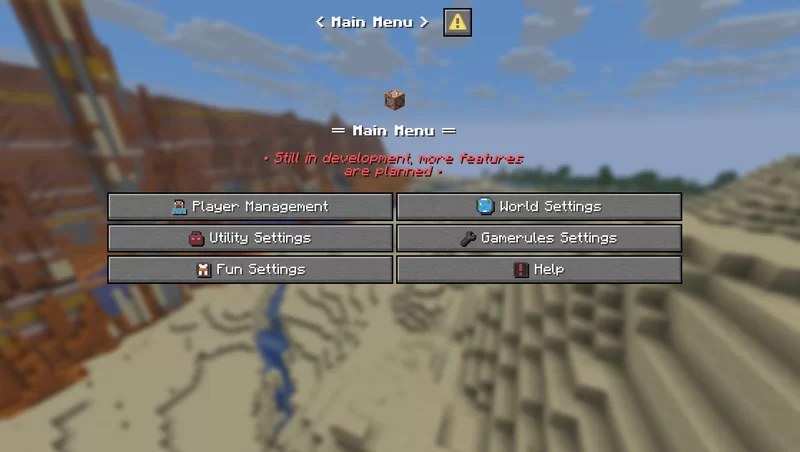
Run this command to open the admin tool main menu:
/dialog show @s admin_tools:main_menu
To get the Admin Tool item (Creative only):
/function admin_tools:1_give_admin_tool
Note: In Datapack Version, the resource pack is required to display the Admin Tool correctly.
▶️ Current Features
■ Player Settings
Ban a player
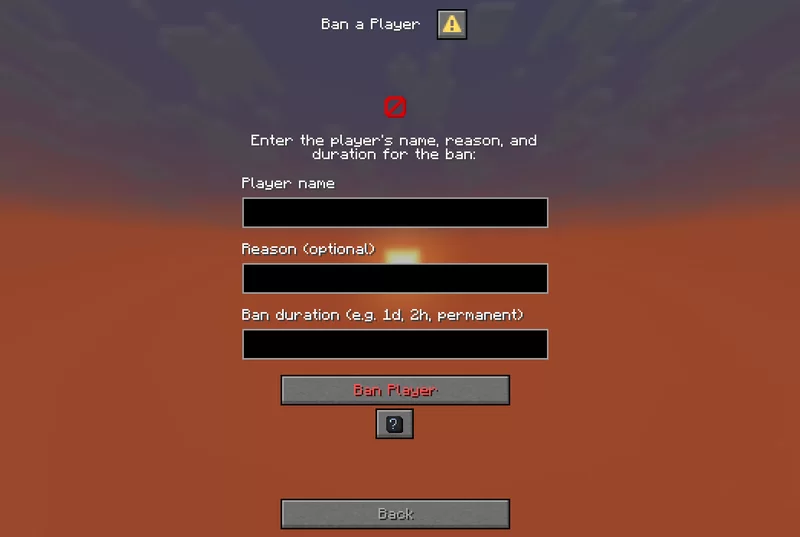
Allows banning a player by entering their name, reason, and duration.
Kick a player

Disconnects a specified player from the server without banning them.
Kill a player

Kills a specified player instantly using the /kill command.
Apply effect

Apply potion effects to yourself or another player, choosing effect type, duration, and level.
Apply effect (advanced)

Allows applying a custom potion effect to yourself or another player by setting effect ID, duration, and level.
Gamemode switcher

Switch gamemode for yourself or others quickly.
Teleport to player / location

Teleports you to a specified player or coordinates by entering the exact player name or position.
Modify player attributes

Modify a player’s attribute base value by selecting the player, attribute, and new value
Set player spawnpoint

Set a player’s spawnpoint by specifying the player and coordinates X, Y, Z.
Give Armor Kit

Select an armor kit material and give it to the targeted player.
■ World Settings
Time changer

Set the time of day by choosing ticks.
Weather changer

Set custom weather type and duration in ticks.
Set world spawn

Set the global spawn point by entering X, Y, Z coordinates.
Difficulty changer

Select the world difficulty (peaceful, easy, normal, hard).
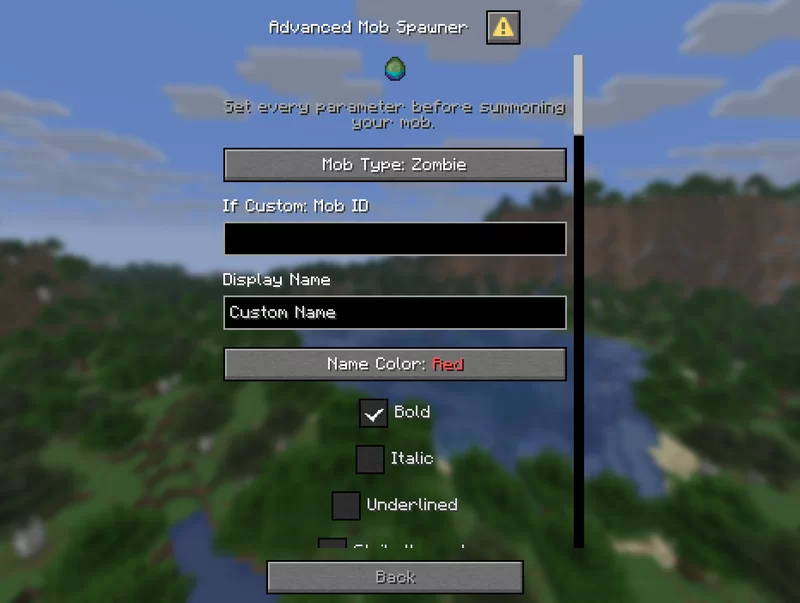
Advanced mob spawner

Summon a mob with detailed options: name, attributes, equipment, effects, size, visibility, and more.
Mob control

Spawn or kill selected mobs easily by choosing the mob type and amount.
Modify entity attributes

Edit the base attribute value of the nearest mob within 10 blocks.
Set Custom Mob Spawner

Configure a custom mob spawner by adjusting spawn parameters, equipment, effects, and custom light conditions.
■ Utility Settings
Broadcast title

Send global announcements with formatted messages.
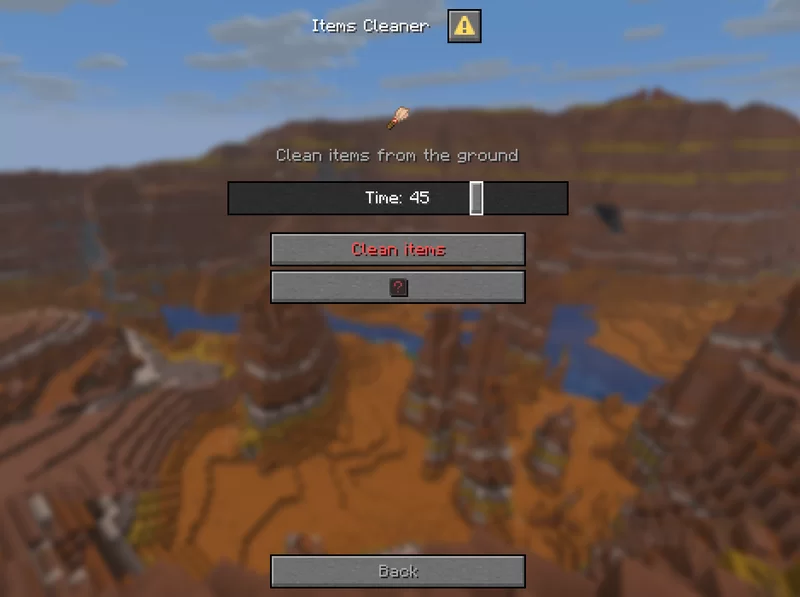
Items cleaner

Removes dropped items.
Custom item creator

Create custom items with names, lore, enchantments, and attribute modifiers.
Dimension switcher

Select a dimension to teleport to. Custom IDs allowed.
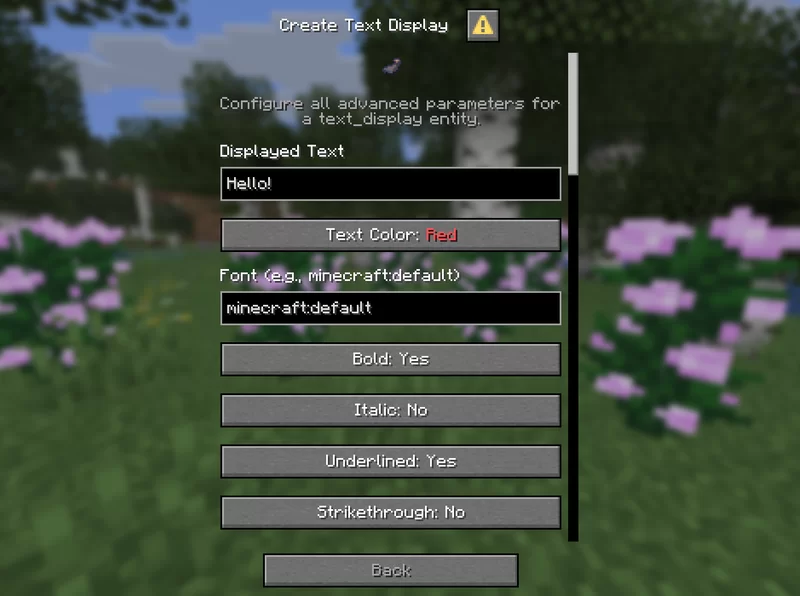
Create text display

Create text_display entities with full control over text style, alignment, size, color, visibility, rotation, and more.
Edit text display

Edit existing text_display entities in the world directly.
Teams manager:
Create a team

Delete a team

Manage team members

Edit team settings

Show team list

■ Quick Settings:
Set Ranks

Set predefined ranks easily (just visual prefix, not perms).
■ Fun Settings
Explosion generator

Generate TNT with adjustable explosion power and fuse timer.
■ Gamerules Settings
Toggle gamerules through categorized menus with activate/deactivate options:
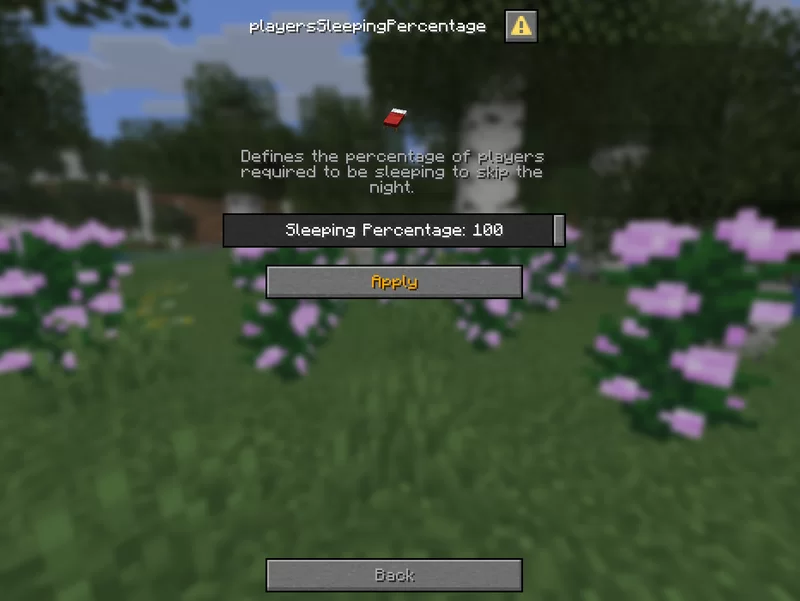
Gamerules menu

■ Help Menu
- Contains information and tips about how to use every menu
Help dialog example

▶️ Details
- Perfect for adventure map creators, server operators, or singleplayer users who want control without commands
- Still in development – new tools and menu categories will be added in future updates
- Suggestions, bug reports, and feature requests are welcome!
Verfügbare Versionen
The Admin Tool auf dem Server installieren
Server bestellen
Bestelle einen Minecraft Java Server mit mindestens 3 GB RAM (4 GB empfohlen).
datapack Loader setzen
Wähle im Panel unter "Egg" den datapack-Loader und die passende Minecraft-Version (1.21.11).
Mod installieren
Öffne den Mod-Browser im Dashboard und suche nach "The Admin Tool". Klicke "Installieren" – fertig! Alternativ: Lade die .jar via SFTP in den /mods Ordner.
Kompatibilität
Mod-Loader
Minecraft-Versionen
1.21.11, 1.21.7, 1.21.6 (+4 weitere)
Server-seitig
✓ ErforderlichEmpfohlener RAM
4 GB(min. 3 GB)Häufige Fragen
The Admin Tool Server crasht beim Start – was tun?
Häufigste Ursache: falsche datapack-Version oder zu wenig RAM. Prüfe im Server-Log (latest.log), ob ein "OutOfMemoryError" oder "Mixin"-Fehler auftritt. Bei Mado Hosting: Stelle sicher, dass mindestens 3 GB RAM zugewiesen sind und der Loader zur Mod-Version passt (1.21.11). Über das Panel kannst du den Loader mit einem Klick wechseln.
Ist The Admin Tool mit datapack und fabric und forge und neoforge und quilt kompatibel?
The Admin Tool unterstützt offiziell datapack, fabric, forge, neoforge, quilt für Minecraft 1.21.11, 1.21.7, 1.21.6. Achtung: Forge- und Fabric-Mods sind NICHT untereinander kompatibel – wähle einen Loader und bleibe dabei. Im Mado Dashboard werden inkompatible Loader-Kombinationen automatisch erkannt.
Server laggt mit The Admin Tool – wie optimiere ich die Performance?
Empfohlener RAM: 4 GB (+1 GB pro 8 Spieler). Prüfe mit /spark profiler, ob The Admin Tool den meisten Tick-Time verbraucht. Häufige Fixes: Server-View-Distance auf 8-10 reduzieren, bei Forge "performant" oder "starlight" als Zusatz-Mod installieren. Bei Mado Hosting läuft dein Server auf NVMe-SSDs mit dedizierten CPU-Kernen für minimale Latenz.
Ähnliche Mods






Modded Server mieten
Installiere The Admin Tool mit nur einem Klick auf deinem Server.