

Modrinth · Fabric
Raven Client server hosting
Your own Raven Client server on AMD Ryzen 9 without a thread limit. The server is ready usually under 60 seconds; then install the pack with one click in the modpack browser.
The best way to play Minecraft.
- Downloads
- 5.4K
- Followers
- 0
- Loader
- Fabric
- Minecraft
- 1.20.1 – 1.21.4
- Updated
- –
Setup
Your Raven Client server in four steps
For errors, check startup logs, Java version, loader and dependencies first. Increase RAM when there is evidence of memory pressure. Keep a copy of the working installation before updates.
- 01
Configure
6 GB of RAM is preselected and Raven Client is noted in the configurator. You choose the term and add-ons.
- 02
Pay
By credit card or PayPal. Your server is ready usually under 60 seconds.
- 03
Install the pack
Open the modpack browser in the panel, choose Modrinth, verify the project ID and install your chosen pack release. Back up an existing world first.
- 04
Connect
Every player installs the same pack release in a compatible launcher and connects using the server address from the panel.
Modrinth project ID: 2bBAVzoJ
The panel
Install the pack, find errors.
Real screenshots from the Mado panel. Both come with every Minecraft server.
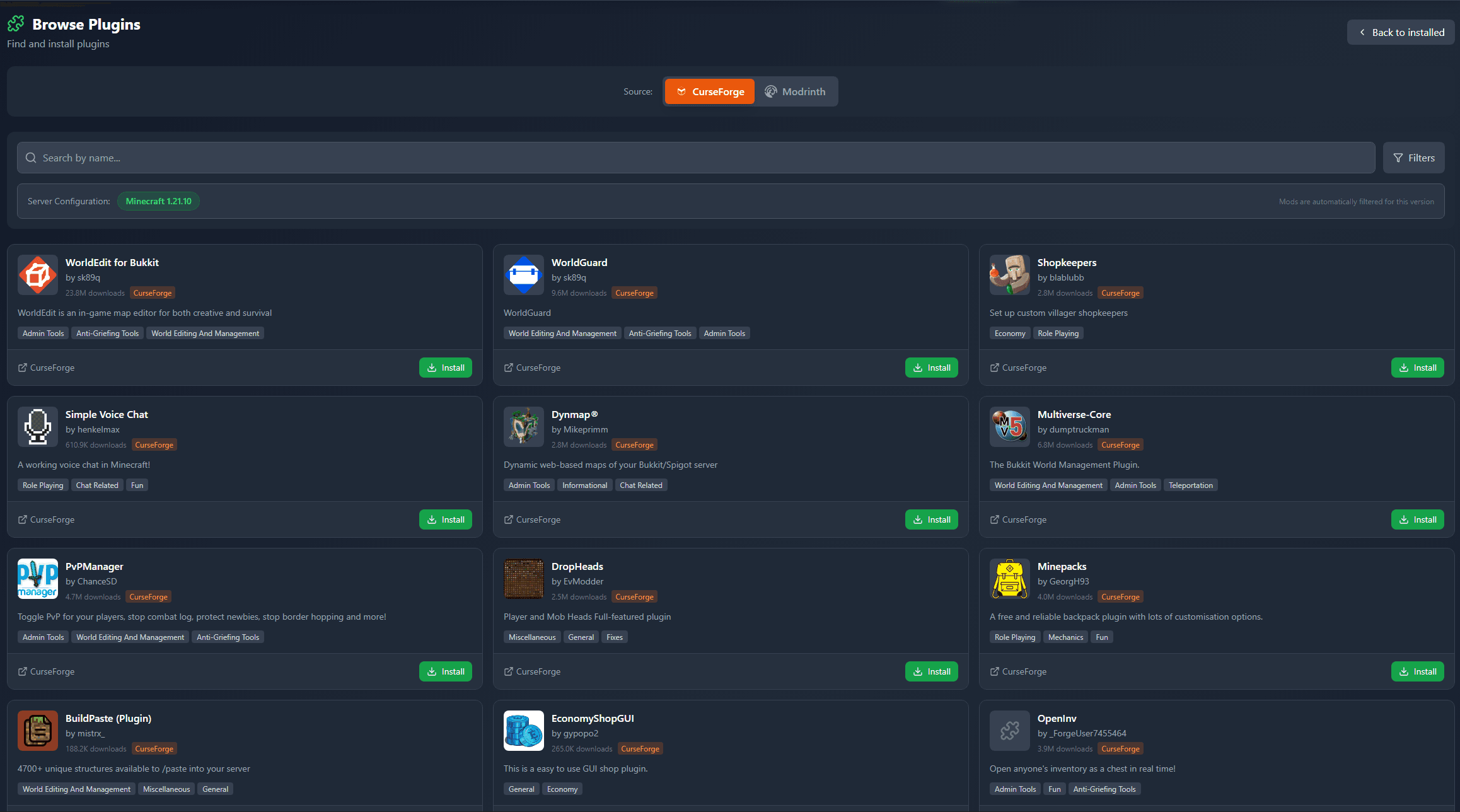
Modpack browser
Modrinth and CurseForge, right in the panel.
Search the pack, choose a release, install. You do not have to upload the loader or server files by hand.
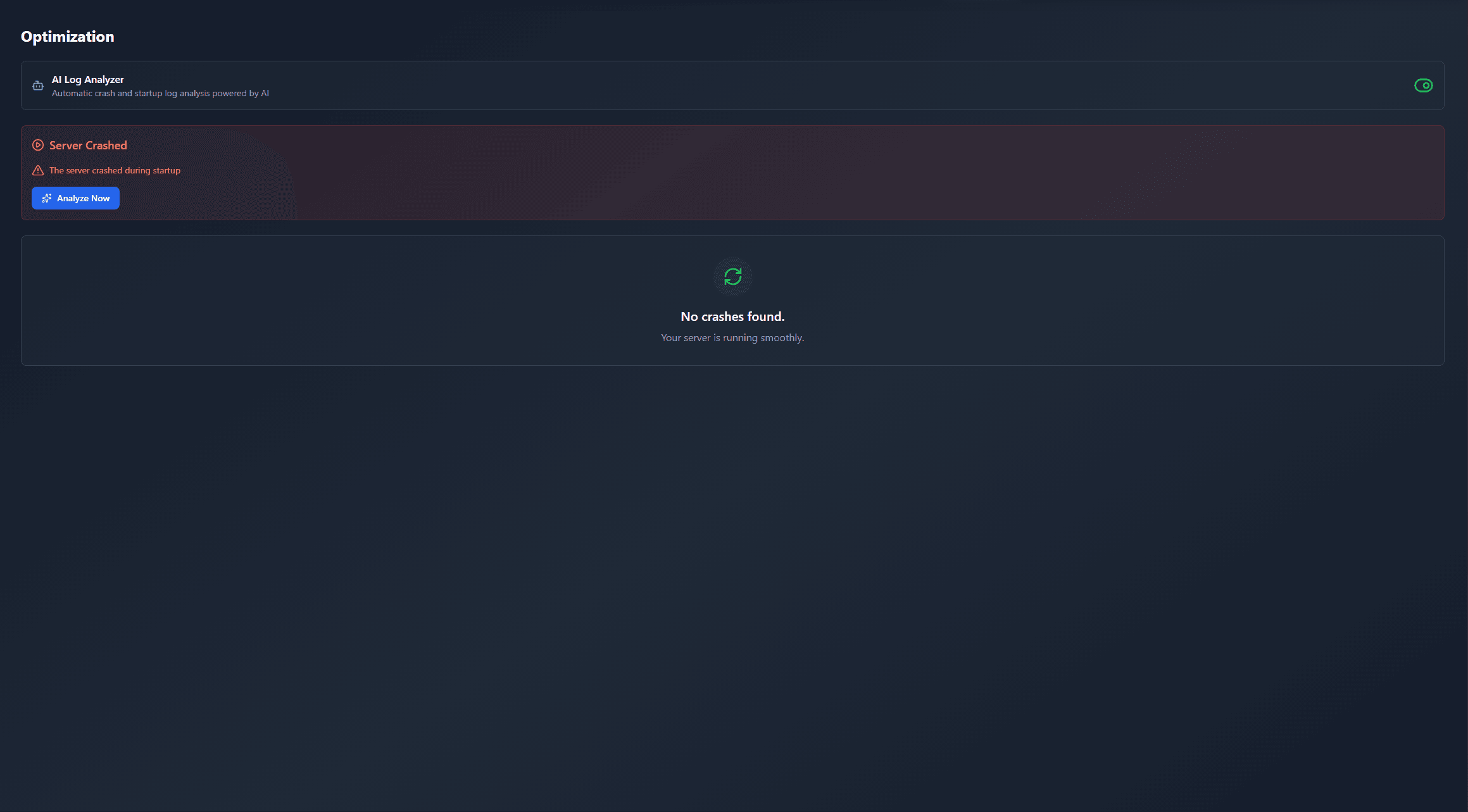
AI crash analysis
When a mod crashes, the analyzer reads the log.
Large modpacks often fail on a single mod, Java version or missing dependency. The analyzer names a likely cause and suggests a fix.
Releases
Published pack releases
The server and players need the same pack release. Pick it in the modpack browser to match your group’s clients.
Raven Client · ModrinthOriginal description by the project author
Raven Client has been archived in favor of the upcoming OptiFine for Fabric v5!




Before using Raven Client, learn how to configure it below!
Guide
First of all, do not disable/delete any mods. They are all required, but can be turned off if you follow the steps below.
- Run Minecraft
- Click
Mods - Hover over
ModSets - Click the
Configureicon - Disable/enable any features you want from there.
Note: if you disable or delete any mods, you won't be able to open the 'ModSets' configuration menu. If you want a mod to be able to be toggled, request a feature here.
What is this?
Raven Client is built directly off of my modpack OptiFine for Fabric. It includes extra features that are essential for gameplay such as low fire, low shield, no darkness, connecting to any server version, and so much more!
Why Raven Client instead of others?
Raven Client is modular. This means that it is VERY customizable. Only essential mods are enabled by default, and the more game-changing ones are left disabled. This allows for a wide range of playstyles, from a beginner to Minecraft, to a long time player, to someone switching clients!
Raven Client is also extremely performance focused. When using Raven Client, I get over 2x the FPS than when using OptiFine!
Here is how many FPS I get using OptiFine: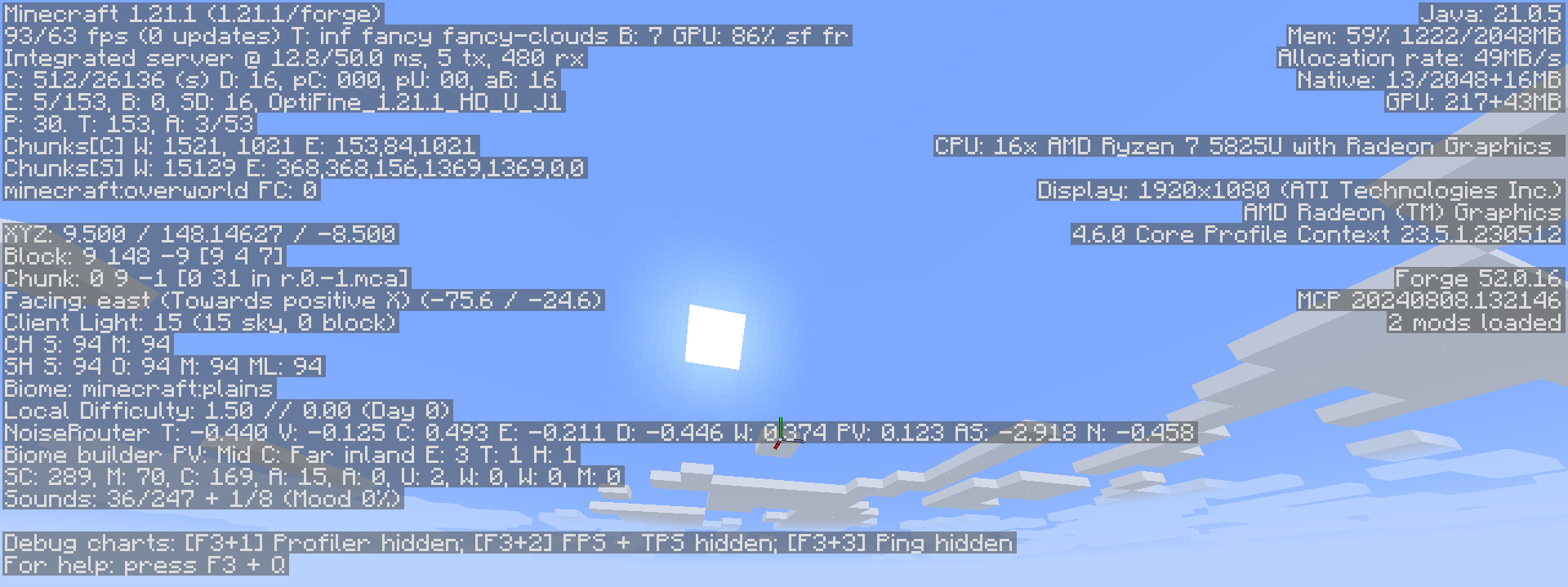
Here is how many FPS I get using Raven Client: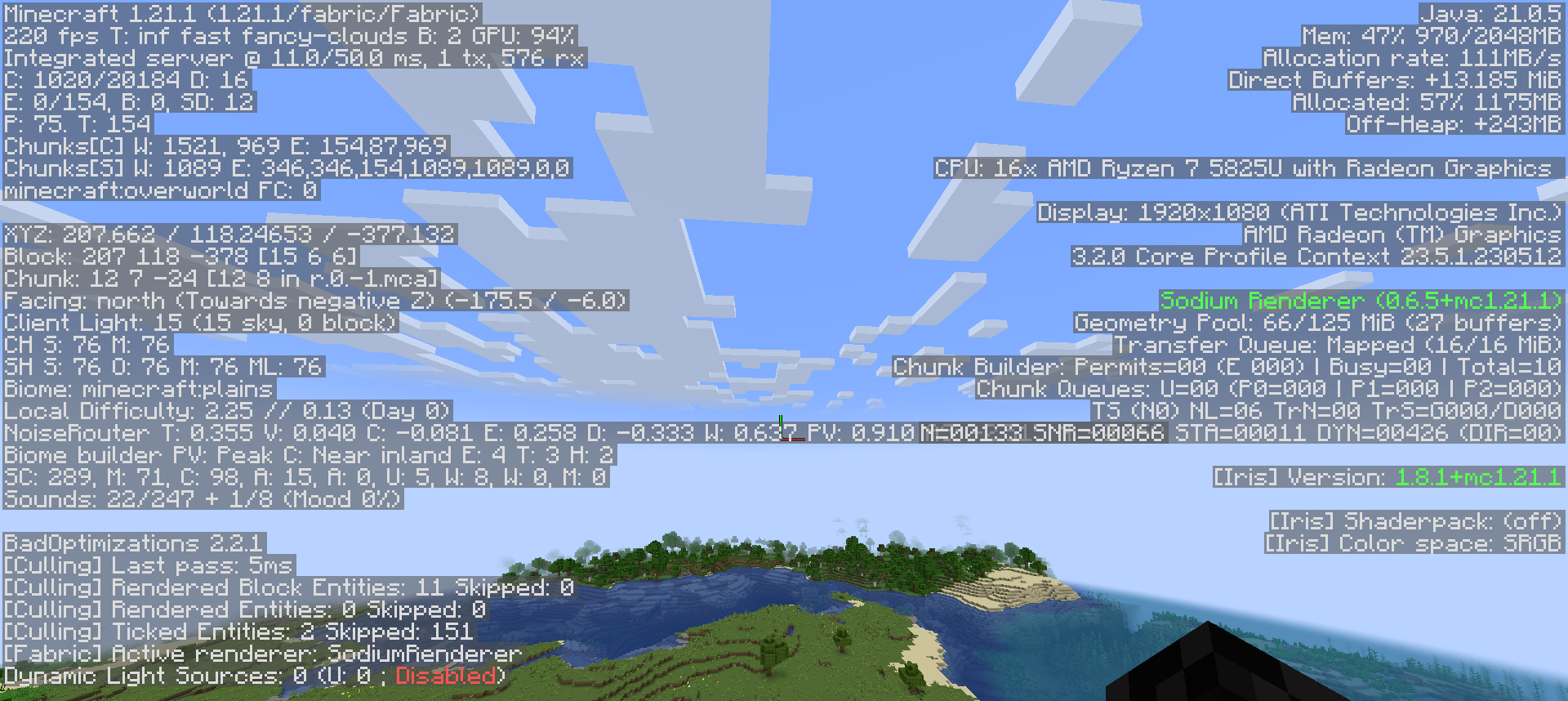


Something wrong? Want a feature? Go to the official bug tracker! My goal is to make Raven Client the best it can be. Whether that means adding a mod or fixing a bug, I am happy to help in any way I can.
Similar packs
More server-ready modpacks
 Server-ready

Better MC [FABRIC] - BMC2
by SHXRKIE
Version 1.20 | A Proper Vanilla+ Modpack | Don't play Vanilla play this!
 Server-ready

Better MC [FORGE] - BMC4
by SHXRKIE
Version 1.20.1 | A Proper Vanilla+ Modpack | Don't play Vanilla play this!
 Server-ready

Pokemon Elysium
by Chubblezap
Modpack originally made for the Pokemon Elysium server, a Cobblemon-focused pack with hints of low-tech steampunk.
 Server-ready
Re-Console
by omo50
A continued Legacy Console Edition experience, expanded upon with modern Java Edition content and QoL! (An Official Legacy4J Project)
Ready for your Raven Client server?
6 GB of RAM from €12.00 per month. 35% off your first month with MADO35.