

Modrinth · Fabric, Forge, Quilt · Client mod
WorldTools
WorldTools is a client-side mod. Install it on your computer; the server does not need it.
WorldTools is a powerful Minecraft mod that allows you to capture and save high-detail snapshots of server worlds locally.
- Downloads
- 75.4K
- Author
- Constructor
- Loader
- Fabric, Forge, Quilt
- Minecraft
- 1.20 – 1.21.4
- Updated
- –
Setup
Install WorldTools on your client
Client-side mods only run on your computer. More server RAM does not change their performance.
- 01
Install the loader locally
Install Fabric or Forge or Quilt for your Minecraft version in your launcher.
- 02
Download the file
Download the WorldTools file for your loader and your exact Minecraft version, for example 1.21.4.
- 03
Add it to the mods folder
Put the .jar file in your local .minecraft/mods folder and remove older duplicates.
- 04
Launch
Launch Minecraft with the loader profile. Nothing needs to change on the server.
- On the server
- Not needed
- On the client
- Required
- Loader
- Fabric, Forge, Quilt
- Minecraft
- 1.21.4, 1.21.1, 1.20.4 +3 more
- License
- GNU General Public License v3.0 or later
Releases
Published releases
Pick the file that matches your server’s loader and Minecraft version. The server and players need the same release.
WorldTools · Modrinth- WorldTools 1.2.8+1.21.4 (Forge)January 21, 2025Minecraft 1.21.4 · Forge
- WorldTools 1.2.8+1.21.4 (Fabric)January 21, 2025Minecraft 1.21.4 · Fabric
- WorldTools 1.2.6+1.21.1 (Forge)November 15, 2024Minecraft 1.21.1 · Forge
- WorldTools 1.2.6+1.21.1 (Fabric)November 15, 2024Minecraft 1.21.1 · Fabric
- WorldTools 1.2.4+1.20.4 (Forge)February 27, 2024Minecraft 1.20.4 · Forge
Original description by the project author

WorldTools: World Downloader (Fabric / Forge)



WorldTools is a powerful Minecraft mod that allows you to capture and save high-detail snapshots of server worlds
locally.
It empowers you to download comprehensive information, including chunks, entities,
chests, players, statistics, advancements, and detailed metadata.
WorldTools ensures that you can retain an accurate and unaltered representation of the server's world for analysis,
sharing, or backup purposes on your local machine.


Features
World Download (default keybind:
F12):
Initiate a quick download by hitting theF12key, which can be altered in the keybind settings.
Alternatively, you can access the GUI (default keybind:F10) via the escape menu.
The GUI allows you to tailor the capture process according to your requirements.
WorldTools facilitates the capture of a wide range of crucial elements, ensuring no detail is missed.- Chunks: Terrain, biomes and structures
- Entities: Positions and attributes of all entities
- Containers: Contents of all tile entities like chests, shulkers, hoppers, furnaces, brewing stands, droppers,
dispensers etc... - Players: Player positions and inventories
- Statistics: Full personal player statistics
- Advancements: Player advancements and progress
- Detailed Metadata: Exhaustive capture details like modt, server version, and more
Easy Access to Saved Worlds: Your locally captured world save can be found in the single-player worlds list,
allowing you to load and explore it conveniently.Advanced Configuration: WorldTools provides a wide range of settings to customize the capture process to your
needs.
Select elements to capture, modify game rules, alter entity NBT data, and configure the capture process in detail.
Getting Started
Fabric


Installation:
- Install Fabric by following the Fabric Installation Guide.
- Download the latest Fabric version of WorldTools from
the releases page - Place the WorldTools Fabric mod JAR file in the "mods" folder of your Fabric installation.
Prerequisites: Make sure you have the following mods installed:
Forge
Installation:
- Install Forge by following the Forge Download Link.
- Download the latest Forge version of WorldTools from
the releases page - Place the WorldTools Forge mod JAR file in the "mods" folder of your Forge installation.
Prerequisites: Make sure you have the following mods installed:
Usage
- Download:
- Enable capture mode: Hit
F12the GUI or/worldtools captureto start capturing data. - Play the game normally while WorldTools downloads the all data. You need to open containers like chests to capture
their contents. - Save captured data: Hit
F12the GUI or/worldtools captureagain to stop capturing data and save the world.
- Enable capture mode: Hit
- Access Downloaded World: Your downloaded world can be found in the single-player worlds list.
File Structure
After capturing data, WorldTools creates the following files in the world directory's folder:
Capture Metadata.md: Contains detailed information about the capture process itself.Dimension Tree.txt: Provides a tree of all dimension folder paths of the server, not just the downloaded ones.Player Entry List.csv: Lists all players that were online during the capture including all known metadata.
Contributing
Contributions are welcome!
Please read our Code of Conduct
and Contributing Guidelines before submitting a
Pull Request.
- Fork the repository and clone it to your local machine.
git clone https://github.com/Avanatiker/WorldTools - Create a new branch for your feature.
git checkout -b my-new-feature - Make your changes and commit them to your branch.
git commit -am 'Add some feature' - Push your changes to your fork.
git push origin my-new-feature - Open a Pull Request in this repository.
- Your Pull Request will be reviewed and merged as soon as possible.
- Wait for the next release to see your changes in action!
Building
- Once forked and cloned, run
./gradlew buildto build the mod for both mod loaders. - IntelliJ IDEA will generate run configurations for both mod loaders that can be used to run the mod in a test
environment. - The Fabric mod JAR file can be found in
fabric/build/libsand the Forge mod JAR file inforge/build/libs.
License
WorldTools is distributed under
the GNU General Public License v3.0.
If you have any questions, concerns, or suggestions,
you can visit our official Discord server.
Disclaimer: WorldTools is not affiliated with Mojang Studios. Minecraft is a registered trademark of Mojang Studios.
Use of the WorldTools software is subject to the terms outlined in the license agreement.
Does WorldTools need to be installed on the Minecraft server?
No. Modrinth marks WorldTools as unsupported on the server side. Install it only in your local mods folder. Your server can stay unchanged unless the project page lists an additional dependency.
Which version and loader does WorldTools require?
Use a file for Fabric, Forge, Quilt and your exact Minecraft version. Supported versions include 1.21.4, 1.21.1, 1.20.4. Files for different loaders are not interchangeable.
WorldTools is not working – what should I check?
First check the Minecraft version, loader version and required dependencies. Because the mod is client-side, more server RAM will not fix it.
Similar mods
Popular mods in the same category
 Server-ready

FerriteCore
by malte0811
Memory usage optimizations
 Client only

Mod Menu
by Prospector
Adds a mod menu to view the list of mods you have installed.
 Server-ready

YetAnotherConfigLib (YACL)
by isxander
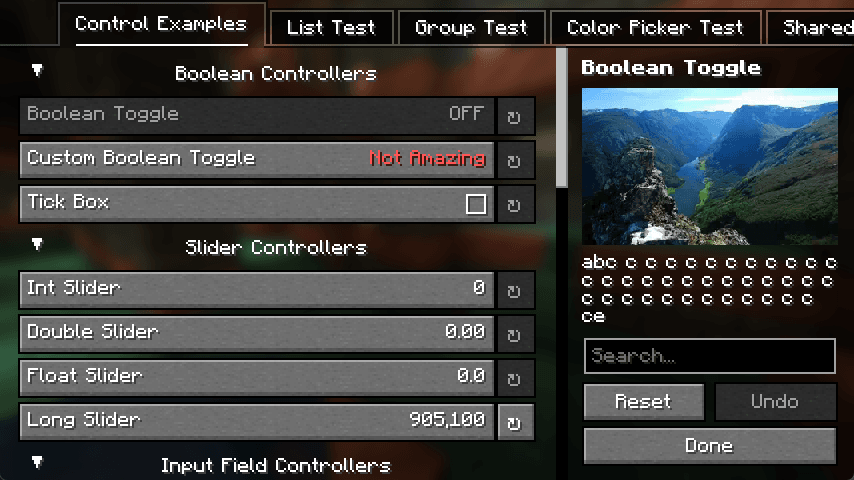
A builder-based configuration library for Minecraft!
 Server-ready

Xaero's Minimap
by thexaero
Displays a map of the nearby world terrain, players, mobs, entities in the corner of your screen. Lets you create waypoints which help you find the locations you've marked.
Looking for mods for your own server?
The catalog lists mods that run on Minecraft servers.