
TFIT - Ficsit Information Tool
Your ultimate source for more information about whatever it is you're looking at!
Description
TFIT - The Ficsit Information Tool
Your ultimate source for more information about whatever it is you're looking at. Highly configurable and easily extensible by other mods.

Multiplayer Compatible!
Feature Highlights
- Find out what mod added whatever you're looking at to the game, be it a building, item, recipe, or more.
- Looking for information about HUB milestones and MAM trees? Check out [MAM Enhancer](https://ficsit.app/mod/MAMTips)!
- Get useful contextual information about what you're looking at in the world
- Easily find out what items stack to and how many AWESOME Sink points they're worth
- Additional information provided by other mods you have installed
If you have any ideas or feature request join our Discord:
<https://discord.gg/ds696q4>
Full Feature List
"What am I Looking At?" Overlay
- You can enable/disable the overlay from the mod configs.
- Names of Buildings and what Recipe they are set to
- Don't want this info? Turn it off in the configs.
- 
- 
- Name, health, AI task status, and drops of Creatures
- 
- Potential drops from Foliage
- Don't want this info? Turn it off in the configs.
- 
- Contents of Item Pickups (like dropped items and plants) and how long it is until they respawn
- 
- 
- Ore type and purity of Resource Nodes and Resource Wells
- 

- Ore type and contained quantity of Resource Clusters (the ones found on top of resource nodes)
- 
- Name, speed, and fuel status of Vehicles
- 
- Name, power status, next destination, mass and cargo mass, and speed/docking/derailment of Trains
- <video controls="" width="360" height="203">
<source src="https://i.imgur.com/vxe5c52.mp4" autoplay="" controls="" type="video/mp4">
</video>
<!-- - https://streamable.com/mre83a -->
- Fuel, home port, destination port, docking status, and speed of Drones
- 
- Flow rate and contents information of Pipelines and Fluid Storages
- 
- 
- Color information about Painted Structures
- Visualize the swatch and see the color hexes used
- Ignores buildings with the default swatch by default (can modify this in the configs)
- Don't want this info? Turn it off in the configs.
- 
- Resource and mining progress of Portable Miners
- 
- Opening status, requirements, and power consumption of Drop Pods
- 
Item Tooltips
- You can enable/disable all of these from the mod configs.
- Collapse Recipes Section - By default, you must hold your Sprint key to see the recipes section of the tooltip. This can be reversed in the mod configs.
- 
- Mod Name - Wondering what mod added this item? Now you can see it in the tooltip!
- Optionally disable for content added by Satisfactory itself
- 
- Dimensional Depot Stockpile - Upload it or trash it? How much of this item is in your Dimensional Depot right now? No need to search it to find out!
- Optionally also show this for Liquids and Gasses
- 
- Resource Sink Points - Find out how many AWESOME Points you'll get from shredding this item, or a whole stack of it. If you can't sink it, it will say so as well.
- Optionally disable for items that can't be sunk
- Optionally also show for exactly how many items are in the stack, ex. "points for 4 assembly director systems"
- Tells you how many points Liquids and Gasses would be worth if they could be sunk
- 
- 
- Radioactive Items - Items that are radioactive will now have a radioactive symbol in their tooltip and have the header bar turn lime green.
- 
- Stack Size and Form - See what the max stack size of the item you're looking at is, and if it's a liquid or solid.
- 
- 
- 
- Fuel Energy Value - Find out how much juice is stored this item, or a whole stack of it.
- Disabled by default for items with no energy value
- Optionally also show for exactly how many items are in the stack, ex. "energy for 28.3 L of fuel"
- 
- 
Recipe Information
- Additional information is now added to the recipe section of tooltips, which also appears in the in-game Codex. You can enable/disable all of these from the mod configs.
- Recipes are renamed to their display name, if they have one.
- 
- Mod Name - Wondering what mod added this recipe? Now you can see it in the tooltip!
- Optionally disable for recipes added by Satisfactory itself
- 
- Sink Points Profit - Find out how many AWESOME Points using the recipe nets you.
- Format: `Sum of Recipe Ingredients Points` → `Sum of Recipe Product Points` (±`Percentage difference`)
- It will attempt to estimate when unsinkable items are involved in the recipe, displaying a warning symbol when estimates are made. Hover over the warning symbol (in the codex) to see an explanation.
- Optionally enable displaying a points per minute calculation
- 

Build Gun Menu
- Makes the Info Sidebar in the Build Gun scrollable. A scrollbar will appear if information displayed by this mod (or any other mod) would make it longer than the normal window.
- What Mod Added This Category?
- Tooltip will say what mod added the build category to the left sidebar
- Disabled by default for categories added by Satisfactory itself
- 
- What Mod Added This Building?
- Info Sidebar will tell you what mod added the building
- Also works for the Customizer tab
- If the mod that added the recipe for the building is different from the one that added the building, it will also be displayed
- Disabled by default for buildings added by Satisfactory itself (except if a mod provides an alternate building recipe for the building)
- 
Additional Configuration
- Configure the position, scale, color, and transparency of the overlay
- Configure if you must hold the Sprint key to expand/collapse recipe display in item tooltips
Support The Developers
Robb
If you enjoy Robb's work, please consider donating to his [completely optional tip jar](https://ko-fi.com/robb4).
blockout22
[](https://paypal.me/blockout22)
[](https://www.patreon.com/blockout22)
For Mod Developers
Developer Utilities
TFIT also includes a number of helpful tools for mod development and troubleshooting.
A quick summary:
- Overlay
- Debugging info (off by default)
- Hit actor blueprint path and hit component name, exact position in world
- Recipe Path Display
- View the blueprint path of a recipe for troubleshooting and research
- Click it (from the codex) to copy the path to clipboard
- 
- Descriptor Path Display
- View the blueprint path of a descriptor for troubleshooting and research
- 
- Buildgun Recipe Path Display
- View the blueprint path of a building's recipe for troubleshooting and research
- Click it to copy the path to clipboard
- 
- Automatic Sink Point Calculation!
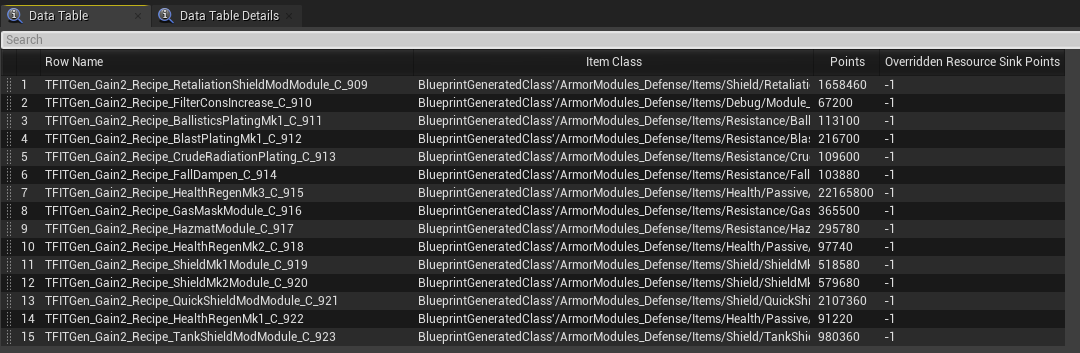
- You can use TFIT to semi-automatically calculate sink points for your own mods' items!
- The tool will suggest a points value for the first output product of a recipe based on the input points of the recipe and an "improvement multiplier" that you determine. A good value is `2.0` for +100% points.
- Once enabled in the mod config, use the chat command `/tfit_suggest_points <output mult of input ex. 2.0 for +100%> [mod reference filter]`
- It will process every registered recipe in the game unless you filter it down by supplying a mod reference filter
- The command generate two files in the `\FactoryGame\Mods\TFIT\Output` folder. One of them is a CSV file ready for import into the editor as a data table. The second is a CSV file that contains metadata such as items that could not be factored into the calculation (had no points or was a fluid)
- The equation used is `output mult * (sum of ingredients input points) / output count`. It does not traverse any further than one level of recipe products, so you may need to selectively bring in pieces at a time to "build out" the points for the items involved in a processing chain.
- 
- 
Using TFIT in your Mod
Your mod doesn't need to dependency-require TFIT to still benefit from and extend its feature set!
You can find information on how to extend TFIT's features with your own here: <https://github.com/blockout22/TFIT/blob/main/DEV_README.md>
Credits
- Original mod by blockout22#1880
- 2.0.0 update by Robb#6731
- Icon design by Deantendo#4265
Versions
How to Install TFIT - Ficsit Information Tool on Your Server
Order Satisfactory Server
Order a Satisfactory server with at least 4 GB RAM (6 GB recommended). For multiplayer: per 4 players.
Install Mod
Open the mod manager in the dashboard and search for "TFIT - Ficsit Information Tool". Installation dependencies are installed automatically.
Restart Server
Restart the server so the mod is loaded. Players need to have the mod installed locally as well.
Frequently Asked Questions
TFIT - Ficsit Information Tool not working after update – what to do?
After a Satisfactory update, mods need to be updated. Check ficsit.app whether TFIT - Ficsit Information Tool has been updated for the new game version. With Mado Hosting: open the mod manager and click "Update All". If the mod hasn't been updated yet, temporarily remove it so the server starts.
TFIT - Ficsit Information Tool causing crashes in multiplayer – solution
Most common cause: all players must have exactly the same mod version installed. Check server logs for "ModMismatch" or "Version Conflict". Ensure all players use TFIT - Ficsit Information Tool v2.8.0 and the same SML. With Mado Hosting, Satisfactory servers run with 6 GB RAM for stable multiplayer performance.
Is TFIT - Ficsit Information Tool compatible with other Satisfactory mods?
TFIT - Ficsit Information Tool uses the Satisfactory Mod Loader (SML). Generally, SML-based mods are cross-compatible, but mods modifying the same game systems can cause conflicts. Test new mod combinations on a backup save. The Mado dashboard automatically detects known conflicts and warns you.
Rent TFIT - Ficsit Information Tool Server
Play TFIT - Ficsit Information Tool on your own Satisfactory server with mod support.
Mod Information
- Author
- blockout22, Robb
- Latest Version
- v2.8.0
- Created
- November 28, 2021
- Last Updated
- October 7, 2026
- Source Code
- GitHub →