
Modrinth · Fabric
Split Screen Create server hosting
Your own Split Screen Create server on AMD Ryzen 9 without a thread limit. The server is ready usually under 60 seconds; then install the pack with one click in the modpack browser.
A 4 player split-screen multiplayer pack for the Create Mod.
- Downloads
- 3.2K
- Followers
- 0
- Loader
- Fabric
- Minecraft
- 1.20.1
- Updated
- –
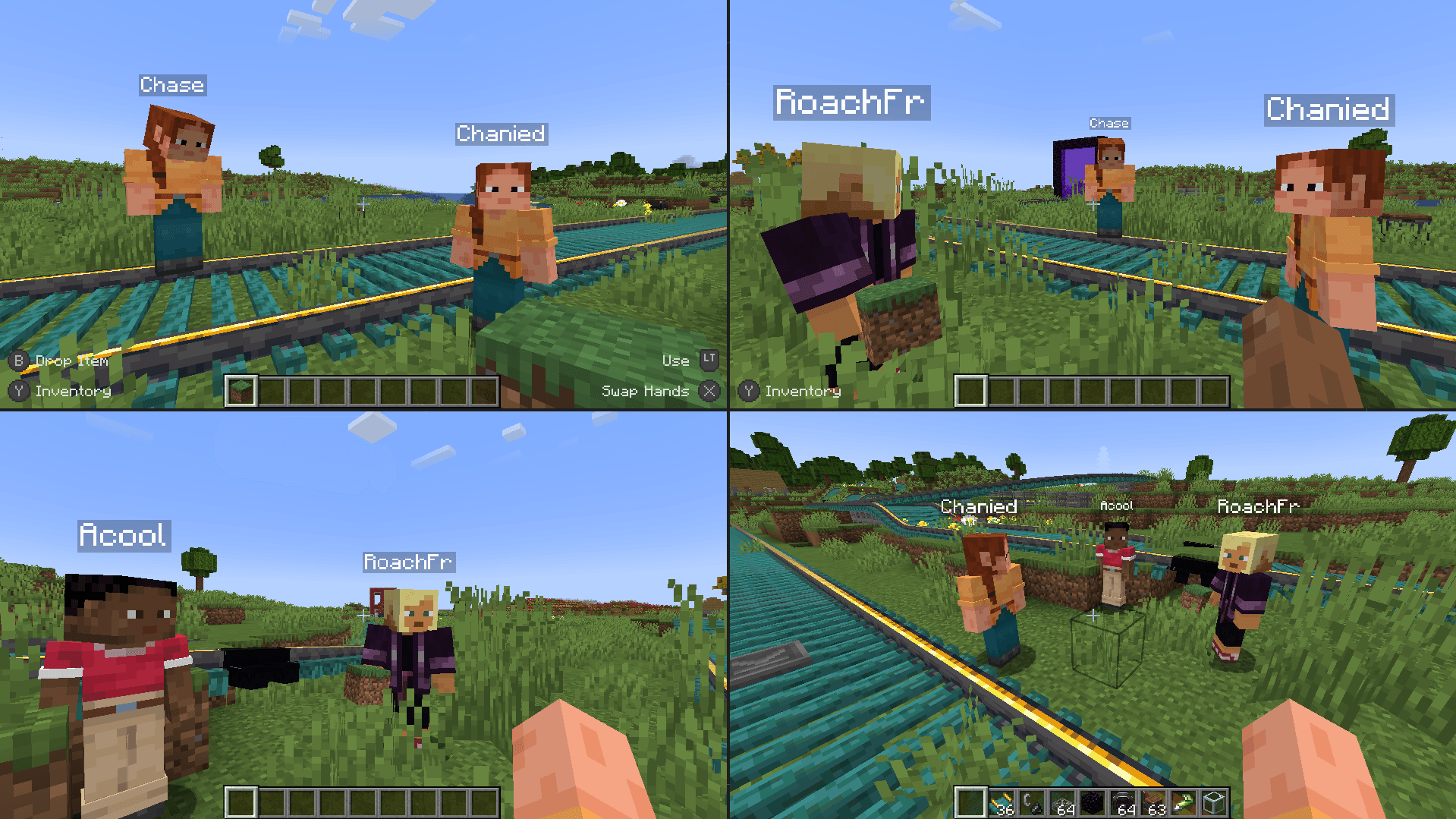
Screenshots
What Split Screen Create looks like

Images: Split Screen Create on Modrinth, published by the project team.
Setup
Your Split Screen Create server in four steps
For errors, check startup logs, Java version, loader and dependencies first. Increase RAM when there is evidence of memory pressure. Keep a copy of the working installation before updates.
- 01
Configure
8 GB of RAM is preselected and Split Screen Create is noted in the configurator. You choose the term and add-ons.
- 02
Pay
By credit card or PayPal. Your server is ready usually under 60 seconds.
- 03
Install the pack
Open the modpack browser in the panel, choose Modrinth, verify the project ID and install your chosen pack release. Back up an existing world first.
- 04
Connect
Every player installs the same pack release in a compatible launcher and connects using the server address from the panel.
Modrinth project ID: wvbVJ8lL
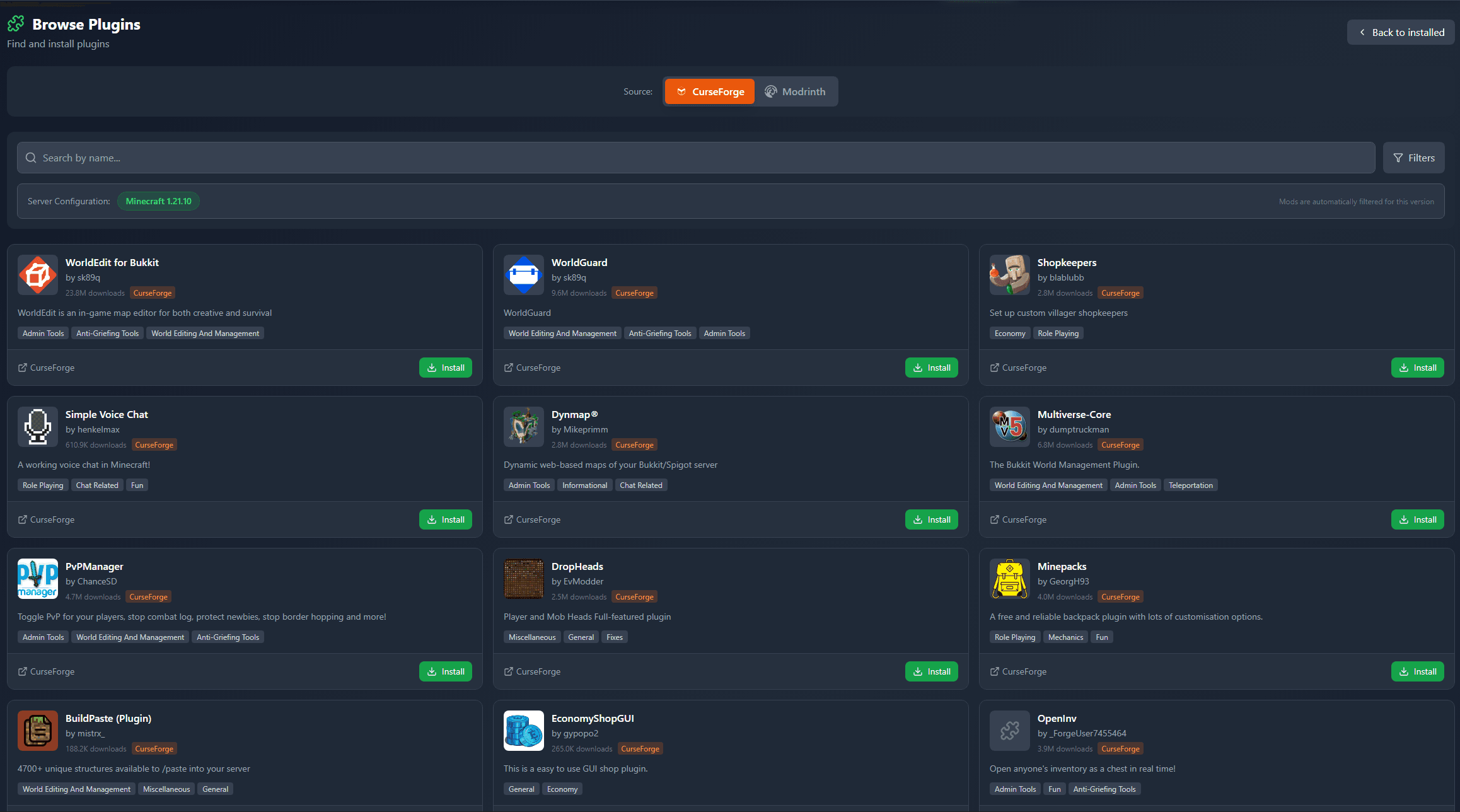
The panel
Install the pack, find errors.
Real screenshots from the Mado panel. Both come with every Minecraft server.
Modpack browser
Modrinth and CurseForge, right in the panel.
Search the pack, choose a release, install. You do not have to upload the loader or server files by hand.
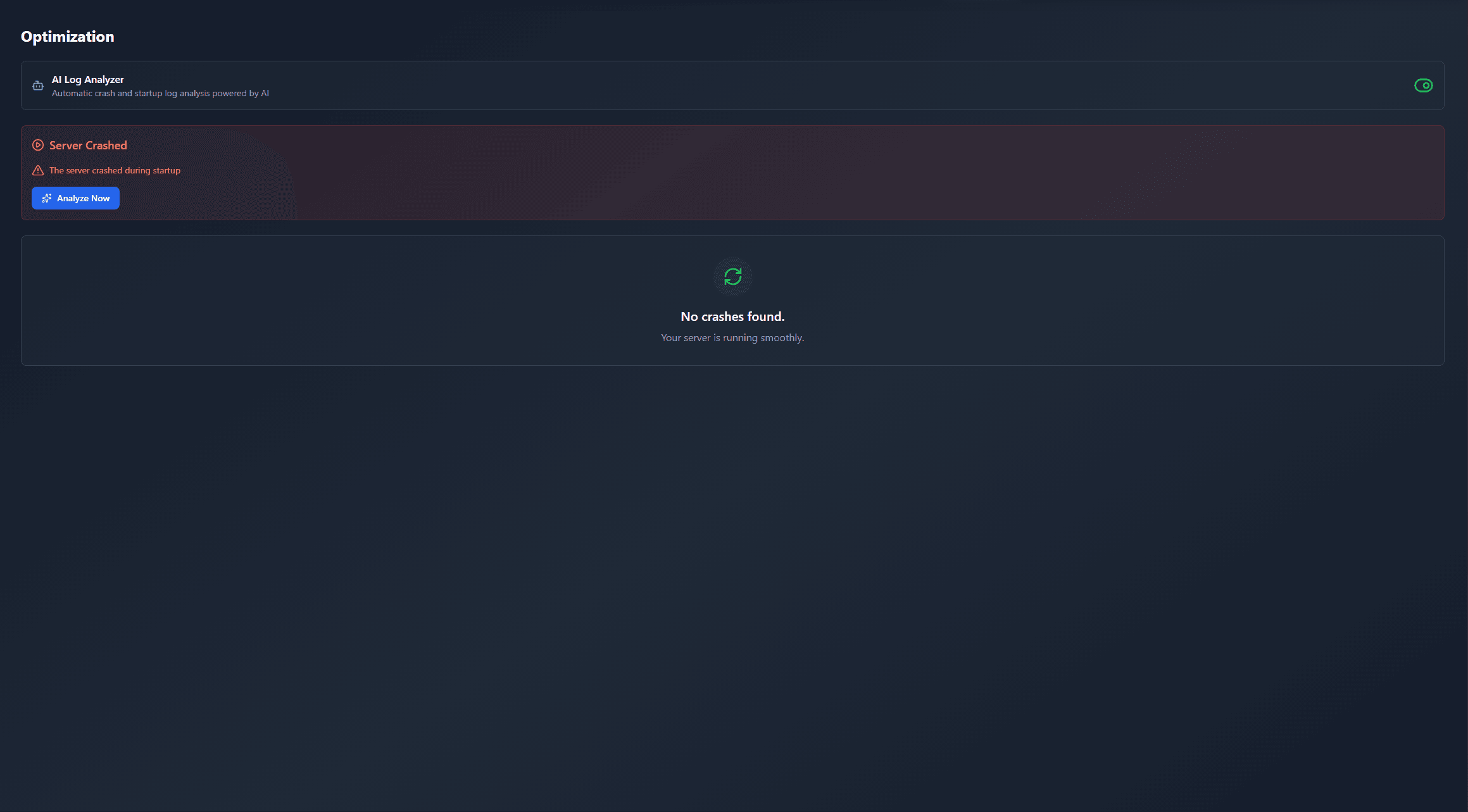
AI crash analysis
When a mod crashes, the analyzer reads the log.
Large modpacks often fail on a single mod, Java version or missing dependency. The analyzer names a likely cause and suggests a fix.
Releases
Published pack releases
The server and players need the same pack release. Pick it in the modpack browser to match your group’s clients.
Split Screen Create · ModrinthOriginal description by the project author
Overview
This modpack is designed for easy split-screen multiplayer. It focuses on the Create mod and its add-ons. This pack also includes various structure mods to encourage exploration.
The pack is playable with up to 4 players using controllers on a single (preferably large) screen. Optionally, one player can use the keyboard/mouse. For controller players, the mouse/keyboard can be swapped to focus on another window if a mod requires them.
Performance
Because of the way Minecraft handles running the server (Host World) and client (Other Players), this pack runs much faster (TPS/CPU) than 4 separate instances. It does, however, still take additional power from the GPU (FPS) to render 4 clients. Because of this, it is recommended to lower the resolution of the game since each window is reduced to a quarter of the original size.
How to use
Playing Together
Use the PrisimMC (or MultiMC) launcher to import this pack from Modrinth. PrisimMC allows you to create separate instances (or multiple running copies) of Minecraft. You will need to download this pack for each instance that will be running.
To play on an external server, either the server must disable online mode or each player must use a different Minecraft account. You can also install the E4MC mod, which makes LAN worlds joinable by anyone like a server.
For local play, host a LAN server on the main instance of the pack. All of the other instances will need to join that local server.
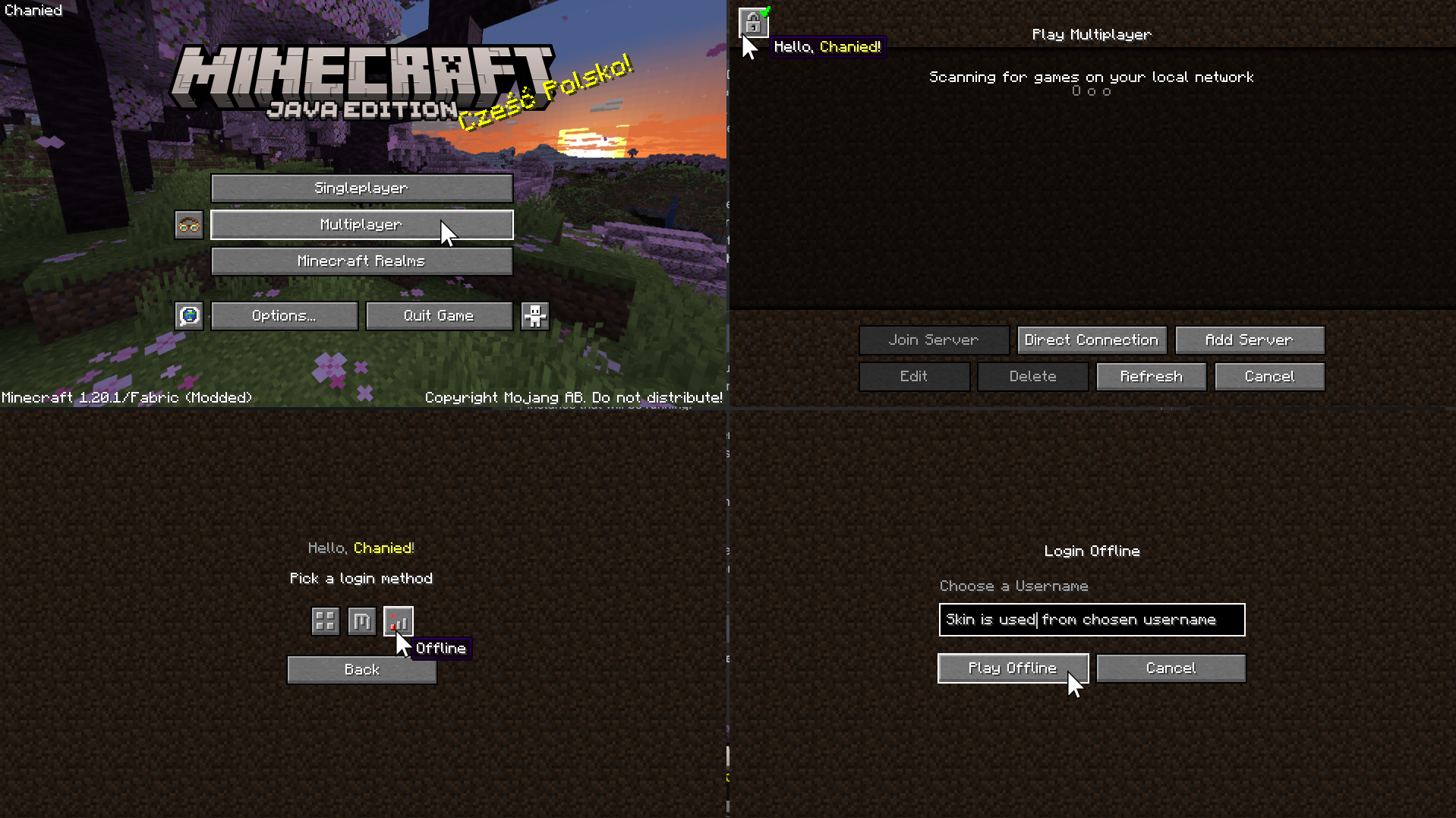
If you only have one account to use, you will need to use the AuthMe mod to enable Offline Mode for both online and local multiplayer. Click on the lock icon in the Multiplayer menu to enter Offline mode. If you enter the name of a Minecraft Account, their skin will be used.
Using Splitscreen
To put the windows into Split Screen, press F11. This cycles between different positions and sizes for each instance.
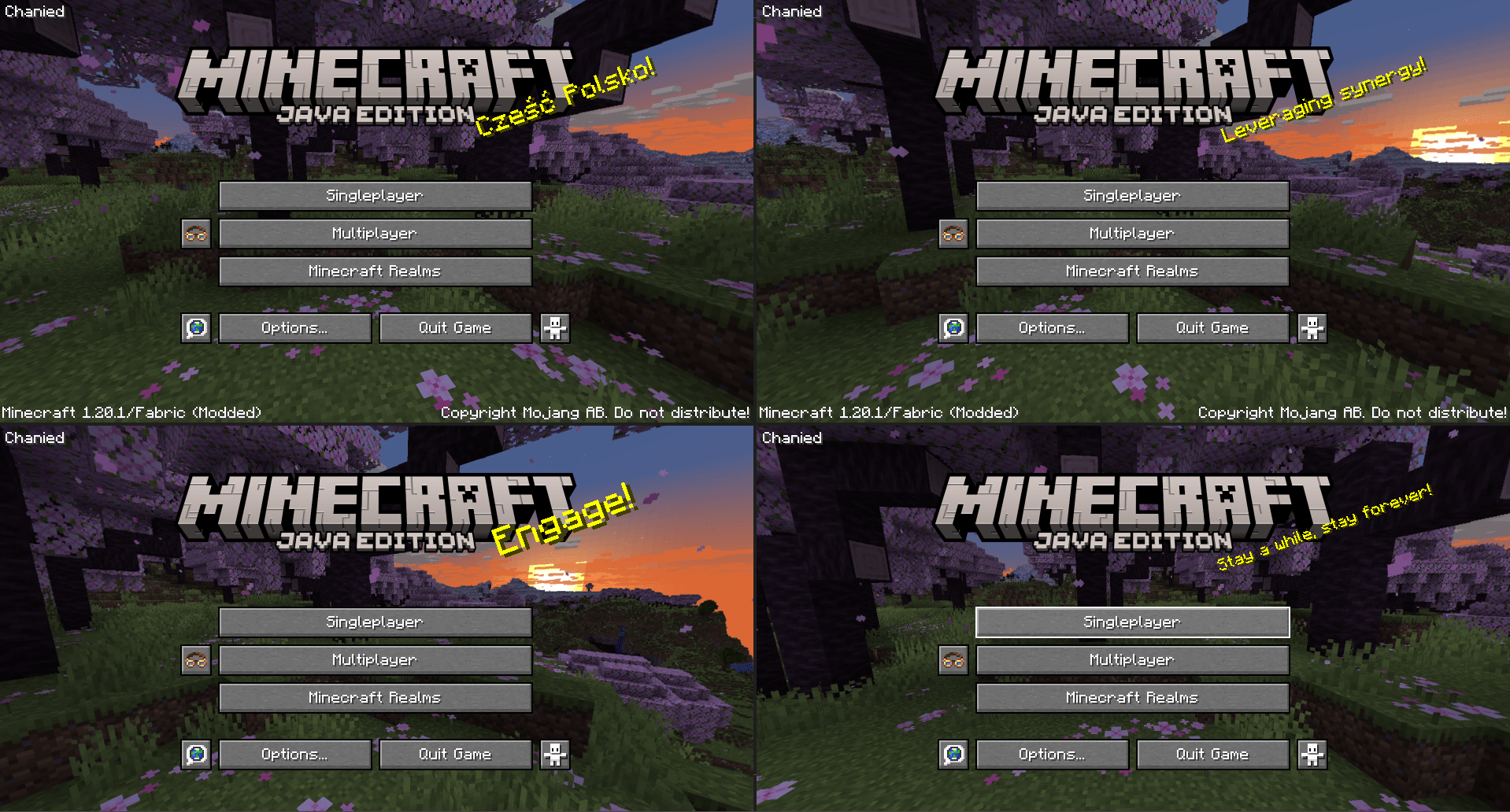
You may need to hide the taskbar to see the bottom of the screen.
To prevent the escape menu from automatically appearing, press F3+P to disable
pauseOnLostFocus.
options.txt
Instead of using the shortcut, you can run each instance once to generate the **options.txt** file. Open the modpack folder and edit **options.txt**. Change the value of **pauseOnLostFocus** from **true** to **false**.
Assigning Controls
On the Minecraft menu, click Options -> Controls -> and the Controller Icon to enter the Midnight Controls menu.
If that instance will be using a keyboard/mouse, turn off Auto Switch Mode.
If that instance will be using a controller, turn on Virtual Mouse. Then, open Controller Options on the sidebar to enable unfocused input.
If you only plan on playing with 1 controller, you can skip this step. We need to assign a controller to each instance of Minecraft. Switch the selected controller at the top of Controller Options to the controller for that instance.
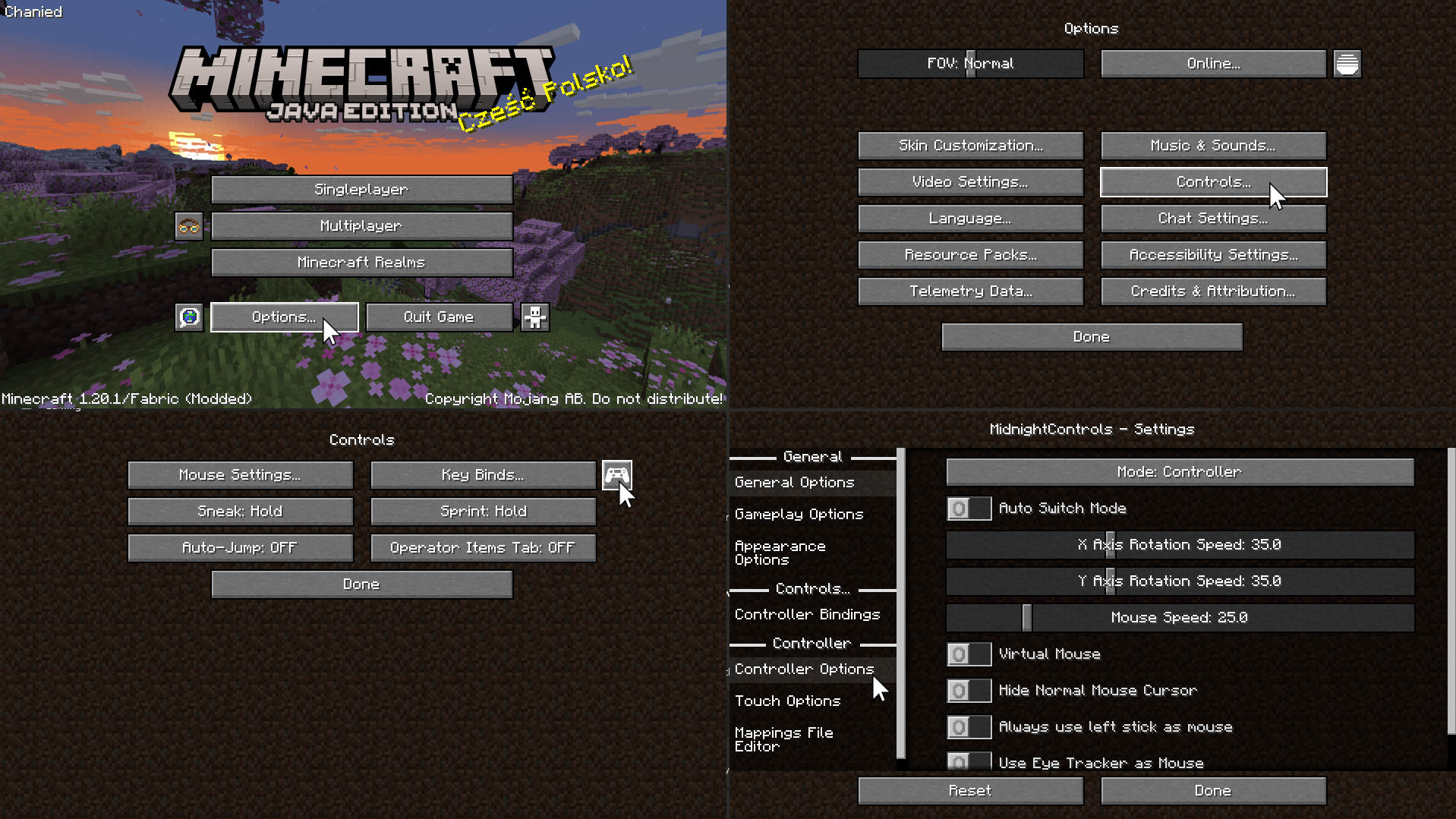
Advanced Controller Options
For more controller options (such as mappings), you will need to download GamepadTool. Copy your mapping code and paste it into the Mappings File Editor inside Moonlight Controls
Other Guides
GamepadTool
Midnight Controls Settings
options.txt
1 controller only
Similar packs
More server-ready modpacks
 Server-ready

Zombie Invade 100 Days
by FlameFire
僵尸入侵 100 天(高版本惊变重制)—— Same as Forge Labs 100 Days Zombie Apocalypse in new Minecraft
 Server-ready

Cobblemon Official Modpack [Fabric]
by CobbledStudios
The official modpack of the Cobblemon mod, for Fabric!
 Server-ready

COBBLEVERSE - Pokemon Adventure [Cobblemon]
by LUMYVERSE
Start a true Pokémon adventure in Minecraft: Cobblemon 1.8.4 | ALL 1025 Pokémon! | Mega Evolutions | Gyms & Badges | Starter Kit | Unique Structures | Custom Music | Shaders | Optimized | So much more! [1.21.1]
 Server-ready

BattleArmory TACZ
by JZ_zhenmeng
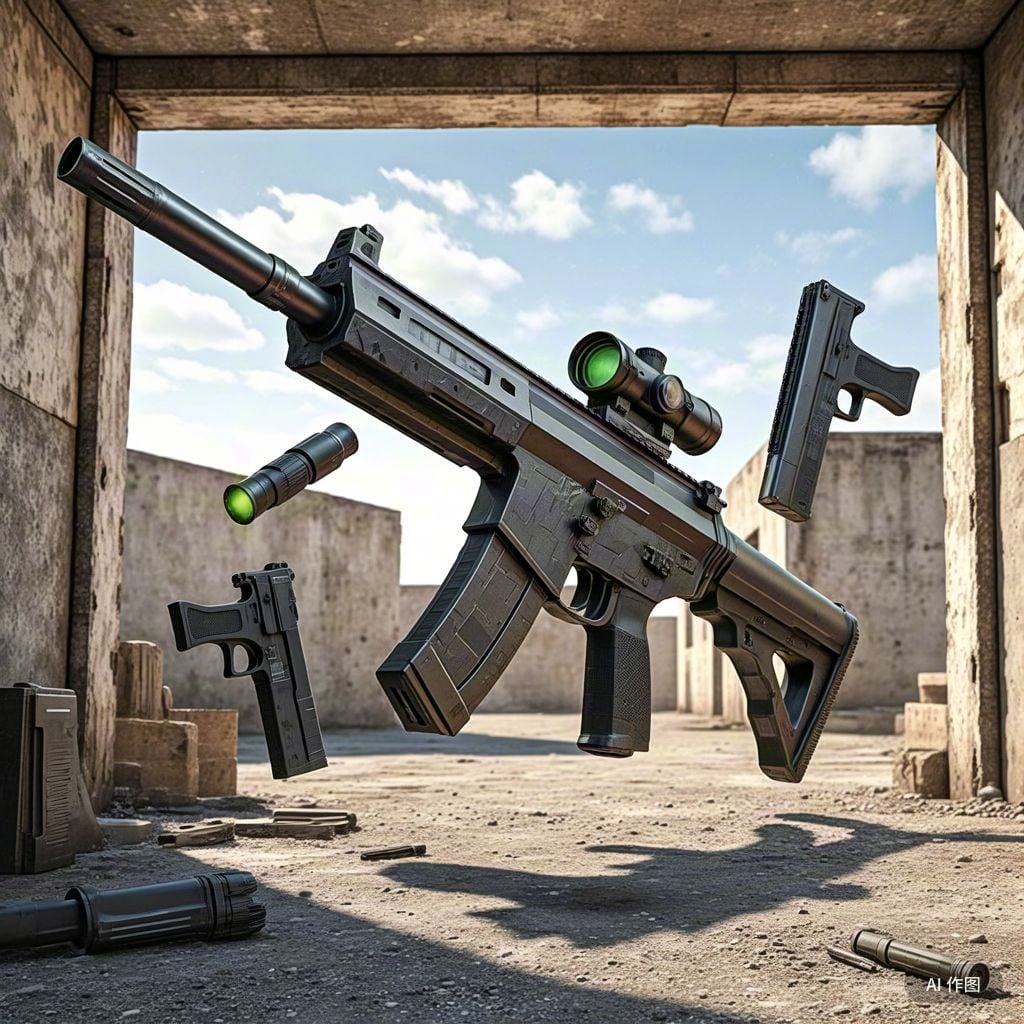
厌倦了每次开局都是一样的钻石剑和弓?BattleArmory 让你每场重生都像开盲盒——400+ 现代枪械随机配发,从使命召唤的经典步枪到赛博朋克科幻杀器,配上 CS 经典地图和战术投掷物,开局就是 80 帧+丝滑刚枪。** 这不是模组体验卡,这是完全免费的 1.20.1 战术枪战整合包,下载启动,直接开战。
Ready for your Split Screen Create server?
8 GB of RAM from €16.00 per month. 35% off your first month with MADO35.