
MineLights
MineLights is a Minecraft mod that brings RGB lighting integrations to Minecraft Java Edition - OpenRGB, Corsair iCUE, Logitech G HUB, Razer Chroma, MSI Mystic Light, ASUS Aura, SteelSeries GameSense, and Wooting
Screenshots
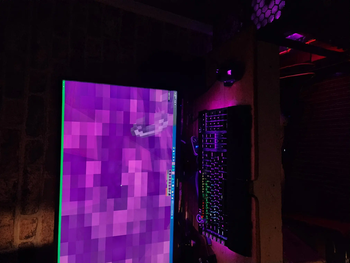
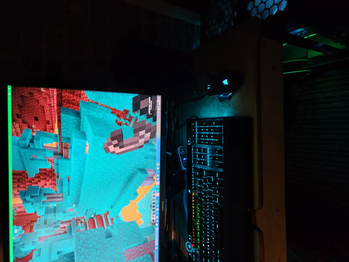
About this Mod
MineLights
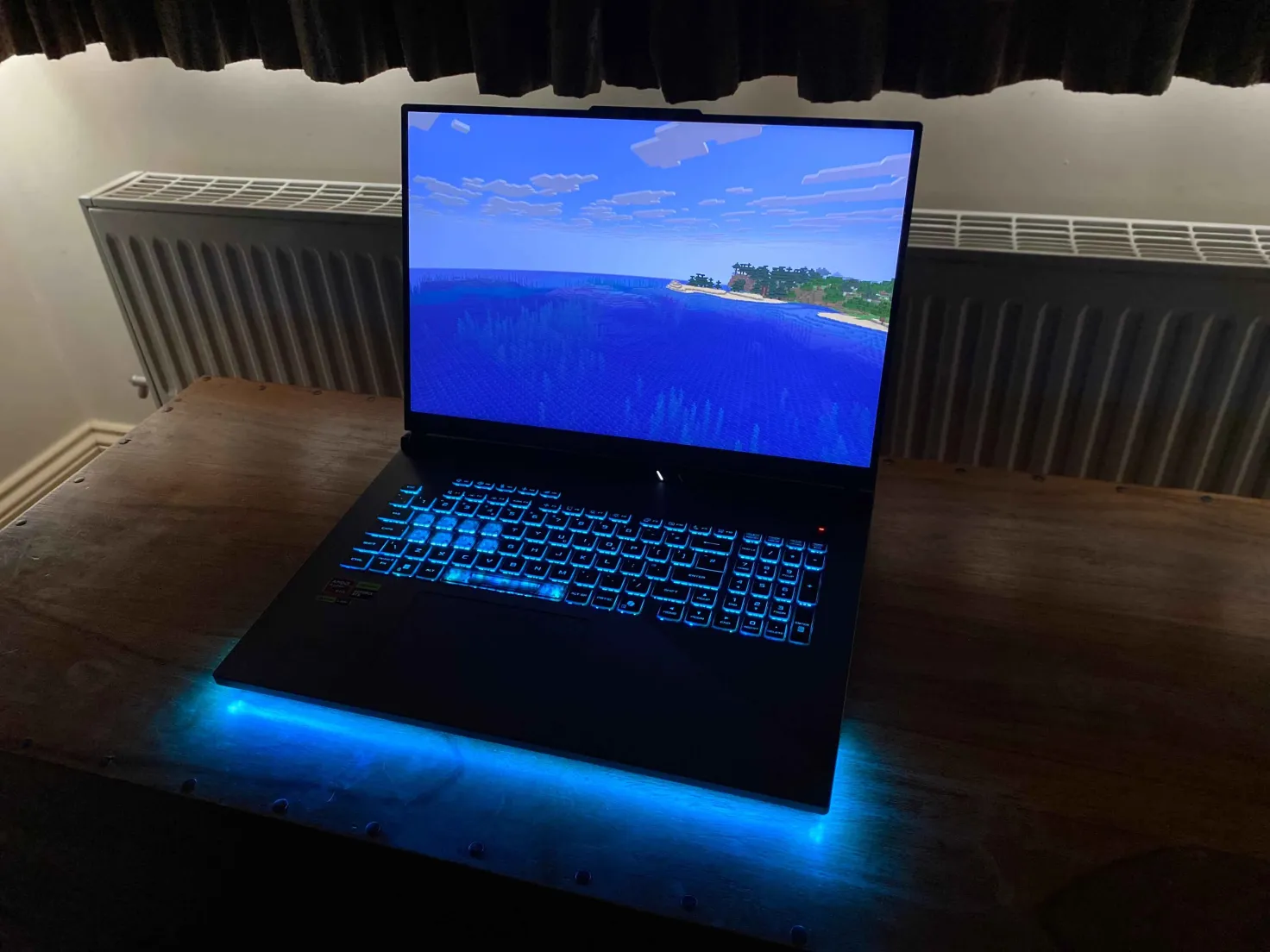
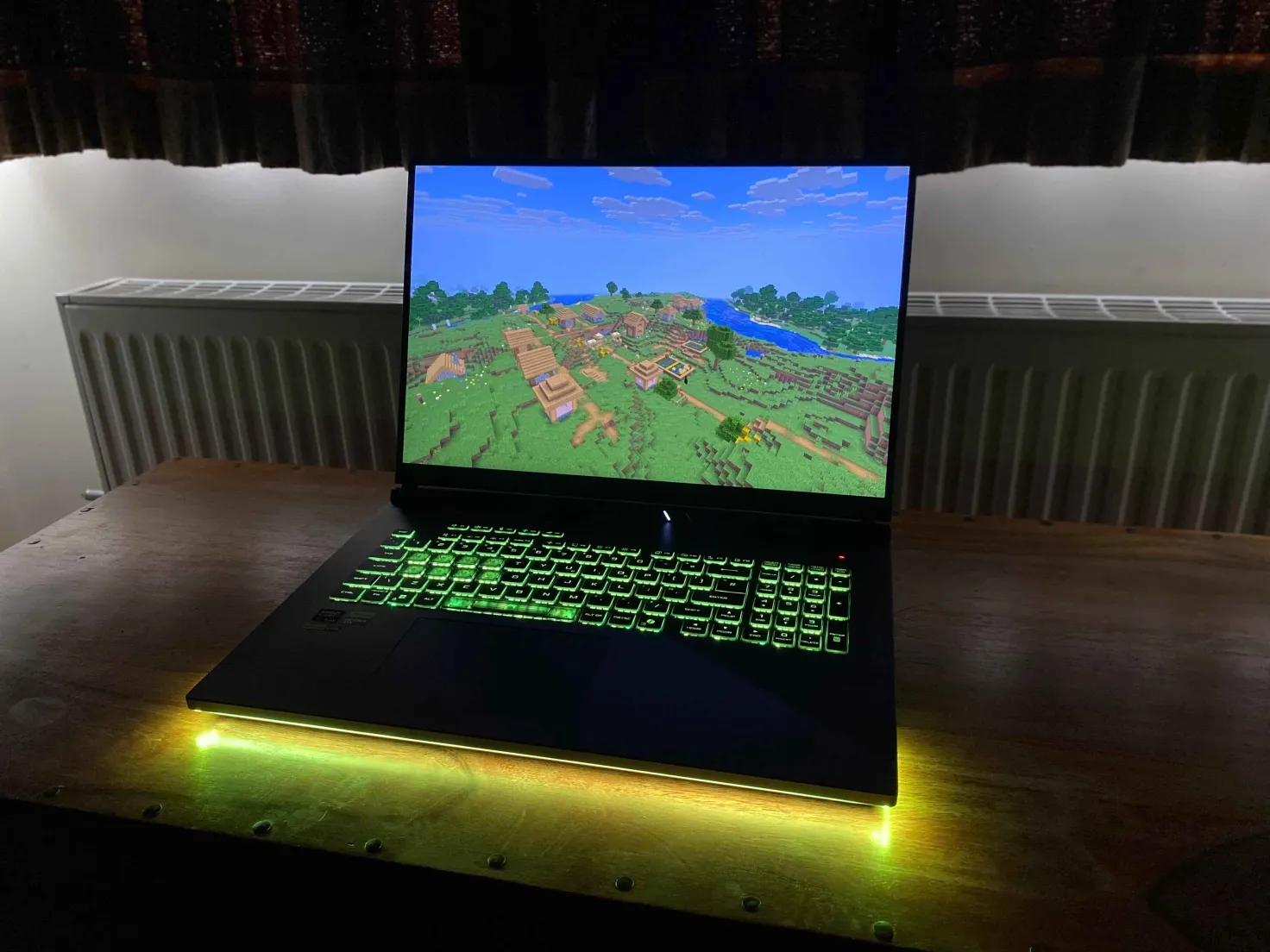
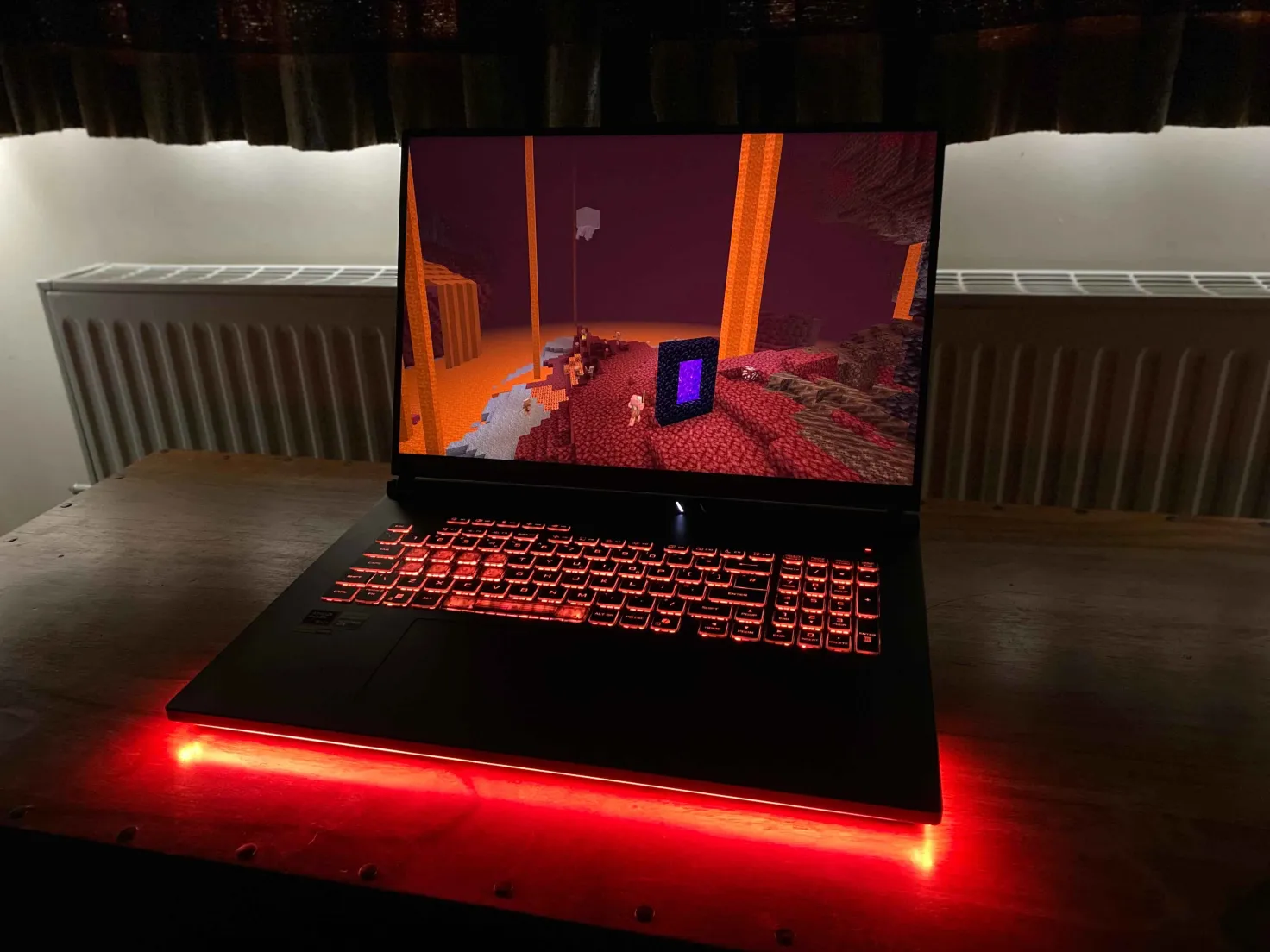
MineLights running on an Asus laptop. Video courtesy of Nukepatrol99.
MineLights is a Minecraft Fabric, Quilt, Forge, and NeoForge mod that brings your world to life with dynamic RGB lighting effects for your peripherals. It targets Minecraft versions from 1.14.3 onward on Fabric, 1.14.4 onward on Quilt, Forge releases from 1.7.2 onward, and NeoForge releases from 1.20.2 onward.
Currently supported: Minecraft 1.14.3 - 26.3 (Fabric), 1.14.4 - 26.3 (Quilt), 1.7.2 - 26.3 (Forge), and 1.20.2 - 26.3 (NeoForge)
Features
- Extensive Multi-SDK Support: Integrates with a wide array of RGB SDKs simultaneously, including OpenRGB, Corsair iCUE, Logitech G HUB, Razer Chroma, MSI Mystic Light, ASUS Aura, SteelSeries GameSense, and Wooting.
- Dynamic Environmental Effects: Your lighting changes in real-time based on your in-game surroundings.
- Biome Colors: Your keyboard's background color smoothly transitions to match the biome you're in.
- Weather Effects: Experience rain and dramatic lightning flashes during in-game thunderstorms.
- Status Effects: Your lighting will react when you are on fire, poisoned, or withering.
- Block Effects: Standing in lava, fire, or portals will trigger unique lighting themes.
- In-Game Status Bars: Use your keyboard's function keys as real-time status bars for health, hunger, and experience, alongside tracking other players or waypoints!
- Compass: A compass on your numpad (Extended keyboards only) will appear, if you have either a compass or recovery compass in your inventory! Alternatively it can always be displayed via a toggle in settings.
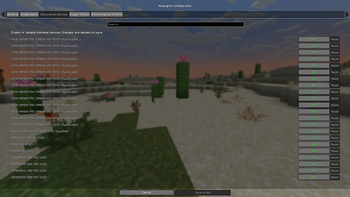
- Highly Configurable: An in-game configuration screen (via Mod Menu) lets you enable/disable every feature, integration, and even individual devices.
- Multiple Languages: Support for English, Anglish, German and Chinese (Simplified) has been added (Along with some joke languages)
Supported RGB Software
- OpenRGB Full device support (DIRECT mode!). Requires OpenRGB - Windows, Linux and MacOS.
- Corsair iCUE: Full device support for keyboards, mice, headsets, and more via the iCUE SDK (requires Corsair iCUE - Windows).
- Logitech G HUB / Lightsync: Controls Logitech G keyboards, mice, headsets, and other Lightsync-enabled gear (requires Logitech G HUB - Windows).
- Razer Chroma: Extensive support for all Razer Chroma-enabled peripherals like keyboards, mice, and mousepads (requires Razer Synapse - Windows).
- MSI Mystic Light: Control for motherboards, GPUs, and other devices via the Mystic Light SDK (requires MSI Center - Windows).
- ASUS Aura Sync: Control for motherboards, GPUs, and other devices via the ASUS Aura SDK (requires Armoury Crate - Windows).
- SteelSeries GameSense: Integration with SteelSeries peripherals like keyboards, mice, and headsets (requires SteelSeries GG - Windows).
- Wooting: Direct, low-latency control for Wooting analog keyboards (requires Wootility software to be running - Windows).
- Novation: Support for Novation MIDI controllers like the Launchpad, enabling unique grid-based effects (Windows).
- Raspberry Pi Pico: Directly control custom DIY lighting projects powered by a Raspberry Pi Pico (Windows).
- Yeelights Directly control your Yeelights smarthome bulbs (Universal).
This project uses the RGB.Net Nuget package.
🛠️ Installation
Prerequisites
- Minecraft Fabric or Quilt: Install the matching Fabric or Quilt Loader.
- Minecraft NeoForge: Install NeoForge for the supported Minecraft version.
- Minecraft Forge: Install Forge for one of the supported Minecraft versions.
- Mod Menu: Required to access the in-game configuration screen.
- Cloth Config API: Required to access the in-game configuration screen.
- No Quilt API bundle required: MineLights runs on Quilt without QSL, QFAPI, or Fabric API.
- (Optional) OpenRGB: The latest OpenRGB version is recommended for OpenRGB devices.
- (Optional) All other RGB software: If you have any other hardware, ensure their official software is installed and running.
Installation
- Simply place the mod in your mods folder, then start Minecraft. Wait 20+- seconds, and your RGB will be detected! (112MB+- download for the RGB Server on Windows on first launch).
Installing MineLights version 2.2: Simply place the mod in your mods folder, then start Minecraft. Follow the on-screen instructions.
Installing MineLights version 2.1 or below: Follow the guide in the release changelog.
OpenRGB setup (optional)
- Install the latest OpenRGB version (recommended) if you want to use OpenRGB devices.
- After installing or updating OpenRGB, restart your computer before using MineLights.
- Start OpenRGB, open the SDK Server tab, and click Start Server. Keep OpenRGB running while Minecraft is open. MineLights connects to the local server at
127.0.0.1:6742(the default SDK server address and port).
Usage
- Launch Minecraft: Start the game with your Fabric, Quilt, Forge, or NeoForge profile.
- Configure:
- In the main menu, go to Mods > MineLights > Config (the gear icon).
- Enable the integrations you want to use (OpenRGB, Corsair iCUE, etc.).
- Save the config.
- Refresh devices to show newly added devices.
- You can re-enter the config to disable specific devices if you wish.
- ⚠️: MSI Mystic Light integration requires you to restart the MineLights server as administrator to work!
- Enjoy! Your lighting will now sync with your game.
Roadmap
- Windows Dynamic Lighting: Integration with Windows Dynamic Lighting is planned for the future.
- Improve Device Compatibility: Continuously working to improve support for more devices across all SDKs.
- Community Testing: Ideally have testers, well test!
- Resolve Issues: I aim to resolve problems either within the issues page or issues I personally find and log.
Contributing
Contributions are welcome! Please fork the repository and submit a pull request.
Contact
For any questions, suggestions, or bug reports, please open an issue on the GitHub repository.
Available Versions
How to Install MineLights on Your Client
Install the Mod Loader Locally
Install fabric for your local Minecraft version.
Download the Matching File
Choose the MineLights file for fabric and Minecraft 26.3.
Install Mod
Place the .jar file in your local .minecraft/mods folder and restart Minecraft. No server-side installation is required.
Compatibility
Mod Loaders
Minecraft Versions
26.3, 26.2, 26.1.2 (+58 more)
Server-side
✗ UnsupportedRecommended RAM
4 GB(min. 3 GB)Frequently Asked Questions
Does MineLights need to be installed on the Minecraft server?
No. Modrinth marks MineLights as unsupported on the server side. Install it only in your local Minecraft mods folder. Your server can remain unchanged unless the mod page lists an additional dependency.
Which version and loader does MineLights require?
Use a file for fabric, forge, neoforge, quilt and your exact Minecraft version. Supported versions include 26.3, 26.2, 26.1.2. Files for different loaders are not interchangeable.
MineLights is not working – what should I check?
First check the Minecraft version, loader version and required dependencies. Put the .jar file in your local .minecraft/mods folder and remove older duplicates. Because this mod is client-side, adding server RAM will not fix it.
Similar Mods




Minecraft Server for Your Group
MineLights stays on your client. Host a compatible world for your group.
Details
- License
- Creative Commons Attribution Non Commercial Share Alike 4.0 International
- Server-side
- Unsupported