
Modrinth · Fabric, Forge, NeoForge, Quilt
Axis World Editor on your Minecraft server
Axis World Editor runs on Minecraft servers with Fabric or Forge or NeoForge or Quilt. Order your server, set the loader in the panel and install the mod with one click in the mod browser.
Vanilla WorldEdit & building toolset: 50M+ block edits, undo redo, brushes, schematics, display entities, multiplayer support!
- Downloads
- 78.1K
- Author
- G4bc
- Loader
- Fabric, Forge, NeoForge, Quilt
- Minecraft
- 1.21.10 – 26.3
- Updated
- –
Screenshots
What Axis World Editor looks like
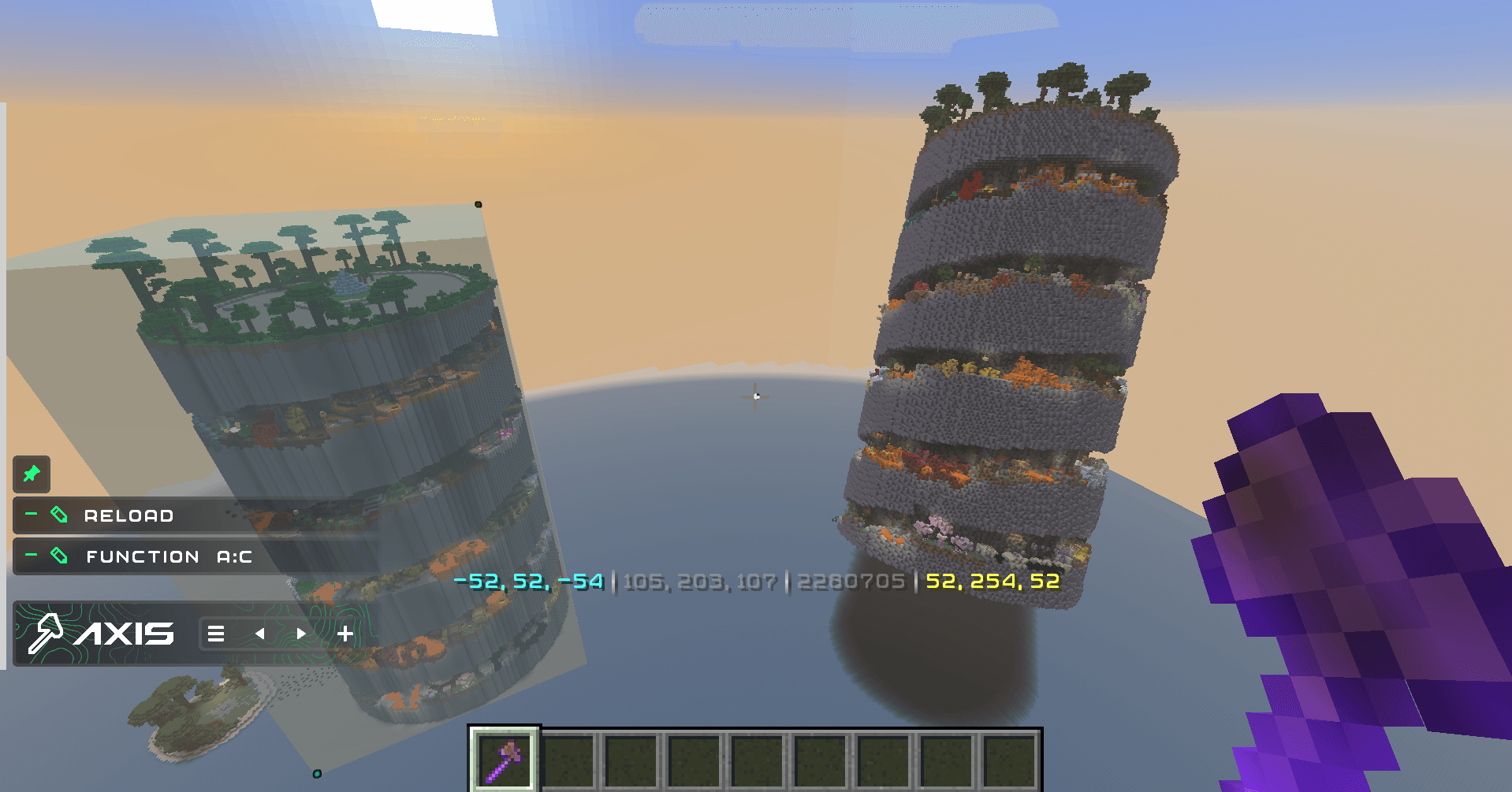
 Free-Rotate
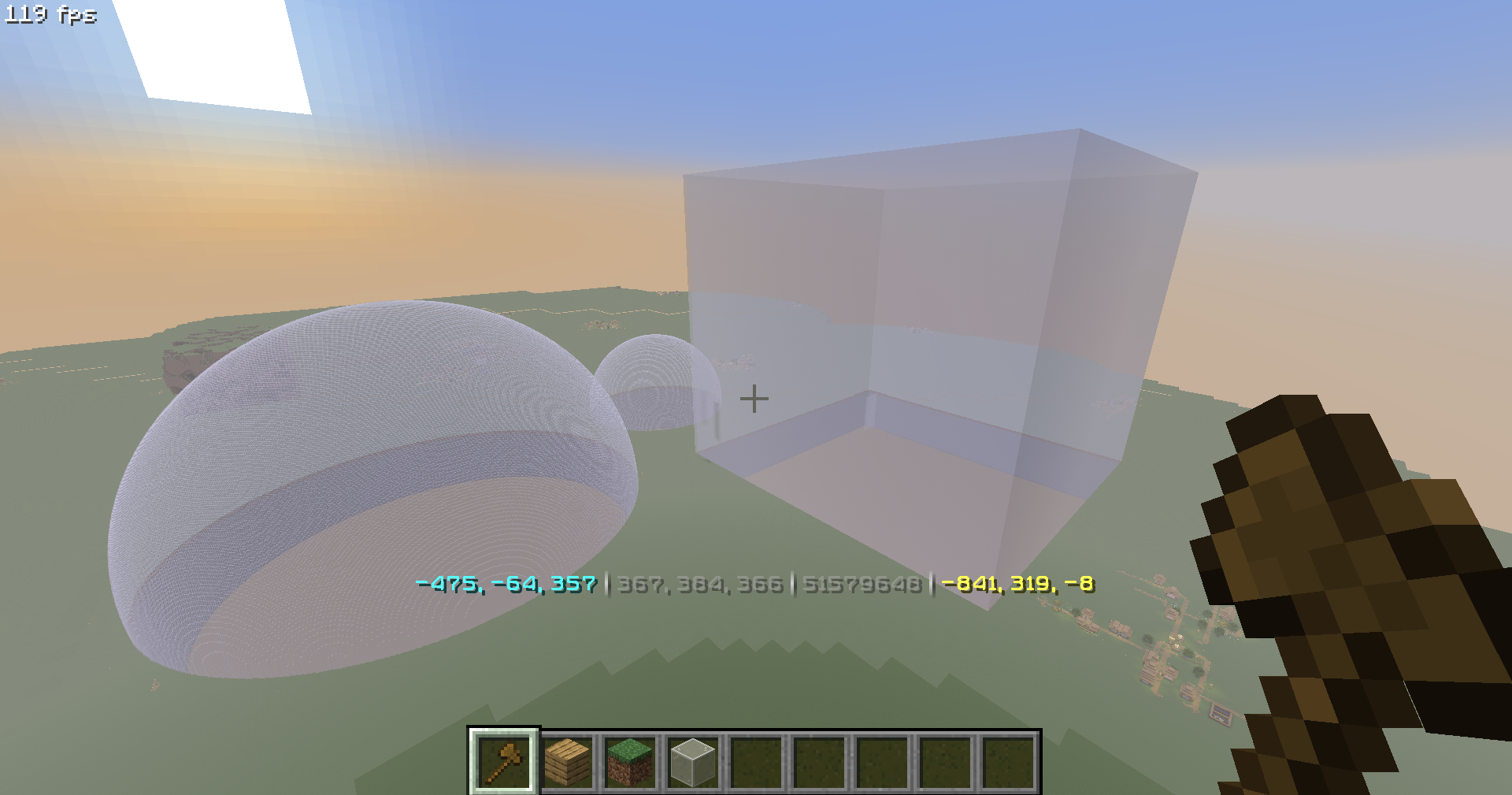 50+ Million blocks successfully replaced in one go
 Multi-Material block operations
 Multi-Hotbar
 In-game Wiki
Images: Axis World Editor on Modrinth, published by the project team.
Setup
Install Axis World Editor on your server
The server and players need the same loader and Minecraft version. Back up the world before adding or updating mods.
- 01
Configure
4 GB of RAM is preselected. You choose the term and add-ons and pay by credit card or PayPal.
- 02
Set the loader
In the panel, set the server software to Fabric or Forge or NeoForge or Quilt and choose the matching Minecraft version, for example 26.4-snapshot-9.
- 03
Install the mod
Search the mod browser for “Axis World Editor” and install the release for your loader. Alternatively, upload the .jar to the mods folder via SFTP. Required dependencies are listed on the project page.
- 04
Connect
Axis World Editor is optional on the client. Players connect using the server address from the panel.
- On the server
- Required
- On the client
- Optional
- Loader
- Fabric, Forge, NeoForge, Quilt
- Minecraft
- 26.4-snapshot-9, 26.4-snapshot-8, 26.4-snapshot-7 +42 more
- License
- LicenseRef-PolyForm-Shield-License-1.0.0
The panel
Install mods, find errors.
Real screenshots from the Mado panel. Both come with every Minecraft server.
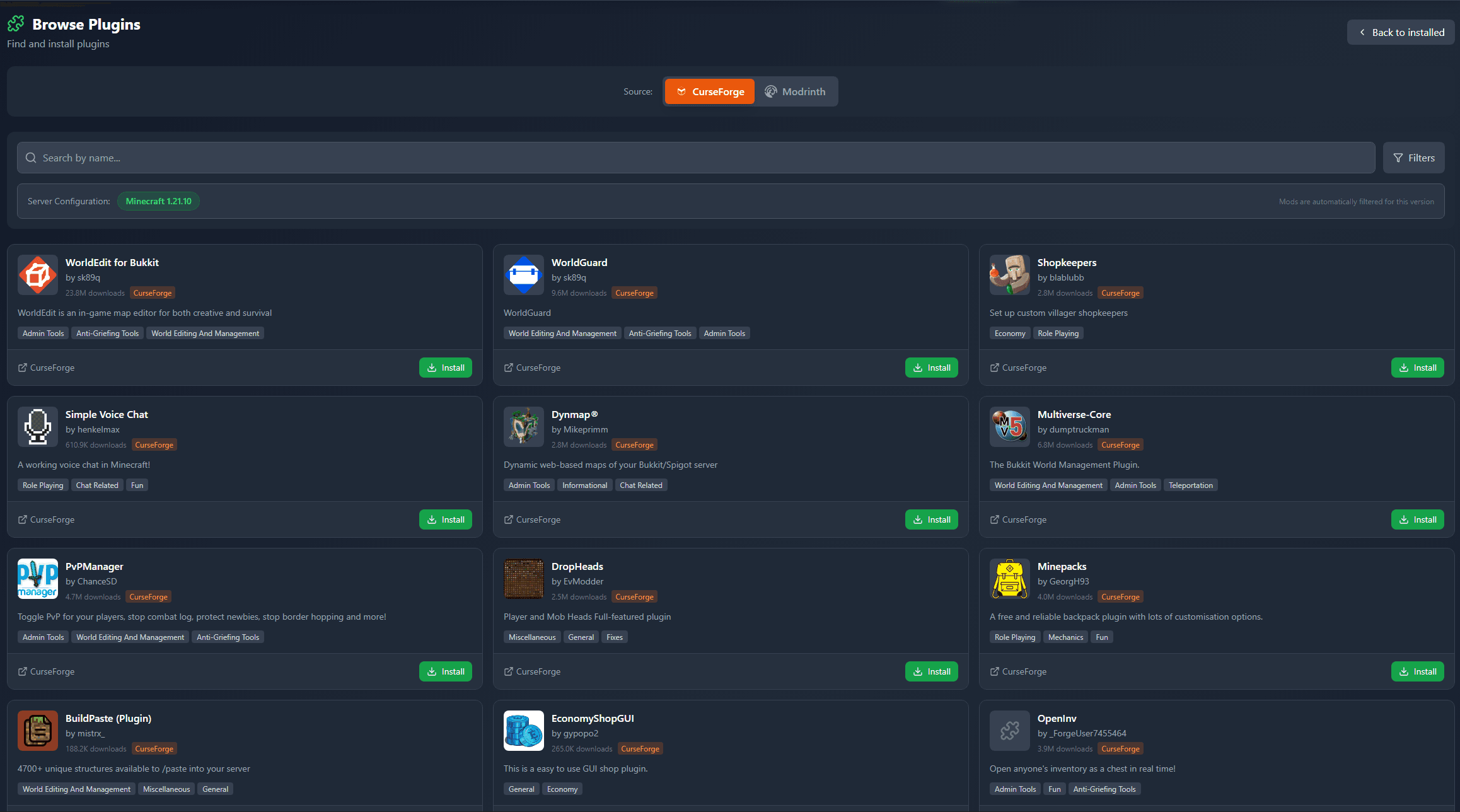
Mod browser
Modrinth and CurseForge, right in the panel.
The browser filters by your Minecraft version. Install mods with one click, without uploading .jar files.
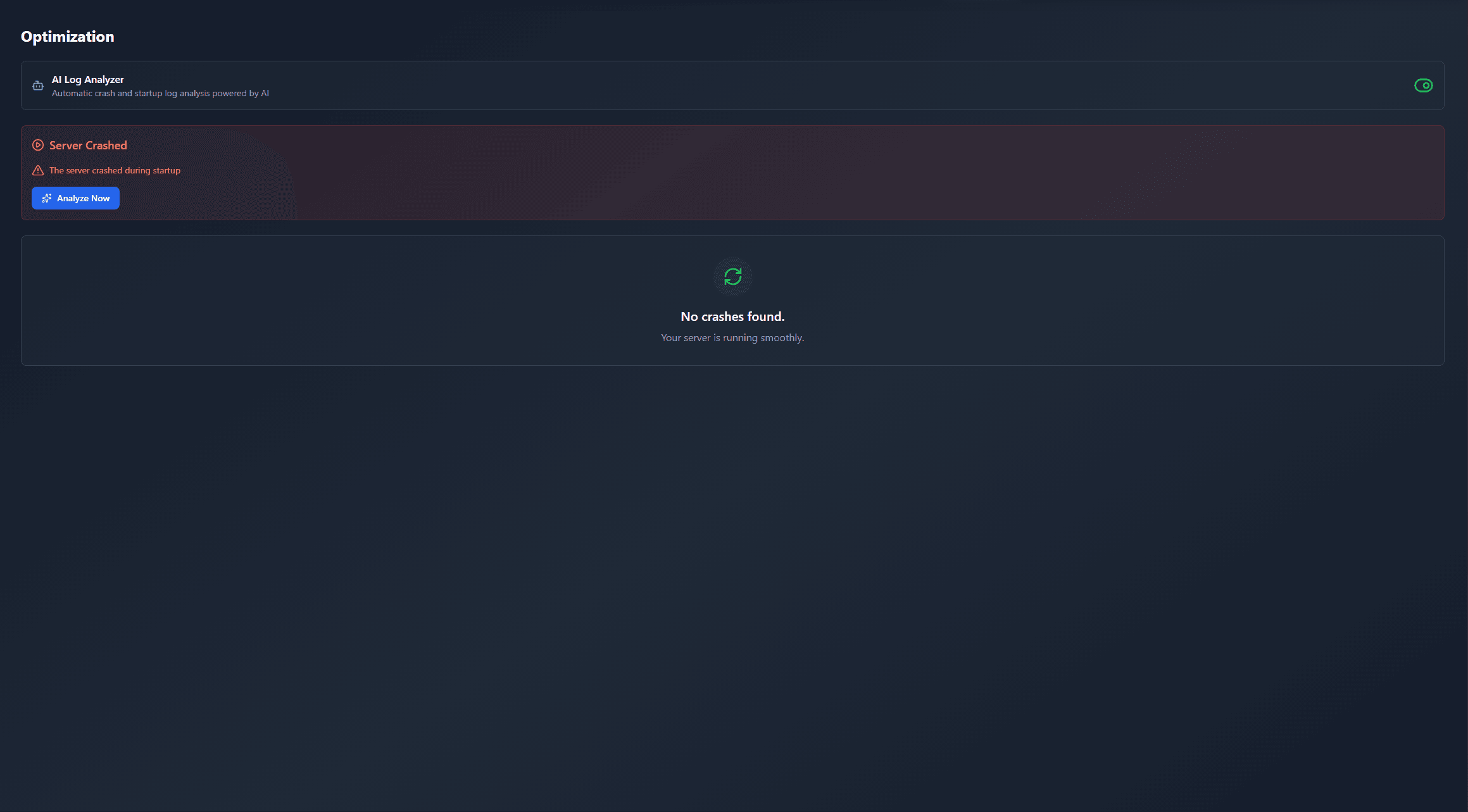
AI crash analysis
When a mod crashes, the analyzer reads the log.
Mods often fail on a wrong loader version, Java version or missing dependency. The analyzer names a likely cause and suggests a fix.
Releases
Published releases
Pick the file that matches your server’s loader and Minecraft version. The server and players need the same release.
Axis World Editor · ModrinthOriginal description by the project author


⚙️ Core Features
- Axis - is all-in-one vanilla toolset for easy and convenient real-time world editing: 50M+ block edits, undo redo, brushes, schematics, display entities, multiplayer support and more!

💀 Full Documentation (TL:DR)
⚠️ You will find a complete list of features in the in-game Wiki. ⚠️
Tons of Tools and Commands for speeding up your building process
🔧Tools
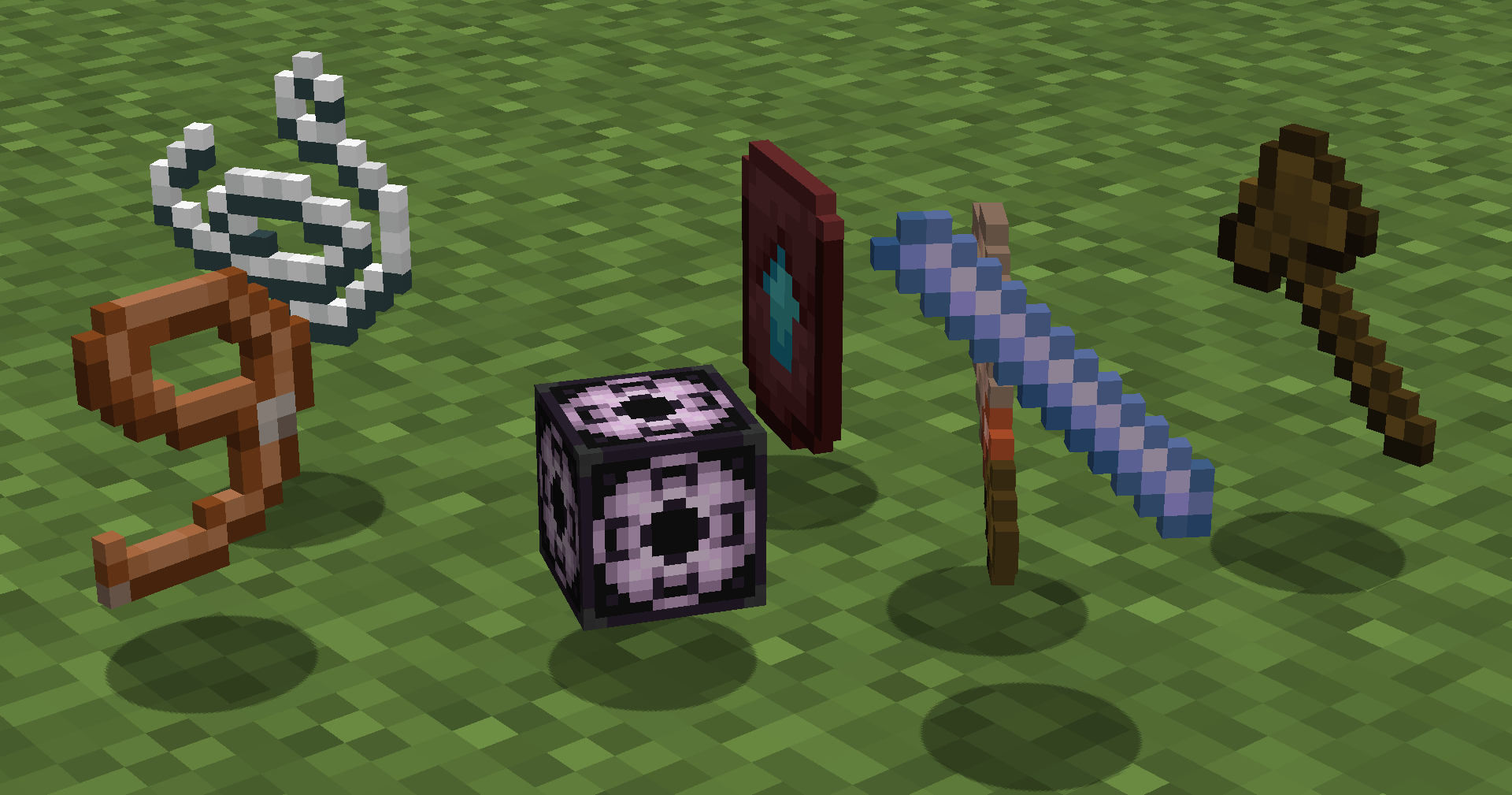
Automatically run functions based on your actions. Each tool has several modes. Throw (default:Q) to change mode, put in offhand (default:F) to change tool.
How to use (X) tool?
Look at the item tooltip, or open the detailed documentation using /function we:help.
| Tool | Modes | Description |
|---|---|---|
| Selector (Axe) | Raycast Mid air 15 Mid air 10 Mid air 5 | Left and Right-mouse clicks to set both region corners. |
| Resize | 1 10 Double Lasso | Left and Right-mouse clicks to resize region in the direction you are facing. |
| String | Raycast Mid air 30 Mid air 20 Mid air 10 | Use it to measure distance by clicking LMB and RMB. |
| Paste brush | Fill-paste (10/20/30/Ray) Replace-paste (10/20/30/Ray) | Right-mouse click to paste (clone) selected region to any other place. |
| Block brush | Diameter 1 Diameter 3 Diameter 5 Diameter 7 | Left-mouse click to pick block, Right-mouse click to paint. |
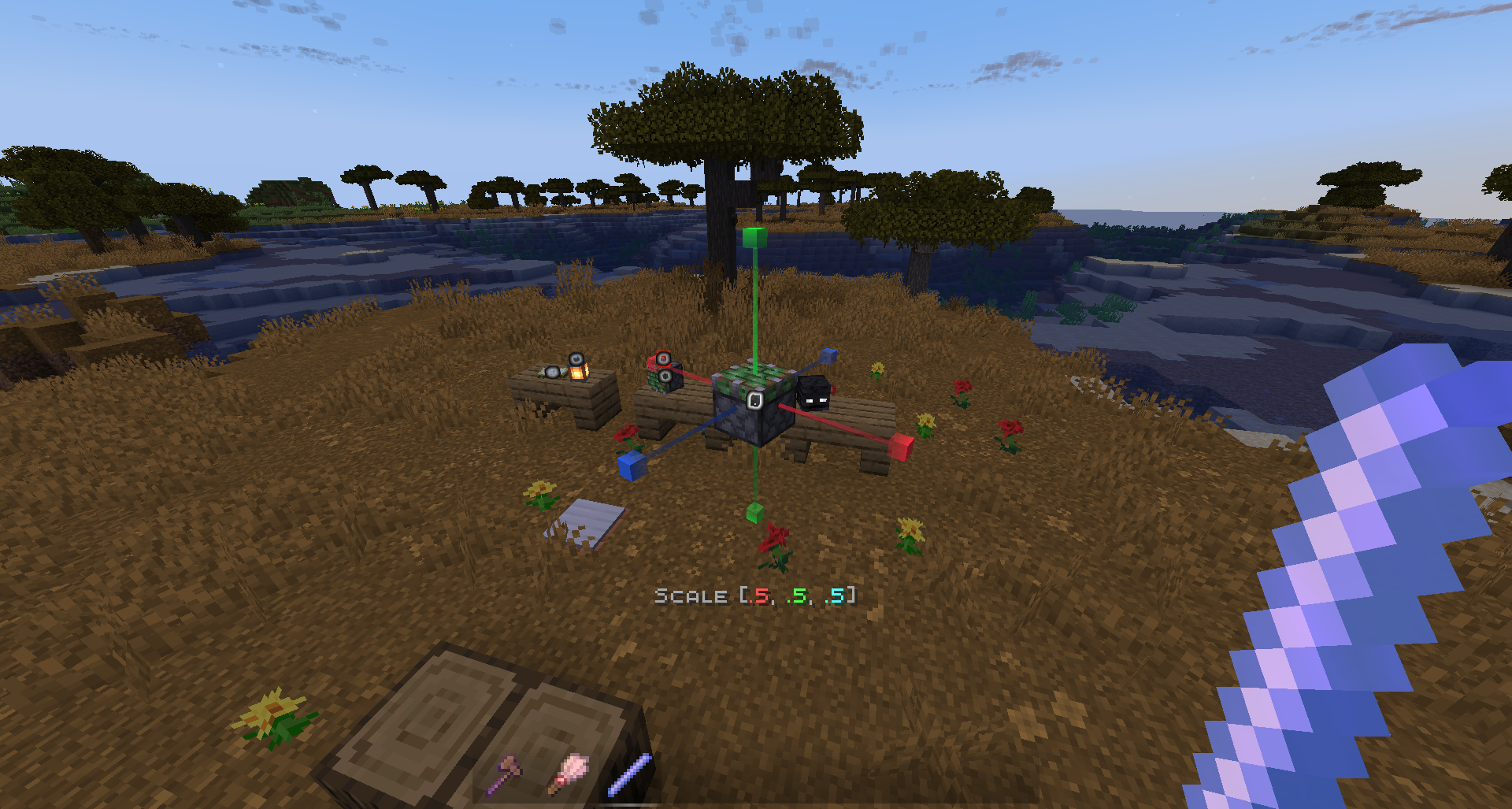
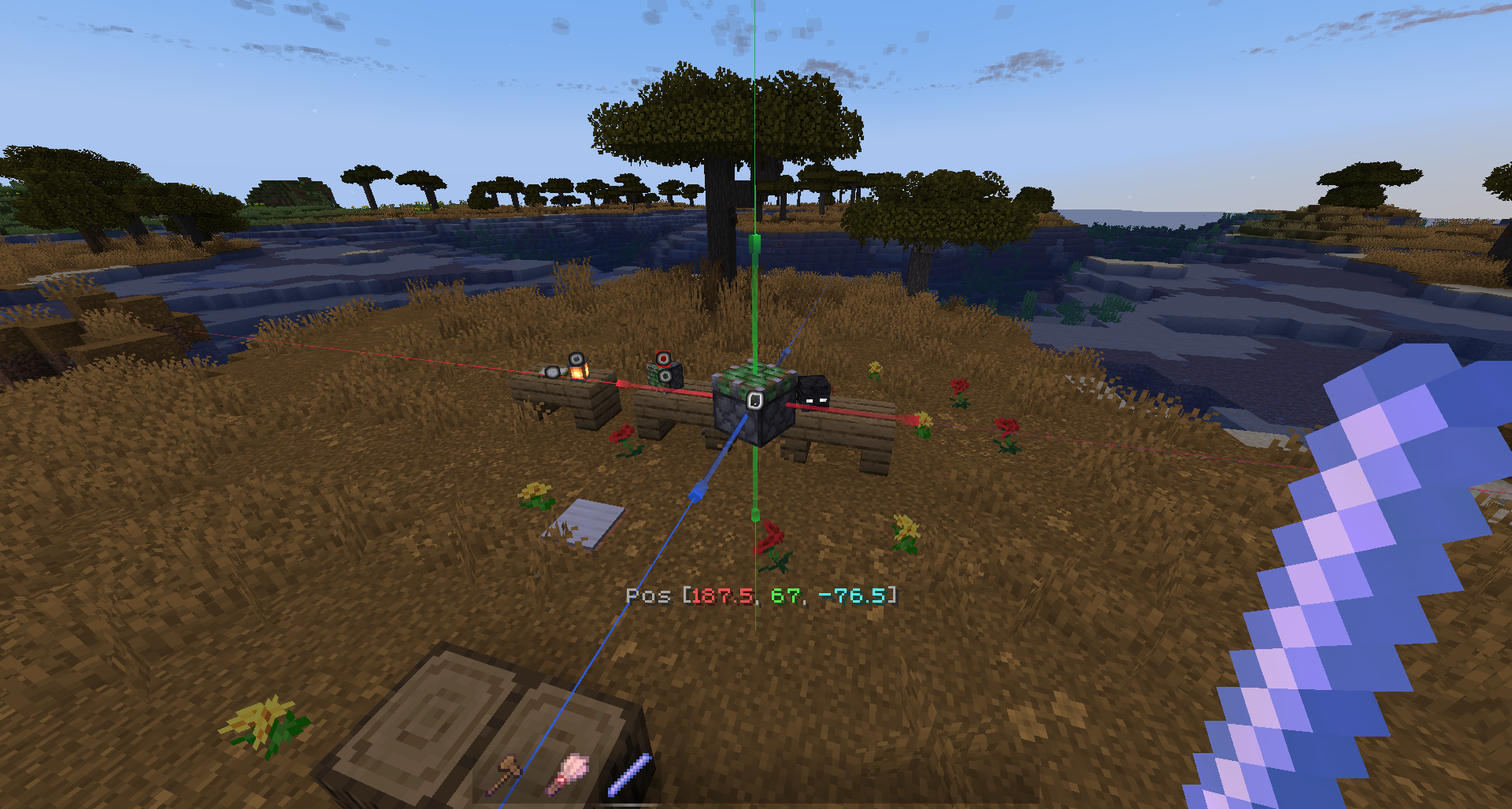
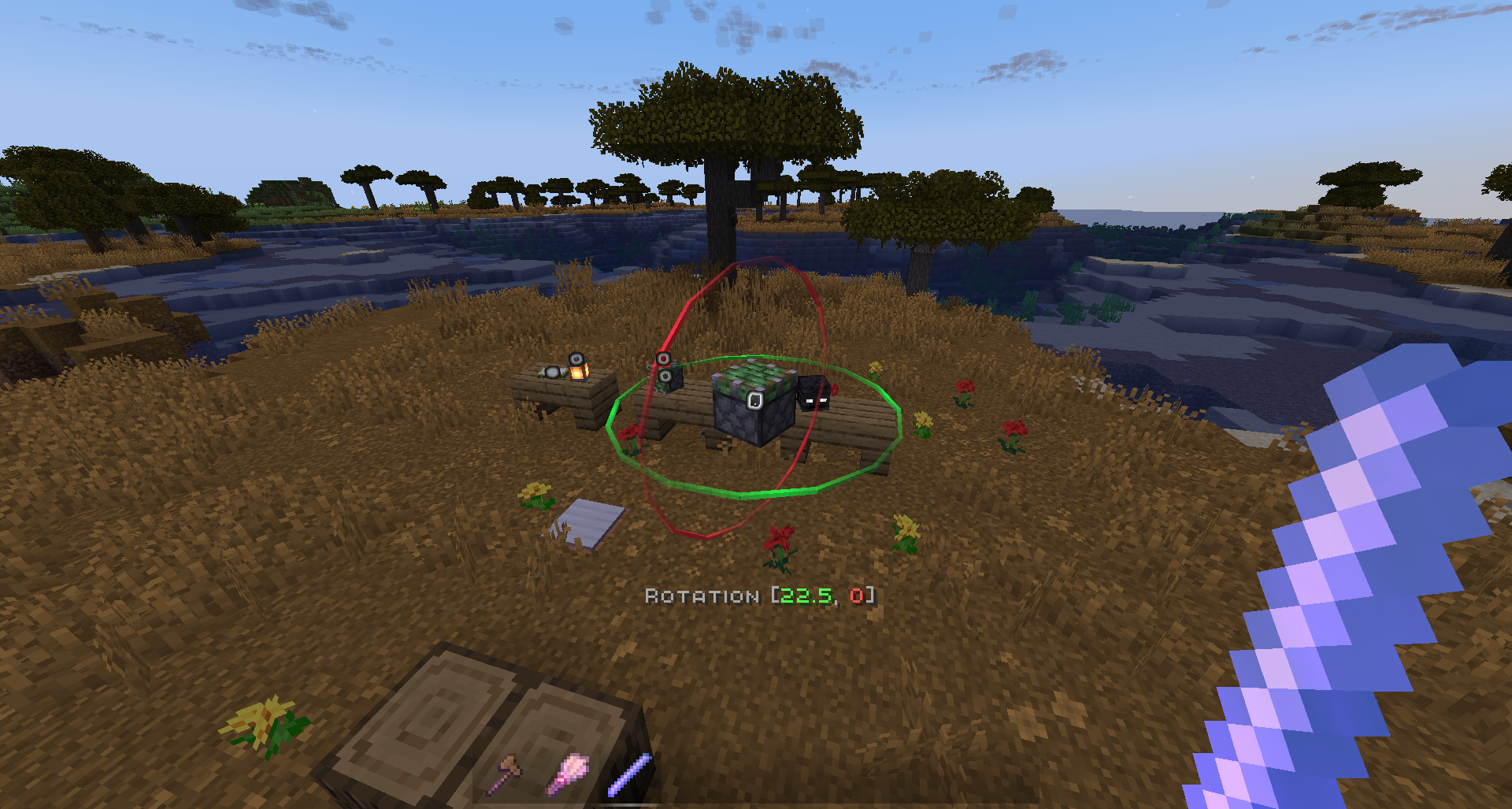
| Display Modification | Scale - 0.5, 0.125, 0.015625 Move - 0.5, 0.125, 0.015625 Rotate - 22.5, 5.625, 1.40625 |
💻 Commands
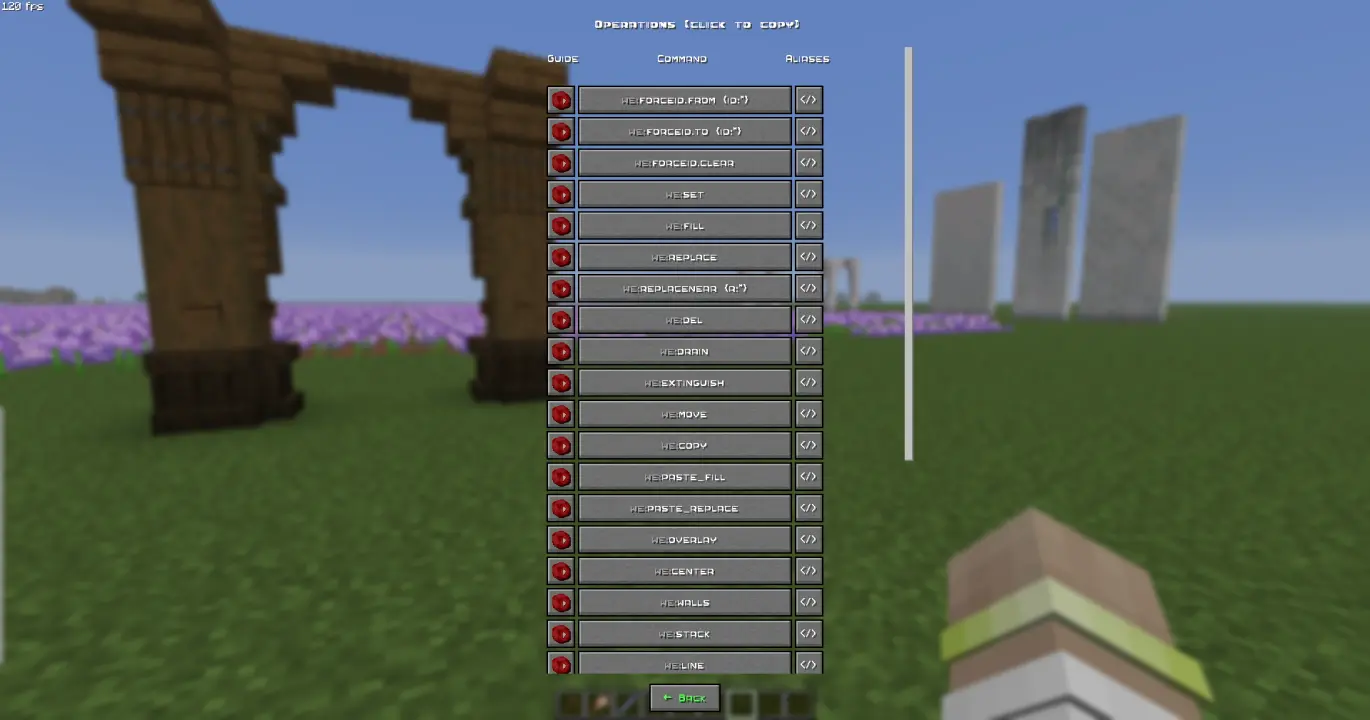
Manual use. /function a:help for more info.
How to use (X) command?
All the user commands are available on the path /function a:. To view each command description, run /function a:help. You need OPerator rights in the world where you want to use the datapack.
[Material] = what you hold in the right mainhand.
[Filter] = what you hold in the left offhand.
[Random] = Can use random blocks from a bundle / shulker box you hold.
[Facing] = Depends on the direction you are looking.
An empty slot is usually treated as air or glass.
Basic
| Command | Aliases | Description |
|---|---|---|
| getop | op | Appoints you as an Axis Operator |
| help | h | Opens help page |
| settings | config | Opens settings page |
| wand | w get | Gives you tool for selecting regions. You can take wooden axe from your creative inventory and it will become wand. Click left mouse button to set the first point of the region, Click right mouse button to set the second point of the region. Both points create a region between them. Read tooltips for more info about using tools and modes. |
| uniwand | Opens UI with all the tools for you to choose | |
| flight | Opens the flight settings menu | |
| pin | Allows you to pin up to 10 custom commands above the Axis chat menu, and use them with a mouse click. Format: /function we:pin {slot:2,cmd:'say Hello World!'} <-- "cmd" without backslash (/) | |
| uninstall | unins | Opens the datapack uninstall menu |
Regions
| Command | Aliases | Description |
|---|---|---|
| 1 | Set the first point of the region. Both points create a region between them | |
| 2 | Set the second point of the region. Both points create a region between them | |
| expand | Expands the region by 1 block in the direction you are facing. You can use resize tool unstead | |
| contract | Expands the region by 1 block in the direction you are facing. You can use resize tool unstead | |
| clear | c | Clears all selected points and regions |
Operations
| Command | Aliases | Description |
|---|---|---|
| set | Replaces all blocks in the region with [Material]. + [Random] | |
| fill | Fills all air blocks in the region with [Material]. + [Random] | |
| replace | Replaces all blocks in the region from [Filter] with [Material]. + [Random] | |
| replacenear {r:*} | rpn | Replaces all blocks within a radius ({r:1} or {r:5}, etc.) around the player from [Filter] with [Material]. |
| delete | del | Deletes everything in the region. |
| overlay | Overlays all blocks in your region with [Material]. | |
| center | Finds a center of your region and places 1-8 blocks of [Material]. If there are already solid blocks in the center of the region, only particles will be displayed. | |
| hollow | Replaces all the inner blocks with [Material]. | |
| move | Moves the region by 1 block. + [Facing] | |
| stack | Stacks the region once. + [Facing] | |
| rotate | Rotates the region by the specified number of degrees. Affects entities. | |
| flip | Mirrors the region in the direction of view. Affects entities. | |
| copy | Saves region to the clipboard. Use together with paste. Pastes at the same relative position as when you used copy. |
|
| paste.fill | Pastes saved region from clipboard to the player and blends it with the existing blocks/terrain. Use together with copy. |
|
| paste.replace | paste | Pastes saved region from clipboard to the player and deletes all the blocks/terrain on the way. Use together with copy. |
| cut | Copies a region to the clipboard and cuts it out. | |
| cylinder {r:*,h:*} | cyl | Creates a cylinder of [Material]. The h value is height. Accepts decimal radius values. |
| sphere {r:*} | Creates a sphere out of [Material]. Accepts decimal radius values. | |
| circle {r:*} | Draws a circle from [Material] with the specified radius. | |
| hcircle {r:*} | Draws a hollow circle from [Material] with the specified radius. | |
| walls | Replaces all outline blocks in the region with [Material]. | |
| line | Builds a line of [Material] from point 1 to point 2. | |
| setnoise.perlin | Replaces the selected region with Perlin noise, using [Material] as the primary block and [Filter] as the secondary block. | |
| drain | Removes liquids from the region. | |
| extinguish | Removes fire from the region. | |
| fixliquid {r:*} | Levels liquid in a container to a uniform height. | |
| triggerupdates | upd | Triggers block updates in the region. |
| setbiome {b:*} | Sets the specified biome to the region. | |
| fillbiome {b:*} | Fills the region with the specified biome. | |
| regenerate | Reverts everything within the Region to its original state based on the world seed. | |
| forceid.from | Allows you to force the block ID, including the blockstate, when executing all commands that require a block ID. From: [Filter]. | |
| forceid.to | Allows you to force the block ID, including the blockstate, when executing all commands that require a block ID. To: [Material]. | |
| forceid.clear | Clear: removes the Force ID from both storages. | |
| schem.list | schems | Shows and pins the full list of local and shared schematics. |
| schem.delete {name:*,type:*} | schem.del | Deletes the local or shared schematic. |
| schem.editpath {path:*} | Set a path to your current Minecraft world folder (for convenient copying). | |
| schem.export {name:*} | Moves Local schematic to Shared space. | |
| schem.import {name:*} | Moves Shared schematic to Local space. | |
| schem.paste {name:*} | Pastes local schematic into world. | |
| schem.paste.clipboard {name:*} | schem.paste.c | Pastes local schematic into clipboard. |
| schem.rename {type:*,name:*,name_new:*} | Renames local or shared schematic. | |
| schem.save {name:*} | Saves new local schematic from the region. | |
| schem.save.clipboard {name:*} | schem.save.c | Saves new local schematic from the clipboard. |
| schem.wipeall | Deletes all the local and shared schematics. | |
| gradient.* | gr.* | The gradient draws materials in sequence from a bundle or shulker box. The more materials you include, the smoother the gradient will be. Techniques like pointlight and drybrush require a particularly large number of shades; otherwise, the result will end up too dark. It is recommended to fill the bundle with at least 32 slots` worth of materials. |
| *.simple | Draws a standard gradient within the selected region, oriented in the direction of the player`s view. | |
| *.radial | Draws a gradient within the selected region, spherical in relation to the player`s position. | |
| *.drybrush | Highlights edges and softly illuminates a region relative to the player`s position. | |
| *.pointlight | Simulates a real light source, illuminating a region and casting shadows from objects relative to the player's position. | |
| *.linear | Places blocks one after another without randomization. | |
| *.dither | Creates white noise from blocks to smooth out the gradient. | |
| *.smear | Randomly switches the material to the next one in the sequence, without disrupting the order. |
History
| Command | Aliases | Description |
|---|---|---|
| undo | Cancels previous action | |
| redo | Redoes previous action (use after Undo) | |
| clearhistory | Deletes all previously saved actions and clears history buffers. Clearing history is recommended when you want to make a 'checkpoint' during building, so you don't accidently undo/redo old actions you don't want to |
Brushes
| Command | Aliases | Description |
|---|---|---|
| b/wand | b/w b/get | Gives you brush tool. You can take regular brush from your creative inventory and it will become brush tool. Left-click to choose block, Right-click to paint. Read tooltips for more info about using tools and modes. |
Displays
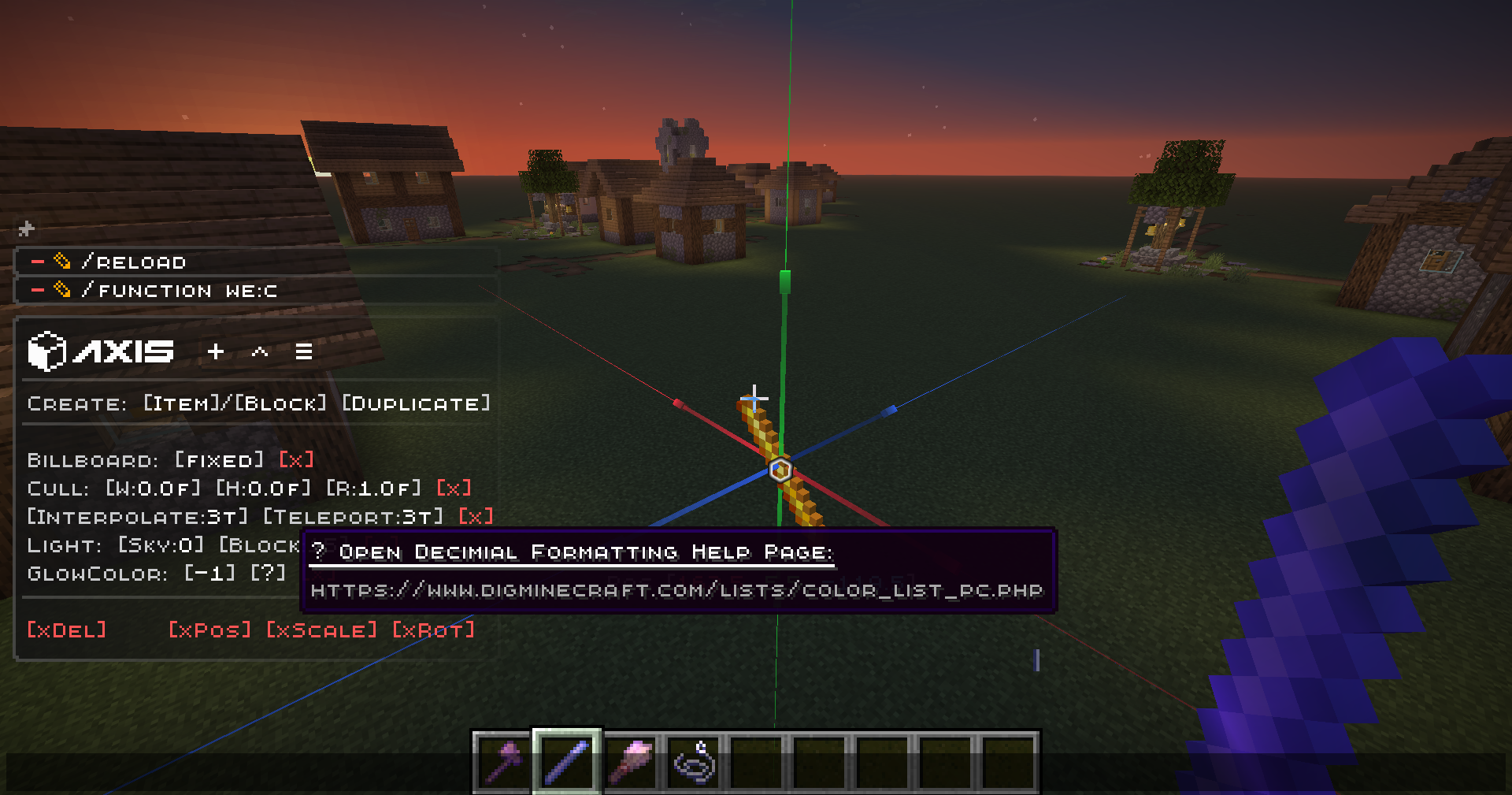
ℹ This is much more convenient to use the quick menu to modify displays than to write these commands manually. To open the menu, take the display modification tool (/function we:d/w) and select the desired display.
| Command | Aliases | Description |
|---|---|---|
| d/wand | d/w | Gives a display modification tool |
| d/create_block_display | Creates a block display entity from the item in your main hand. If the chosen item doesnt have a block state, null display (existing entity with size 0,0 and no visuals) will be summoned | |
| d/create_item_display | Creates an item display entity from the item in your main hand. If the chosen item doesnt have an item state, null display (existing entity with size 0,0 and no visuals) will be summoned | |
| d/duplicate | Creates the exact copy of the selected display entity | |
| d/billboard/center | Display will automatically rotate towards the player on both axes | |
| d/billboard/fixed | Display will NOT automatically rotate towards the player | |
| d/billboard/horizontal | Display will automatically rotate towards the player on X and Z axes | |
| d/billboard/vertical | Display will automatically rotate towards the player on Y axis | |
| d/brightness/block | Sets block brightness (light level) override for display | |
| d/brightness/sky | Sets sky brightness (light level) override for display | |
| d/culling/height | Sets display hitbox height. Setting the culling hitbox allows not to render the display entity if it is outside the border of the screen. For optimization purposes | |
| we:d/culling/width | Sets display hitbox width. Setting the culling hitbox allows not to render the display entity if it is outside the border of the screen. For optimization purposes | |
| we:d/culling/range | Sets the maximum distance from player in proportion to player's entity rendering distance (default=1) at which the entity will be rendered. (Not in blocks! If the player's entity rendering distance = 8 chunks -> the value 1 = 8 chunks, the value 0.5 = 4 chunks, etc.) | |
| d/glow_color | Changes the color of the glow effect outline. Decimial format | |
| d/interpolation_ticks | Sets the amount of ticks needed to interpolate from state1 to state2 in game ticks (State = scale, rotation, etc.) (1 second = 20 game ticks) | |
| d/teleportation_ticks | Sets the amount of ticks needed to interpolate from pos1 to pos2 in game ticks (Pos = xyz position) (1 second = 20 game ticks) | |
| d/reset_brightness | Resets block and sky brightness overrides | |
| d/reset_culling | Resets culling width, height, and view range | |
| d/reset_glow | Resets glow color and removes the glow outline | |
| d/reset_interpolations | Resets interpolation and teleportation duration | |
| d/reset_position | Resets position / snaps entity to the block grid | |
| d/reset_rotation | Resets rotation. (resets only the entity format rotation, not the quaderion format rotation) | |
| d/reset_scale | Resets scale | |
| d/remove | delete | Deletes the selected display entity |
🚀 Smart Forceloading
Smart Forceloading - edit millions of blocks even in unloaded chunks safely.
50+ Million blocks successfully replaced (in one go)
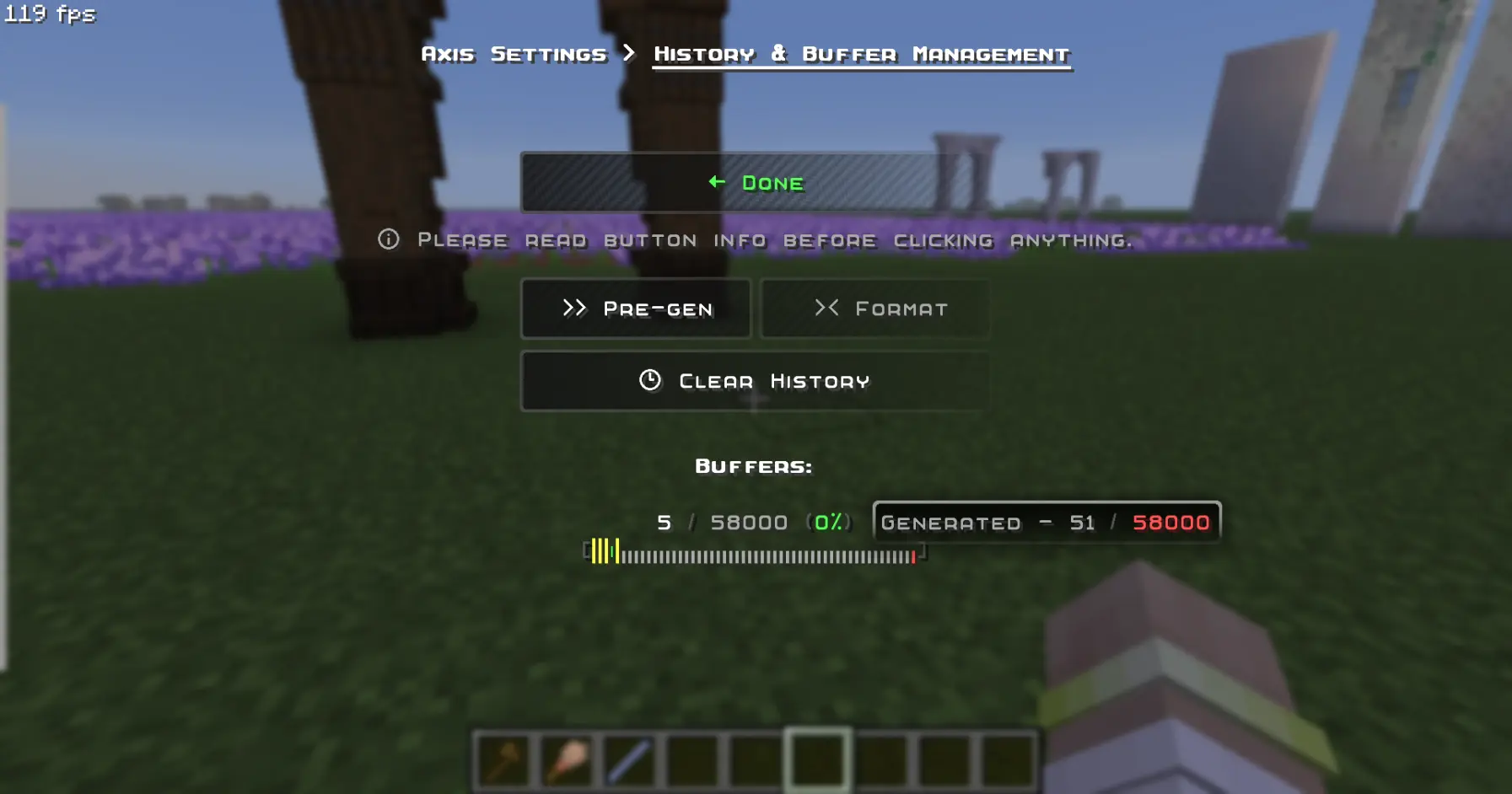
📖 Undo / Redo
Undo / Redo - so you could revert up to 58.000 actions. (in a row)
🪄 Display-Entity Modification
Display-Entity Modification - Create and edit models directly in-game.
🧩 Custom & Modded Support
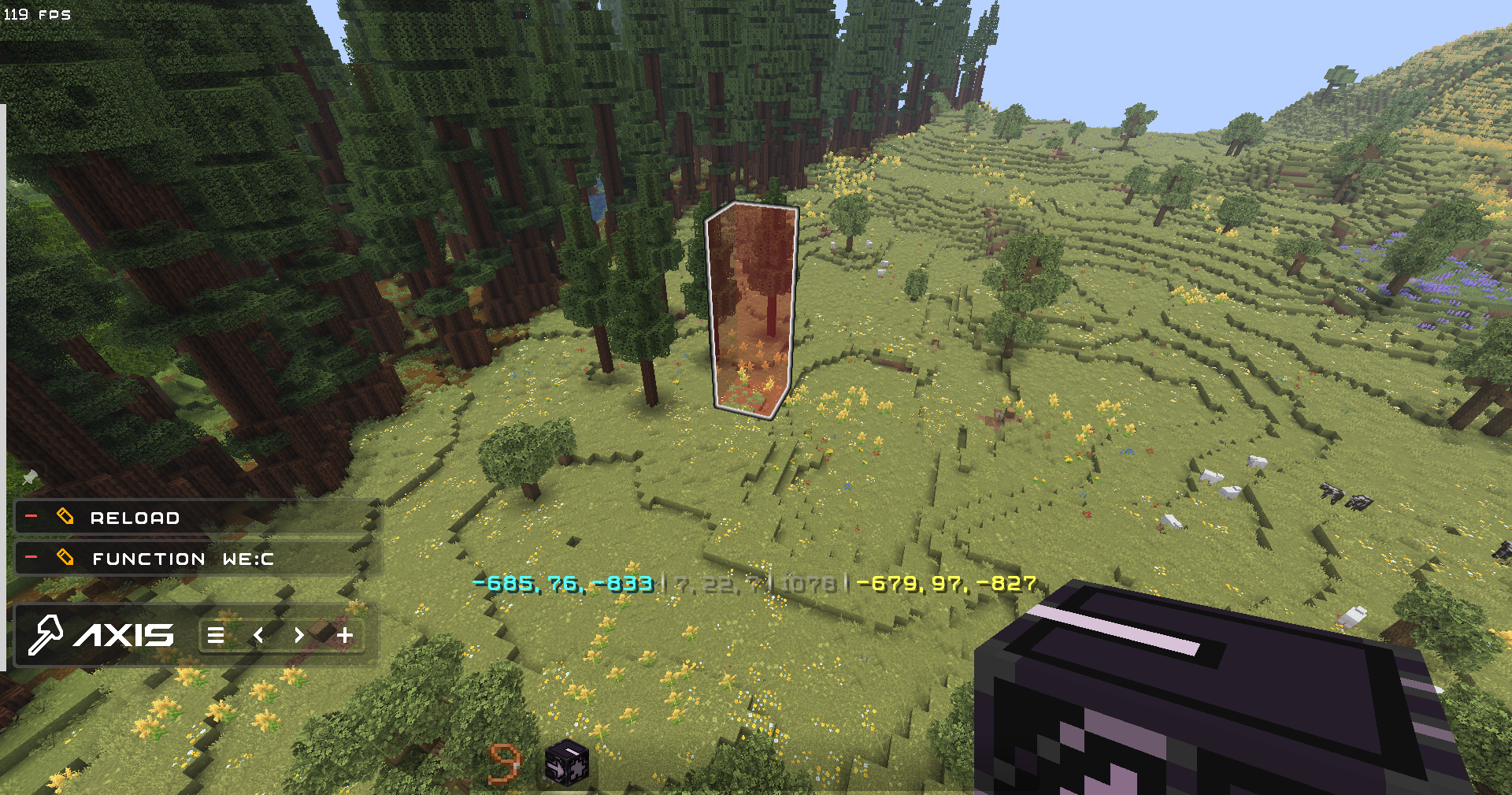
Every command Supports Custom & Modded blocks, biomes, and dimensions.
Pasting trees from Biomes O Plenty mod, consisting of modded blocks, using the PasteBrush tool:
✨ QOL
- Settings to disable all the features you don't like, and Help Menu containing descriptions for every feature and command in the datapack.
- Ghost-Flight and Boost-Flight creative abilities.
- Pinning Commands to the chat for further use in 1 click.
- Fast-Typing via chat-menu - you don't have to write functions every time - just click a button.
- Multi-Hotbar - quickly swap 9 independent hotbars.
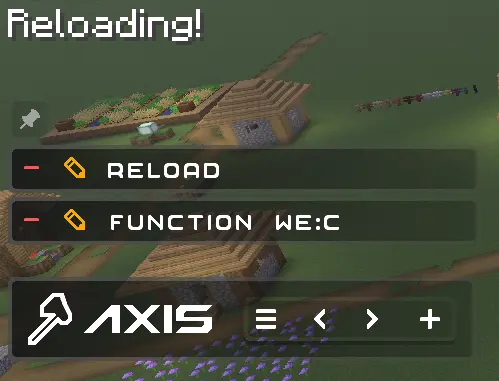
- Hot-Reload - Press key combination for instant /reload: useful for datapackers and mapmakers
🎨 Visuals & Sounds
- Color-Themes - Customize the interface appearance with presets or HEX-code colors.
- Highlighting Markers (entities) with text displays.
- Visual & Sound Feedback for many actions - immerse yourself into the process, or turn off the switches down to the bare bones.
🌐 Localizations
Don't use Google in parallel with building.
- English (en_us) - G4bc (Non-Natvie)
- Deutsch (de_de) - Corrwinn (Native)
- Русский (ru_ru) - G4bc (Native)
- Українська (uk_ua) - G4bc (Machine-Assisted)
- Español Uruguay (es_uy) - G4bc (Machine-Assisted)
- Español España (es_es) - G4bc (Machine-Assisted)
- Português Brasil (pt_br) - G4bc (Machine-Assisted)
- Português Portugal (pt_pt) - G4bc (Machine-Assisted)
- 简体中文 (zh_cn) - G4bc (Machine-Assisted)
- 日本語 (ja_jp) - G4bc (Machine-Assisted)
- More coming soon... join the community if you want to help!
🎯 Principles
Are you still reading? :з
- Forever free - The project will never be sold, and/or have a paywall (paid features), and/or have an extended paid version.
- Forever vanilla - Despite the parallel release of modded versions, the project will always continue to support vanilla (datapack) versions.
- Forever human - NO code or assets, neither in-game, on this site, or any other place assosiated with this project, were generated by AI.
- From builder, for builder - The sole goal is to be as convenient a tool as possible for builders and map-makers. If you have any problems or questions, don't hesitate to ask. Psst, there are also YouTube guides further down!
📚 Guides
📦 Installation
Video
Step-by-Step
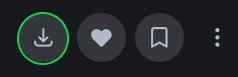
1. Look at the top right corner of the screen and click "Download".
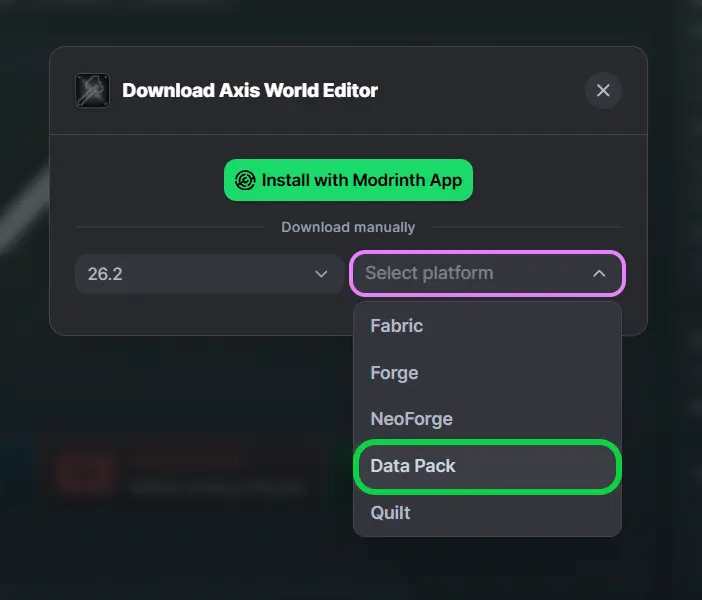
2. Select your game version, and platform "Datapack".
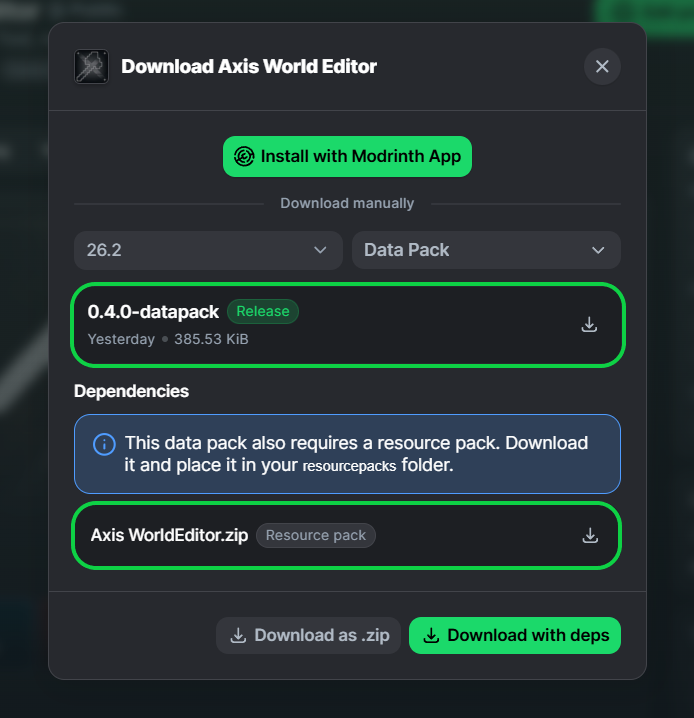
3. You will see two files for downloading: Datapack and Resourcepack - download them.
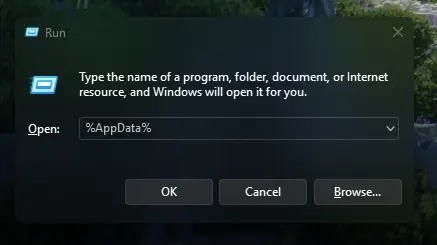
4. Press [Win] + [R] and type %AppData% in the search box and click [OK]
5. Look for the .minecraft folder and open it.
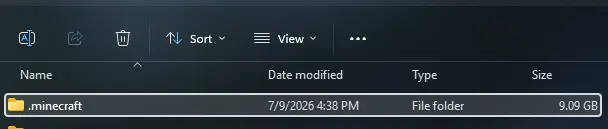
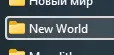
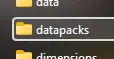
6. Put Datapack in saves\YourWorld\datapacks
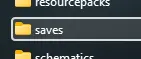
7. Put Resourcepack in resourcepacks and choose it in - game: (ESC>settings>resourcepacks)

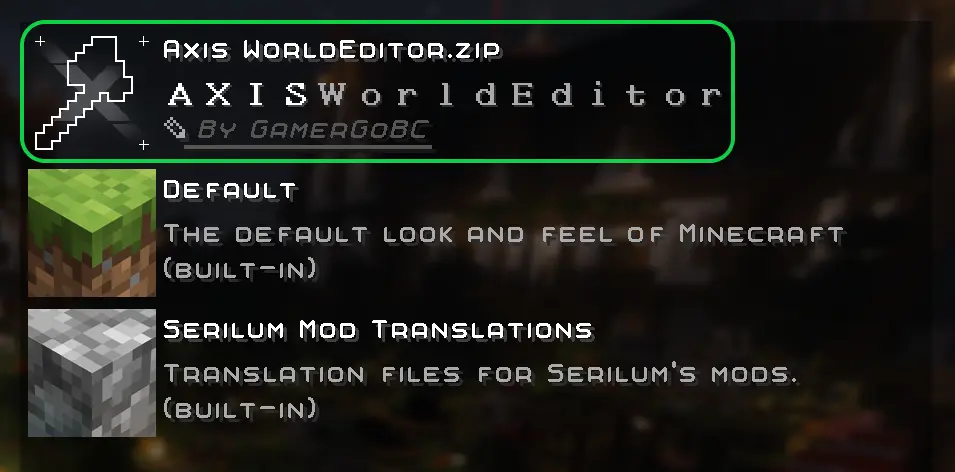
8. Rejoin your world or type /reload in chat


Axis World Editor server crashes on startup – what to do?
Common causes: the loader or Minecraft version does not match the mod file, a dependency is missing, or RAM is too low. Check the log (latest.log) for “OutOfMemoryError”, “Mixin” or missing mods. At Mado, the AI crash analysis reads the log and suggests a cause. You can change the loader and version in the panel.
Which loader does Axis World Editor run on?
According to Modrinth, Axis World Editor supports Fabric, Forge, NeoForge, Quilt for Minecraft 26.4-snapshot-9, 26.4-snapshot-8, 26.4-snapshot-7. Forge and Fabric files are not interchangeable: pick one loader for the server and clients.
How much RAM does a server with Axis World Editor need?
As guidance, 3–4 GB for a server with this mod. This is an estimate, not a measured minimum. More mods, many players and long view distances need more. The spark profiler shows whether a mod is costing tick time.
Similar mods
Popular mods in the same category
 Server-ready
VeinMiner
by Miraculixx
Mine the whole vein on mining a single ore/block. Make the tedious mining experience to something satisfying and fun! FTB Ultimine alternative
 Server-ready

Geckolib
by Gecko
A 3D animation library for entities, blocks, items, armor, and more!
 Client only

VeinMiner Hotkey
by Miraculixx
Veinminer Addon - Use a hotkey to veinmine with a dynamic crosshair & block highlighting
 Server-ready

Fzzy Config
by fzzyhmstrs
Config API with automatic GUIs, powerful validation options, server-client sync, and more!
Ready for your server with Axis World Editor?
4 GB of RAM from €8.00 per month. 35% off your first month with MADO35.