
Modrinth · Fabric
Create: Modular Tools on your Minecraft server
Create: Modular Tools runs on Minecraft servers with Fabric. Order your server, set the loader in the panel and install the mod with one click in the mod browser.
A Create mod addon that adds modular tools.
- Downloads
- 14.7K
- Author
- ZLT
- Loader
- Fabric
- Minecraft
- 1.20.1
- Updated
- –
Setup
Install Create: Modular Tools on your server
The server and players need the same loader and Minecraft version. Back up the world before adding or updating mods.
- 01
Configure
6 GB of RAM is preselected. You choose the term and add-ons and pay by credit card or PayPal.
- 02
Set the loader
In the panel, set the server software to Fabric and choose the matching Minecraft version, for example 1.20.1.
- 03
Install the mod
Search the mod browser for “Create: Modular Tools” and install the release for your loader. Alternatively, upload the .jar to the mods folder via SFTP. Required dependencies are listed on the project page.
- 04
Connect
Every player installs the same Create: Modular Tools release locally and connects using the server address from the panel.
- On the server
- Required
- On the client
- Required
- Loader
- Fabric
- Minecraft
- 1.20.1
- License
- MIT License
The panel
Install mods, find errors.
Real screenshots from the Mado panel. Both come with every Minecraft server.
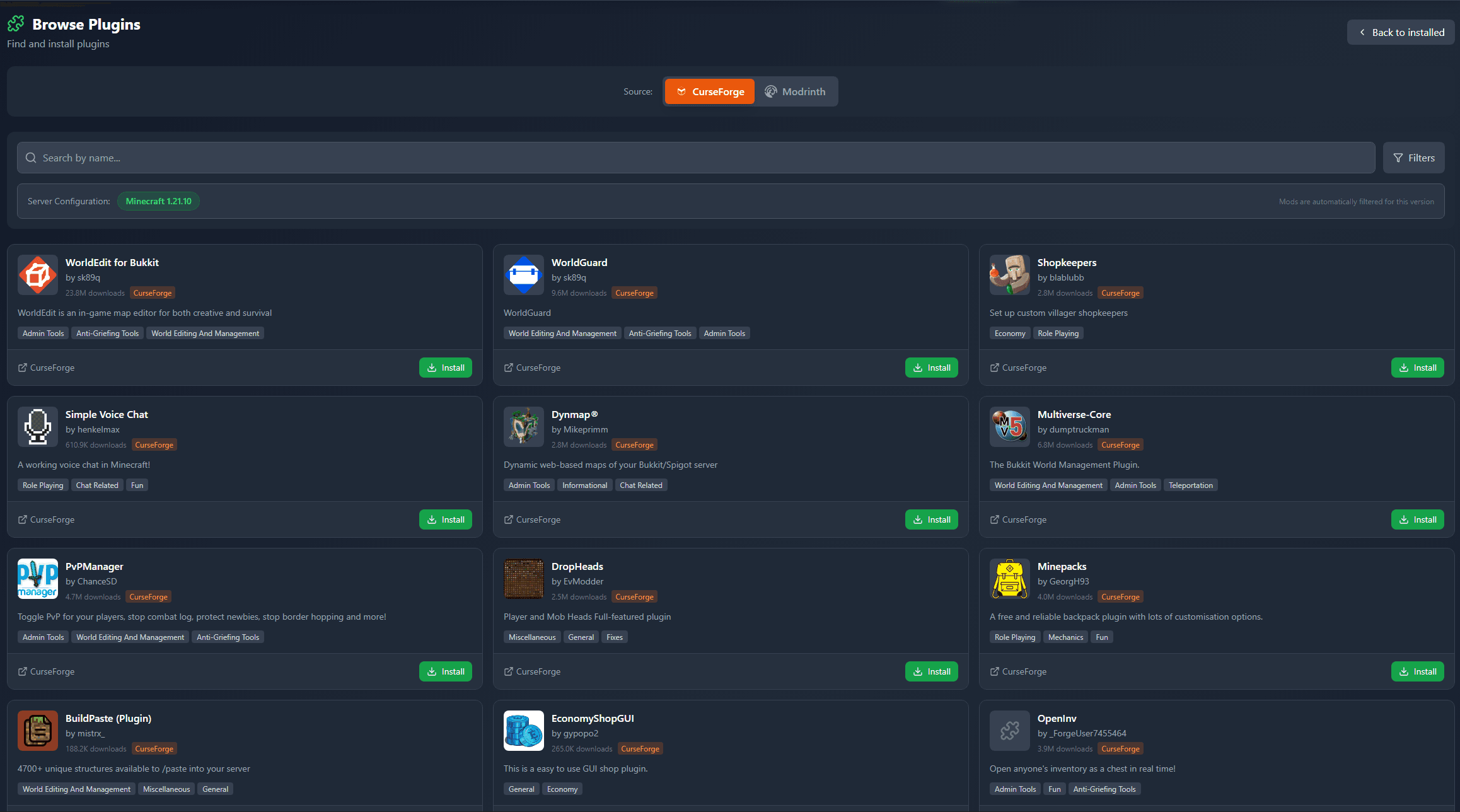
Mod browser
Modrinth and CurseForge, right in the panel.
The browser filters by your Minecraft version. Install mods with one click, without uploading .jar files.
AI crash analysis
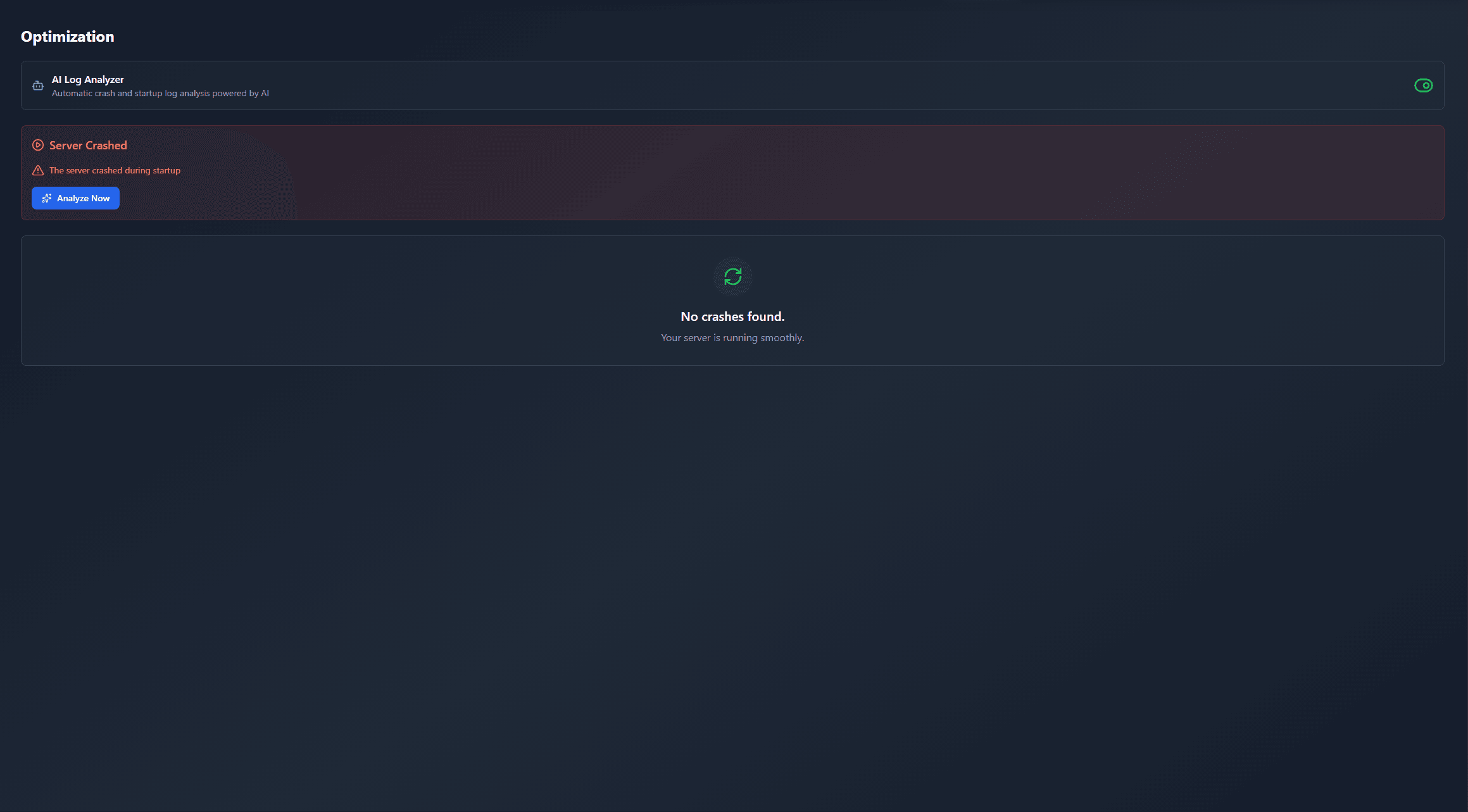
When a mod crashes, the analyzer reads the log.
Mods often fail on a wrong loader version, Java version or missing dependency. The analyzer names a likely cause and suggests a fix.
Releases
Published releases
Pick the file that matches your server’s loader and Minecraft version. The server and players need the same release.
Create: Modular Tools · ModrinthOriginal description by the project author
A Create mod addon that adds modular tools.
If you'd like to support the development of this mod, please consider donating on Ko-fi!
Melting Metals
You can melt metals by dropping their corresponding items into a super-heated Basin and mixing them using a Mechanical Mixer, similar to how Cobblestone can be melted into Lava in Create.
If you find Blaze Cakes too expensive, you can also super-heat Blaze Burners using buckets of molten metal.
Disassembling Tools
You can disassemble tools (both Vanilla and modular) into their parts by dropping them onto an up-facing Mechanical Saw.
Each part of a tool is referred to as a tool module.
Tool Modules
A tool module is a component of a tool that can be used to assemble modular tools.
Each tool module has its own stats that affect the overall performance of the modular tool. These stats include durability, attack speed, mining speed, attack damage, among others. Some tool modules also add special features. For instance:
- Netherite tool modules are fireproof, preventing the modular tool from despawning when it falls into lava or fire.
- Copper tool modules are waterproof, allowing the modular tool to mine at the same speed underwater (as long as you're standing on a block).
- Brass tool modules provide Wrenching, enabling the modular tool to function as a Wrench.
You can view the stats of each tool module in its tooltip, while holding Shift.
Not all tool modules are compatible with all types of tools. For example, pickaxe heads are only compatible with pickaxes. Compatibility details for each tool module can be found in its tooltip, by holding Shift.
Once you have a modular tool, you can view its full stats in its tooltip, while holding Shift.
Assembling Tools
You can create custom modular tools using molds and tool modules.
To craft a mold, deploy Sand onto a Bowl using a Deployer. Once created, you can place the mold down to start using it.
Initially, molds have no shape. You can interact with them while holding a tool (either Vanilla or modular) to imprint the shape of that tool onto the mold.
Once you have a shaped mold, you can interact with it while holding compatible tool modules to add them to the mold. You can also interact with tool modules in a mold to remove them. If you remove a tool module from a mold, the mold will still have the shape of that tool module. To also remove this shape, interact with it. You can keep interacting with a mold using different tools to change its shape, as long as it is completely empty.
If there are any empty slots left in a mold, you can pour molten metal into it using a Spout.
To cool and solidify the molten metal, drop the mold in front of an Encased Fan that has water in front of it.
You can use a Mechanical Press to assemble a modular tool from a completely solid mold.
Note:
If molten metal is present in a mold, you cannot add or remove tool modules, but you can still replace existing tool modules.
Permanent Tools
Modular tools do not disappear when broken. Instead, they remain in your inventory, so you can repair them later on.
Enchanting Modules
Tool modules can be enchanted individually before being assembled into a modular tool. Each module supports a specific set of enchantments based on its type. For example, sword blades can have Sweeping Edge, but pickaxe heads cannot.
When assembling a modular tool using a mold with enchanted tool modules, the resulting tool combines the enchantments of its modules following Vanilla rules. For example:
- Two modules with Unbreaking 2 will result in a tool with Unbreaking 3.
- A module with Unbreaking 2 and another with Unbreaking 1 will result in a tool with Unbreaking 2.
This behavior mirrors the process of combining enchantments on an anvil in Vanilla Minecraft.
Enchanted tool modules also allow modular tools to surpass Vanilla enchantment level limits. For instance, two modules that each have Unbreaking 3 will result in Unbreaking 4. This even applies to enchantments with a maximum level of 1, such as Mending, allowing modular tools to have Mending 2. However, curses are the exception, so a modular tool cannot have Curse of Vanishing 2, for instance.
Note: When combining enchanted books in Vanilla Minecraft, the resulting book depends on the levels of the input books:
- If the levels differ, the resulting enchantment matches the higher level. For example, Unbreaking 2 + Unbreaking 1 = Unbreaking 2.
- If the levels are the same, the resulting enchantment is one level higher. For example, Unbreaking 2 + Unbreaking 2 = Unbreaking 3.
Create: Modular Tools uses the same system when assembling tools with enchanted modules, but with one key difference: molds can accept more than two inputs. The combined enchantments are calculated iteratively:
- Three modules with Unbreaking 3 + one module with Unbreaking 2 = Unbreaking 4 (3 and 3 makes 4, then 4, 3, and 2 cannot combine further).
- Four modules with Unbreaking 3 = Unbreaking 5 (3 and 3 makes 4, 3 and 3 makes another 4, and 4 and 4 makes 5).
Unlike enchantments, features don't have levels. For example, combining two Fireproof modules will not result in Fireproof 2; the tool will simply retain the Fireproof feature.
You can preview the enchantments and features your tool will have by checking the mold's tooltip or placing it down and inspecting it with Engineer's Goggles from Create.
Once assembled, you can continue enchanting your modular tools directly, without needing to worry about the individual modules, just like with Vanilla tools. However, surpassing Vanilla enchantment level limits is only possible by enchanting the modules individually before assembling the tool.
Disassembling an enchanted modular tool will return all of its modules with their enchantments intact. If you enchanted the tool directly after assembly, you'll also receive the original enchanted books you used, ensuring you don't lose any.
Create: Modular Tools server crashes on startup – what to do?
Common causes: the loader or Minecraft version does not match the mod file, a dependency is missing, or RAM is too low. Check the log (latest.log) for “OutOfMemoryError”, “Mixin” or missing mods. At Mado, the AI crash analysis reads the log and suggests a cause. You can change the loader and version in the panel.
Which loader does Create: Modular Tools run on?
According to Modrinth, Create: Modular Tools supports Fabric for Minecraft 1.20.1.
How much RAM does a server with Create: Modular Tools need?
As guidance, 4–6 GB for a server with this mod. This is an estimate, not a measured minimum. More mods, many players and long view distances need more. The spark profiler shows whether a mod is costing tick time.
Similar mods
Popular mods in the same category
 Server-ready
VeinMiner
by Miraculixx
Mine the whole vein on mining a single ore/block. Make the tedious mining experience to something satisfying and fun! FTB Ultimine alternative
 Client only

VeinMiner Hotkey
by Miraculixx
Veinminer Addon - Use a hotkey to veinmine with a dynamic crosshair & block highlighting
 Server-ready
Curios API
by TheIllusiveC4
A flexible and expandable accessory/equipment API for users and developers.
 Server-ready

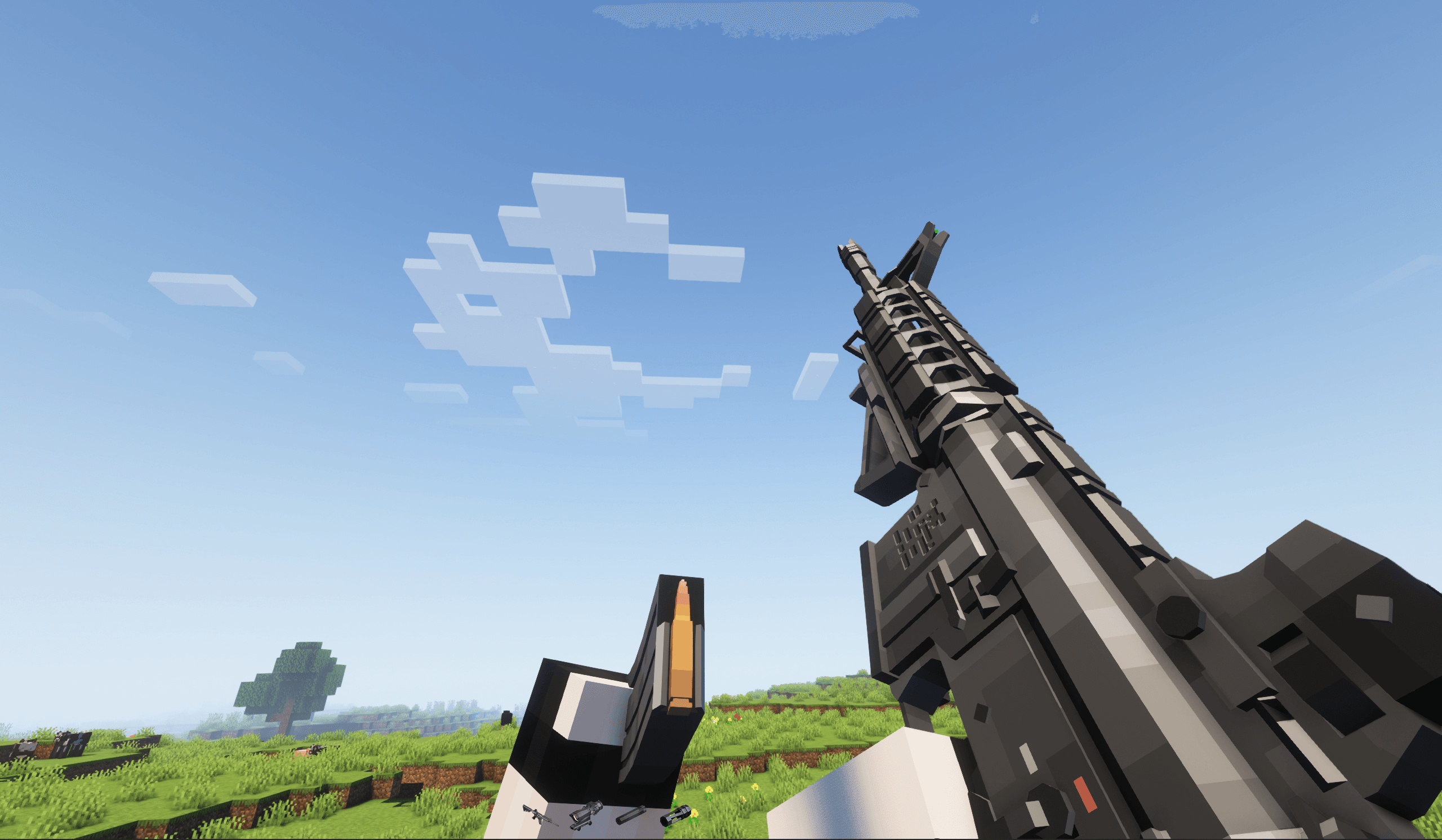
[TaCZ] Timeless and Classics Zero
by craneblock6666
The most Immersive and Customizable modern FPS experience in Minecraft - A complete Remaster of the TaC gun mod by the original team.
Ready for your server with Create: Modular Tools?
6 GB of RAM from €12.00 per month. 35% off your first month with MADO35.